I’m trying to use LocalSend to transfer files between two devices on the same Wi-Fi network, but one device won’t show up in the app. I’ve already checked that both devices are connected, reopened the app, and tried again, but LocalSend still is not detecting the other device. I need help figuring out what settings or network issue could be blocking device discovery so I can send files normally.
I hit the same LocalSend problem a few days ago. Phone was on Wi-Fi, laptop was on Wi-Fi, both looked fine, and still nothing showed up. After poking through router and firewall settings, I found a few usual failure points.
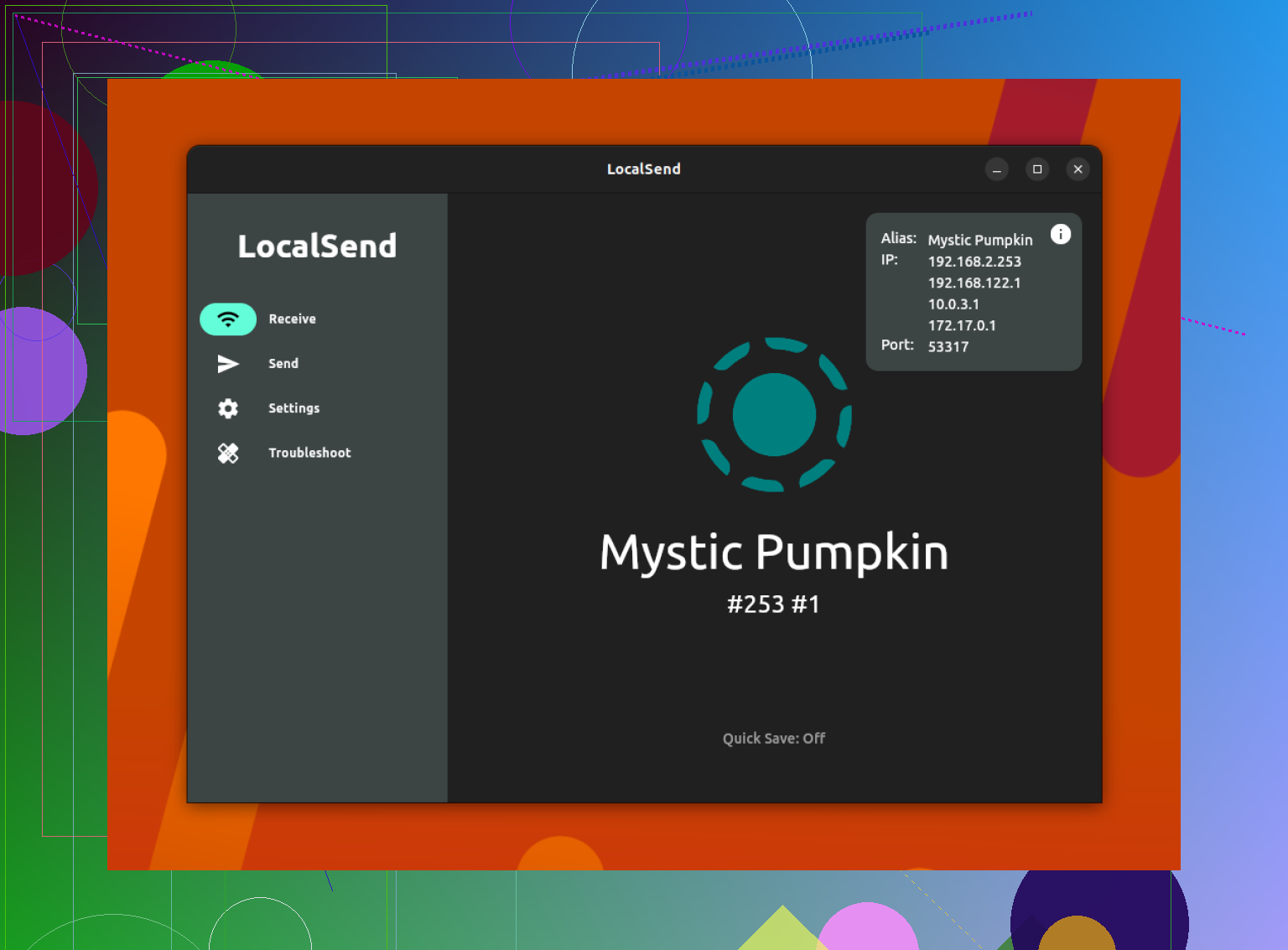
If LocalSend keeps acting blind, these are the spots I would check first.
Where LocalSend Usually Breaks
-
Same Wi-Fi name, same network. This trips people up all the time. If one device is on guest Wi-Fi, or one is sitting on 2.4 GHz while the other joined a separately named 5 GHz network, they might not see each other at all. I had to stop and compare the SSID on both screens. If the names do not match exactly, fix that first.
-
Router isolation setting. Some routers block device-to-device traffic by default. You will usually see this called AP Isolation or Client Isolation. Internet still works, which makes it annoying to diagnose, but local discovery fails. I logged into the router panel, checked wireless settings, and turned it off.
-
Windows firewall blocking the app. On one PC I tested, LocalSend was installed but the firewall had it half-blocked. The port it uses is 53317. I allowed the app through for inbound and outbound traffic. If you do it manually, open port 53317 for both TCP and UDP.
-
VPN still running in the background. This one got me once. A VPN shifts traffic away from your local network, so your devices stop looking local to each other. I turned the VPN off on both ends and the device list came back.
-
LocalSend itself got stuck. Sometimes the app server hangs and sits there doing nothing. I restarted the network server inside LocalSend settings on both devices. After that, it started behaving again.
Other Tools Worth Trying
If your network is messy and LocalSend keeps failing, I would try Syncthing or KDE Connect. They handle local transfers in a different way, and I’ve seen them work on setups where LocalSend kept refusing to detect anything.
For Mac and Android
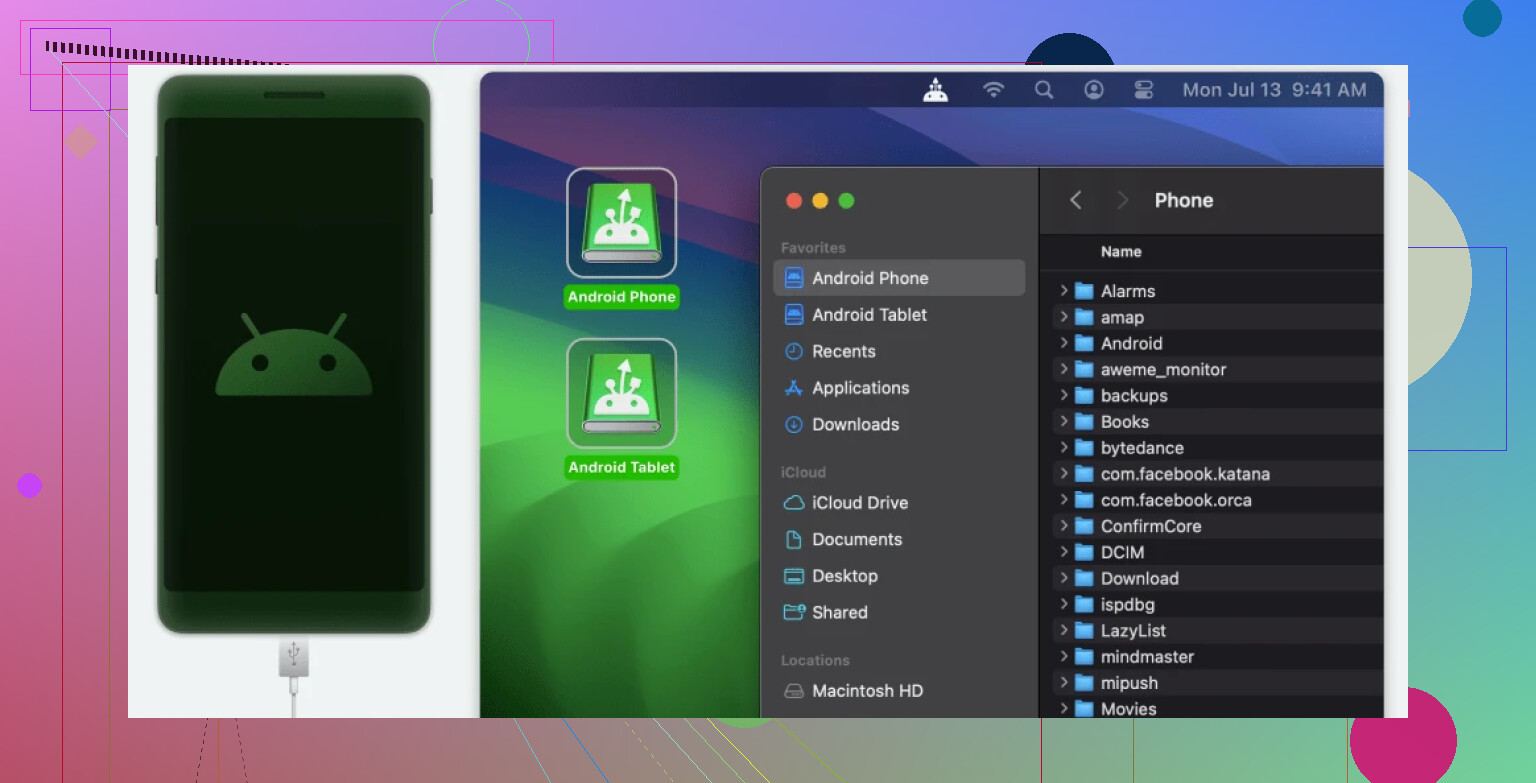
If your setup is Mac plus Android, MacDroid is one route I’ve seen work well. It mounts the Android device in Finder like regular storage, so you deal with files the same way you would with a folder or external drive.
A lot of people use it over USB, which is the part I’d trust most when Wi-Fi transfer apps keep flaking out. It also supports wireless mode over Wi-Fi if you want to skip the cable.
Connecting Android to Mac with MacDroid Over USB
-
Install MacDroid and open it. Plug in the Android phone with a USB cable. In the app, open the Devices section and pick your phone from the list.
-
Choose ADB or MTP mode. Follow the prompts on screen and approve the connection on the phone and computer.
-
Once the device is confirmed, open Finder and access the phone there. From that point, moving or editing files feels normal.
Why a USB Cable Solves So Many Transfer Problems
After wasting time on flaky wireless transfers, I ended up back on a cable. It fixed the usual pain points fast.
-
Transfers stop crawling. Wi-Fi speed jumps around based on signal strength, router load, and random interference. USB is steady. If you are moving 4K clips or a giant photo dump, the difference is obvious.
-
No cloud storage costs. Moving 50 GB from a phone to a computer through cloud storage gets expensive fast if you are out of free space. A USB copy stays local. No upload, no extra subscription, no waiting for sync.
-
Fewer broken or missing files. Wireless transfers sometimes fail halfway through and leave you sorting out what copied and what didn’t. Over USB, I’ve had far fewer partial transfers. Since the phone shows up in Finder, it is easy to compare folders and make sure file counts line up.
11 Likes
A few extra checks, since @mikeappsreviewer already covered the common network stuff.
First, check the device name inside LocalSend. I had one phone set to invisible after an app update. Open LocalSend settings and confirm discovery is enabled and the app has local network permission. On iPhone and Mac, this permission matters a lot. If you denied it once, LocalSend will sit there doing nothing.
Second, test with mobile hotspot for 2 minutes. Put both devices on one hotspot, open LocalSend, see if they appear. If they do, your home network is the problem. If they still do not, it is the device or app config. This saves a ton of time.
Third, check IPv4 vs IPv6 weirdness. Some routers hand out odd local addressing and some apps get flaky. If LocalSend shows an IP on one device but not the other, toggle Wi-Fi off and on, then renew DHCP lease if your OS allows it. I would also forget the network and reconnect. Annoying, but it fixes stale leases.
Fourth, battery saver. On Android, aggressive battery settings kill background discovery. Set LocalSend to unrestricted battery use. On some brands, if the screen is off, the app gets put to sleep fast. Kinda dumb, but it happens.
I disagree a bit on jumping straight to a cable unless you move huge files often. LocalSend is usuallly fine once permissions and discovery are sorted out. Still, if this is Mac plus Android and you want zero Wi-Fi drama, MacDroid is a solid fallback. USB is less fussy, and Finder access is nicer than fighting network detection for 30 mins.
One thing I’d check that @mikeappsreviewer and @kakeru didn’t really dig into is time and subnet weirdness.
If one device has a manually set IP, or your router handed out something odd like 192.168.0.x to one device and 192.168.1.x to the other, LocalSend discovery can get flaky even though both “have internet.” Same story if one device is using Private Wi-Fi Address or randomized MAC settings and your router is being weird about it. I’ve seen that break local discovery more than once.
Also, try sending by manual IP inside LocalSend instead of waiting for auto-detect. If manual IP works, the issue is discovery, not the transfer itself. That narrows it down fast.
Another sneaky one is system date/time being off. Sounds dumb, but I had one tablet with the wrong time after a reboot and a couple of local apps acted busted until it re-synced.
If this is Android to Mac specifically, I honestly wouldn’t spend forever chasing Wi-Fi ghosts. LocalSend is nice when it works, but if you need reliable file transfer from Android to Mac, MacDroid is a pretty practical fallback. USB is less annoying, and Finder access is way easier than redoing network settings for the tenth time.
So my order would be:
- Compare local IP ranges on both devices
- Disable randomized MAC / Private Wi-Fi temporarily
- Try LocalSend manual IP connect
- Make sure date/time is automatic
- If it’s Mac + Android and still being dumb, use MacDroid and move on
Sometimes the app isn’t broken, the network is just being stupid tbh.