I’m setting up ID scanning over RDP for my team at work, and the scanner goes dark when I connect to the remote host. It works locally, but the remote session doesn’t see it, which is frustrating. What needs to be configured to make the scanner available on the host?
Which scanner model, local operating system, and remote host are you using? Those details determine which redirection options are available. Working locally doesn’t automatically make the scanner available remotely. RDP needs a supported way to redirect the device, and USB-level redirection requires its driver on the remote host. I wouldn’t diagnose a power problem from the dark indicator alone.
If you’re using Windows Remote Desktop Connection, have IT check the client-side policy “Allow RDP redirection of other supported RemoteFX USB devices from this computer.” For ordinary staff accounts, its access setting needs to include “Administrators and Users.” After applying the policy and restarting the local computer, open Show Options > Local Resources > More and look under “Other supported RemoteFX USB devices.” Select the scanner if it appears. This is conditional on your client and host supporting that redirection method, not a universal scanner checkbox.
The host needs configuration too. Have IT check “Do not allow supported Plug and Play device redirection” under Remote Desktop Session Host > Device and Resource Redirection. For this USB redirection route, set it to Disabled, apply the policy, and restart the host during a maintenance window. Install the manufacturer’s scanner driver on that host, rather than assuming the local installation carries across. Then test detection there before troubleshooting your ID-scanning application.
If native redirection isn’t suitable, the alternative for getting an ID scanner to RDP is a USB-forwarding tool installed at both ends. With FlexiHub, you install it on the scanner’s computer and the remote host, sign in, then connect to the shared scanner from the host’s FlexiHub interface. That makes the forwarded device available to the remote machine. (help.electronic.us)
For your team setup, I’d recommend FlexiHub specifically for its device isolation: you can assign the scanner to a particular user or session on a shared host. That’s a genuinely useful feature when several employees use the same server. (flexihub.com) Before rolling it out, have IT approve the setup and test with two staff sessions open, checking that only the intended user can access the scanner.
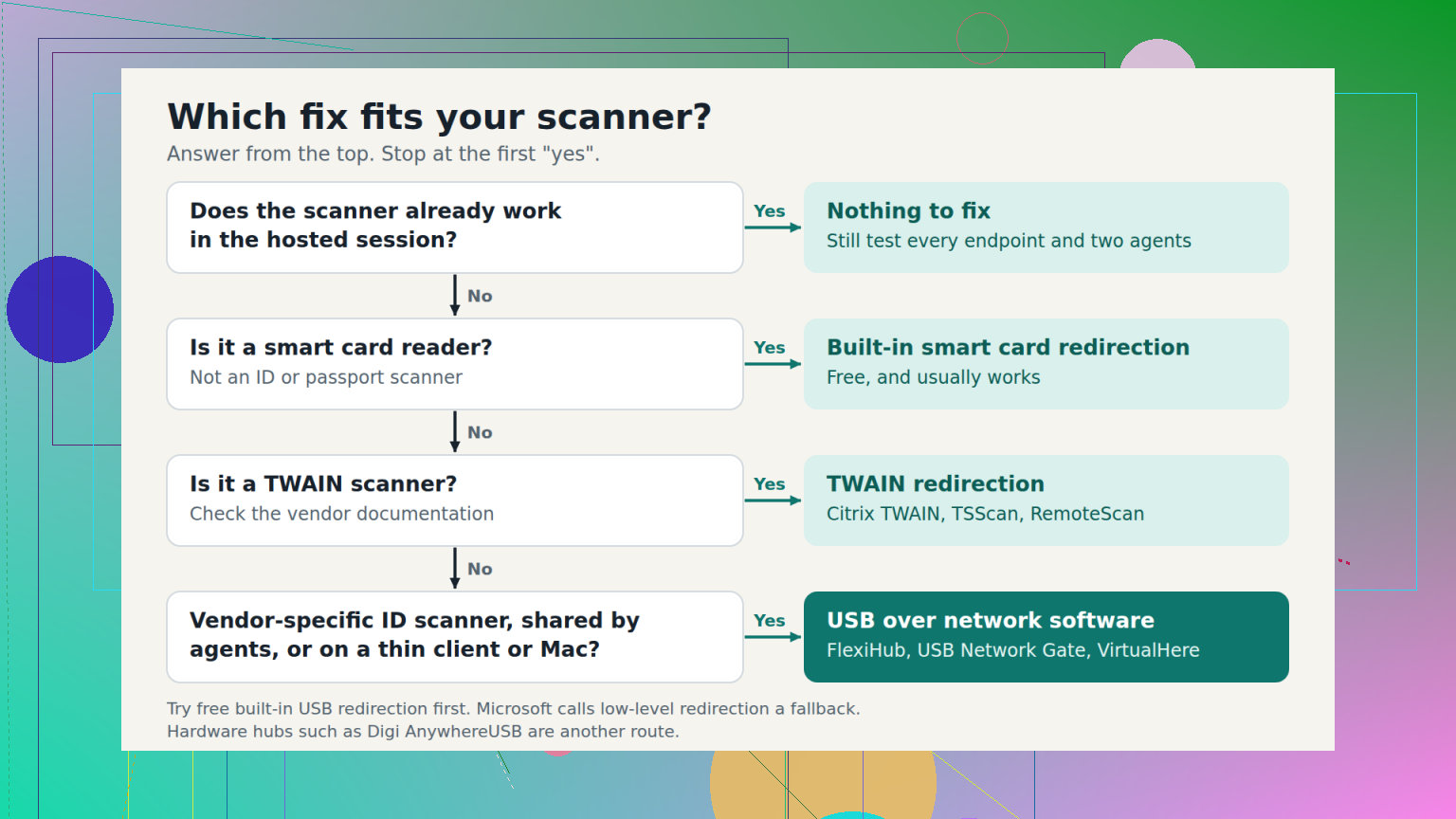
Does it fail on a fresh remote login, or only after you disconnect and reconnect? That distinction is worth checking before changing policies. For the USB-forwarding route, I’d use FlexiHub, with the app installed on the scanner’s computer and the remote host. (help.electronic.us) But I’d extend @leo82’s detection test: close the ID software, connect the scanner remotely, then reopen the software and try a scan. Repeat after an RDP disconnect and reconnect. For a team, I’d want to know whether staff need to reconnect the device or restart the scanning software between sessions, not just whether the first scan works.
5 Likes
Scanning locally and uploading the result could leave extra copies of people’s IDs on employees’ computers. I’d want that sorted out before treating it as an easy workaround, especially if everyone starts saving scans to their desktop.
The distinction I’m trying to understand is whether your remote application needs to control the scanner, or whether it just needs the finished image. Those sound like different requirements to me. Before working through the USB settings, I’d check whether the application has an import option and whether your team is allowed to use it. If both answers are yes, you could investigate keeping the scanner local and transferring the finished scan through a company-approved method. That might avoid needing to pass the device into RDP at all.
If the application has to capture directly from the scanner, then that shortcut wouldn’t solve your problem. I agree with @novavision3119 about testing an actual scan, but I’d make it the whole task your staff performs. For example, if your process needs both sides of an ID, getting a single image into the remote application wouldn’t be enough to call the setup ready.
Before choosing between those routes, I’d ask whoever manages the ID software a very specific question: “Can we import scans, or does this workflow require a directly connected scanner?” As a beginner, that’s the missing detail I’d need before deciding whether to spend time on device redirection or on an approved file-transfer process.
Passing the scanner through can take it away from the local computer. With RemoteFX USB redirection, it’s available to one remote session at a time, not to local and remote apps together. That’s a catch if your team expects to switch between desk work and remote scanning.
I’d separate that ownership question from the dark indicator. Close the local scanning software, including any scanner utility sitting in the system tray, then try the remote connection. For this check, leave the local software closed rather than reopening it to see whether the scanner still works there.
@leo82’s session-isolation point addresses who should get access, but I’d want a clear way to give the scanner back, too. Once you have a working remote scan, deliberately release the device through whichever redirection tool you chose and check whether local scanning returns. Treat that as a separate test from disconnecting the RDP window.
For a shared workstation, I’d put the claim-and-release steps in the staff instructions before rollout. Ask IT to make the recovery procedure specific: where to check who has the scanner, how to release it, and what to do if release fails. I wouldn’t make “unplug it until it works” the handoff procedure.
A keyboard-wedge barcode reader and a document ID scanner behave nothing alike over RDP, and that difference explains a lot of the pain here. The first type just types characters, so the remote app sees ‘keystrokes’ and nobody has to touch redirection settings. The second type is a real USB device that needs its own driver to enumerate and hand over an image. If yours goes dark the moment the session grabs it, you almost certainly have the second kind, which means @leo82’s driver-on-the-host point is the real blocker, not a checkbox you missed.
The dark indicator usually just means the device got detached from the local stack and handed to the session, then found nothing on the other end that knew how to talk to it. No driver on the host equals a scanner sitting there powered-but-useless. So before anyone restarts hosts during a maintenance window, confirm the exact model name and whether the vendor even ships a Windows driver that installs server-side. Some consumer ID scanners only ship a desktop utility and never work headless on a session host. That’s a dead end worth finding early.
@iron_badger is poking at the right thing and I’d push it harder. If your ID software has a plain ‘import image’ path, you may not want the device in RDP at all, and you dodge the whole claim-and-release headache @crystallogic described. The catch is compliance, not convenience: scans sitting on local desktops is a problem, but so is a half-documented handoff where staff ‘release’ a device nobody can track. Pick the model that leaves the fewest copies of people’s IDs lying around and the fewest manual steps for someone to forget.
If the app truly needs a live device and the native RemoteFX route is flaky with your model, forwarding over something like FlexiHub is the usual fallback, just remember it rides your network and leans on its own sign-in, so a shaky VPN or an expired account takes the scanner down in a way staff won’t diagnose on their own. My actual advice: get one host working end to end, the full two-sided scan @novavision3119 mentioned, with one test account, and write the recovery steps while it’s fresh. Roll out to the team only after a second session has stolen and returned the device cleanly. If release ever fails silently, you want that discovered on your test rig, not at a front desk with a line of people.
Don’t use real customer IDs for troubleshooting, especially if you’ll be sending screenshots or logs to support. Ask the scanner vendor for a suitable test document, then try the remote scan under a regular staff account. Check where the remote application saves the image and what appears in its logs before testing with anyone’s actual ID.
Don’t change redirection policies, install drivers, and add a forwarding tool all in the same troubleshooting pass. You’ll lose track of what actually fixed or broke detection. Have IT record three checkpoints: whether the host detects the scanner, whether the vendor’s scanning utility can capture there, and whether your ID application can capture under the same staff account. Change one setting between tests. I’d push back on @dragon.ai’s driver diagnosis until those results are available. The useful distinction is where detection stops, not what the indicator light does.