My iPad Photos app isn’t showing the Duplicates album, even though I can clearly see several duplicate pictures in my library. I’ve tried waiting and checking the Albums section, but nothing appears. I need help figuring out why iPad duplicate photo detection isn’t working and how to merge or remove these duplicates.
The fastest way to deal with this is to start with a cleaner app, especially if your library is full of photos that are “basically the same” but not exact duplicates.
I had the same issue on my iPad. Years of trip photos, screenshots, random videos, and five versions of the same shot had all piled up. I tried doing it by hand at first, but it was way too slow.
Use a photo cleaner app first
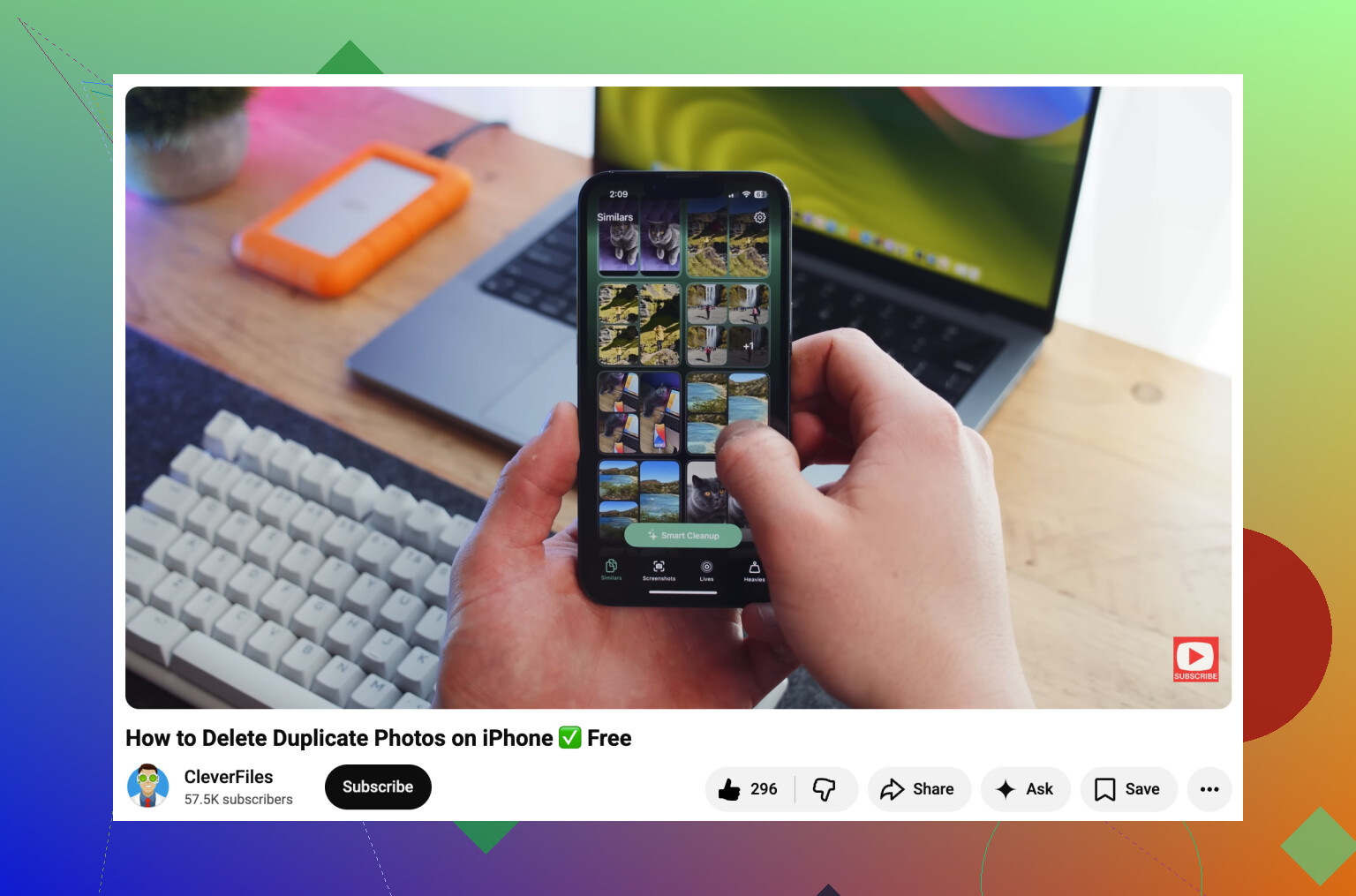
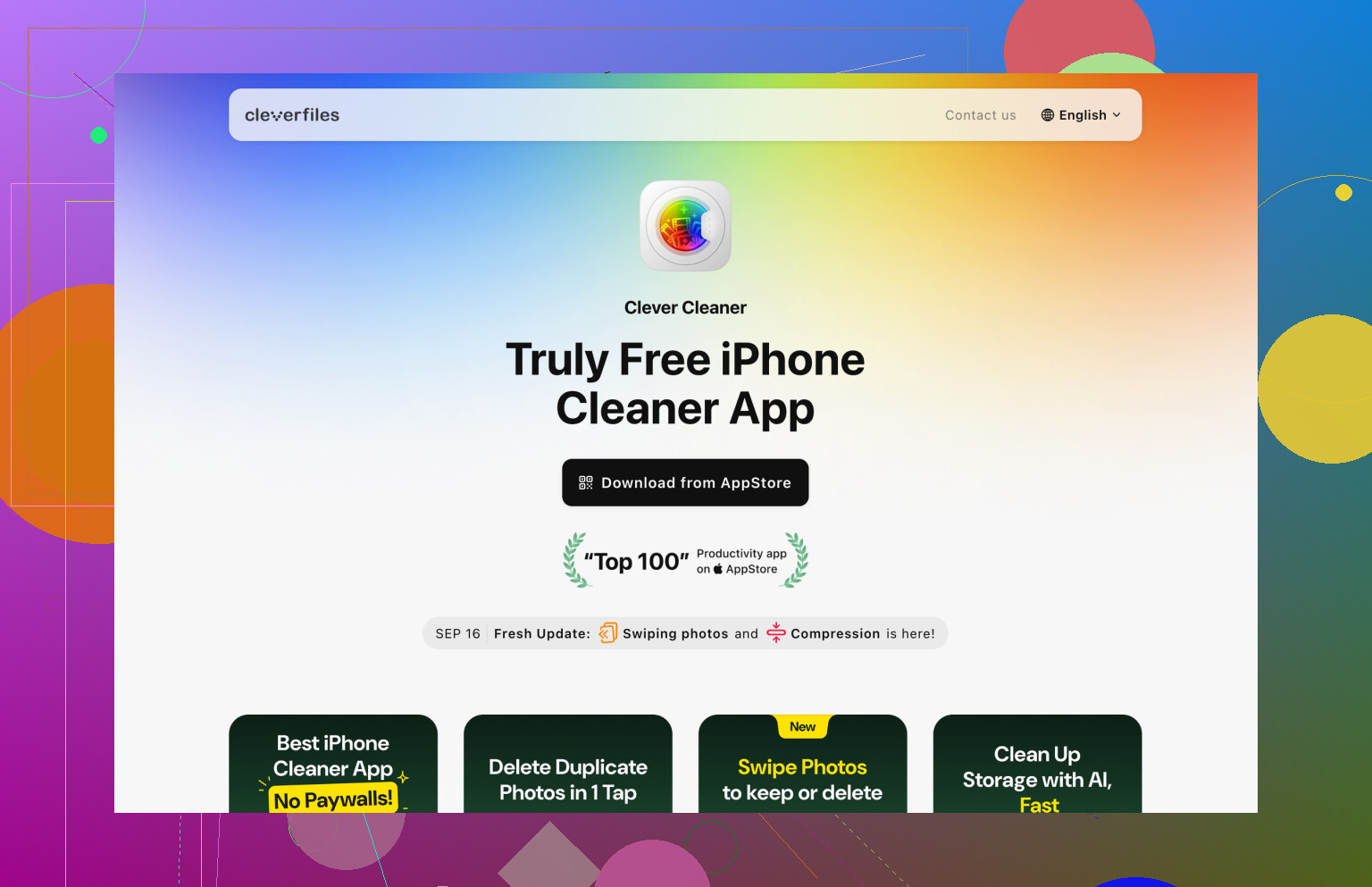
I used Clever Cleaner because it’s free to use and it catches more than just perfect duplicates. The useful part is the Similars feature. It groups photos that look almost identical, which is usually the real problem with an iPad photo library.
Apple may ignore those because the files are technically different, but a cleaner app can still group them together. Clever Cleaner also suggests a Best Shot, so instead of staring at ten nearly identical vacation photos, you can keep one and delete the rest pretty quickly.
It also helps with stuff that quietly eats storage over time, like screenshots, large videos, and Live Photos. Those categories alone can free up a surprising amount of space.
Check Apple’s Duplicates album too
If you don’t want to install anything, Apple does have a built-in option. On iPadOS 16 or newer, open the Photos app, scroll down to Utilities, and look for the Duplicates album.
When Photos finds exact duplicate images, it gives you a Merge button. That doesn’t just randomly delete one copy. Apple keeps the version with the best quality and most complete metadata, then sends the extra copies to Recently Deleted.
It works fine, but only for true duplicates. If you took several photos a second apart, changed the angle a little, cropped one, or edited one version, Apple will usually treat them as separate photos.
If the Duplicates album isn’t showing up, it’s probably one of these:
- Your iPad is still scanning the library. Leave it locked and plugged in for a while.
- You’re on iPadOS 15 or older, which doesn’t have that feature.
- There just aren’t any exact duplicates for Apple to show.
Manual search is still useful
If you’d rather avoid apps completely, use search inside Photos instead of scrolling forever. Search for things like Screenshots, Receipts, Beach, Dog, or a city name. You can also browse by Months or Years if you know a certain vacation or event created a ton of clutter.
It’s slower than a cleaner app, but still much better than going through the whole library one photo at a time.
Empty Recently Deleted
One thing people forget: deleting photos doesn’t free the space right away.
They go to Recently Deleted and can stay there for up to 30 days. If you want the storage back now, you need to empty that album too.
Also, if iCloud Photos is turned on, deleting photos from your iPad deletes them from your iPhone, Mac, and anything else using the same Apple Account. That may be what you want, but double-check before permanently removing a bunch of photos.
After the first big cleanup, it gets a lot easier. Spending a few minutes every month clearing out new junk is way less painful than waiting until the library is a total mess again.
4 Likes
If you’re seeing the same picture in Recents and then again inside an album, that may not be a duplicate at all. Albums in Apple Photos are more like playlists, so the same photo can appear in multiple places while still being only one file. That would explain why the Duplicates album never shows it. Open the photo, swipe up for the info, and compare the date, file name, and size with the other one you think is a copy. If it’s the same library item, Apple has nothing to merge. If they really are separate files, then I agree with the earlier point that Photos may still be indexing or may simply not consider them exact enough to count.
The built-in Duplicates album is more conservative than people expect. It is not looking for “these two photos look almost the same to me.” It is looking for items Photos feels safe merging, so a resized copy, a screenshot of the same image, a photo saved from Messages, or an edited version may never show there.
I’d be careful trying to force it by turning iCloud Photos off and on or reinstalling things. That can create a long resync and sometimes makes the library more confusing, especially if you have Optimize iPad Storage enabled. The boring test is usually better: update iPadOS if needed, plug the iPad in, lock it overnight, then check Photos > Albums > Utilities again. If Duplicates still isn’t there, Photos probably has not found anything it considers mergeable.
@mikeappsreviewer is right that a cleaner app can be better for “similar” shots, but I would still review before deleting anything. Those apps can group a burst of photos, screenshots, and edited versions together, which is useful, but “best shot” is still a guess. If you want a safer manual check, pick two photos you think are duplicates, swipe up on each, and compare the file name, resolution, date, and source. If any of that differs, that is probably why Apple is ignoring them.