My iPhone storage is almost full, and I noticed a big difference between the space used by Applications and System Data. I’m not sure what each one includes or why System Data keeps growing. Can someone explain the difference and how to reduce iPhone System Data storage safely?
I ran into the same mess on my iPhone, and yeah, the storage screen makes it look worse than it first seems. You look at your apps, count maybe 20 of them, none seem huge, then ‘Applications’ is eating a giant chunk of space. I had the same reaction. The math looked off.
What tripped me up was this. ‘Applications’ does not mean only the app package you downloaded from the App Store. iPhone groups more stuff into it.
It includes your app data, so saved logins, preferences, downloaded content, and bits tied to how you use each app. It also includes support files, like extra resources or language files. Then there is cache, which is usually the part doing the most damage. Social apps stash images and video previews. Browsers keep site data. Games pile up assets over time. So even if you install nothing new, the number grows because your existing apps keep hoarding temp files.
A lot of people mix this up with System Data. They are not the same bucket. App storage is tied to apps you installed. System Data is iPhone stuff, fonts, dictionaries, Siri voices, logs, indexing, and similar background junk. Both grow. You have more direct control over the app side.
What helped me first was offloading apps instead of deleting everything. Go to Settings > General > iPhone Storage, open an app, then hit Offload App. This removes the app itself but keeps its documents and data. So if you reinstall it later, your stuff is still there. I used this on apps I opened once every few months.
For some apps, you need to clear the junk from inside the app. Telegram has its own cache controls. Safari is in the main Settings app. Go to Safari > Clear History and Website Data. If an app gives you no cache option, the blunt fix is delete it and install it again. Annoying, yep. It works.
I noticed the issue once my phone started acting weird. Camera opened slow. Apps dumped me out to the home screen. I kept getting the storage warning. After digging around, I found low free space was part of it. iPhones seem to need some room left over, around 6 GB was the number I kept seeing and it tracked with what I felt on my own phone. When storage gets squeezed too hard, the whole thing drags.
I tried cleaning by hand and got tired of it fast. Too many menus. Too much guessing. So I ended up trying a cleanup app. The one I found was Clever Cleaner, from this video:
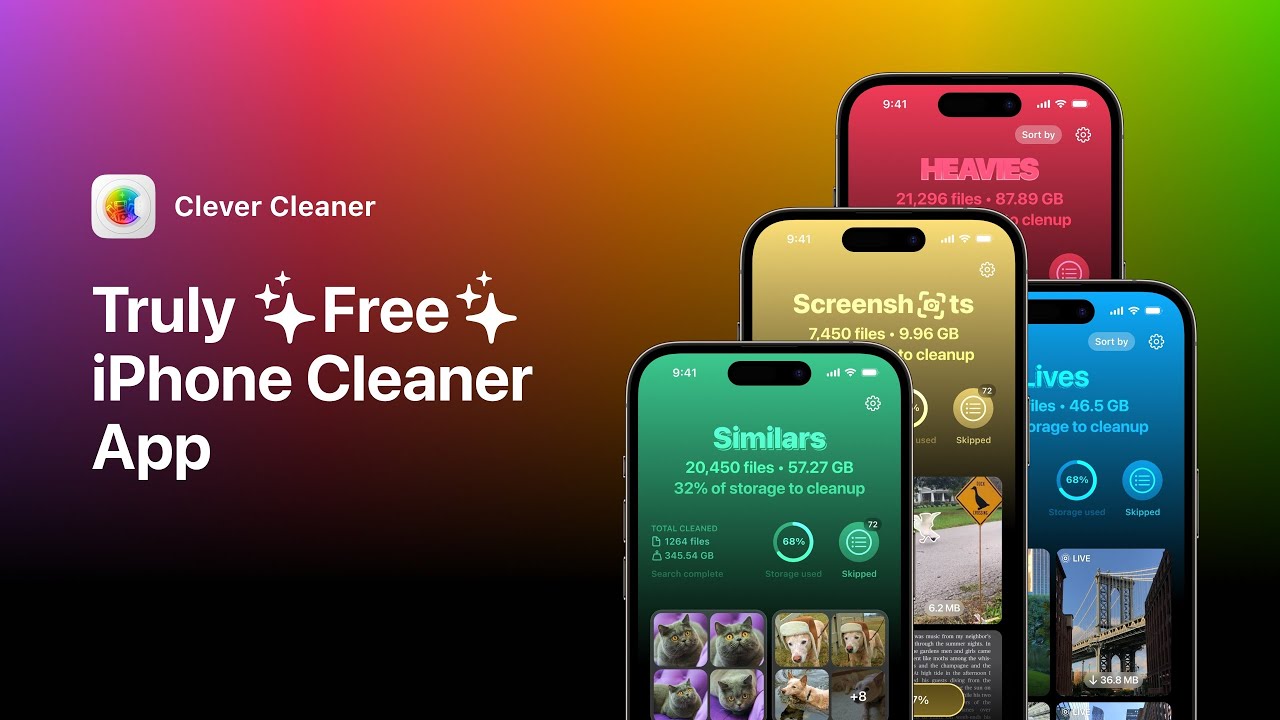
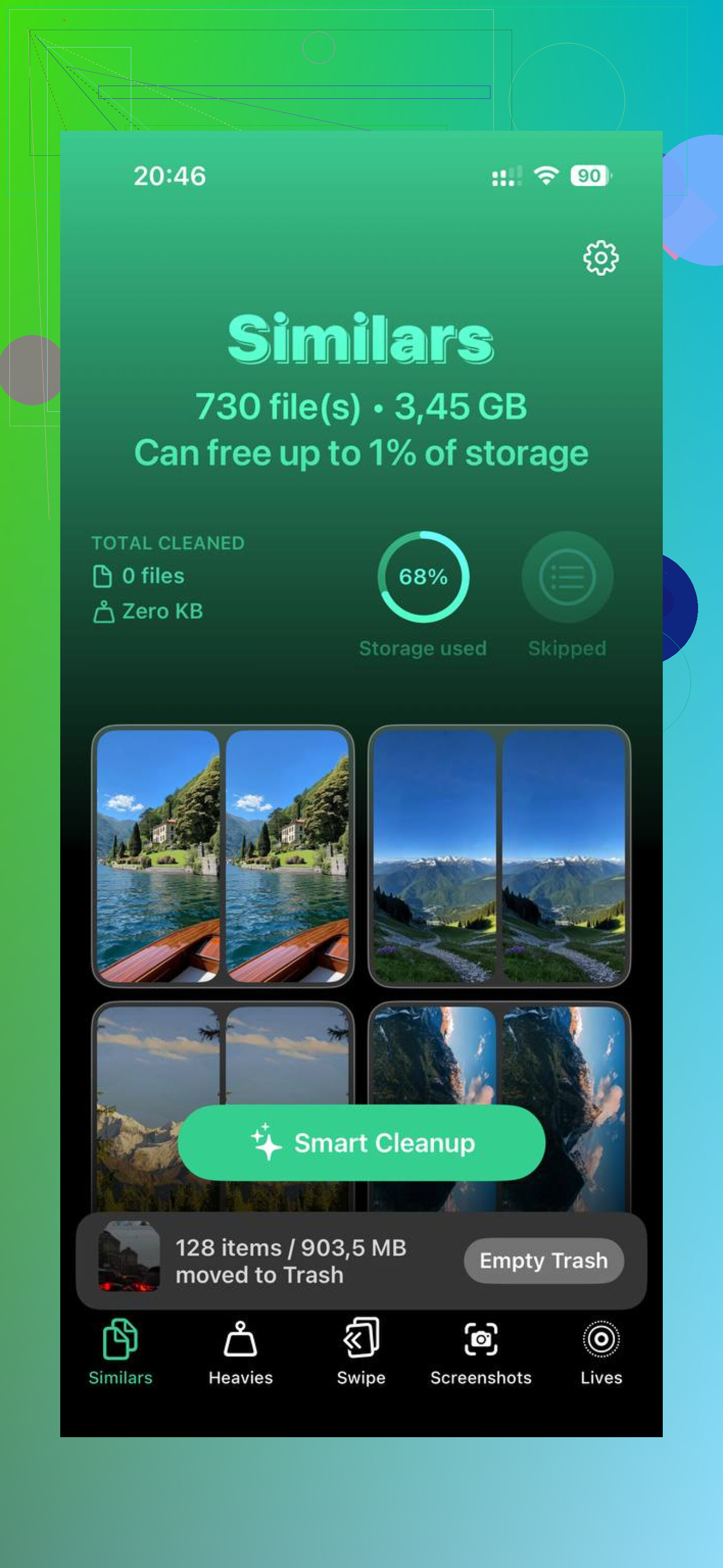
What stood out to me was how simple it was. No paywall popping up every five seconds. No ad circus. The ‘Heavies’ section made sense right away because it sorted my media by file size, so I could spot the big offenders fast. It even showed screenshot sizes one by one, which was useful because I had loads of old junk sitting there for no reason.
The duplicate photo finder helped too. I take three or four shots of the same thing, then forget. It flagged near-matching photos well enough for me to clear a pile of them without much effort. I freed up around 15 GB, give or take, and the phone stopped feeling clogged up. Less lag. Fewer freezes. Launch times were better.
One thing I did like, it handled the scan on-device, so my photos were not being shipped off somewhere else. For me, that mattered more than the cleanup part tbh.
If your ‘Applications’ number looks inflated, it usually is not lying. It is counting more than the app icons make you think. Start with offloading, clear cache where apps allow it, and reinstall the stubborn ones. That got me most of the way there.
11 Likes
Applications is your stuff. System Data is iPhone stuff.
Simple split.
Applications usually includes:
Apps themselves.
Documents stored by apps.
Offline downloads from apps like Netflix, Spotify, YouTube.
Caches from Instagram, TikTok, Safari, Discord, games.
Message attachments tied to apps.
System Data usually includes:
iOS files.
Temporary update files.
Logs and crash reports.
Fonts, dictionaries, voices.
Spotlight index.
Streaming and browser temp data.
Siri and system caches.
So why does System Data grow? Because iPhone keeps making temp files in the background. Updates, failed updates, indexing photos, Safari streaming, logs. Sometimes it shrinks later. Sometimes it gets stuck and looks dumb.
I slightly disagree with @mikeappsreviewer on one part. System Data is not always ‘junk’. Some of it is normal working space. If you keep under about 5 to 10 GB free, iOS starts acting worse. Lag, app reloads, weird bugs. Been there, phone was slow as hell.
Best way to think about it:
Applications = user-controlled growth.
System Data = iOS-controlled growth.
If you need space fast, check Photos, Messages, downloaded media, and big social apps first. Those usually beat System Data for easy wins. If you want a faster way to spot huge files and duplicate pics, Clever Cleaner is worth a look. Also, this Reddit thread on free iPhone cleaner app picks people on Reddit keep recommending is usefull.
Short version. Applications is what your apps pile up. System Data is what iOS piles up. Both grow. One is easier to fix than teh other.
Applications and System Data look similar on the storage bar, but they’re diffrent buckets.
Applications = the app plus everything that belongs to it. Not just the install size. Think downloaded shows, chat attachments, game assets, edited files, and all the random cache apps keep hoarding. That’s why a 300 MB app can somehow “use” 4 GB. Totally normal, just annoying.
System Data = iPhone housekeeping. iOS caches, logs, indexes, voices, dictionaries, update leftovers, temp files, and background working space. This is where I slightly disagree with @mikeappsreviewer a bit. People act like System Data is all garbage, but some of it is legit stuff iOS needs to function smoothly. The problem is Apple labels it way too vaguely, so when it balloons, you have no clue what’s real and what’s stale junk.
Also, @caminantenocturno is right that it can grow on its own. A lot. Especially after iOS updates, restoring from backup, heavy Safari use, streaming, or when Photos is indexing. Sometimes it drops later, sometimes it just sits there being useless.
My take:
- If Applications is huge, that’s usually easier to manage.
- If System Data is huge, that’s usually harder to directly control.
One more thing people miss: Messages and Mail can blur the line in how storage gets reported. Huge attachments may feel “system-ish” but they often live more on the app side than people expect.
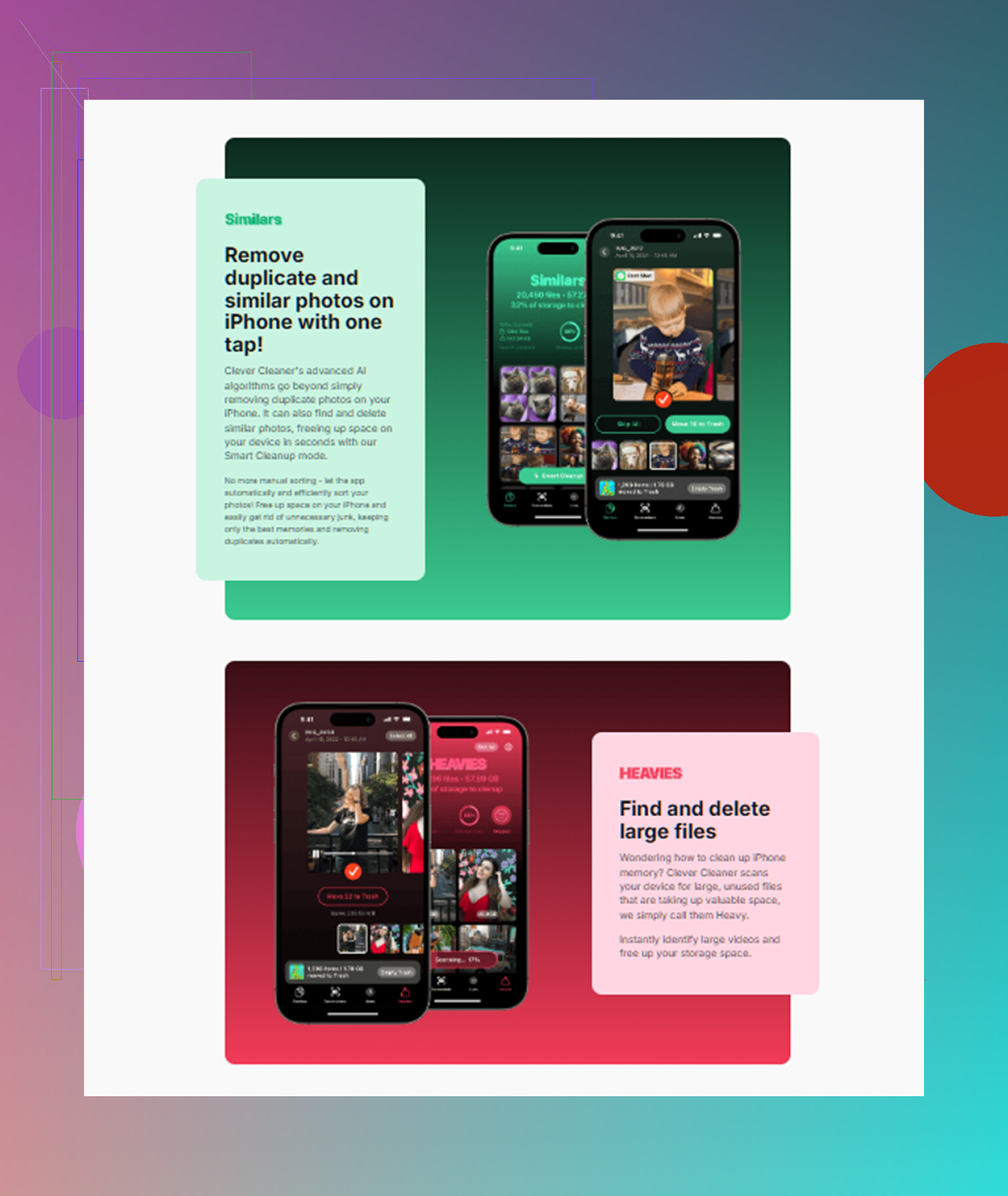
If you need to free space without babysitting every menu, Clever Cleaner is worth checking out for spotting large media and duplicate photos fast. I’d also skim this detailed Clever Cleaner review for freeing up iPhone storage if you want a clearer idea of what it does.
Short version:
Applications = your installed apps and their stuff.
System Data = iOS and its behind-the-scenes stuff.
Apple could label this better, tbh.