My iPhone storage shows a big amount labeled Media, but I can’t tell what files are included or where that space is coming from. I already checked Photos, Messages, and downloaded videos, and the total still doesn’t make sense. I need help figuring out what Apple includes in Media storage and how to see a more detailed breakdown so I can free up space.
I got tired of watching the storage bar sit there like nothing changed. I’d delete photos, remove a couple apps, then check again. Barely any movement. What tripped me up was this, Apple splits Photos and Media into separate storage chunks, and they are not the same mess.
What sits inside Media
Your own pictures and videos go under Photos. Media is the other pile. Stuff like downloaded songs from Apple Music or Spotify, offline movies and episodes in the TV app, podcast downloads, voice memos, custom ringtones, plus cached artwork and thumbnails from streaming apps. All of it adds up.
On iOS 17 and newer, there’s also Synced Media. This one got me. Anything pushed over from a Mac or PC through iTunes or Finder lands there. Old MP3s, home videos, random files from years ago. iPhone Storage shows it like one fat block, but it does not tell you what is inside. Super anoying.
Deleting downloads does not wipe your library
Good part first. If you remove a downloaded album or show from Music or TV, you are deleting the copy stored on the phone, not erasing it from your account. I tested this with Apple Music, Podcasts, and audiobooks. The item stayed in my library and I could stream it again later or download it again when I wanted. Same idea with podcast episodes. If your phone storage is choking, this is easy space to get back.
Why Apple’s built-in storage view feels half finished
You go through Settings, General, iPhone Storage, then start tapping around app by app. Music. Podcasts. TV. Netflix. Spotify. One at a time. It turns into a scavenger hunt fast. Sometimes you get one total size number and nothing else useful. So if Media jumps by 20GB, you still do not know if it came from two giant videos or a bunch of smaller junk spread across six apps.
Also, there’s no proper sort by size across your files. You cannot tell it to show the biggest ten things first. You poke around, delete something, recheck, repeat. I did this more times than I want to admit.
What worked better for me
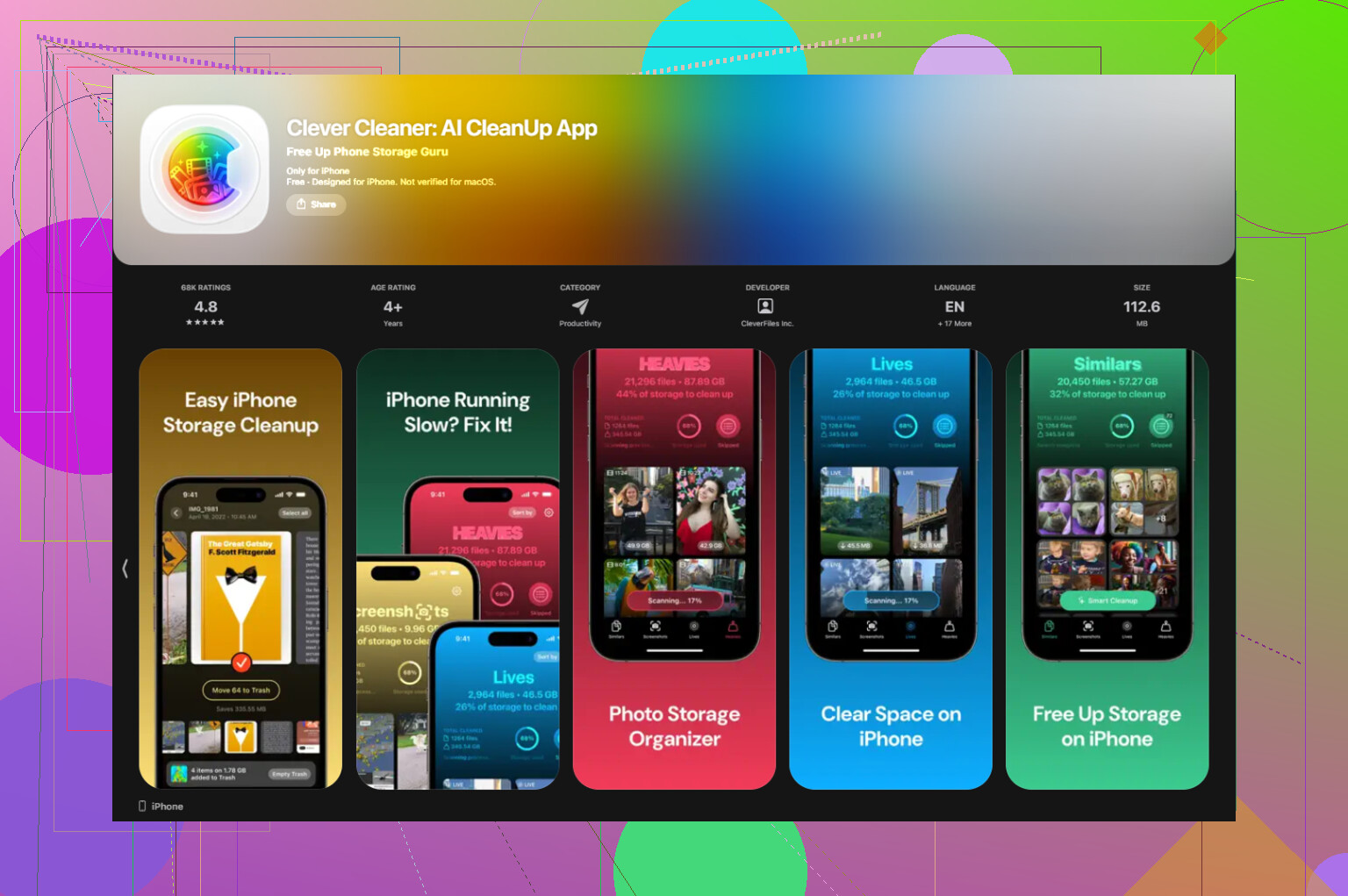
After enough manual cleanup sessions, I ended up trying Clever Cleaner. I expected the usual cleaner app nonsense, ads everywhere, or a paywall the second I tapped anything useful. Didn’t happen. No ads. No subscription wall. It was free when I used it.
The part I kept using was the Heavies tab. It lays out the whole library from largest file down to the smallest, with file sizes shown right there. This made the problem obvious fast. A leftover 4K clip. An offline movie from some flight ages ago. A podcast download I forgot existed. Instead of guessing, you see the storage hogs first.
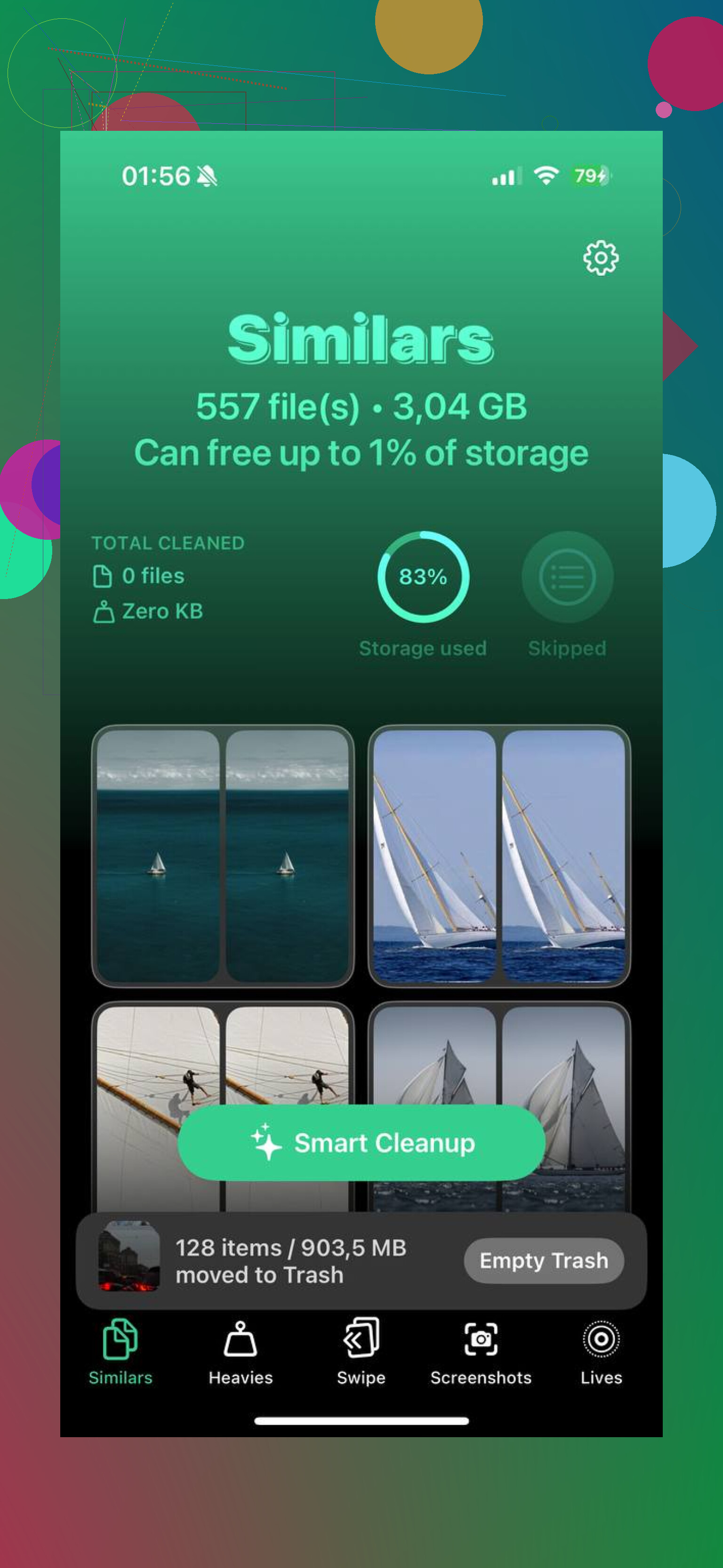
The Similars tab hits a different issue. If your camera roll is full of near-duplicates, burst shots, ten tries of the same pic, tiny angle changes, it groups them together. You keep the one you want and clear the rest. I had more of these than I thought tbh.
One thing I liked, processing stays on the device. For me, that mattered. My library has screenshots, voice notes, random personal stuff. I did not want any of it uploaded somewhere for analysis.
Fast cleanup steps
- Check YouTube, Netflix, and Spotify for offline downloads you do not need anymore
- Open Settings, Messages, Keep Messages, then switch it to 30 Days or 1 Year so old video attachments stop piling up forever
- Use the Heavies tab in Clever Cleaner and remove the files taking the biggest chunks
Then do the part people skip. Open Recently Deleted in Photos and hit Delete All. Until you empty it, those files still count against storage for 30 days. On my phone, that was the step where the bar finlly moved.
15 Likes
Media is Apple’s catch-all bucket, and it’s annoyngly vague.
What usually lands there:
- Music downloads, Apple Music, Spotify, Tidal.
- Podcast episodes.
- TV app and movie downloads.
- Voice Memos.
- GarageBand sound packs, ringtone files.
- Safari and app cached media, album art, thumbnails.
- Synced files from Finder or old iTunes libraries.
I differ a bit from @mikeappsreviewer on one point. Cache bloat is often a bigger part of Media than people think. Streaming apps leave behind junk even after you remove downloads. I’ve seen Spotify or YouTube hold multiple GB long after cleanup.
What to check next:
- Settings, General, iPhone Storage, wait 2 to 3 minutes. The categories recalculate slowly.
- Open Music, TV, Podcasts, Voice Memos, Files. Check downloaded items inside each app.
- Delete and reinstall bloated streaming apps. This clears hidden caches fast.
- If you ever synced from a computer, connect to Finder and review synced media there.
- Restart the phone after cleanup. Storage totals lag a lot on iOS.
If you want a faster scan, Clever Cleaner helps spot large files and leftovers without digging through every app. Also worth watching this iPhone storage cleanup walkthrough.
If Media still looks wrong after all this, it’s often stale indexing, not missing files. iOS does this more than it shoud.
Media is kind of Apple’s junk drawer category. @mikeappsreviewer and @byteguru covered the obvious downloaded stuff, but I’d push back a little on one thing: it is not always actual user files sitting there. Sometimes Media inflates because iOS counts temporary playback assets, failed sync leftovers, and app-side databases that you cannot directly browse.
A few places people miss:
- iMovie, Clips, CapCut, Instagram drafts
- WhatsApp or Telegram local media cache
- Books app audiobooks and PDFs with embedded media
- Safari Reading List saved pages with video/images
- Files app folders stored On My iPhone
- old AirDropped videos that got saved outside Photos somehow
Also, if you use Apple Music with Sync Library off and ever manually loaded songs years ago, some of that can sit in a weird limbo. It won’t show up cleanly in the storage breakdown. Super frusrating.
What I would do differently from the usual “delete apps and hope” advice:
- Check Files app, then Browse, On My iPhone.
- Open editing apps and look for exports, drafts, or project media.
- Check chat apps from inside the app, not just iPhone Storage.
- Force a new storage calculation by restarting, plugging into power, and leaving it locked for a bit.
If you want a faster way to spot what is actually huge, Clever Cleaner is useful for finding large videos and hidden space hogs without poking through every app manually. I also found why Clever Cleaner is a top iPhone cleanup app for freeing storage fast pretty on point.
If Media still stays absurdly high after all that, honestly, sometimes the only fix is backup + restore. Annoying, but yeah, iOS storage reporting can get kinda broken.
I mostly agree with @byteguru, @viaggiatoresolare, and @mikeappsreviewer, but I would not treat Media as one clean category. On iPhone, it is often a mix of real downloads plus stuff iOS does a bad job labeling.
The part people miss is app-created media that lives outside the obvious apps:
- video editor render files
- social app drafts
- audiobook downloads
- PDFs with heavy embedded images/audio
- offline map voice packs
- Files app folders saved locally
One useful clue: if System Data is normal but Media is huge, it usually points to content an app considers playable or viewable, not just cache.
A different check: look at apps with import/export workflows. CapCut, iMovie, GarageBand, Kindle, Books, even DJI or GoPro apps can stash media locally without surfacing it in Photos.
About Clever Cleaner: good for quickly spotting big videos and duplicate-type clutter.
Pros: fast visual scan, easier than hunting app by app, useful for oversized files.
Cons: it will not expose every hidden app sandbox, and cleaner apps in general cannot fully decode Apple’s vague storage buckets.
So yes, use Clever Cleaner if you want a shortcut, but for mystery Media specifically, I would inspect creator apps and the Files app before jumping to backup-and-restore. That nuclear option works, but too often people use it when the culprit is just a forgotten local project folder.