I recently switched to a new Mac and realized I’ve been using the same few default apps for years. I’m sure I’m missing out on great tools for productivity, organization, creativity, and system maintenance. Could you share the essential Mac apps you rely on daily, why you prefer them over alternatives, and any tips for getting the most out of them so I can build a solid setup?
Some Mac apps I keep reinstalling on every fresh setup
I’ve gone down the same rabbit hole: Raycast, Notion, all the usual “Mac power user” stuff. After that honeymoon phase, a different set of tools quietly became the things I actually depend on day to day. Here’s the short list I keep coming back to, including a dual‑pane file manager like you asked for.
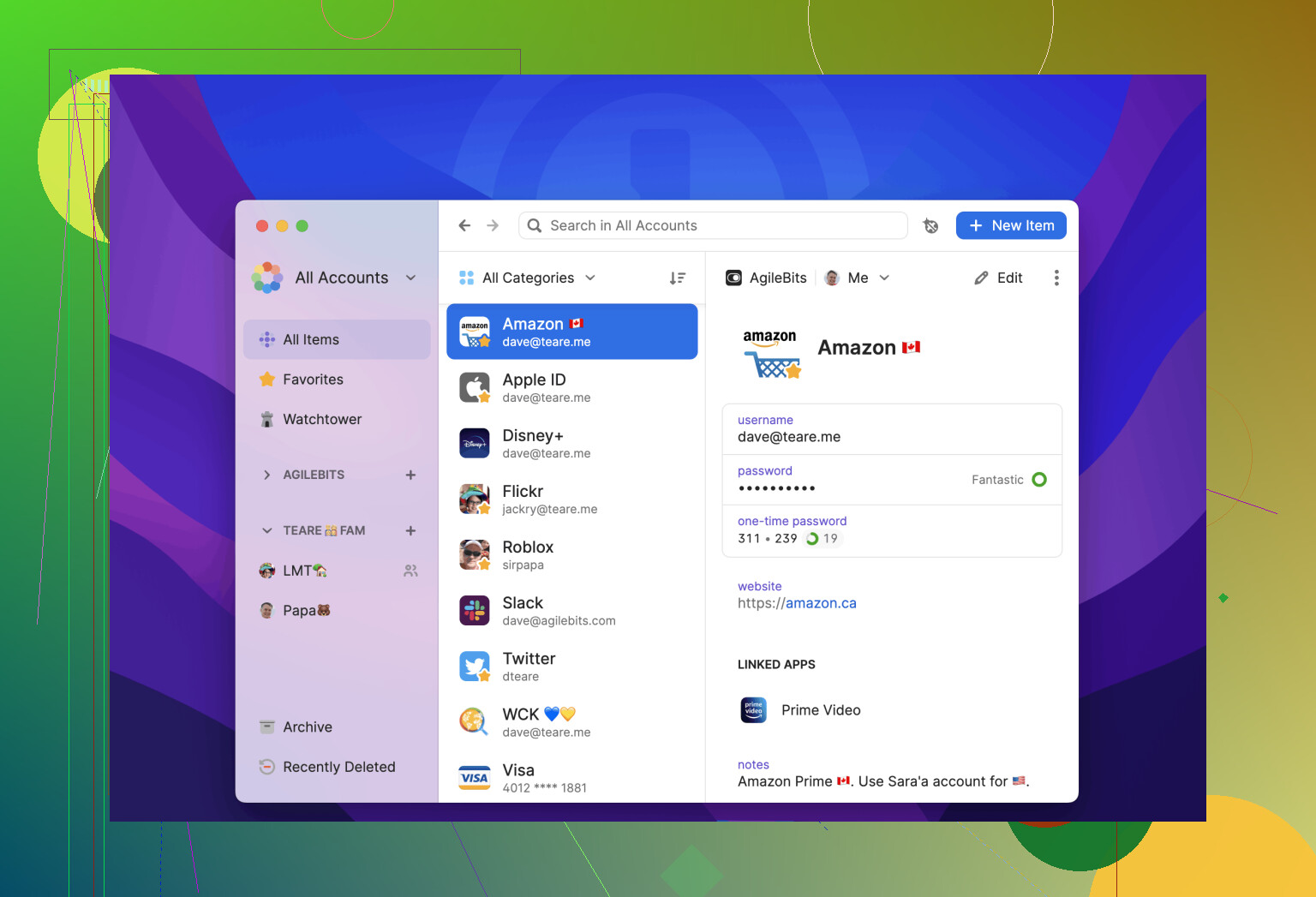
1Password · password manager that doesn’t suck later
At some point I realized “I’ll just let the browser remember it” is exactly how you end up locked out of something important when you switch devices or platforms.
1Password solved that for me:
- All logins, credit cards, and license keys live in one encrypted vault.
- I only remember one master password; everything else is long and random.
- It plugs straight into the browser on Mac and mobile, so I basically never type passwords by hand anymore.
- Sync is built around the app, not bolted on afterward, so my stuff is ready on any device I sign in to.
The real win for me was killing the “reuse one or two passwords everywhere” habit. Now every site gets its own monster password and I never have to think about it.
Commander One · dual‑pane file manager for people who hate Finder
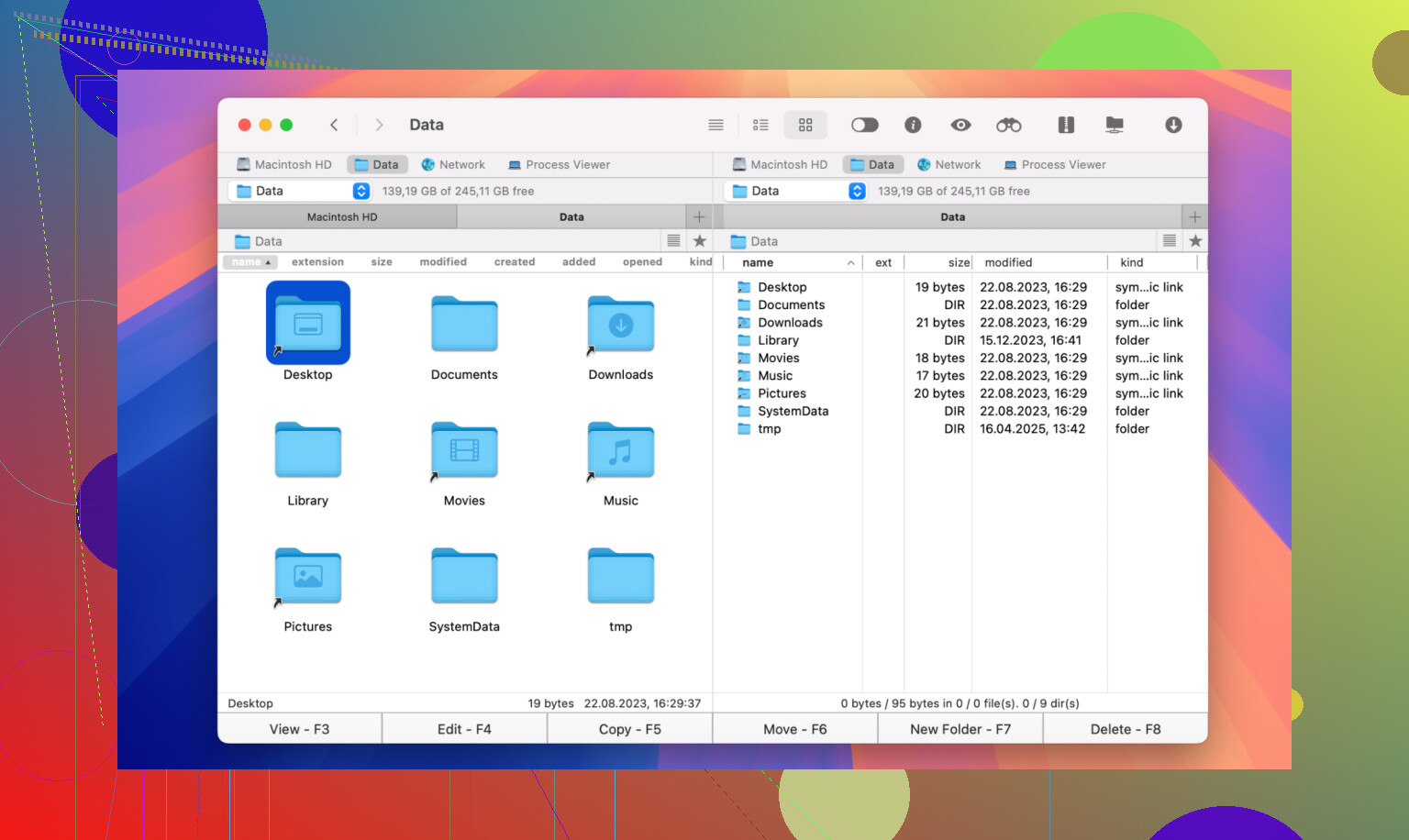
You mentioned wanting a proper file manager, not just Finder with a new coat of paint. This is where Commander One comes in.
How I actually use it:
- Two panels, side by side: source on the left, destination on the right.
- Move/copy between folders without constantly opening new Finder windows.
- Keyboard‑driven: select a bunch of files, hit a key combo, done.
- It can talk to FTP/SFTP/WebDAV, so remote servers show up like regular folders.
If you work with servers, the “remote is just another pane” thing is way nicer than juggling a separate FTP app. For me it basically replaced Finder when I’m doing anything more serious than grabbing a single file.
CleanShot X · screenshots that don’t turn into a chore
macOS has built‑in screenshot tools. They’re fine until you need to:
- Capture a full scrolling page
- Record a portion of your screen
- Mark something up clearly and send it right away
CleanShot X is what I ended up on after getting tired of manually cropping and dragging images around:
- Capture regions, windows, or full screens, plus scrolling areas.
- Instantly annotate with arrows, boxes, blur, and text.
- Record screen to video or GIF when you want to show someone “click here, then here.”
- One‑click upload so you get a shareable link instead of dragging PNGs into chats.
If you write docs, file bug reports, or constantly explain stuff to coworkers, this saves a surprising amount of time.
Amphetamine · tiny app, saves you from macOS “helping”
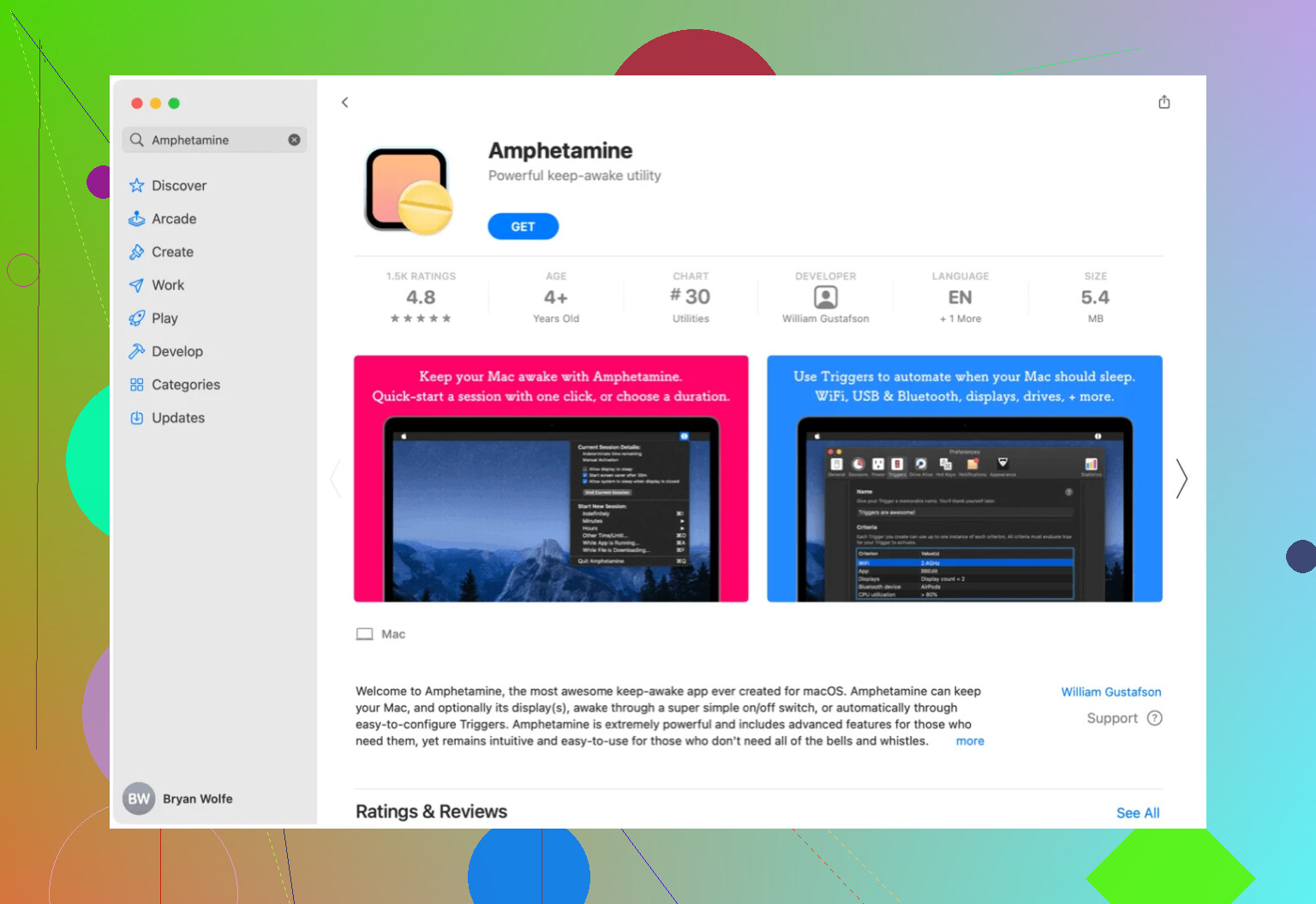
This one lives in the menu bar and does exactly one thing: keeps your Mac awake when you tell it to.
Scenarios where it’s saved me:
- Long downloads where the Mac would normally nap mid‑transfer.
- Watching a tutorial video without having to tap a key every few minutes.
- Screen sharing or presenting, where a random lock screen would be embarrassing.
You can get fancy with it:
- Keep the Mac awake only while a specific app is running.
- Set time‑based sessions (e.g., stay awake for 2 hours).
- Control whether just the display, or the entire system, stays active.
It’s one of those apps you forget about until you use someone else’s Mac and their screen goes dark midway through a call.
Homebrew · the thing I install before anything else
If you do any dev work at all, Homebrew is the first tool that goes on a clean Mac for me.
What it actually does:
- Lets you install command‑line tools with a single command:
brew install gitbrew install nodebrew install python
- Handles updates and dependencies so you don’t have to chase installers all over the web.
- Keeps your CLI tools organized and easy to remove or upgrade.
The pattern becomes: new Mac → install Homebrew → install everything else with brew install <whatever>. It turns the setup process from a weekend project into an hour of running commands and walking away.
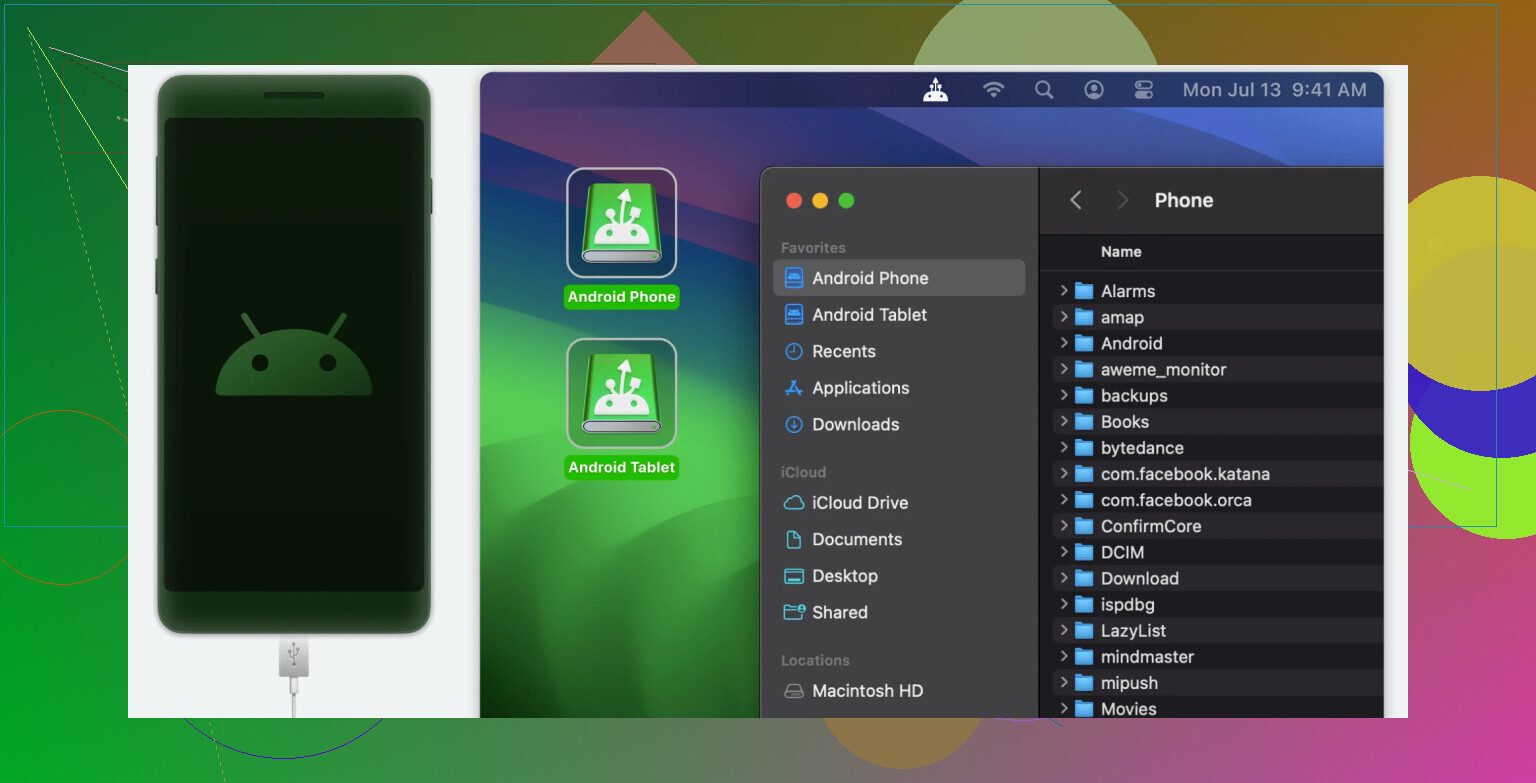
MacDroid · the “Android + Mac” peace treaty
If you’re living the “Android phone, Mac computer” life, you know the official Android File Transfer app is discontinued. MacDroid is the tool that finally makes these two ecosystems stop fighting.
Mounts your phone like a drive: Your Android device shows up in Finder just like a regular USB stick or external hard drive.
Two-way transfers: You can drag photos from your phone to your Mac or drop a movie from your desktop onto your phone without the app crashing halfway through.
ADB and MTP support: It handles the technical handshake in the background so you can just focus on moving files. The real win is that it removes the “middleman.” You don’t have to upload files to Google Drive just to download them onto your Mac five minutes later.
That’s the core stack I keep circling back to. They’re not flashy, but they quietly fix annoyances you only notice once they’re gone.
40 Likes
Since @mikeappsreviewer already hit the “essentials I always reinstall” angle, here’s a different stack that’s more about daily flow + creativity, and a bit less dev‑centric.
1. Raycast instead of Spotlight
I know you said you’d gone through the Raycast honeymoon, but I actually stuck with it:
- Super fast app launcher and file search
- Clipboard history that saves me all the time
- Quick scripts for toggling Wi‑Fi, resizing windows, etc.
Where I disagree slightly with @mikeappsreviewer: for me Raycast isn’t a phase, it basically is how I use the Mac now.
2. Alfred (if Raycast feels like too much)
If Raycast feels bloated to you:
- Simple, reliable launcher
- Custom workflows for “open this project”, “search this site”, etc.
- Clipboard & snippets so you stop typing the same 3 paragraphs 12 times a day
You probably only need Raycast or Alfred, not both.
3. Commander One for serious file work
You already saw Commander One mentioned, but I’ll double down because Finder drives me nuts:
- Dual pane layout for left‑to‑right copy / move
- Built in support for FTP, SFTP, cloud drives
- Keyboard driven, way faster for bulk renames, organizing assets, etc.
If you do dev, design, or handle lots of project folders, Commander One basically becomes “work mode” while Finder is just for casual browsing.
4. Magnet or Rectangle for window snapping
Tiny app, big sanity boost:
- Drag to screen edges to tile windows
- Set keyboard shortcuts for “left half”, “right half”, “top”, “maximize”
- Great when you’re writing on one side / reference on the other
I find it more impactful than half the “productivity” apps people hype.
5. Obsidian for notes & thinking
If Notion feels heavy or slow:
- Local markdown files, insanely fast
- Backlinks and graph view for connecting ideas
- Great for research, writing, project planning
I use it as a “second brain” and keep the truly actionable stuff in a separate task app.
6. Things 3 or Todoist for actual tasks
Notes apps are bad todo lists. Use a real one:
- Things 3: clean, opinionated, very “Mac‑y”
- Todoist: cross‑platform, better for teams and work/personal mix
Big win is separating “reference info” (Obsidian / Notion) from “do this today” (task manager).
7. DaisyDisk or GrandPerspective for disk cleanup
System maintenance without the snake‑oil “cleaner” apps:
- Visual map of what’s taking space
- Quick delete of giant forgotten folders, Xcode cruft, random video exports
Run it every month or two instead of letting “Your disk is almost full” haunt you.
8. iStat Menus or Stats for visibility
Not strictly necessary, but nice:
- CPU/RAM/temp in menu bar
- See immediately if your Mac is thrashing because of some runaway app
- Helps you decide if a slowdown is “buy more RAM” or “kill Chrome”
9. Affinity Photo / Designer / Publisher for creativity
If Adobe’s subscription annoys you:
- Affinity Photo for Photoshop‑style work
- Affinity Designer for vector / UI mockups
- Affinity Publisher for print / layout
One‑time purchase, very capable. Great for doing “real” creative work without renting software forever.
10. Logic Pro or GarageBand for audio
If you ever touch music, podcasts, or voiceovers:
- GarageBand: honestly enough for a lot of people, free, easy
- Logic Pro: full DAW, tons of sounds, serious editing tools
Same computer, suddenly also your music studio.
11. Little Snitch or Lulu for network control
Bit more paranoid, but:
- See which apps are phoning home
- Block sketchy connections
- Nice if you install a lot of random tools and don’t fully trust them
If you want a starting setup on your new Mac, I’d honestly do:
- Raycast or Alfred
- Commander One
- Obsidian + a real task manager (Things or Todoist)
- Magnet / Rectangle
- One creative app that matches what you actually do (Affinity, Logic, etc.)
Everything else is optional frosting that you can add once you feel a real pain point.
I’m gonna slightly disagree with both @mikeappsreviewer and @nachtschatten on one thing: you don’t need a giant stack of “productivity” tools to be productive. Half of them just give you more places for your stuff to hide. That said, here’s what’s actually stuck for me long‑term, without overlapping too much with what they already covered.
1. Commander One for file work that isn’t a total mess
Finder is fine until you’re doing real work with lots of folders, assets, or servers. This is where Commander One is a must‑have for me:
- Proper dual‑pane layout so you can copy/move from left to right without juggling windows
- Great for managing project folders, photos, design assets, code repos
- Works nicely alongside default Finder instead of trying to “replace” it
If you only install one new thing from this thread, let it be Commander One. It’s the most “I can’t go back” upgrade to basic Mac usage.
2. BetterTouchTool for making the Mac behave how you want
This is the one I’m surprised nobody mentioned yet:
- Custom trackpad gestures, keyboard shortcuts, window snapping, all in one
- I use 3‑finger tap for middle click, 4‑finger swipe for specific apps, etc.
- You can chain actions like “resize this window + move it to this display”
It looks nerdy at first, but 20 minutes of setup and suddenly the whole OS feels tuned to your brain.
3. Keyboard Maestro for automation that actually sticks
Raycast and Alfred are great, but Keyboard Maestro is a different beast:
- Automate boring sequences: open apps, click menu items, paste snippets
- Trigger by hotkey, app launch, time of day, whatever
- Great for things like “prep my writing environment” or “export and rename files”
Warning: this can become a rabbit hole, but even two or three solid macros are worth it.
4. Spark Mail or Mimestream for email sanity
Productivity dies in a bad email client:
- Spark: smart inbox, snooze, send later, nicer UI than Mail
- Mimestream: if you live in Gmail world and want a proper native Mac app
I don’t need my launcher to also be my email manager. A focused mail app is way less distracting.
5. Craft for structured notes & docs
Since others already talked about Notion and Obsidian, I’ll throw in Craft:
- More polished and lighter than Notion for personal stuff
- Great for meeting notes, quick docs, writing planning
- Syncs well across devices, feels more “document” than “database”
I use it for anything that needs to look clean or be shared. Random brain dump lives somewhere else.
6. Setapp if you’re still experimenting
Hot take: before you buy a bunch of one‑off apps, get Setapp for a few months:
- One subscription, a pile of legit Mac apps
- Good way to try things like CleanShot X, Bartender, Paste, etc.
- When you figure out what you actually use, you can decide if it’s worth keeping or replacing with one‑time purchases
This avoids the “I bought 12 utilities and now use 2” problem.
7. Pixelmator Pro for everyday creative work
If Affinity or Adobe feel heavy for what you do:
- Great for photo editing, graphics for social, simple mockups
- A lot easier to learn than full‑blown Photoshop or Illustrator
- Plays really nicely with macOS and iCloud
I use it for everything from quick meme crops (yes, really) to actual design work.
8. Screenflow for serious screen recording
Since CleanShot X was already covered, here’s the “I need to edit and polish this” option:
- Record screen + webcam + mic
- Do basic editing, callouts, text, zooms all in one place
- Perfect for tutorials, walkthroughs, or client videos
Overkill if you’re just sending a quick clip, but amazing if you share your screen a lot professionally.
9. Bartender or Hidden Bar for taming the menu bar
Tiny quality‑of‑life improvement:
- Hide the dozen random icons that pile up over time
- Keep only battery, Wi‑Fi, and maybe one or two key tools visible
- Make the Mac feel less like a Christmas tree
Not critical, but once it’s set up, you notice immediately when you’re on a cluttered system.
10. Tailscale for “my own private network”
More niche, but if you have multiple Macs, a NAS, or remote machines:
- Creates a secure mesh VPN so your devices see each other like they’re on the same LAN
- Great for remote file access, dev environments, or home server stuff
- Set it once and forget it
This is one of those “I didn’t know I needed this until I had it” tools.
If I had to rebuild from scratch today, I’d install:
- Commander One
- BetterTouchTool
- Keyboard Maestro
- A focused mail client (Spark / Mimestream)
- One creative app (Pixelmator Pro or whatever matches your work)
Everything else is just comfort features. The trick is to keep the stack small enough that you actually remember where things live and don’t spend more time configuring apps than doing actual work.