My iPhone storage says synced media is taking up a different amount of space than what I actually transferred, and the numbers do not seem accurate. I am trying to figure out why synced media storage is wrong on iPhone and how to fix the incorrect size display before I run out of space.
After iOS 17, I noticed a weird thing in iPhone Storage. A huge block called Synced Media showed up, and the number looked wrong. If you ran into the same mess, here’s the plain version.
What Synced Media means
This is stuff you copied to the iPhone from a computer with a cable, using Finder on Mac or iTunes on Windows. Music, photos, books, similar files. Before iOS 17, Apple spread those files under their usual apps. Music sat under Music. Books sat under Books. Then Apple changed the label and shoved computer-synced stuff into one bucket called Synced Media.
If you got the file from the App Store or downloaded it on the phone, it stays under its own app. If you pushed it over from a computer, it lands in Synced Media.
You’re safe to remove it if the original files still sit on your computer. One catch, though. Since a computer put those files there, a computer has to remove them too. The phone settings won’t give you a clean delete button for this.
Why the storage number looks bloated
I saw this after updating, and it looked like my phone had eaten double the space overnight. There’s a reporting issue in iOS 17 where synced files seem to get counted twice. Once under the app, once again under Synced Media. So the storage screen looks worse than the real situation.
Bad part, the phone still behaves like storage is full. Downloads fail. Updates refuse to install. Random system tasks slow down. So even if the number is wrong, the problem still hits you.
How I removed Synced Media
Method 1, remove it from Finder or iTunes
- Plug your iPhone into your Mac and open Finder, or into a Windows PC and open iTunes.
- Pick your device.
- Open the Music, Photos, or related tab.
- Uncheck whatever you no longer want.
- Hit Sync or Apply.
Once the sync finishes, the phone drops the unchecked files.
Method 2, empty folder trick for synced photos
This one saved me when old synced photos refused to leave.
- Make a new empty folder on your computer.
- In Finder or iTunes, choose that empty folder as the photo sync source.
- Click Sync.
The iPhone checks the folder, sees nothing in it, and wipes the old synced photo set. It’s a dumb fix, but it works prety often.
Method 3, remove and reinstall Apple Music
If the junk is tied to music, I’d try deleting the Apple Music app and installing it again from the App Store. In some cases, leftover synced music data sticks around after normal sync removal. Reinstalling clears out bits the usual process misses.
Why fixing Synced Media might not solve the whole problem
Even if Synced Media is the thing you noticed first, low storage usually has more than one cause. iPhone starts acting off when free space gets too tight. From what I’ve seen, you want around 5GB to 6GB open so iOS has room for temp files, updates, cache junk, and background work.
When you get too close to full, the symptoms are boring and annoying. Lag in simple menus. Apps closing for no clear reason. Camera warnings. Update install failures. Stuff like tht.
And yeah, Synced Media is often only one piece. The bigger storage hog for a lot of people is photos. Near-duplicate shots, bursts, accidental screenshots, giant videos you forgot existed.
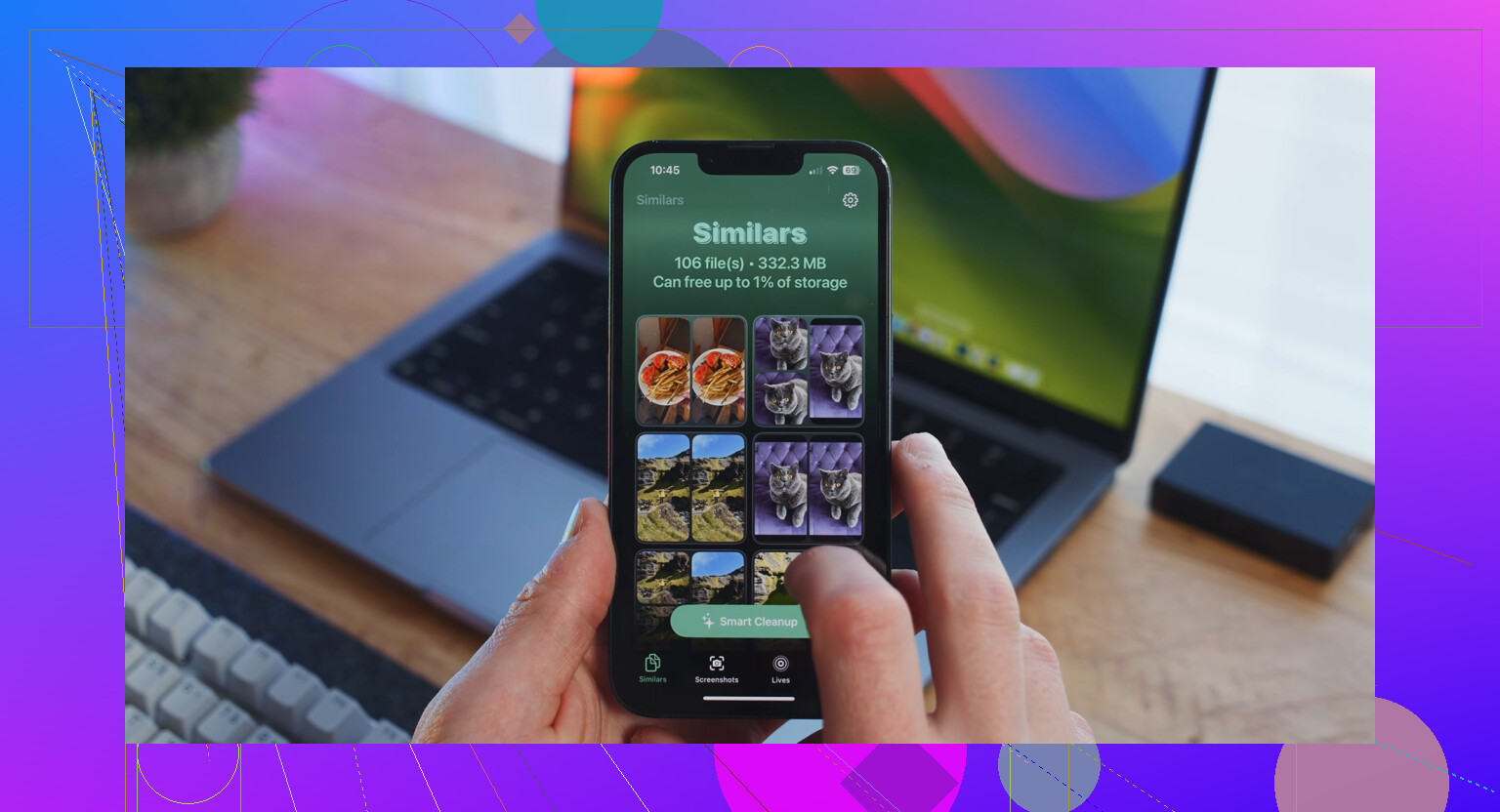
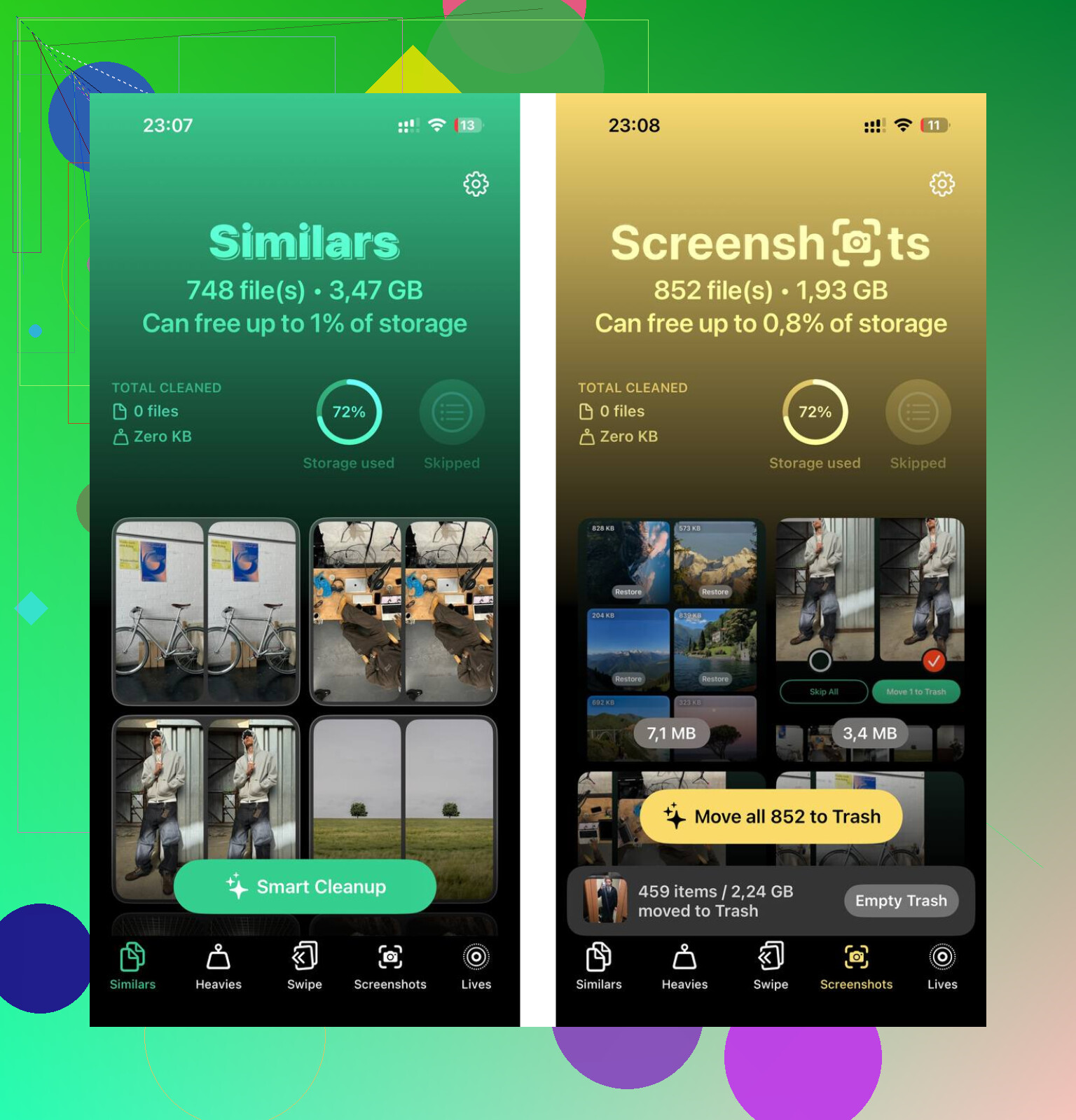
Clever Cleaner deals with those extra files. I used it after clearing the synced items. The Similars tab groups near-matching photos and marks a Best Shot, which made burst cleanup faster. The Heavies tab lists the largest files first with file sizes shown, so you don’t waste time hunting through random albums. It also processes on the device, which I prefer.
What worked for me was doing both parts. First, remove the computer-synced stuff in Finder or iTunes. Then clean the photo library. After that, the lag eased up and I had enough room for the next iOS update without fighting the storage screen again.
1 Like
What you’re seeing is often a storage index problem, not a clean count of files on the phone.
I agree with part of what @mikeappsreviewer said. iOS 17 did make “Synced Media” show up for a lot more people. But I don’t think it’s always double-counting in the true sense. A lot of times the storage database is stale, and iPhone Storage shows old sync totals, cached scan data, or reserved space after a sync change.
A few things cause the wrong number:
- Storage indexing lags after syncing from Finder or iTunes.
- Deleted synced items stay listed until iOS rescans storage.
- Music, books, and photos synced by cable get grouped under one label, so the total looks off.
- Some apps report compressed size, while iPhone Storage shows on-device size.
- iOS keeps temp files during sync. Those don’t always clear fast. Annoyng, but common.
What I’d do first:
- Restart the iPhone.
- Leave it charging and on Wi-Fi for a while.
- Check storage again after a few hours.
- Sync one small item from your computer, then remove it, to force a fresh recount.
- Update iOS if you’re on an older 17 build or early 18 build.
If the number is still wrong, make an encrypted backup, erase the phone, then restore. That sounds extreme, yeah, but it fixes broken storage indexes more often than people want to admit.
Also check your free space in Finder on Mac or iTunes on Windows. If computer-side and phone-side totals don’t match, the iPhone storage graph is the part I’d trust less.
If your main goal is freeing room, not fixing the label, then Clever Cleaner helps with photo clutter faster than doing it by hand. This NY Weekly review of Clever Cleaner for iPhone storage cleanup gives a decent overview.
Short version: wrong Synced Media size usually means bad reporting, slow reindexing, or leftover temp data. Not always missing space, but sometmes it is.
What usually throws people off is that Synced Media is not a live file-by-file meter. It’s more like Apple’s storage category for anything pushed over from a computer, plus whatever stale accounting iOS still has hanging around. So I mostly agree with @mikeappsreviewer and @sternenwanderer, but I’d push back on the idea that it’s always “double counted.” Sometimes it’s just bad categorization and delayed cleanup, not actual duplicate storage use.
Another thing people miss: conversion changes size. If you synced music, videos, or photos from a Mac/PC, iPhone may store them in a different format or with different overhead than the original files on your computer. A 3.8 GB batch on your desktop not showing as exactly 3.8 GB on the phone is pretty normal. Databases, thumbnails, album art, indexes, and offline metadata all take space too. Apple’s graph is kinda fuzzy about that stuff.
I’d also check whether any of this media is tied to:
- local Music library files
- synced photo albums from a computer
- Books or PDFs copied manually
- old TV/movie files that never got properly unsynced
One useful test that wasn’t really mentioned: go to Settings > General > About and compare available space there vs the colored bar in iPhone Storage. If those two feel wildly off, the graph is probly lying more than the filesystem is.
If your main goal is just reclaiming space, not solving Apple’s weird math, then clean the stuff you actually can control first. Photos and videos are usually the biggest win. I used Clever Cleaner for that side of it because it’s faster than hand sorting duplicates and giant clips. This article on free iPhone cleaner tools for clearing duplicate photos and large videos gives a decent overview.
So yeah, wrong Synced Media size usually means:
- stale indexing
- size conversion differences
- metadata/cache overhead
- old sync leftovers Apple forgot to label correctly
Classic iPhone storage nonsense, basicaly.
I’m with @sternenwanderer and @waldgeist on this being mostly a reporting/category problem, but I slightly disagree with @mikeappsreviewer on the “double-counting” part as a universal explanation. Sometimes it is. Often it’s just Apple showing one bucket badly.
One angle not mentioned enough is APFS/storage snapshots. After updates, restores, or heavy syncing, iOS can hold space in ways the Storage screen labels poorly. So “Synced Media” may look huge even when the actual synced files are smaller.
Another possibility: Optimize Storage behavior in Photos or Music can make category totals look weird because local copies, placeholders, and generated thumbnails don’t map neatly to what you transferred.
What I’d check:
- whether the number changes after a full iCloud sync cycle
- whether a recent iOS update happened right before this started
- whether the synced content is photos vs music, since photo sync leftovers are usually messier
If you just want space back, stop chasing the label and target big local files first. That’s where Clever Cleaner can help for photo/video clutter.
Clever Cleaner pros
- fast at finding large videos and similar photos
- easier than manual cleanup
- useful if storage is tight now
Clever Cleaner cons
- won’t truly fix a broken Synced Media label
- less useful if your issue is mostly music/books
- you still need Finder/iTunes for actual computer-synced removals
So, wrong size usually means bad indexing, snapshots, or category confusion. Not always real duplicate storage.