I accidentally deleted a partition on my Windows 11 PC while managing disks, and now the drive space shows as unallocated. It had important files on it, so I’m looking for reliable ways to recover the deleted partition without making things worse. Are there any safe Windows 11 partition recovery methods or tools that actually work?
I did this once in Disk Management and picked the wrong volume. Felt sick for about ten seconds. The good part is a deleted partition often means the map is gone, not the files. If new data has not been written over the same area, your odds are still decent.
First move, stop touching the drive. No new partition. No format. No file copies. If you write anything to it, you shrink your recovery window fast.
Check Disk Management before you assume the worst.
- If the partition still shows up and only lost its drive letter, assign a letter and see if it mounts again.
- If the space shows as Unallocated, treat it like a deleted partition and pull your files off before you try repairs.
Get the files out first
I went for file recovery before trying to rebuild the partition. Safer path. Less chance of making a bad day worse.
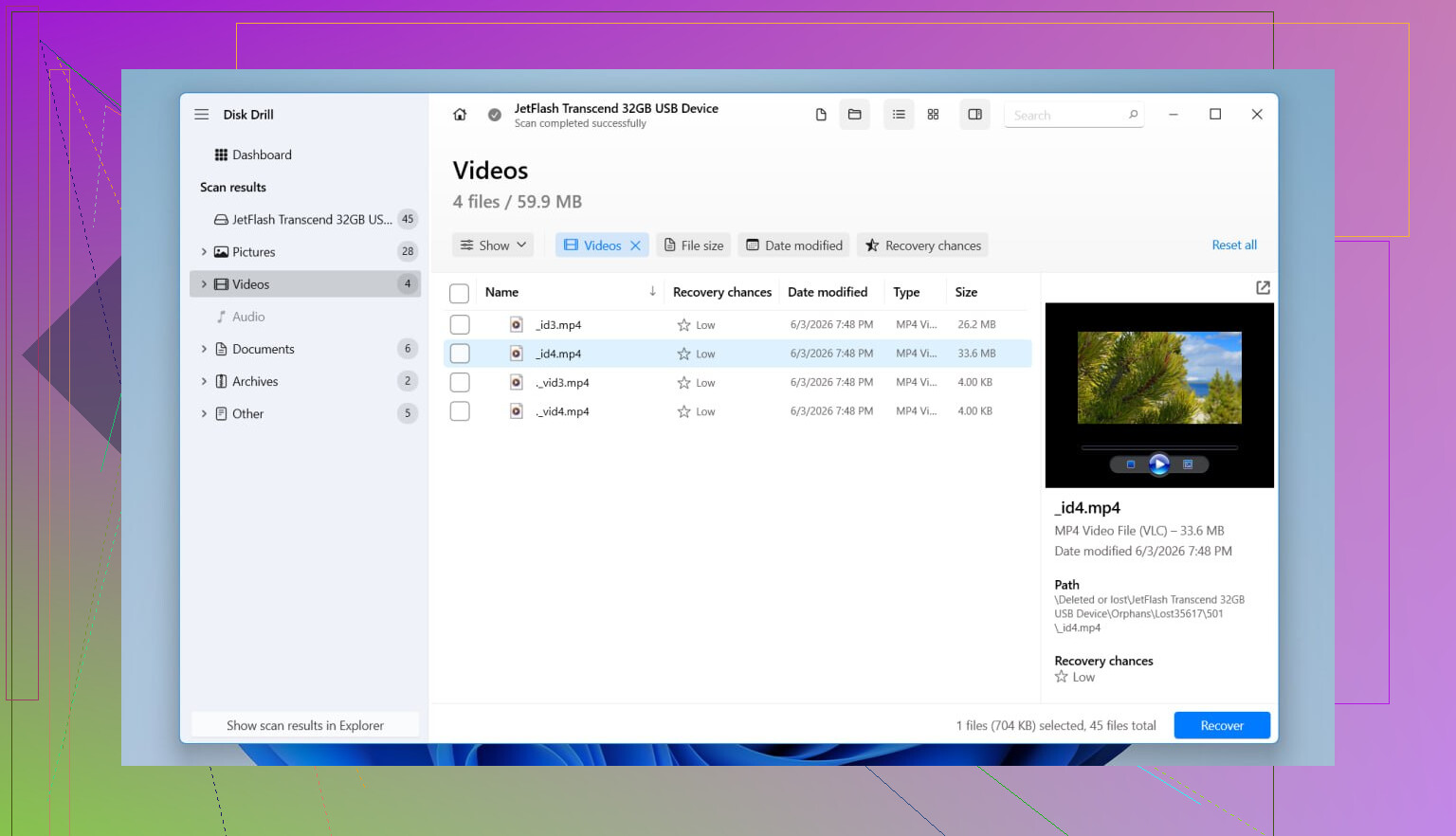
Disk Drill was the one I used because it spotted the missing partition as a partition, not a pile of random file scraps. In my case it kept folder names and filenames, which saved a ton of sorting later. It reads the usual Windows file systems too, NTFS, FAT32, exFAT, and ReFS.
What I did:
- Installed Disk Drill on a different physical drive.
- Opened it and picked the full physical disk, not only the empty-looking space.
- Started a Scan.
- Waited. Took a bit.
- Looked for the deleted partition in the scan results.
- Previewed the important stuff first. Photos, docs, project files.
- Recovered the needed folders to another drive, never back to the same disk.
- Opened a few recovered files right away to make sure they were not corrupted.
If your drive was already acting weird before this, random disconnects, clicking, SMART warnings, any of it, I would image the disk first and scan the image. Repeated reads from a failing drive are a bad bet. I learned this one the hard way years ago.
Then try restoring the partition
After your files are safe, you can try bringing the partition entry back.
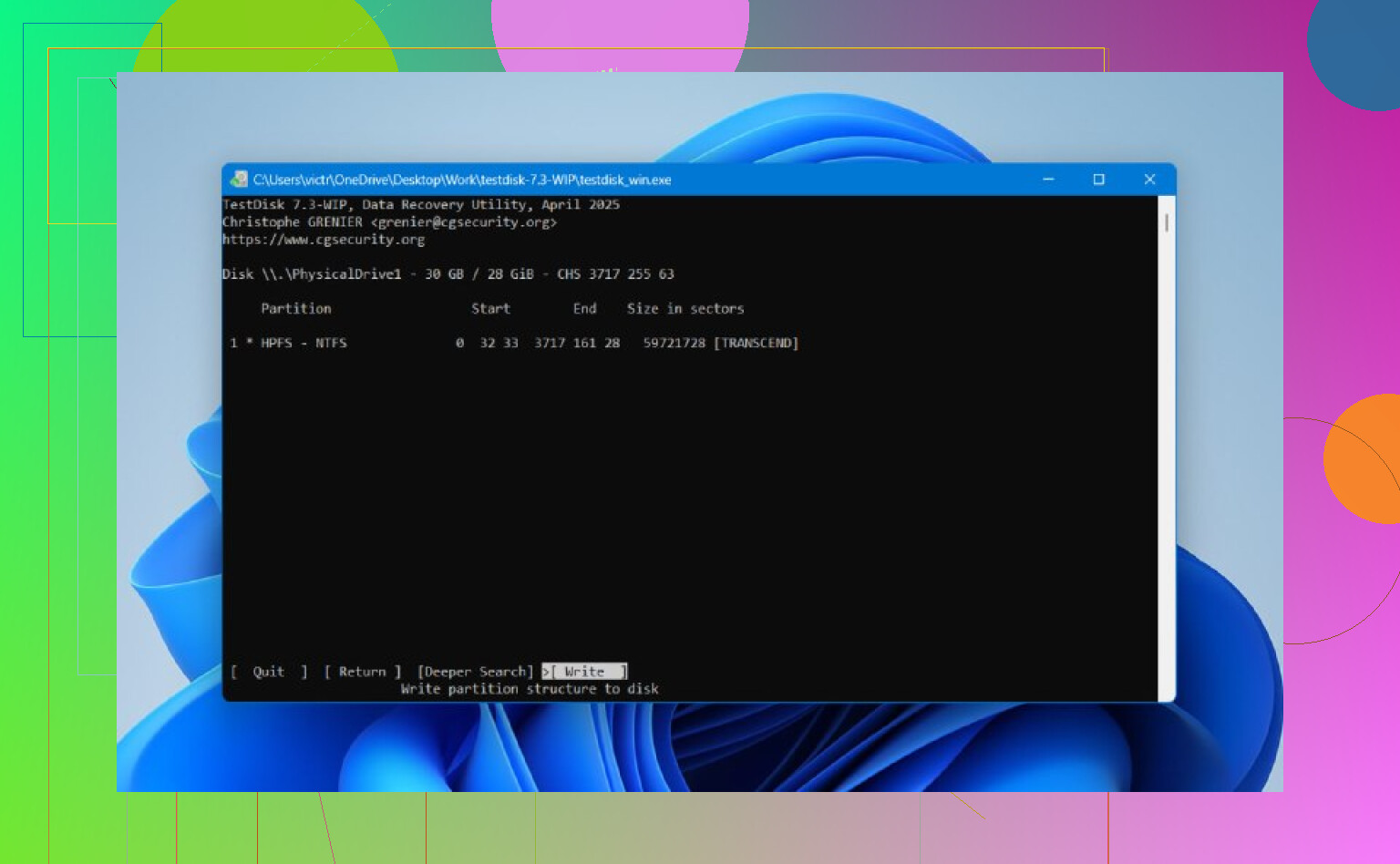
TestDisk is still one of the better free tools for this. It looks old and text-heavy, yep, but it does the job when the partition table has not been trashed too badly.
Usual flow:
- Download and extract TestDisk.
- Run testdisk_win.
- Create a new log.
- Select the correct physical disk.
- Accept the detected partition table type.
- Choose Analyse.
- Run Quick Search.
- If the missing partition shows up, select it.
- If it does not, run Deeper Search.
- Choose Write to save the recovered partition table.
- Confirm, then reboot Windows.
If it works, the partition often comes back with the old contents still there. I would not poke around in TestDisk options unless your files are already recovered. One wrong write and things get messy fast.
SSD note
This part matters. If the deleted partition was on an SSD, recovery gets tougher because of TRIM. A partition delete does not always trigger TRIM at once, but time is not your friend here. The more you keep using the SSD, the higher the chance the old blocks get cleaned up internally. So yeah, stop using it asap.
If neither Disk Drill nor TestDisk brings the partition back, but your files are already recovered, you are still fine. Create a new partition in Disk Management, do a quick format, then copy the recovered data back over. Annoying, sure, but fixable.
16 Likes
If the space shows unallocated, I would not start with partition repair. Small disagreement with @mikeappsreviewer there. Rebuilding the partition table is neat when it works, but file recovery first gives you a safer exit.
My order would be:
- Power off the PC if this was an SSD.
- Boot from another drive or another PC if possble.
- Check SMART status with CrystalDiskInfo. If health is bad, clone the disk first with something like HDDSuperClone or ddrescue.
- Scan the whole physical disk with Disk Drill, not the empty area. It tends to find lost NTFS volumes cleanly, and preview support helps you verify files before recovery.
- Save recovered files to a different disk.
- After your data is safe, rebuild the partition structure or make a new partition.
Two Windows-specific things people miss:
- In DiskPart, run list disk, select disk X, list volume. Sometimes the volume entry still exists even when Disk Management looks wrong.
- In Device Manager, remove the disk and rescan. Rare, but I have seen stale volume info clear up.
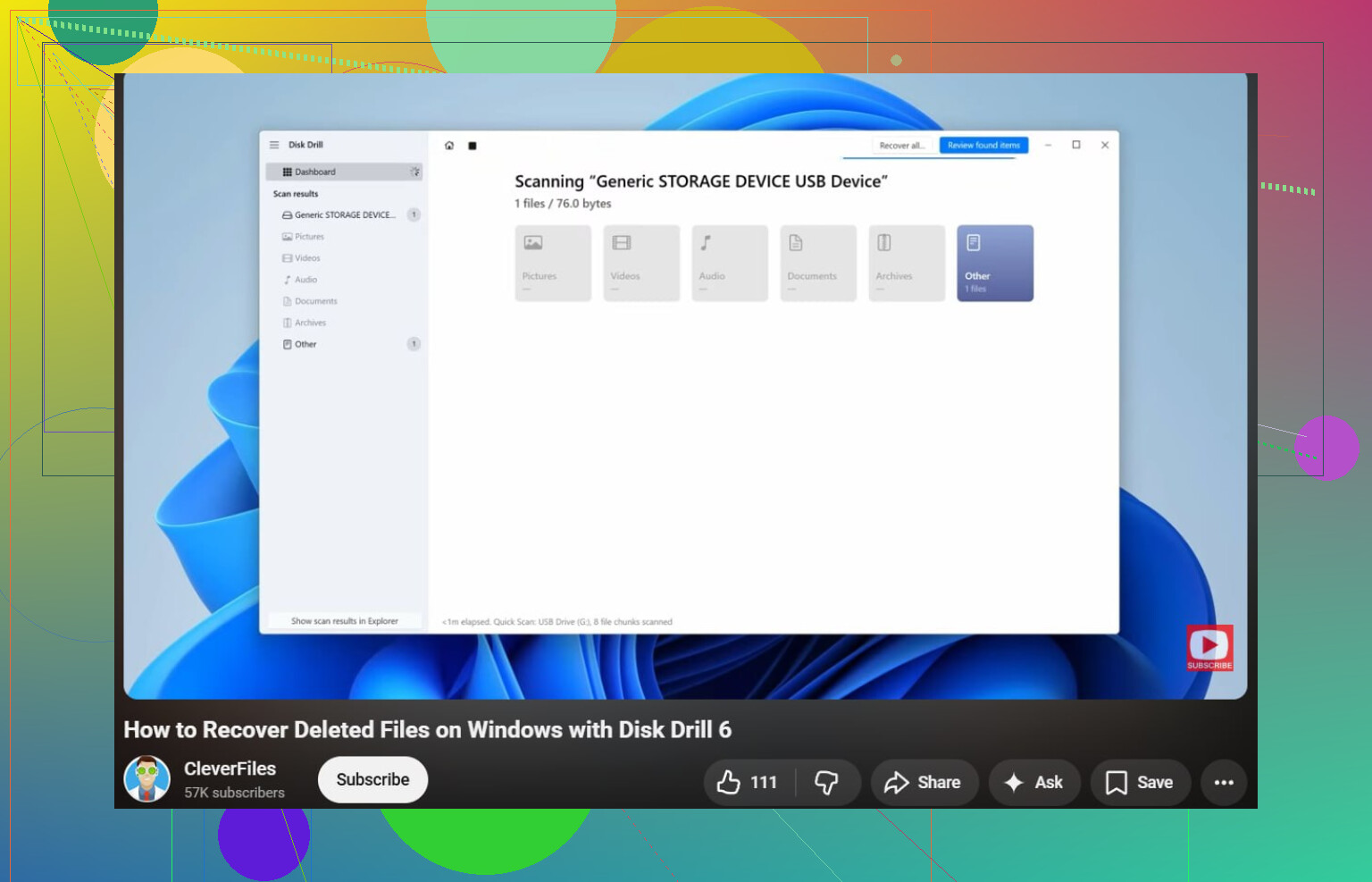
If you want a simple guide on how to recover deleted files on Windows and what settings to avoid during recovery, this helps: watch this Windows file recovery walkthrough
If the deleted partition was BitLocker, recovery gets trickier. You need the recovery key before doing much else, or you end up with recovered gibberish. Thats a nasty gotcha.
I’d split this into one extra check before doing what @mikeappsreviewer and @nachtschatten suggested.
If the partition was deleted very recently, try a partition table backup restore first, but only if the disk is otherwise healthy and you have not written anything since. Some drives and setups still have recoverable GPT backup data at the end of the disk, and tools like gdisk can sometimes rebuild from that. It’s not as beginner-friendly as TestDisk, so I would only do this if you’re comfortable reading partition layout info sector by sector. If not, skip it.
Also, if this was a dynamic disk or part of a Storage Spaces pool, normal partition recovery steps can be misleading. In that case, check Storage Spaces in Control Panel first before rewriting anything. People miss that alll the time.
One thing I slightly disagree on: I would not spend too long in DiskPart if Disk Management already shows pure unallocated space. Helpful for confirmation, sure, but not usually the magic fix people hope for.
For actual recovery, Disk Drill is still one of the more practical options on Windows 11 because it can detect lost partitions and lets you verify recoverable files before you commit. That matters more than flashy claims. Recover to another disk only, obvious but worth saying.
If you want broader comparisons before picking a tool, this thread is decent: best data recovery software picks for recovering deleted partitions and files
If the files are mission-critical and this is an SSD that stayed powered on, I’d be way less optimistic because TRIM can absolutely wreck your chances pretty fast. At that point, DIY can become “how I made it worse” real quick.