I turned on Optimize iPhone Storage because my iPhone storage is almost full, but it’s not freeing up space and my photos still seem to stay on the device. I’ve waited, checked iCloud Photos settings, and restarted my phone, but nothing changed. Has anyone fixed this issue or know what else to try?
I ran into this after my iPhone started throwing the ‘Storage Almost Full’ warning every day. I poked at it for a while, broke the problem into pieces, and here’s what I found.
Does Optimize iPhone Storage work without iCloud?
No. It doesn’t.
‘Optimize iPhone Storage’ depends on iCloud Photos. Your phone keeps smaller preview versions on the device, and the full quality files stay in iCloud. If iCloud Photos is off, or your iCloud plan is full, the feature stops doing its job. There has to be a full copy stored in the cloud or the phone has nowhere to offload the original.
Is it safe?
From what I saw, yes. Your photos are not being erased. The storage location for the full version changes.
When you open a photo, edit it, or share it, the phone pulls down the original from iCloud. The weak spot is internet access. If you’re offline, on a plane, or in a dead zone, you might only get the smaller on-device version until the connection comes back. I hit this once on a trip and thought my photos were ruined. They weren’t. The originals showed up later.
Why it looks broken sometimes
This part annoyed me.
You turn on optimization, expect space to free up, and the phone still sits at 99 percent used. I saw the same thing. iOS often waits until storage gets tight before it starts being aggressive about offloading files. It’s slow. Sometimes way too slow.
The other common issue is iCloud storage. The free 5GB tier disappears fast. If your iCloud is packed, optimization has nowhere to send new originals, so local storage stays clogged.
Optimize vs Keep Originals
This comes down to how much storage your phone has and how you use it.
If you’ve got a 512GB iPhone and plenty of room left, ‘Download and Keep Originals’ makes more sense. Everything stays available offline. No waiting. No surprise low-res previews.
If your phone is closer to the usual 128GB or 256GB setup and your photo library is huge, optimization helps a lot. For me, it kept the phone usable, but it didn’t fix the mess by itself.
What low storage did to my phone
This was the part I noticed first. My phone got sloppy.
Apps hung for a second before opening. The camera took longer than usual. A few apps crashed for no clear reason. Once I checked my storage, the cause looked obvious. I had thousands of screenshots, accidental videos, blurry shots, duplicates, and ten copies of the same scene because I kept tapping the shutter.
So yes, iCloud helps with photo storage. No, it doesn’t clean your junk.
What helped more than changing the setting
I went through a bunch of cleaner apps and most felt sketchy. Too many fake scans, weird limits, or subscription traps.
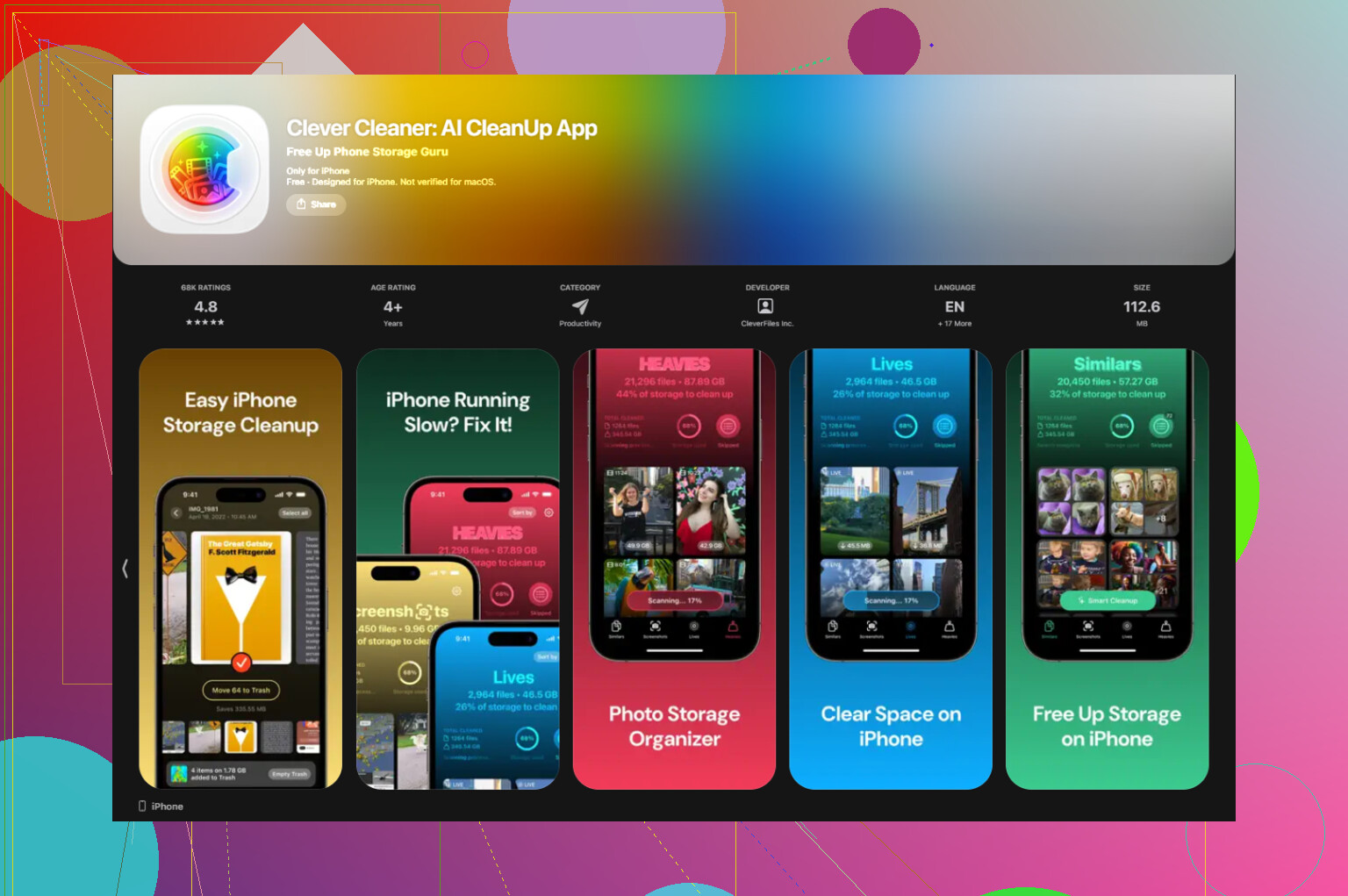
The one I stuck with was Clever Cleaner. I’m not saying every person will care about the same stuff, but a few things stood out when I used it.
Stuff I liked
It showed file sizes clearly. I didn’t have to guess what was eating space.
There’s a Heavies section, which made it easy to spot the giant files first. I found one random 4K video sitting there at around 2GB. Deleted it. Instant relief.
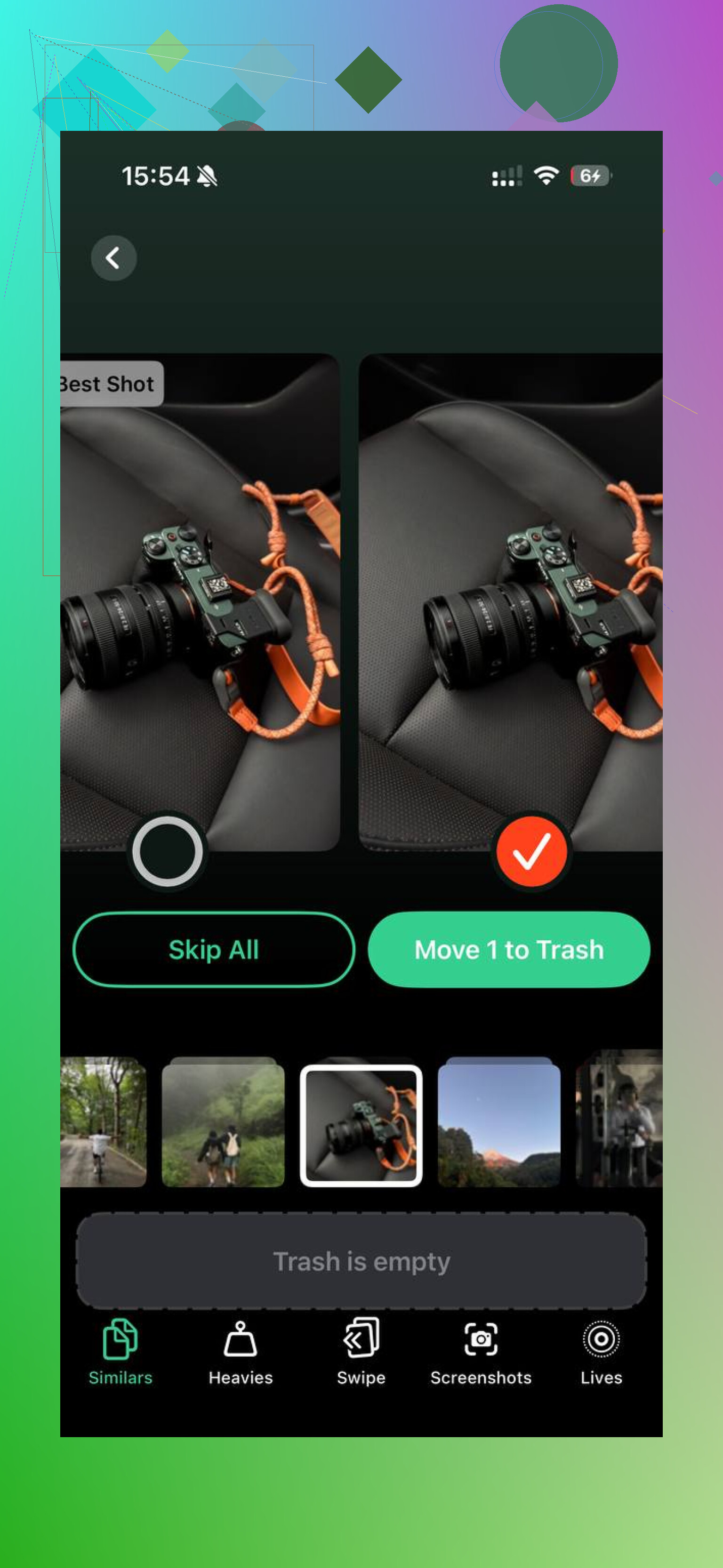
There’s also a Similars section. It groups near-duplicate photos, like when you take eight shots of the same thing and only one is decent. It picked a best shot for me, and I sorted the rest fast.
Privacy part
This mattered to me more than the cleanup itself. The app handled the sorting on the phone, so my library wasn’t getting uploaded to some unknown server for analysis. I’m picky about photo access, so I checked this before trusting it.
After one pass, I got back around 15GB. More important, the lag stopped.
If Optimize Storage still isn’t helping
Open Settings > General > iPhone Storage and look at the breakdown first.
If Photos is huge, or System Data looks bloated, check your media before deleting apps you still use. In my case, the real problem wasn’t the apps. It was years of junk in the camera roll.
If you’re relying only on iCloud optimization, you’re treating the symptom. Cleaning out screenshots, duplicate photos, and oversized videos did more for my phone than the iCloud setting by itself.
15 Likes
Yep, I’ve had this. The setting works, but it does not free space on demand. iOS waits until it feels pressure, and sometimes it takes hours or even days. I disagree a bit with @mikeappsreviewer on one part, though. If your phone is already packed, waiting it out often does nothing useful fast enough.
A few things to check that are easy to miss:
- Plug the phone in overnight.
- Keep it on Wi-Fi.
- Turn Low Power Mode off.
- Make sure iCloud Photos is on, and your iCloud storage has free space.
- Open Settings, Photos, and confirm it still says Optimize iPhone Storage.
Also check your Recently Deleted album. A lot of people miss that and think storage is bugged. Same for big video files in Photos. Those eat space fast.
If Photos still won’t shrink, sign out and back into iCloud only as a last step. It’s annoyng and slow, but I’ve seen it kick sync back into motion.
If the issue is a bloated camera roll, Clever Cleaner helped me sort duplicates and large videos faster than doing it by hand. This review is a solid quick read too if you want a second opinion on a free iPhone cleaner app: see why this free iPhone cleaner app stands out.
Short version, Optimize Storage is slow, and sometiems it looks broken when it’s mostly iCloud sync lag or no free iCloud space.
I’ve had this happen, and honestly I think Apple oversells what this toggle does. @mikeappsreviewer and @mike34 are right that it can be slow, but I’d add this: sometimes Photos is not the thing actually blocking your storage recovery.
Check Messages, Downloads, Safari offline reading lists, Podcasts, and any streaming apps with downloaded stuff. I found like 12GB in downloaded video I forgot existed. Photos got blamed for everything lol.
Also, optimized photos still “appear” to be on the phone because the thumbnails and metadata stay local. So it can look like nothing changed even when iOS is slowly trimming originals behind the scenes.
One thing that helped me was taking a short 4K video after enabling optimization. Weirdly, that forced iOS to recalculate storage pressure faster. Not very scientific, but it worked on my phone.
If your library itself is the mess, Clever Cleaner is actually useful for finding giant videos, duplicates, and screenshot clutter way faster than doing it manually. That made more difference for me than waiting on iCloud.
If you want a clearer, easy-to-follow guide for fixing this, this iPhone storage optimization guide that actually shows the fixes is probly more helpful than Apple’s vague menus.
So yeah, not always broken, just slow and kinda dumb about when it frees space.
One angle I think @mike34, @sonhadordobosque, and @mikeappsreviewer only partly touched is this: sometimes Photos is waiting on indexing, not just syncing. If your library was recently restored, updated, or hit with a big batch of new media, iOS can stall optimization until background photo analysis finishes. That makes the toggle look fake when it’s really just stuck behind another system task.
I’d check Settings > Privacy & Security > Analytics & Improvements > Analytics Data only if you want to go nerdy. Repeated photoanalysisd or assetsd activity can hint that Photos is still chewing through the library.
I also slightly disagree with the “just wait overnight” advice as a main fix. If storage is critically low, iOS can get too cramped to complete background cleanup properly. Freeing even 2 to 3 GB manually first can help the process actually start.
Another overlooked thing: if you use Shared Library, burst photos, or edited ProRAW/ProRes files, those can behave differently and hang onto more local data than people expect.
If your photo library is the real mess, Clever Cleaner is decent for surfacing duplicates and giant videos fast.
Pros:
- easy to spot big files
- good for duplicate cleanup
- faster than manual sorting
Cons:
- still requires you to review before deleting
- won’t fix iCloud sync bugs
- less useful if the storage problem is Messages or app downloads, not Photos
So yeah, I’d treat Optimize Storage as a background helper, not a rescue button.