My Mac hard drive suddenly stopped showing up, and I’m worried about losing important files. Disk Utility isn’t repairing it, and I’m not sure whether to try data recovery software or a professional Mac hard drive recovery service. What’s the safest next step?
First thing: stop using that drive as much as you can. A deleted file usually is not wiped out instantly. macOS often just marks the space as reusable, and the actual data may still be sitting there until something else gets written over it.
So if this is an external drive, unplug it for now. If it is your Mac’s internal drive, avoid downloading anything, installing apps, copying files, or doing a bunch of browsing. The less activity, the better your odds.
Before jumping into recovery software, check the easy stuff. Look in the Trash first. If the files were on an external drive, that drive may have its own hidden trash folder too. Plug it in, open it in Finder, then press Shift + Command + Period to show hidden files. Look for a folder called .Trashes. If the files are there, right-click them and choose “Put Back.”
Also check Time Machine if you had it turned on before the files went missing. Open Time Machine, go back to a date when the files were still there, select what you need, and hit “Restore.”
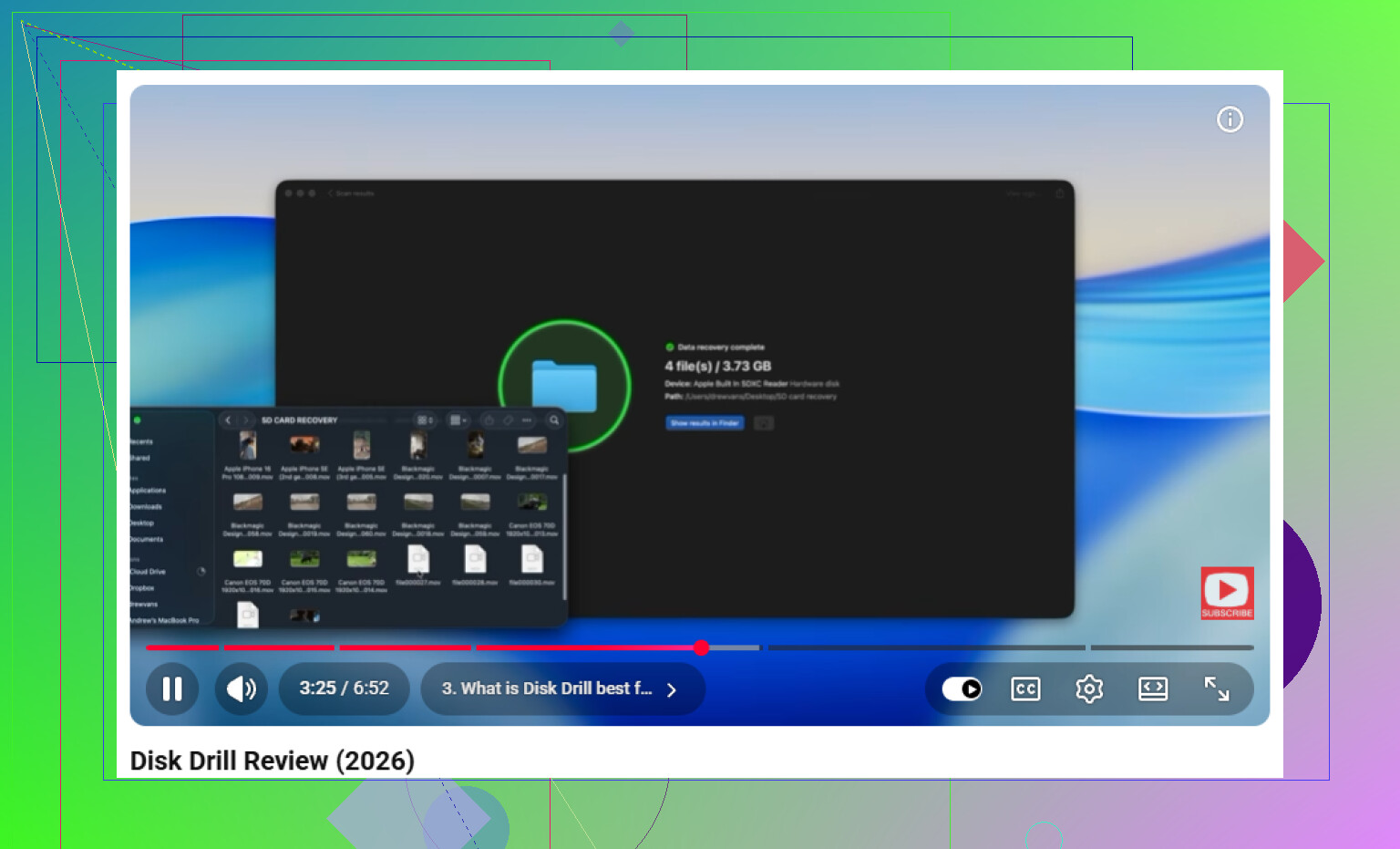
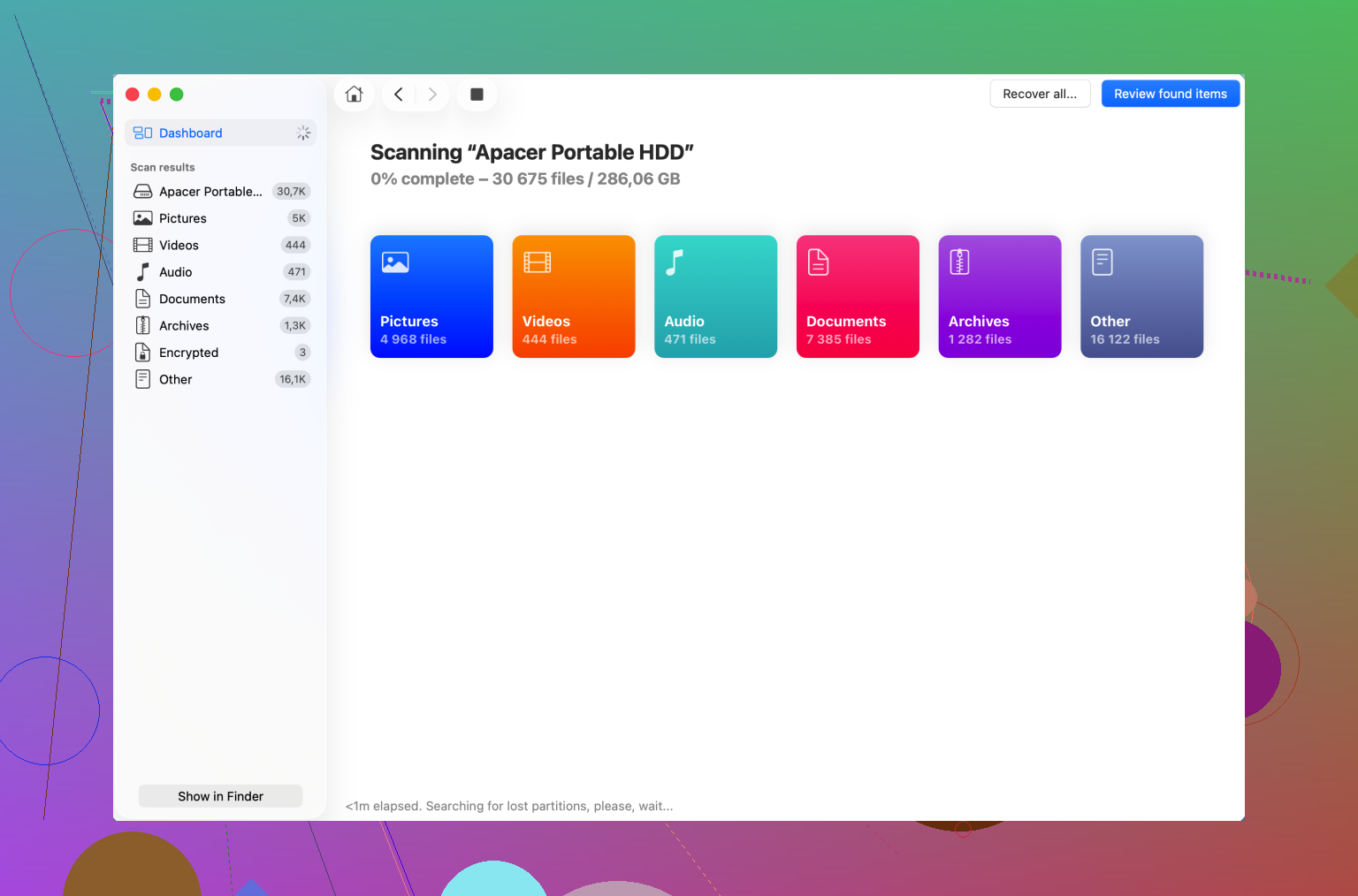
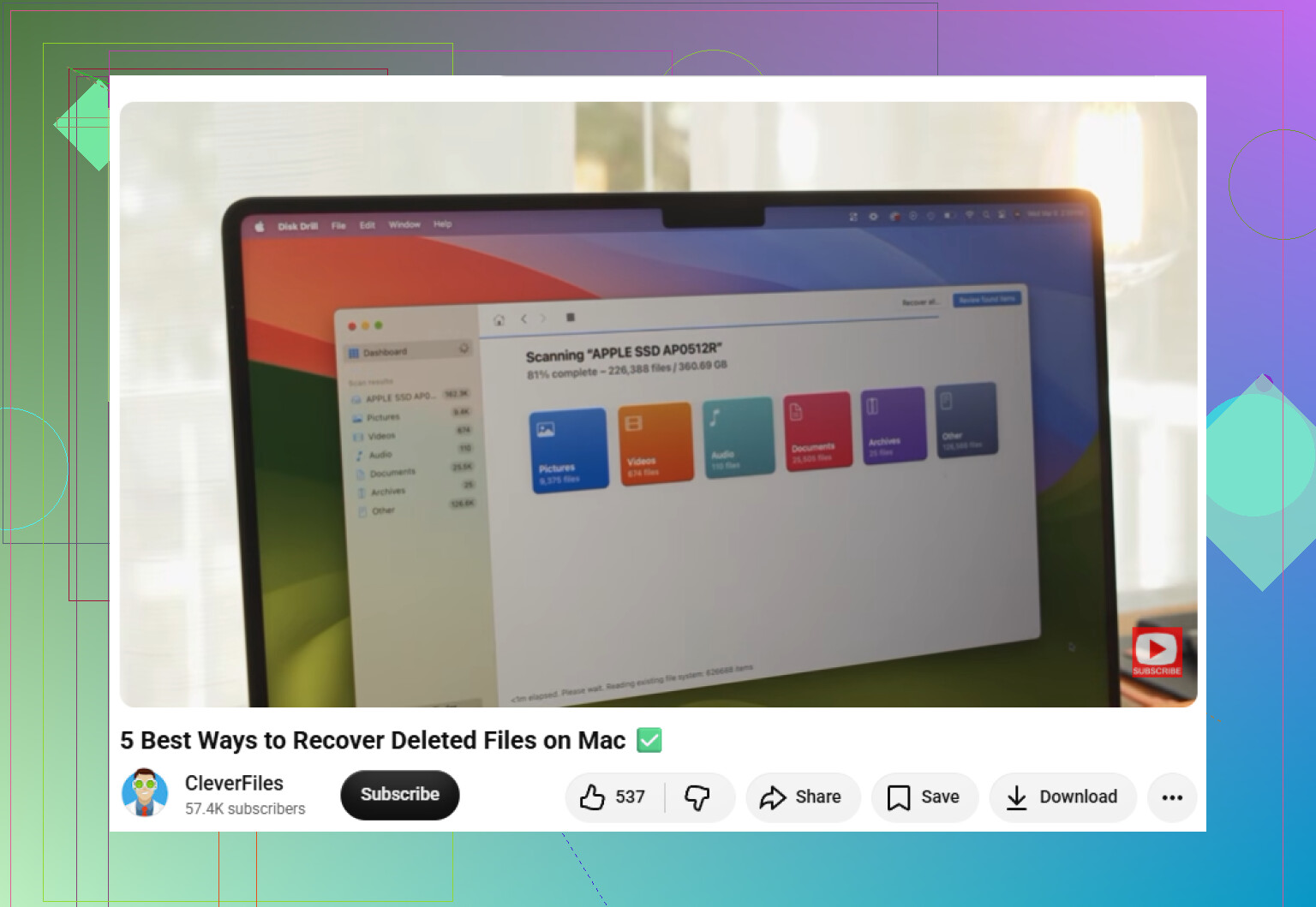
If there is no backup and nothing is in the Trash, then recovery software is probably the next reasonable move. Something like Disk Drill can scan Mac drives formatted as APFS or HFS+ and may still find files even if the original folder structure or filenames are gone.
A deeper scan works differently than just looking through the file directory. It can search for file patterns, like the structure of photos, videos, documents, archives, and other common formats. If the drive is acting flaky, disconnecting, or taking forever to read, do not keep hammering it with scans. Make a byte-for-byte disk image first if possible, then scan that image instead of the physical drive.
Internal SSDs are a tougher case. Many modern SSDs use TRIM, which can clear deleted blocks automatically. Once that happens, normal recovery software may not be able to bring the data back. That is another reason to stop using the Mac right away if the missing files were on the internal drive.
If the drive is making clicking, grinding, repeated spin-up sounds, or any other weird mechanical noise, do not run recovery tools on it. Software cannot fix physical damage, and scanning can make things worse. Disconnect it and consider a professional recovery service if the files are worth the cost.
After this is sorted out, set up backups so you are not stuck in this situation again. Time Machine is fine for a local backup, and a separate cloud backup gives you another layer. For now, the safest order is: stop writing to the drive, check Trash and Time Machine, then recover from another drive or from a disk image if needed.
3 Likes
Don’t click “Initialize,” “Erase,” or “Partition” if macOS pops up saying the disk is unreadable. If the drive stopped showing up at all, I’d try a different cable/port/enclosure first, because a bad USB adapter can look exactly like a dead drive. If it still won’t appear in Disk Utility or System Information, skip software scans and get a recovery shop involved before the drive gets worse.
A drive that shows up for a few seconds is a different case than a drive that never appears anywhere at all. If it flickers in Disk Utility or System Information, I’d treat that as your chance to clone/image it first, not as an invitation to keep retrying First Aid. If it never appears, I agree with @viajeroceleste that cables, ports, and the enclosure are worth ruling out before you assume the disk itself is dead. The trap people forget is installing recovery software onto the same Mac or same failing drive they’re trying to recover from. If you try Disk Drill or anything similar, run it from another drive/Mac and save recovered files somewhere completely separate. Do not “repair” the original just to make it mount, because that can turn a recoverable mess into a cleaner-looking empty one.