My hard drive suddenly stopped working after making strange clicking noises, and I’m worried about losing important photos, work documents, and personal files. I need advice on the safest way to recover data from a failing hard drive without making the damage worse or risking permanent file loss.
If the files matter, stop writing to the drive now. I mean it. I’ve seen people make the damage worse by copying stuff onto the same disk, installing recovery apps there, or running cleanup tools. Once old sectors get overwritten, your chances drop.
A plain hard drive still gives you a shot in a lot of cases. Deleted files, bad partitions, accidental format jobs, even a drive turning RAW, those are often recoverable if the hardware has not started falling apart.
First thing I’d check is the drive’s behavior.
If you hear repeated clicking, grinding, spin-up and spin-down loops, or the drive keeps dropping off the system, I would treat it like a hardware problem first, not a file problem. Same if it responds like molasses, hangs File Explorer, or vanishes mid-scan. A normal HDD should not be making loud rhythmic clicks. If it is, don’t keep poking it.
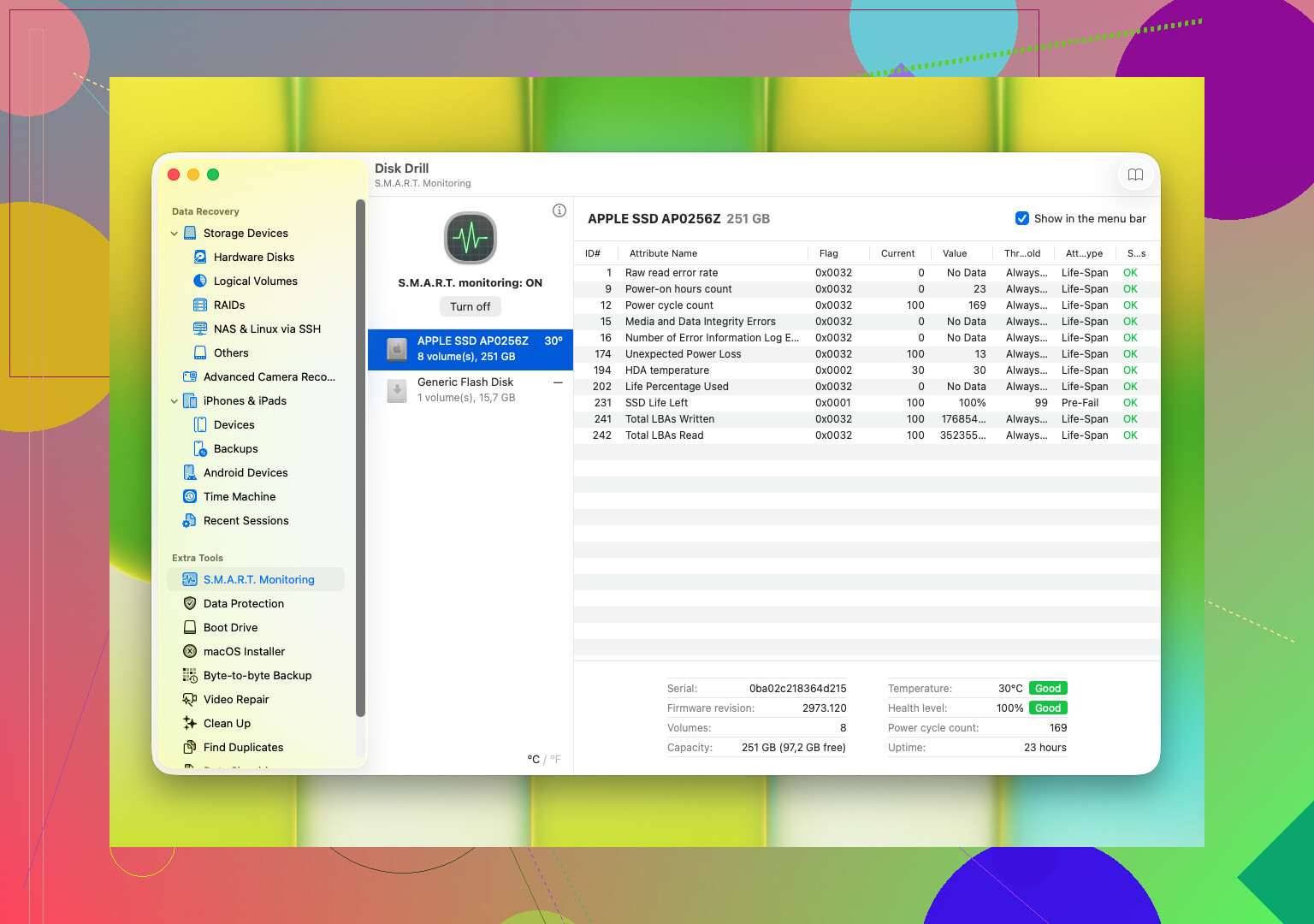
You should also look at the S.M.A.R.T. report:
S.M.A.R.T. data
This is the health log built into the drive. I usually look for bad sectors, reallocated sectors, read errors, heat issues, and any numbers climbing fast. If those values look ugly, or get worse between checks, I stop doing random tests. No CHKDSK. No repair attempts. No “one more scan.” That stuff can push a weak drive over the edge.
If the disk still reads and the data matters, the safer move is often making a byte-for-byte image first. If it’s clicking or dropping out hard, pro recovery starts making more sense.
If the drive stays stable enough for software recovery, then move fast and recover from it with software, not by using the drive normally. One option people reach for a lot is Disk Drill. I’ve found it easier than some of the older tools, mostly because it rolls multiple scan types together and doesn’t bury you in weird menus.
What stood out to me:
It handles common Windows and macOS file systems.
It lets you preview files before recovery.
It reads S.M.A.R.T. info.
It can make a byte-to-byte backup image, which matters if the disk is shaky.
Preview matters more than people think. If you open a found photo, doc, or video fragment and it looks intact, you’ve learned something useful before spending hours recovering junk.
The usual process is simple enough:
- Connect the HDD.
- Install Disk Drill somewhere else, not on the bad drive.
- Open it and pick the problem disk.
- Start the scan.
- Let it run, or check found files while it scans.
- Preview what you need.
- Recover everything to a different storage device.
Not back to the same HDD. I’ve watched people do this and regret it five minutes later.
If the drive stops detecting properly, the scan locks up, or the noises get worse while reading, stop there. Don’t keep hammering it. Those are the kind of signs I’ve seen right before a drive goes fully unreadable.
7 Likes
Clicking is bad news. I’d stop power-cycling the drive. Every spin-up is extra stress, and failed heads tend to get worse fast.
I agree with @mikeappsreviewer on one part, don’t run repair tools. I’d push it further. Skip DIY if the drive has physical clicking from the start. Software helps with file loss and filesystem damage. It does not fix a head crash. If the photos and work files matter more than the cost, a cleanroom shop is the safer path.
If you still want to try at home, keep it low-risk.
- Remove the drive and connect it as a secondary drive, or with a USB dock that has its own power.
- Test on another PC and another cable first. Bad cables fake dead-drive symptoms more often than people think.
- Watch BIOS or Disk Management. If capacity shows wrong, or detection drops in and out, stop.
- If it stays visible long enough, clone it first to a healthy drive with equal or larger size.
- Run recovery on the clone, not the original.
For file recovery software, Disk Drill is fine for scanning a stable clone and pulling back photos, documents, and folders. Install it on a different disk. Save recovered files to a different disk too. Don’t write a single byte to the failing one. Their blog stuff around how to recover permanently deleted files from a hard drive is decent for search and walkthroughs, but with clicking, cloning comes first.
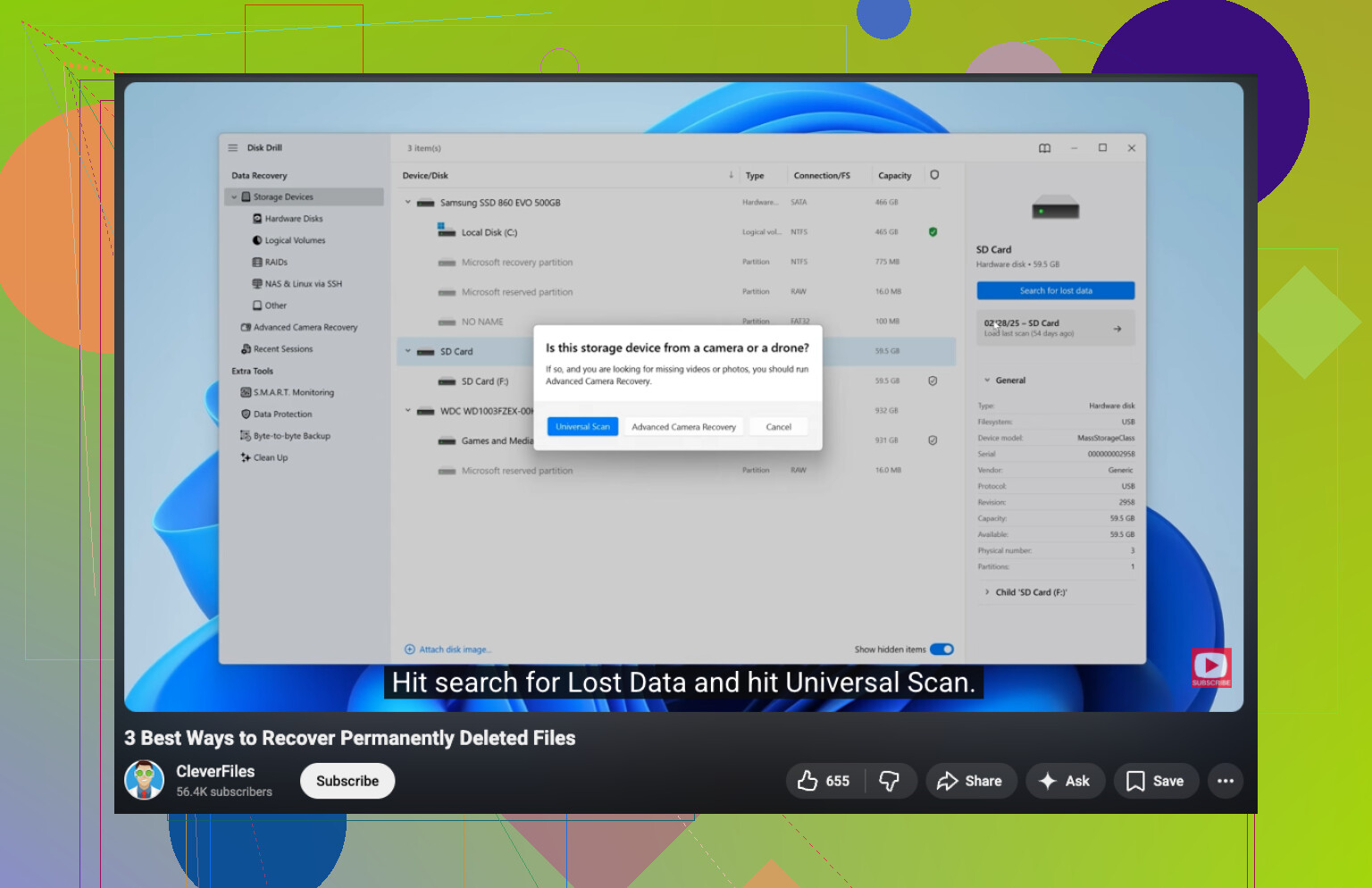
If you want a quick explainer, this video is solid:
watch how to recover deleted hard drive files safely
Big thing, no freezer tricks. People still post that nonsense, and yeah, it sometiems works for five minutes, then the drive dies for good.
Clicking usually means this is no longer a “which recovery app should I run?” situation, it’s a “how do I avoid turning a recoverable drive into a dead one?” situation.
I mostly agree with @mikeappsreviewer and @shizuka, but I’m a little less optimistic about doing much testing once the clicks started. A lot of people burn their best chance by powering it on 20 more times just to “see if it shows up.” That’s the part I’d avoid.
A few things I’d do that haven’t been stressed enough:
- Check whether it’s actually the enclosure, adapter, or power brick if this is an external HDD. Sometimes the drive is fine and the USB-SATA bridge is the thing dying.
- If the drive is still detected, grab the most irreplaceable files first, not the biggest folders.
- Keep a note of exact symptoms: clicks on spin-up, disappears after 30 seconds, wrong size in BIOS, etc. That info helps decide if DIY is even worth it.
- If the data is business-critical or family photos with no backup, price a recovery lab before experimenting too much. The quote is free at many places.
One small disagreement with the usual “scan it right away” advice: on a mechanically unstable disk, a full scan can be rough. If you can clone first, do that. If you can’t clone and it’s actively clicking, I’d stop and consider pro help.
If the drive becomes readable enough on another cable/enclosure, use Disk Drill on a healthy machine, install it somewhere else, and recover only to another disk. It’s fine for pulling files from a stable source or clone, just not magic for failing hardware.
Also, this might help if you want more community takes:
real-world hard drive recovery advice from the Facebook tech community
Main thing: no CHKDSK, no defrag, no “repair drive” prompt, no freezer nonsense. That stuff gets suggested way too ofen.
Clicking plus sudden failure changes the priority from recovery software to triage. I’m with @shizuka, @ombrasilente, and @mikeappsreviewer on avoiding repairs, but I’m slightly less sold on doing even basic “see if it works” tests if the noise is sharp and repeatable. A dying head stack can turn one extra spin-up into the last one.
What I’d add:
- If it is an external drive, remove the disk from the enclosure only if you know what you’re doing. A lot of “dead drives” are really bad USB bridge boards.
- Smell matters. Burnt electronics smell points more to PCB/power trouble than head damage.
- Feel the drive. No spin at all is a different branch than spin plus click.
My rule:
- No spin, no detection, burnt smell: lab quote first.
- Spins, no click, stable detection: clone/image path.
- Spins, clicks, disappears: stop early and weigh pro recovery.
About Disk Drill: good on a healthy clone, not on a mechanically unstable original.
Pros:
- simple UI
- previews files well
- decent for photos/docs
- can work from an image instead of the failing disk
Cons:
- scans can be long
- deep scans may return messy filenames
- not magic against hardware failure
- easy for people to use too early on the original drive
If you do get a readable image, Disk Drill is a reasonable next step. If the files are truly irreplaceable, the cheapest move is often stopping now.