I accidentally removed important files from my external hard drive while cleaning up folders, and now I’m trying to figure out the best way to recover them before they’re gone for good. The drive has work documents and personal photos I really need, so I’m looking for safe external hard drive data recovery tips, trusted software recommendations, or steps I should take right away.
I’ve been there. You delete a photo folder off an external drive, then your stomach drops a second later. First thing, stop touching the drive.
When files get deleted from an external HDD or SSD, the data usually does not vanish on the spot. The file system removes the references to those files and marks the space as free. Your photos often still sit there until new data lands on top of them.
So yeah, unplug it. Do not copy anything onto it. Do not move folders around. Do not run edits off it. Every write raises the odds of wiping the exact sectors you’re trying to get back. If those sectors get overwritten, you’re done.
Check the drive before trying software
I would not run recovery tools right away if the drive is showing hardware trouble. At that point, DIY stuff starts getting risky.
- Bad noises
Clicking, scraping, grinding, beeping. I’d treat any of those like a stop sign. On a hard drive, noises like this often mean mechanical damage. - No power, no spin
If the light stays off and the drive never spins up, the board or another internal part might have failed. - Computer does not see it at all
If it won’t show up in Disk Management after trying another cable, another USB port, and another computer, I’d quit there and talk to a recovery lab.
If the drive powers on, spins normally, mounts, and doesn’t make ugly noises, software recovery is usually the path I’d take for accidental deletion.
What I’d use
I’ve tried a few of these over time. For photos, Disk Drill is the one I’d start with. It’s easier to work through than most recovery apps, and photo recovery is one of the few places where its scan results tend to be worth the time. The preview feature matters too. If the preview opens cleanly, your odds are better because the file structure is still there.
If you need a free route, PhotoRec is the old standby. It works, but I’ll be blunt, it’s messy. No polished interface, lots of raw file pulls, weird filenames, and a pile of sorting after the fact. Recuva is another free Windows option. Easier to use than PhotoRec, though it feels older and its deeper scans aren’t on the same level from what I’ve seen.
The safer recovery flow
If you go with Disk Drill, I’d handle it like this.
- Install it on your computer, not the external drive
Keep all writes off the drive where the photos were deleted. Put the software on your internal disk. - Make a full image first
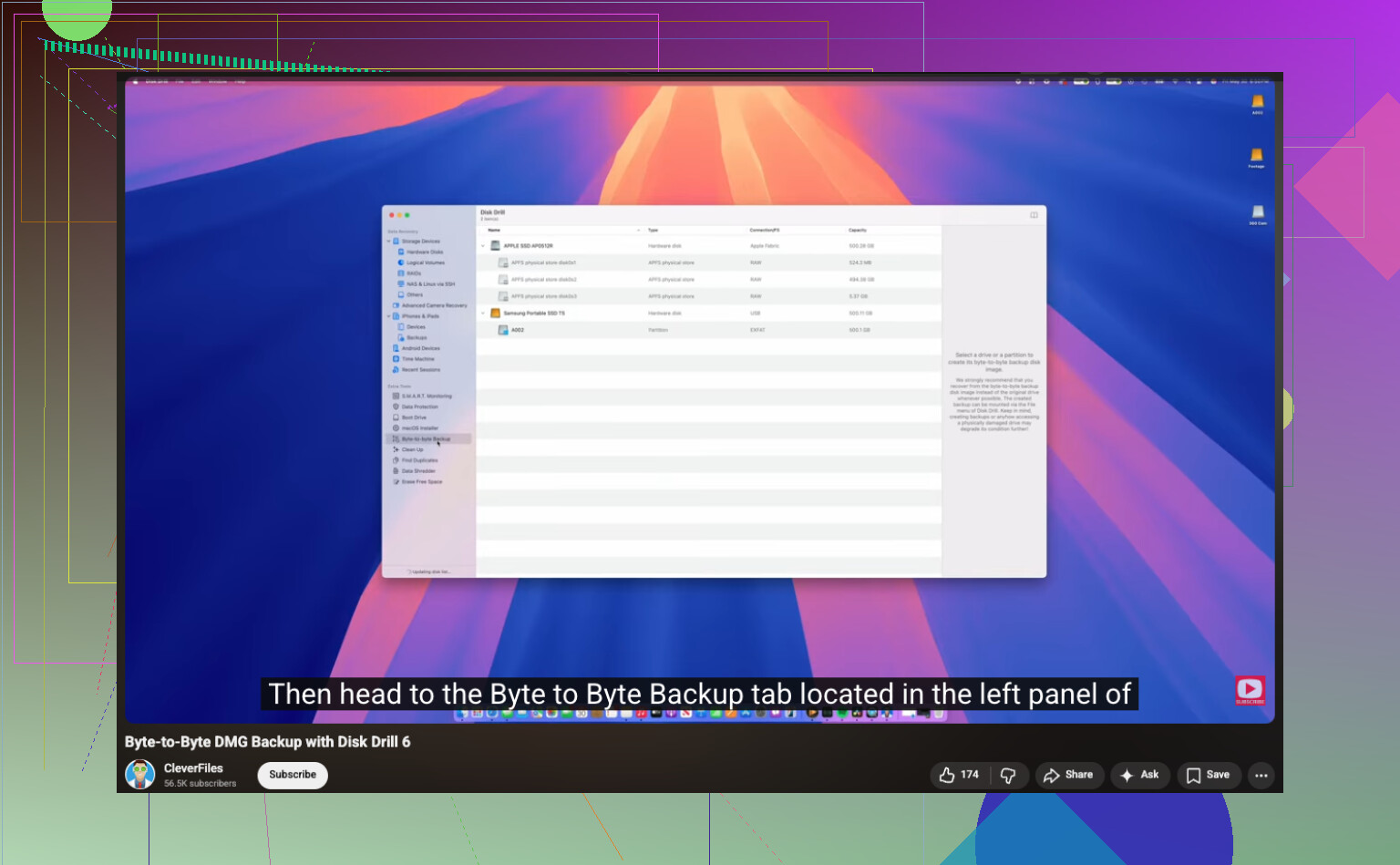
Before scanning the drive itself, create a byte-to-byte backup image. This gives you a full clone of the drive’s current state as one file saved somewhere else. - Scan the image, not the hardware
This is the part people skip, then regret later. Scan the image file after it’s created. It keeps extra stress off the original drive and lowers the chance of making things worse. - Recover files to a different device
When the scan finishes, filter by images, preview what you find, and recover the files somewhere else. Your internal drive is fine. Another external drive is fine. The original drive is not.
One small thing I learned the hard way, if the app finds thousands of files with generic names, don’t panic yet. Sort by file type and preview first. A lot of recovered photos lose their original names, but the image data is still okay.
And if the scan shows your photos with intact previews, that’s usually the best sign you’ll get without opening the files fully.
After you get through this, set up backups. I ignored that advice for too long and paid for it with a weekend of sorting recovered JPGs named stuff like file0007421.jpg. The 3-2-1 backup habit is boring, but it beats this mess every time.
12 Likes
Stop using the drive first. That part from @mikeappsreviewer is spot on.
I’d add one thing. Check where the delete happened. If you deleted files from an external drive on Windows, they sometimes skip Recycle Bin, but not always. If the drive was formatted as NTFS and the files were removed through File Explorer, open Recycle Bin and sort by original location. On macOS, check Trash too. It takes 30 seconds.
For work docs and photos, I would try recovery in this order:
- Look for cloud sync copies. OneDrive, Google Drive, Dropbox, iCloud.
- Check File History, Time Machine, or any backup app.
- Run recovery software only after that.
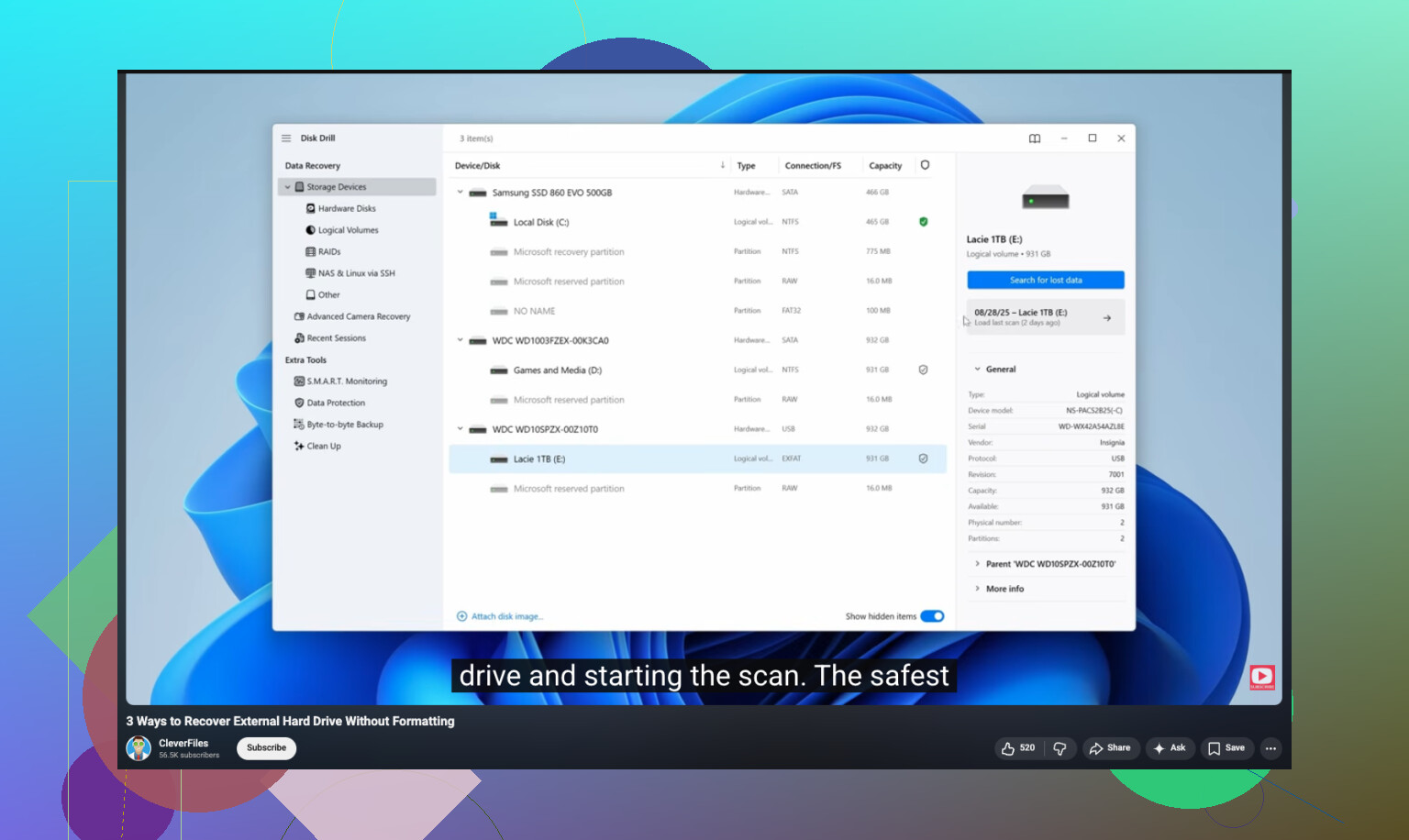
I disagree a bit on one point. Imaging first is best if the drive is old, slow, or acting weird. If the drive is healthy and you need a few deleted folders fast, a read-only scan with Disk Drill is often fine. Disk Drill is solid for external hard drive file recovery, espeically when you need previews for documents and photos before restoring. Save recovered files to a different drive. Not the same one. Ever.
If the drive is exFAT, recovery often gets messier. Filenames and folder structure are less likely to come back clean. Photo files still recover decently, office docs are mixed.
If you want a walkthrough, this external hard drive file recovery step by step video is easier to follow than most.
If the drive clicks, drops offline, or freezes your PC, stop DIY stuff. That’s lab territory.
Before you do anything else, check the apps that may still have their own version history. A lot of work docs are easier to recover from Word, Excel, Adobe, OneDrive, or Google Drive than from raw disk recovery. Word has AutoRecover, Adobe sometimes has temp files, and cloud platforms often keep deleted items and older revisions even after you removed the local copy. People skip that and go straight to deep scans for no reason.
Also, if this was a folder move that got interrupted, search the drive for file extensions instead of filenames. Stuff like *.docx, *.xlsx, *.jpg, *.pdf. I’ve seen “deleted” files turn out to be stranded in some random parent folder after a cleanup session. Kinda dumb, but it happens.
I mostly agree with @mikeappsreviewer and @voyageurdubois, though I’m less relaxed about scanning the original drive directly. If the files matter for work, I’d rather be cautious than fast. And if the drive is an SSD in an external enclosure, TRIM support can make recovery way worse than on an old spinning HDD, so time actually matters a bit here.
If you do need software, Disk Drill is a reasonable pick because it handles documents and photos pretty well and lets you verify results before restoring. I’d still prioritize docs first, not photos, since work files are usally harder to replace.
For more practical info on recovering permanently deleted files from a hard drive, that thread is worth a read.
One more thing: recover to another drive with lots of free space. Not the same external. Seriously, dont.
One angle nobody’s really stressed enough: check the file system journaled features before deep recovery. On NTFS, Volume Shadow Copy can occasionally save you even when File History was never set up. Right-click the parent folder on the PC that used the drive most, hit Previous Versions. It’s hit-or-miss, but when it works, it’s cleaner than carving files back.
I also slightly disagree with the “image first no matter what” crowd. If the drive is healthy and you’re comfortable, a fast metadata-based pass can be smarter before spending hours cloning a huge disk. If that finds the missing docs intact, great. If not, then go heavier.
My order would be:
- Previous Versions / app-level recovery
- Search by extension and modified date
- Metadata scan
- Full scan / image / carve
Disk Drill fits well at step 3 because it’s easy to separate deleted entries from raw recovered junk.
Disk Drill pros: good previews, simple filters, decent document/photo support, less chaotic than PhotoRec.
Disk Drill cons: free recovery limits depend on platform, deep scans can return messy results, not magic if TRIM or overwrite happened.
@voyageurdubois, @cazadordeestrellas, and @mikeappsreviewer all made solid points, especially about not recovering back to the same external drive. That part is non-negotiable. If this is business-critical data and the drive has even minor disconnect issues, I’d stop DIY earlier than they do and consider a lab.