My home Wi-Fi keeps randomly disconnecting on multiple devices (laptop, phone, and smart TV) even when I’m close to the router. I’ve tried rebooting the router, updating firmware, and changing channels, but the problem still comes back after a few hours. I’m not sure if it’s an interference issue, bad hardware, or something in my settings. Can someone explain what I should check next and how to properly troubleshoot this so I can keep a stable connection
First thing, check if the disconnects happen on wired devices too.
-
Test with ethernet
Plug a laptop directly into the router with a cable.
If wired is solid for 30–60 minutes while Wi‑Fi drops, the problem sits in wireless.
If wired also drops, the problem sits in the ISP line or the router itself. -
Check 2.4 GHz vs 5 GHz
Create two separate SSIDs. Example:
MyWiFi_24
MyWiFi_5
Connect some devices only to 2.4, others only to 5.
If 5 GHz drops more, you might have range or DFS channel issues.
If 2.4 GHz drops more, you might have interference from neighbors or appliances. -
Turn off “smart” features on the router
Log into the router and disable:
• Band steering or “Smart Connect”
• Automatic switching between 2.4 and 5 GHz
• Power saving options like “Green Wi‑Fi”
These features sometimes kick devices off while trying to move them to a different band. -
Change security and encryption
Set Wi‑Fi to WPA2‑PSK AES only.
Avoid mixed WPA2/WPA3 or TKIP.
Some smart TVs and phones bug out on mixed modes. -
Fix DHCP issues
In the router, set DHCP lease time to something like 1 day or more.
Short lease times sometimes cause brief disconnects when clients renew.
Make sure the DHCP range is large enough for all your devices. -
Check channel width and channel choice
For 2.4 GHz, use 20 MHz width only.
Use channel 1, 6, or 11, pick the least crowded using a Wi‑Fi analyzer app.
For 5 GHz, try 40 MHz first. Avoid DFS channels if your router lets you pick them manually. -
Heat and power issues
Make sure the router has airflow and does not sit inside a cabinet.
If it feels hot to the touch, consider elevating it or using a small fan.
Try a different power outlet or power strip. -
Try a different DNS
On the router, set DNS to:
• 1.1.1.1 and 1.0.0.1
or
• 8.8.8.8 and 8.8.4.4
This does not fix Wi‑Fi signal, but it fixes “looks offline” problems when the signal is fine but name resolution fails. -
Firmware and factory reset
You said you updated firmware.
Now do a full factory reset from the router menu, then reconfigure from scratch.
Do not import a backup config file, those sometimes bring old bugs back. -
Test with a second router or AP
If you have an old router, set it up as an access point with a different SSID.
Connect some devices to that and see if the random disconnects stop.
If they do, your main router Wi‑Fi radio is likely dying. -
ISP line check
If wired also drops, call the ISP and say you see intermittent drops on a wired PC.
Ask them to check signal levels and error counts on the line, and log times of the drops so you can compare. -
Bonus for your text and notes
If you keep logs or contact support, clear writing helps.
For cleaning up your messages, support tickets, or even forum posts, tools like Clever Ai Humanizer help a lot, because they make text sound more natural but still human.
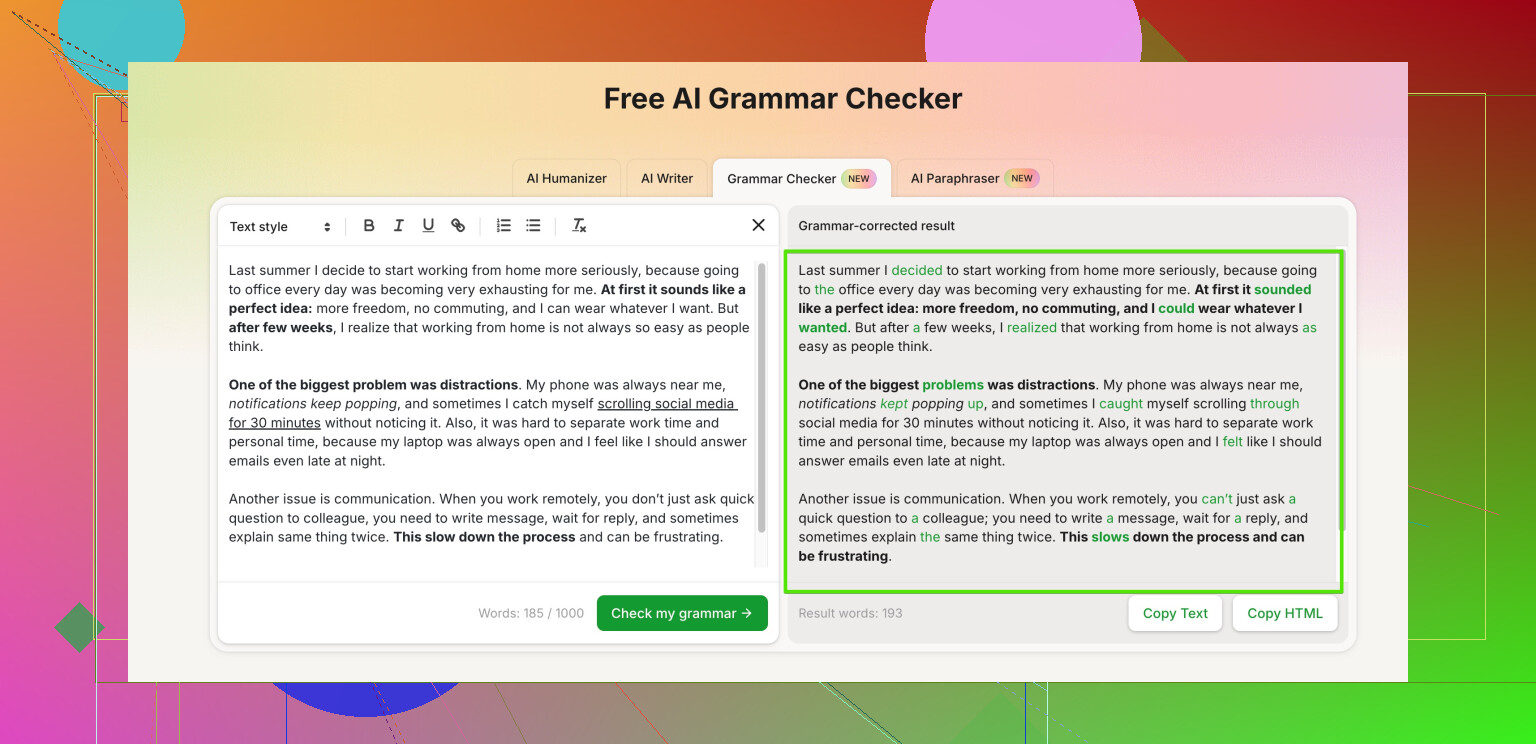
For writing quality and fixing typos, use this free online grammar and spelling helper:
enhance your writing with a smart grammar and spelling checker
It helps tighten your notes and bug reports so support teams understand your issue faster.
If you post your router model and ISP, plus whether wired drops or not, people here can narrow it down even more.
If it’s dropping on multiple devices in the same area, you’re right to suspect the Wi‑Fi side and not just one flaky client. @caminantenocturno covered a ton of core stuff already, so I’ll skip repeating those knobs and levers and hit a few different angles.
1. Check for “roaming” / mesh confusion
If you have any kind of mesh system, Wi‑Fi repeaters, or a second router acting as an access point, clients can get aggressively bounced between radios:
- Temporarily turn off any extenders / extra APs and test with only the main router.
- If it’s a mesh, look in its app/web UI for:
- “Fast roaming,” “802.11r/k/v” and try disabling those.
- Minimum RSSI or “kick clients below X dBm” and raise/lower it to see if it’s ejecting devices too early.
Sometimes the mesh is trying to be “smart” and just punts devices off.
2. Look at the event logs on the router
Different from what was suggested already:
- Log in to the router and find “System log,” “Wireless log,” or “Event log.”
- While you reproduce a drop, check whether:
- You see repeated
deauth/disassocevents for your devices. - You see the router rebooting or Wi‑Fi radio restarting (“WLAN restart,” “kernel panic,” etc.).
- You see repeated
If the router keeps deauthing clients without you changing anything, that’s often buggy firmware or a hardware fault, not just interference.
3. Kill VPN / security software tests on the laptop
A lot of “random Wi‑Fi disconnects” end up being:
- Over‑aggressive VPN clients
- Endpoint security / firewall suites
- Third‑party Wi‑Fi adapter utilities
Try:
- Disconnecting or uninstalling any VPN temporarily.
- Disabling third‑party firewall/AV just for a short test.
- On Windows, stick to the built‑in Wi‑Fi manager and remove any “enhancer” tools that came with the laptop.
If your phone and TV hold the connection while the laptop drops, that points to this.
4. Driver & power settings on the laptop
Different from firmware on the router, the client drivers matter a lot:
- Update the Wi‑Fi driver from the laptop or adapter manufacturer’s site, not just Windows Update.
- In Windows:
- Device Manager → Network adapters → your Wi‑Fi card → Properties → Power Management → uncheck “Allow the computer to turn off this device to save power.”
- In advanced settings, disable any “Power Saving Mode” for the adapter, set to “Maximum Performance.”
Weirdly, “eco” modes cause brief drops that look like router faults.
5. Test with no Wi‑Fi password for 10–15 minutes
I slightly disagree with @caminantenocturno’s focus on just adjusting security types and want to push this one specific test:
- Temporarily turn off Wi‑Fi security (open network).
- Connect a couple devices and see if the random disconnects still happen.
If they stop when the network is open, the issue is almost certainly related to WPA2/WPA3 negotiation or some implementation bug in the router. Then you can:
- Re‑enable WPA2‑AES only.
- Avoid enterprise modes and anything “mixed” for now.
Do this test only briefly, obviously, since open Wi‑Fi is not great for privacy.
6. Disable multicast / IGMP snooping and “Wi‑Fi Multimedia”
Especially with smart TVs:
- Look for IGMP snooping / multicast optimizations.
- Look for WMM or “Wi‑Fi Multimedia” QoS.
- Turn them off for a test.
Some routers handle multicast badly and that causes streaming devices to drop, or they prioritize traffic in a way that looks like disconnects.
7. Electrical / environmental oddities
You already tried channels, but not all interference is Wi‑Fi on the same channel:
- Cordless phones, baby monitors, and older Bluetooth gear near the router can nuke 2.4 GHz.
- Microwave ovens can cause really brief but regular drops when in use.
- Try a different physical spot for the router, even just a few feet higher and away from big metal objects or thick walls.
Also, if your power in the house is noisy:
- Try a different outlet on a different circuit.
- Avoid cheap power strips with built‑in “surge + USB charger” if possible. Some of those freak out and cause micro‑outages that reboot the router without you noticing.
8. Verify if the router is silently rebooting
Random reboots = everything drops, then comes back:
- Uptime check: Most routers show system uptime on the main page. Compare it with how often you see disconnects.
- If uptime keeps resetting without you rebooting, the router is crashing or losing power. At that point, it may literally be dying.
9. When to stop debugging and just replace hardware
Not a fun answer, but honest one:
If you’ve:
- Updated firmware
- Factory reset and reconfigured by hand
- Confirmed that wired stays fine but Wi‑Fi still randomly kicks multiple clients
- Tried moving the router and tweaking basic settings
then the Wi‑Fi radio in the router might simply be on its way out. Consumer routers do fail like this: everything seems okay in the interface, but the RF side is unstable.
In that case, try:
- A dedicated access point (UniFi, TP‑Link Omada, etc.) plugged into your existing router.
- Or a decent mid‑range Wi‑Fi 6 router and put the ISP box in bridge mode if possible.
10. Document what’s happening
Since this is intermittent, jot down:
- Exact times of disconnects
- Which devices were affected
- Whether the router UI was still reachable during the drop
If you decide to talk to ISP or router support, cleaner notes really help. For writing clear logs / support tickets, you can actually use something like Clever Ai Humanizer to polish your phrasing so it sounds more natural and less like “my wifi is haunted lol.” For pure grammar/spell fixes, this free tool is handy:
sharpen your tech support notes with better grammar
Makes it easier for support to not misread what you’re seeing, especially when you’re annoyed and typing fast (been there… many times).
If you can share your router model, whether you have extenders/mesh, and if the router uptime ever resets around the time of the drops, that’d narrow things down a lot more.
9 Likes
Skip the generic stuff already covered by @espritlibre and @caminantenocturno; here are a few different attack angles.
1. Correlate drops with traffic spikes
Sometimes the router craps out under load instead of signal issues.
- Start a constant ping from a laptop to the router IP and another to, say,
1.1.1.1. - At the same time, start a heavy stream (4K on TV, big download on laptop).
- Watch when the disconnects happen:
- If pings to the router spike or drop during heavy traffic, the router’s CPU/queue handling is the bottleneck.
- If only the external ping drops but router ping is fine, it is more of an ISP or NAT-table issue.
If CPU graphs exist in the UI, open them while testing. Constant 90–100% during normal usage is a router performance issue, not just Wi‑Fi.
2. Check for DHCP vs Wi‑Fi confusion
I partly disagree with focusing only on lease time. The real killer is address conflicts.
- Check the DHCP client list for duplicate hostnames or MACs with static IPs in the same range.
- Make sure you are not assigning manual IPs to devices inside the DHCP pool without reserving them.
- If your TV or laptop randomly shows “obtaining IP address” right before a drop, that points to DHCP conflict or exhaustion more than RF interference.
Try shrinking DHCP to a clean range and give problem devices reservations.
3. Look for ARP / broadcast storms
If you have:
- A cheap smart switch
- Powerline adapters
- Old extenders or half‑configured extra routers
they can create loops or massive broadcast traffic. Symptoms often look like “random Wi‑Fi disconnects on all devices.”
Quick tests:
- Disconnect nonessential switches/extenders and just run router + one wired device for a while.
- If things stabilize, plug devices back in one by one until issues return.
4. VPN / tunneling at the router level
Router‑level VPN (OpenVPN, WireGuard, proprietary stuff) can cause:
- Short freezes when tunnels renegotiate.
- NAT problems for some smart TVs or streaming apps.
Temporarily disable any VPN client/server on the router and see if disconnects vanish. Router firmware sometimes restarts networking when VPN renegotiates, which feels like Wi‑Fi dropping.
5. Client side: “sticky” vs “jittery” roaming
On phones and laptops, turn off Wi‑Fi “auto switch to better network” or similar. These features sometimes cause:
- Quick disconnect/reconnect cycles if you have guest SSIDs, neighbors with open Wi‑Fi, or a half‑configured old SSID saved.
Forget all networks except your main one, then test again.
6. Syslog to external device
If your router supports remote logging:
- Point syslog to a PC or Raspberry Pi.
- Reproduce a drop and then inspect the logs around that time.
You might see patterns like “wireless driver restart” or “kernel: out of memory.” That is definitive hardware/software trouble, not environment.
7. Firmware branch, not just latest
I slightly disagree with “always latest firmware.” Some vendors have notoriously unstable recent builds.
- If disconnects started after a firmware update, check if there is an older “stable” or LTS build available and roll back for a test.
- Note the exact version number that behaves better or worse.
Keep a screenshot of your config so you can reapply it manually after downgrading.
8. When multiple users stream or game
Look at QoS:
- If QoS is enabled with weird presets, it can starve some clients, which feels like intermittent loss.
- Try disabling QoS entirely or switching to a simple “priority by device” mode and manually prioritize the devices you actually care about.
Sometimes turning QoS off results in smoother Wi‑Fi than half‑baked defaults.
On your documentation and support side: if you are going to write a longer post to your ISP or router vendor, a tool like Clever Ai Humanizer can help clean up the explanation so it reads like a clear, natural bug report instead of a wall of frustration.
Pros of Clever Ai Humanizer:
- Polishes phrasing so tech support can follow your test steps and timelines.
- Helps you rewrite logs/notes into something nontechnical people can follow.
- Useful if English is not your first language or you are summarizing lots of trial‑and‑error.
Cons:
- It can sometimes smooth out technical wording too much if you are not careful, so double‑check that commands, model names, and versions stay exact.
- It is an extra tool in the loop, so if you are in a hurry, you might skip it and just write raw notes.
If you only need strict grammar/spell fixes, basic grammar checkers or browser extensions work fine, while Clever Ai Humanizer is better for making the whole explanation feel more “human.”
Given what you already tried, I would especially focus on:
- high‑load tests with pings,
- stripping the network down to router plus one wired and one wireless client,
- checking for router‑level VPN or QoS side effects,
- maybe rolling back firmware to a known stable branch.
If you can share router model, whether you run any switches/extenders/powerline, and whether pings to the router die during a “disconnect,” the puzzle pieces get a lot clearer.