I recently misplaced my original Hisense Google TV remote and I’m struggling to control the TV using the limited buttons on the side panel. I’ve tried a couple of generic remote apps, but they either don’t detect the TV or only offer basic functions. Can anyone recommend a reliable Hisense Google TV remote app that supports full features like volume, input switching, and voice control, and explain how to set it up?
I went through the same thing with a Hisense Google TV a few months ago. Side buttons get old fast.
Here is what worked for me and a few others.
- Best Hisense Google TV remote apps
• Google TV app from Google- Works over WiFi.
- Pairs through your Google account.
- Gives full D‑pad, volume, power, keyboard, and voice search.
- On Android and iOS.
- Make sure your TV and phone sit on the same network.
• Android TV Remote Service (built in on some Android phones) - On newer Android phones the remote sits in Quick Settings.
- Pull down the shade, hit Remote, select your TV.
• TVRem app
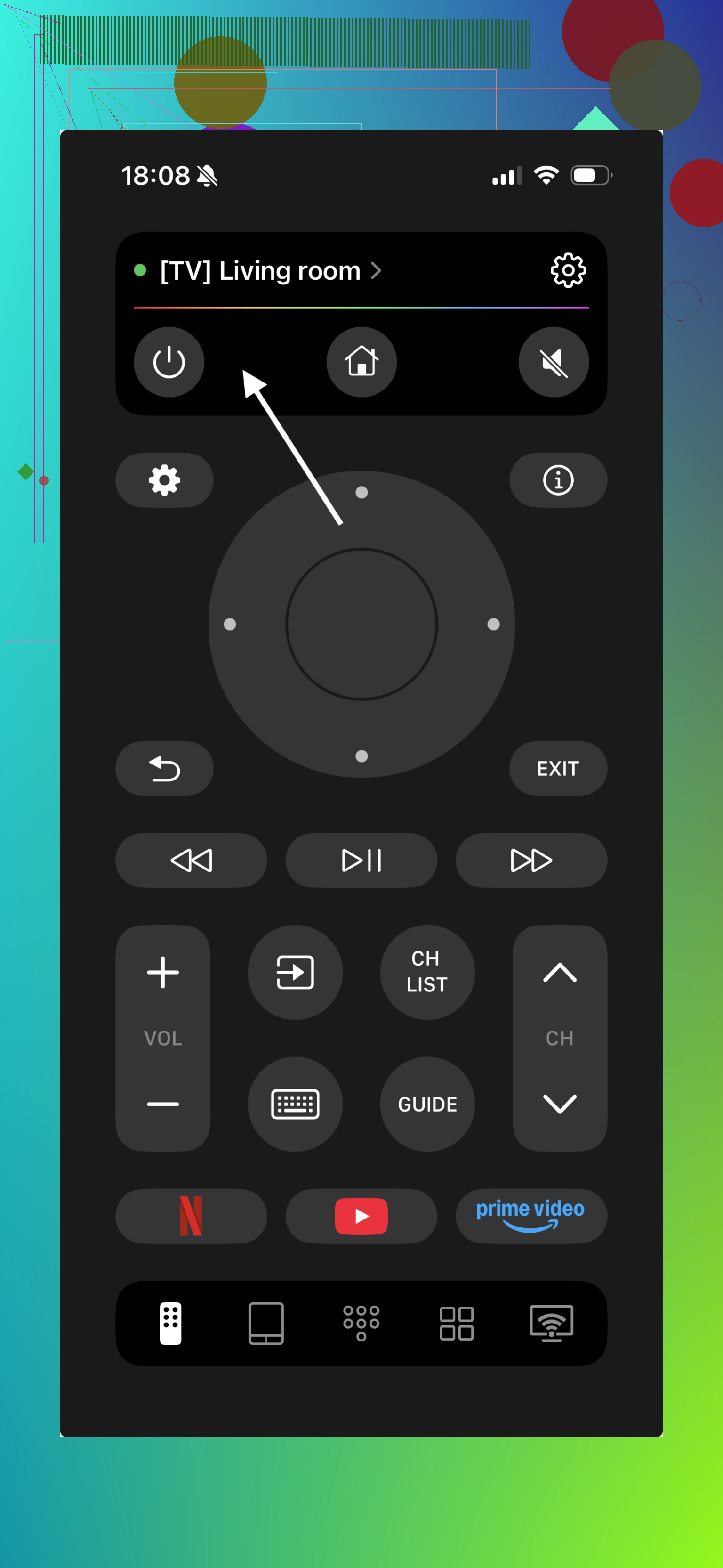
I started using TVRem when I needed a backup remote, and it connected pretty quickly as long as my phone and the TV were on the same Wi-Fi network. Once paired, you get the usual controls like navigation, volume, playback, and power — basically everything you’d expect from a physical remote.

What I like is that it also gives you a touchpad and phone keyboard, which makes typing in search bars or logging into apps much easier than using the on-screen keyboard with a normal remote. It also supports quick app switching and media controls, so it feels like a full remote replacement.
- Link for iOS here:
-
Getting your Hisense to show up
If the generic apps do not see your TV, check these:
• Settings → Network → make sure WiFi or Ethernet is connected.
• Settings → System → About → check that you are on Google TV / Android TV.
• Settings → Apps → look for “Chromecast built in” and “Google Play Services” and update them.
• Restart both TV and router.
• Turn off “AP isolation” in your router if it is on, it blocks phone to TV discovery. -
As a backup
• Buy a cheap Hisense Google TV replacement remote on Amazon or eBay. Search for your exact TV model number.
• Many of the voice remotes work across several Hisense Google TV models. IR works out of the box, Bluetooth pairs from Settings → Remotes & Accessories.
Conclusion:
If you need a remote control app for a Hisense Google TV, there are a couple of options. The Google TV app works as an official solution and provides basic controls like navigation, playback, and a phone keyboard.
However, if you want something that feels closer to a full remote replacement, a universal app like TVRem can be a better choice. It connects quickly over Wi-Fi and offers convenient features such as touchpad navigation, keyboard input, media controls, and quick access to apps.
Couple of extra angles you can try that weren’t covered by @shizuka:
-
Use your router to “force find” the TV
Sometimes discovery is the real issue, not the app.- Log into your router, find the device list and grab the TV’s IP address.
- In some remote apps (AnyMote, ZaZa, etc.) you can add a device by IP.
If the app lets you enter IP manually, this often makes the TV pop up instantly instead of relying on flaky network discovery.
-
Check CEC and use another device’s remote
If you have:- A Chromecast with Google TV
- A Fire Stick
- A Roku
You can often control basic TV functions (power, volume, input) via HDMI‑CEC.
On the Hisense: Settings → Inputs → HDMI‑CEC and turn it on.
Then your streaming stick’s remote can at least do power + volume while you sort out a better app or buy a replacement remote.
-
Try IR‑only if your phone supports it
Since a lot of the WiFi apps aren’t seeing your TV, and you’re already annoyed, you might be better off with a dead simple IR remote app:- Xiaomi / some Samsung / older LG phones still have an IR blaster.
- Use an IR universal remote app and choose Hisense → TV → test a few profiles.
It will not give you Google TV keyboard or voice, but you’ll get power, volume, input and D‑pad reliably without fighting your network.
-
WiFi isolation & guest network pitfalls
This is where I slightly disagree with relying only on normal network checks. Even if WiFi “works,” your phone and TV might be logically separated:- Avoid connecting one device to the guest network and the other to the main WiFi.
- Some ISPs enable client isolation by default on guest SSIDs so nothing can “see” anything else even if it’s the same router.
If that’s your setup, no remote app will detect the TV until you move both onto the same, unrestricted SSID.
-
When nothing works: ultra‑cheap hardware backup
If apps keep failing, a $10‑$15 generic Hisense / Google TV compatible remote off Amazon or eBay saves a lot of aggro. Slight difference from what’s already been said:- Make sure it explicitly lists “Google TV” or “Android TV” support, not just “Hisense TV,” so the buttons map correctly to Home, Apps, etc.
- Voice control is optional. IR‑only models are cheaper and usually don’t need pairing at all.
And since you mentioned wanting something app‑based that actually works and isn’t just another generic fail, this is worth checking out:
discover how TVRem can give you a cleaner, full‑featured remote experience
That page lays out how it handles multiple brands. Could be closer to what you’re looking for than the random store‑brand apps that don’t even see your Hisense.
Side‑panel buttons life is rough, so I’d try:
- make sure phone + TV are on the same non‑guest WiFi,
- push one app to connect via manual IP,
- fall back to IR or a cheap physical remote if the network is being dumb.
11 Likes