My exFAT USB stick is detected by my computer, but the drive looks empty and all my files seem to be gone. I haven’t formatted it or copied anything new to it because I’m worried about overwriting data. What’s the safest way to recover files from an exFAT USB drive?
Stop using the card or USB drive right away. That’s the main thing. The recovery app matters, but not nearly as much as avoiding new writes to the device.
I learned this the annoying way after I accidentally formatted a 128 GB exFAT SD card from my camera. I thought the whole weekend of photos and videos was gone. The card still had a chance, but only because I didn’t keep using it afterward.
So don’t copy anything to it, don’t format it again, and don’t run CHKDSK or other “repair” tools first. If the files are still sitting there, new data can overwrite them and make recovery worse or impossible.
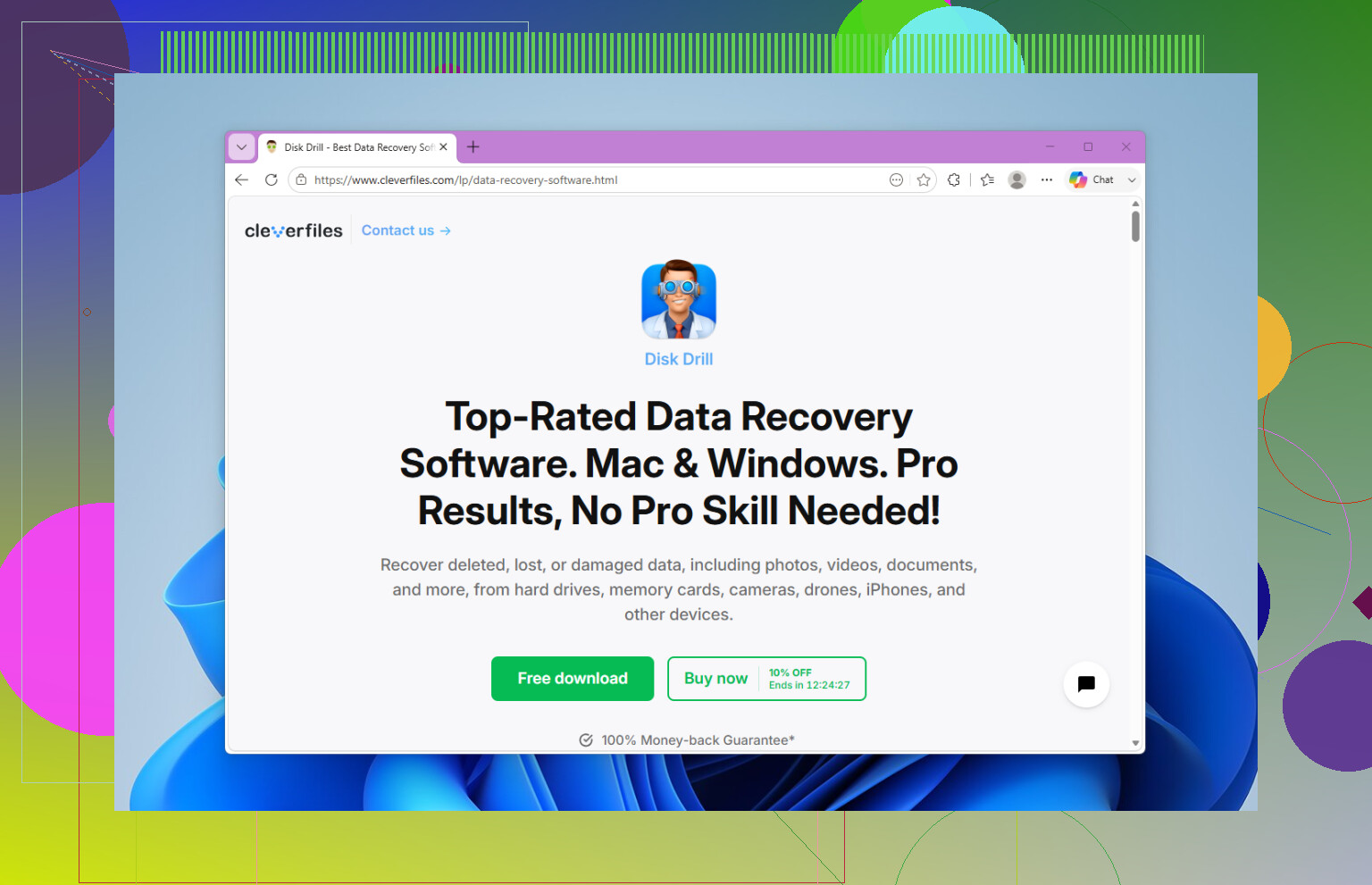
Check backups first, just in case. I didn’t have one, so I went straight to recovery software. I used Disk Drill, and it got almost everything back for me.
The process was pretty simple:
- Install Disk Drill on the computer, not on the SD card or USB drive.
- Connect the exFAT card with a card reader.
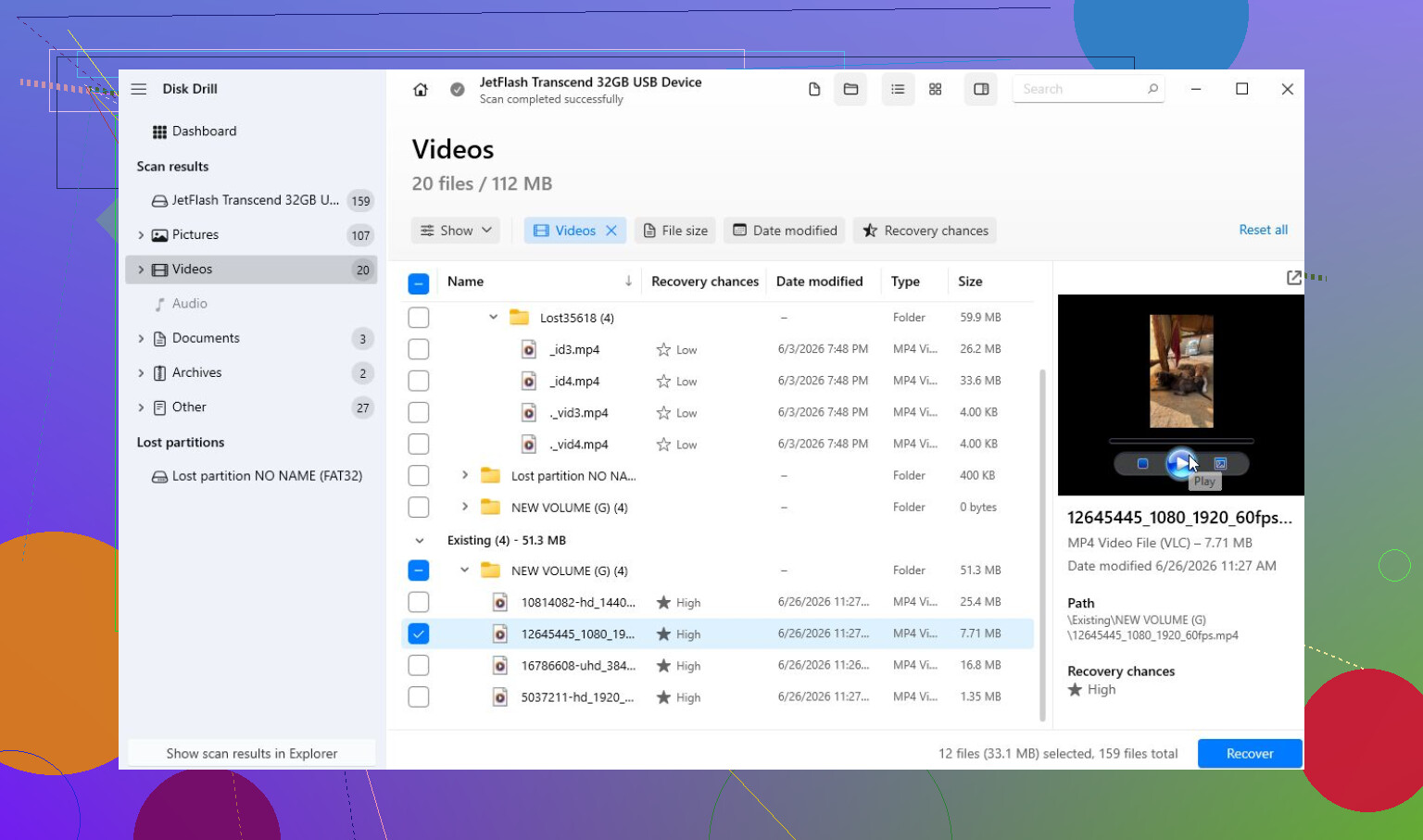
- Select the card and run a scan. In most cases, Universal Scan is the one to use.
- Let the scan finish, then preview the files before recovering them.
- Save the recovered files to your internal drive or another safe disk, not back to the same card.
One useful thing with the Windows version is that it lets you recover up to 100 MB for free. That’s enough to confirm whether your files are actually recoverable before paying for anything.
If the drive is acting flaky, there’s another step worth doing first: make a disk image. If the SD card or USB stick disconnects, reads painfully slowly, or behaves differently every time you plug it in, don’t keep scanning the original device. Create an image and scan that instead. It’s safer for failing media and gives you more room to retry if something goes wrong.
For deleted camera footage, especially from drones, DSLRs, mirrorless cameras, GoPros, or dashcams, Disk Drill also has Advanced Camera Recovery (ACR). I didn’t need it in my case since I was mainly after photos, but it’s often suggested for MP4, MOV, and other camera videos because those files can be fragmented and missed by normal scans.
If Disk Drill doesn’t find what you need, TestDisk is also worth knowing about. It’s free, but it’s more technical and better for damaged partitions than for simple deleted-file recovery.
I’d avoid DIY attempts if the device seems physically damaged. If it won’t show up on any computer, keeps disconnecting, gets hot, or has visible damage, stop messing with it. More attempts can make a lab recovery harder. Many recovery labs will evaluate it for free, though the actual recovery can easily cost a few hundred dollars or more depending on the problem.
If this is just logical data loss, you’ve probably still got a decent shot. Just stop using the device now and recover the files before trying to fix or repair anything. That was the part that mattered most in my case.
11 Likes
Don’t try to “fix” the empty drive first. With exFAT, an empty-looking USB stick can mean the file table or directory entries are damaged, not that the actual file contents are gone. Recovery is possible, but the safest move is to make a sector-by-sector image of the USB first if the files matter, then scan the image instead of the stick. After that, use recovery software like Disk Drill or another tool to preview what it can actually find, and save results somewhere else. If Windows asks to repair, format, or scan the drive, cancel it. That prompt is for making the filesystem usable again, not for preserving your missing files.

Do not let Windows create a new folder, thumbnail cache, or “repair” anything on that stick. Even small writes can matter if the exFAT directory area is already messed up.
Yes, exFAT recovery is possible, but I’d separate two cases that often get mixed together:
If the USB stick shows the correct size in Disk Management and just looks empty in File Explorer, that is usually a logical problem. Missing directory entries, corrupted allocation data, deleted files, or a damaged exFAT structure can all make the drive appear blank while the actual file data is still sitting there.
If the USB stick shows the wrong size, 0 bytes, “no media,” disconnects a lot, or only appears sometimes, that is a different problem. At that point recovery software may not be the right first move because the controller or flash memory may be failing.
Before scanning, check the drive properties without changing anything. If it says the drive is empty but the capacity is normal, that is useful information. If it says a lot of space is still used, your files may be hidden, the folder tree may be damaged, or the directory is not being read correctly. If it says the whole drive is free, recovery may still work, but the original folder names and folder structure might be harder to get back.
I agree with the image-first advice above, but I’d put it more bluntly: if the files are important, don’t “test” five different tools directly against the USB stick. Make one clone/image, then abuse the image all you want. On Windows, some paid recovery tools can create an image. On Linux, ddrescue is the usual free option, but it’s less friendly if you’re not used to command-line tools. The point is not which program you use, it’s that the original stick gets read as few times as possible.
A small thing people forget: do not recover files back to the same USB stick. Not even “just one file to check.” Save recovered data to your internal drive, an external hard drive, or another USB stick. Recovering to the damaged stick is a good way to overwrite the very data you’re trying to get back.
Disk Drill is fine to try if the drive is stable and shows the right size, especially because previewing files can tell you pretty quickly whether the scan is finding real data or just junk. If you use it, scan the image if you made one, not the original stick. There’s a forum guide here if you need the basic workflow: how to use Disk Drill. Just don’t treat any recovery app’s “found files” count as a promise. Preview matters. A recovered file that won’t open is not recovered in any useful sense.
I would not run CHKDSK first. It can sometimes make a filesystem mount again, but it can also rename, discard, or rearrange damaged entries. That may be okay when you only care about making the USB usable again. It is not what I’d do when the priority is getting the original files back.
The order I’d use is:
- Unplug the USB stick for now.
- Check whether the files exist anywhere else, like cloud sync, another computer, camera card, phone, email attachments, etc.
- Plug it in only when ready to image or scan.
- If it behaves normally, create an image if the data matters.
- Scan the image with recovery software.
- Preview recoverable files.
- Save recovered files to a different drive.
- Only after recovery, reformat or replace the USB stick.
If the files are worth more than the cost of a lab, stop before doing a bunch of DIY scans. If they’re replaceable and the stick is stable, software recovery is a reasonable try. The fact that you have not formatted it or copied new files to it is good. That gives you a much better chance than someone who kept using the drive after it went empty.
A normal-looking exFAT label does not prove the USB stick is healthy or even the size it claims to be. Before spending hours scanning it, check whether the capacity shown by Windows matches what the stick is supposed to be, and whether it behaves consistently in Disk Management. Fake or failing flash drives often look fine until enough data is written, then older files “vanish,” turn into empty folders, or stop opening.
I agree with the image-first advice, but with one caveat: if this is a cheap large-capacity stick from Amazon/eBay/Temu/etc., keep your expectations lower. Recovery software can work when the exFAT directory is damaged or files were deleted, but it cannot recover data that was never actually stored because the drive lied about its real capacity. That’s a different failure than a normal deleted-file situation.
Disk Drill or similar tools are still reasonable if the stick reads normally and shows the right size, but use the previews as the truth, not the file list. If it finds filenames but previews are broken, you may be looking at directory leftovers without intact file contents. If the files are important, clone it first. If they are not, scan it once, recover to another drive, and then test the USB with a full-write verification tool afterward before trusting it again. If it fails that test, throw it out.