I misplaced my Samsung TV remote right before kickoff and now I can’t figure out how to turn on the TV to watch football. I need quick help with ways to power on a Samsung TV without the remote, like using the TV’s buttons, a phone app, or any other simple fix.
Lost the Samsung remote right before kickoff
I had this happen at the worst time. TV was stuck on the wrong input, the remote had vanished, and the match was about to start. I went straight to my phone instead of tearing up the couch.
If your Samsung TV is a smart model, there’s a good shot you can run it over Wi-Fi with no physical remote at all. Most Samsung sets with Tizen handle this fine. Once your phone sees the TV on the same network, you’re back to switching inputs, opening apps, changing volume, all of it.
iPhone option
TVRem, universal remote app
https://apps.apple.com/us/app/universal-remote-control-tvrem/id6746162794
TVRem – Universal Remote connects to Samsung TVs on the same Wi-Fi and, in my case, found the TV fast after opening it.
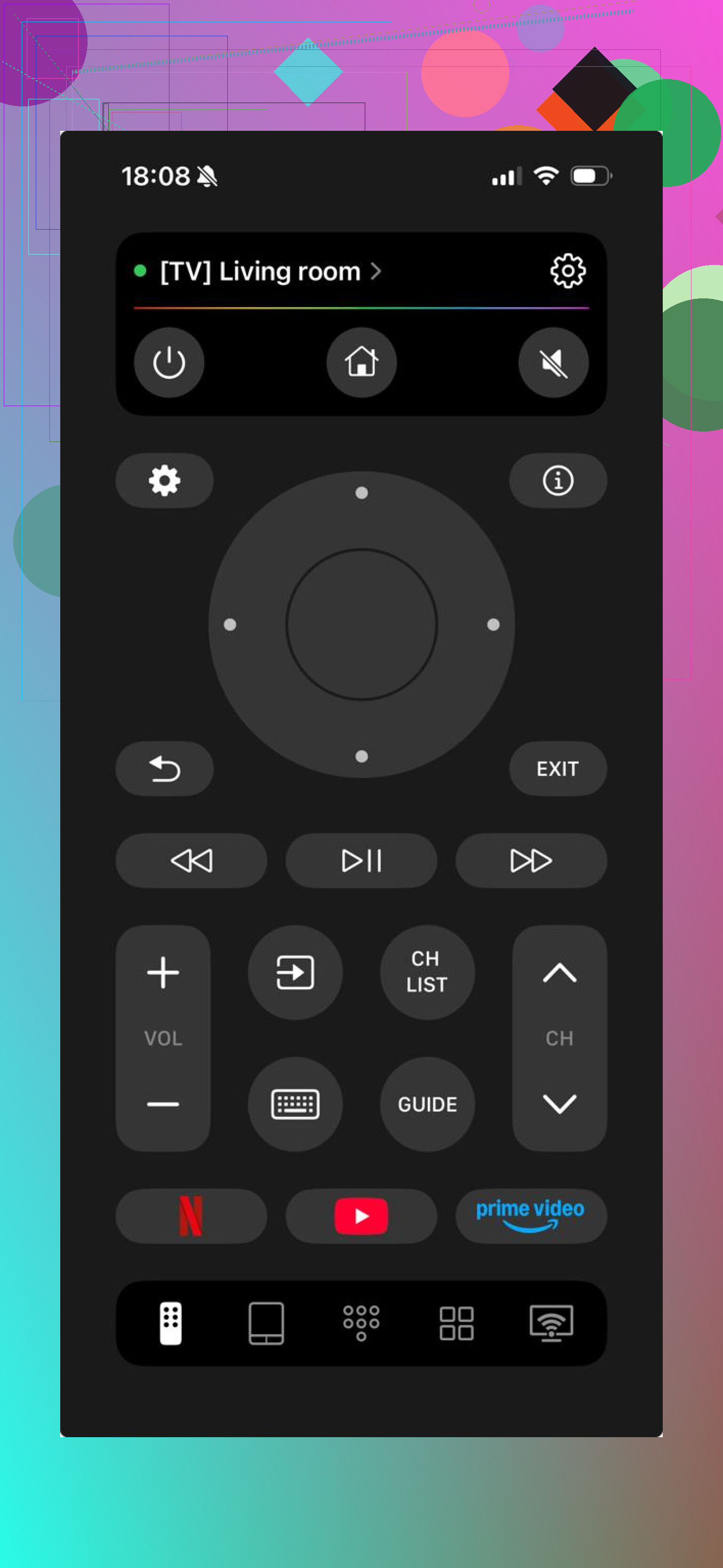
What I liked was how fast it handled the annoying stuff:
- switching channels or HDMI inputs so you get back to the match source
- opening Samsung TV apps like YouTube, Netflix, or sports streaming apps
- changing volume and playback with no noticeable lag
- typing with your phone keyboard instead of pecking at the on-screen one
So yeah, if the remote is gone, your phone works like the spare control you forgot you had.
Android option
Codematics Universal Remote
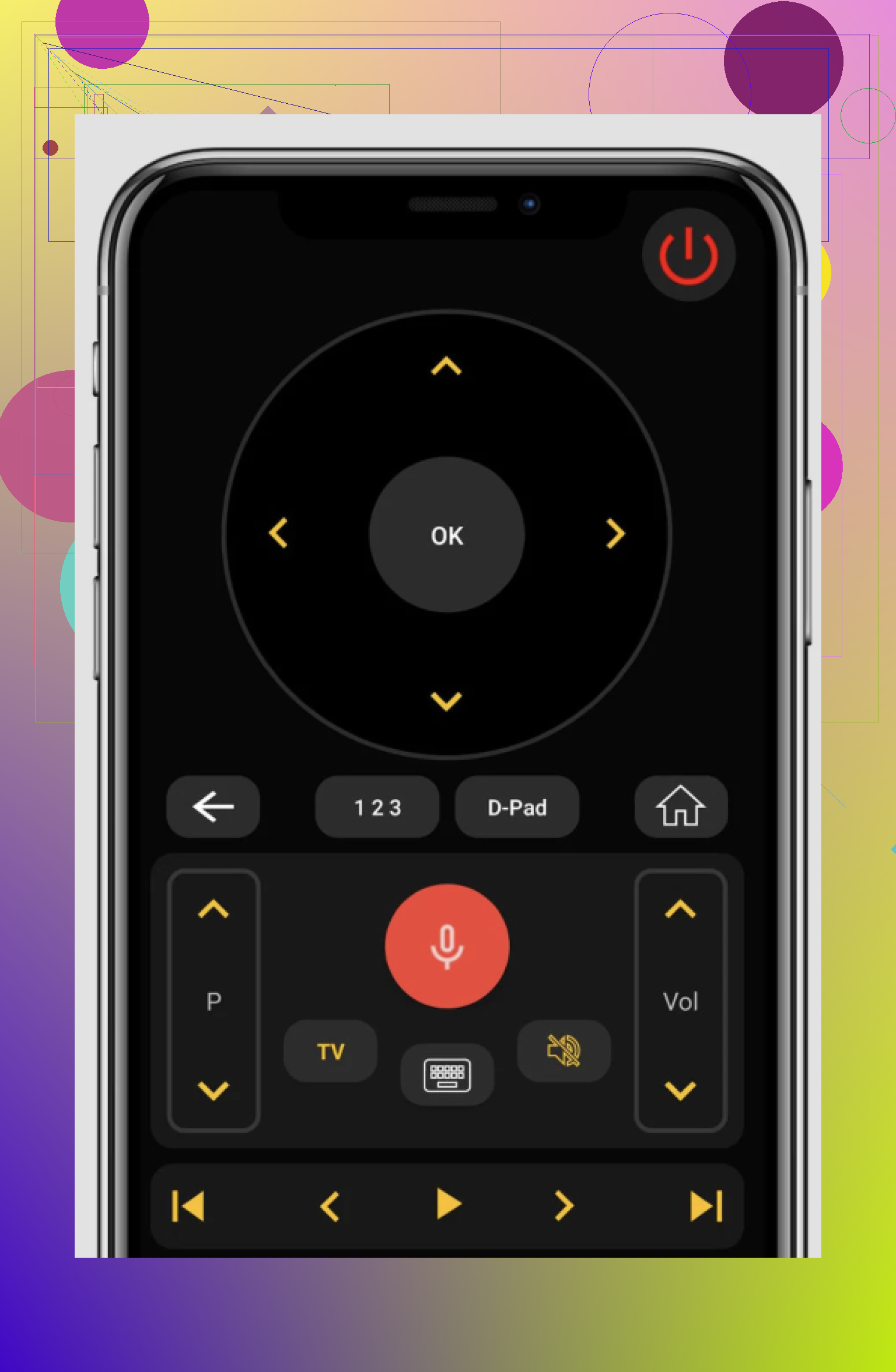
Universal TV Remote Control by Codematics does the same kind of job on Android.
I connected the TV and phone to the same Wi-Fi, opened the app, and it picked up the Samsung TV without much fuss. From there I had the usual controls:
- moving around Samsung Smart Hub
- launching installed apps
- changing volume and controlling playback
- using phone keyboard input for search and sign-ins
Nothing fancy. It works, and when you’re in a hurry, thts the part you care about.
What to do
- Install TVRem on iPhone, or Codematics on Android
- Make sure your phone and Samsung TV are on the same Wi-Fi
- Pair the phone with the TV
- Switch to the right HDMI input or open your sports app
Bottom line
A Samsung smart TV doesn’t depend on the original remote as much as people think. Wi-Fi control is already there, and it saves you when the remote disappears at the dumbest possible moment.
I did this instead of hunting through blankets and couch cushions, and the TV was usable again in a minute or two. For watching the match, thas enough.
6 Likes
Skip the app route first if the TV is off. I know @mikeappsreviewer leaned into phone control, but on a lot of Samsung sets the app only helps after the TV is already awake or already paired.
Fastest fixes:
- Use the TV’s physical power button.
On most Samsung TVs it sits:
- under the center of the screen
- under the right side bezel
- on the back right side
It might be a tiny joystick-style button. Press once for power. If it’s the joystick type, press center to turn on, then move it to reach source or volume.
-
Try the Samsung TV Controller menu.
Older and mid-range models show a small on-screen menu from the control button. You press once, then move left or right for Source. This is the part people miss. -
Use a game console.
If your cable box or streaming stick is already on the right HDMI input, turning on a PS5, Xbox, or some Roku devices wakes the TV through HDMI-CEC. Samsung calls the setting Anynet+. If it was enabled before, this works fast. -
Use a keyboard or mouse.
Some Samsung smart TVs respond to a USB keyboard for menu nav. Not every model. Still worth 30 secconds if one is nearby. -
Borrow any universal remote.
Even cheap store-brand remotes often support Samsung out of the box. Samsung IR codes are common.
If none of this works, check the red standby light. Light on means the TV has power and the button should work. No light means power strip, wall outlet, or cord issue first.
If you need the fastest non-remote move that isn’t already covered by @mikeappsreviewer and @voyageurdubois, check whether your Samsung has SmartThings + Wake on LAN already set up. I actually disagree a bit with the “apps won’t help if the TV is off” thing, because on some Samsung models they absolutely will wake the TV if network standby was enabled before. Not universal, but worth trying for 20 secconds.
Also, if you have a cable/satellite provider app on another device, some boxes let you change channels from your phone, and if the TV was left on that HDMI input earlier, powering the box can be enough to get the game back on screen once the TV wakes.
One more overlooked trick: if you own a Samsung phone, try the quick panel for Smart View / device control. Sometimes it sees Samsung TVs faster than third-party remote apps do.
If the TV is on but blank, tap Source/Input using the little control nub, then wait a couple beats between clicks. Samsung menus can lag and ppl end up skipping past the right HDMI.
Worst case, use the broadcaster’s app on your phone/tablet and cast it if your TV supports AirPlay or Chromecast-compatible mirroring. Not ideal, but kickoff saved.
Before you rip the room apart, try the power cycle trick. I’m a little less sold than @mikeappsreviewer on app-first fixes when the TV is fully off, and I only partly agree with @voyageurdubois and @viaggiatoresolare because they covered the obvious wake methods already.
What they did not mention:
- Unplug the TV for 60 seconds, then plug it back in. Some Samsung sets auto-boot after power is restored, especially if the last state was ON.
- Check if your cable box remote has TV Power baked in. A lot of Xfinity, Spectrum, DirecTV, and Fios remotes can turn on Samsung TVs even if you never use them for full control.
- Look for a side touch panel on older Samsung models. Not a button, more like touch-sensitive Power/Volume/Input marks on the frame.
- Use Samsung’s scheduled power-on if you had it set before. Rare, but some people forget it’s enabled in General settings.
If you do end up trying ’ as a backup remote option, pros are convenience and no extra hardware. Cons are pairing limits, Wi-Fi dependence, and wake-from-off not working on every Samsung model.
Fastest real-world move: cable remote, then unplug/replug, then hunt for hidden touch controls.