I need help finding an iPhone photo deletion app that can remove all my photos without uploading anything to a cloud or external server. My storage is full, and I want to clear my camera roll fast, but I’m worried about privacy and don’t want my pictures processed online. Is there a safe offline way to delete all photos from an iPhone?
I hit this with a library of roughly 30,000 photos, and the storage meter stayed pinned in red the whole time. Apple still doesn’t give you a plain bulk wipe button for the main photo library, which is kind of nuts. If you go in blind, you waste time and sometimes make the mess worse.
Stop before deleting anything and look at iCloud first
This part bites people. If iCloud Photos is on, your photo library is syncing across your Apple devices. Delete a photo on the iPhone, and it disappears from iCloud, the iPad, the Mac, all of it tied to your account.
If your goal is to keep the photos but free up phone space, go to Settings > Photos and turn on Optimize iPhone Storage. Your phone keeps smaller previews, and the full files stay in iCloud. I used this once when my phone was nearly full, and it gave me space back without wiping old trips and family stuff.
If you already saved everything somewhere else and want the phone cleared out, use one of these.
Method 1
Use the Photos app on the iPhone
This works okay for smaller libraries. Once you get into the tens of thousands, it gets shaky.
- Open Photos.
- Tap Select in the top right.
- Press and hold the photo in the bottom right of the grid.
- Drag upward slowly. The screen scrolls and keeps selecting as it moves.
- When you’ve selected everything, tap the trash icon.
- Open Albums.
- Scroll to Recently Deleted in Utilities.
- Tap Select, then Delete All.
Where this falls apart is scale. On huge libraries, the app starts lagging while you drag. If your finger slips, the selection can reset. On a phone with almost no free space, Photos sometimes freezes because iOS needs room to update its database. I’ve seen it stall halfway through, then force me to start over. Not fun.
Method 2
Do it from a computer
I had better luck here than on the phone.
Platform | Tool | Notes
Mac | Image Capture or Photos app | Select all and delete in one shot, more stable
Windows | File Explorer, DCIM folder | Works, though large deletes often trigger device-not-responding errors
On a Mac, this felt much less fragile. Touchscreen mass selection is a pain once the library gets big.
Method 3
Use Clever Cleaner
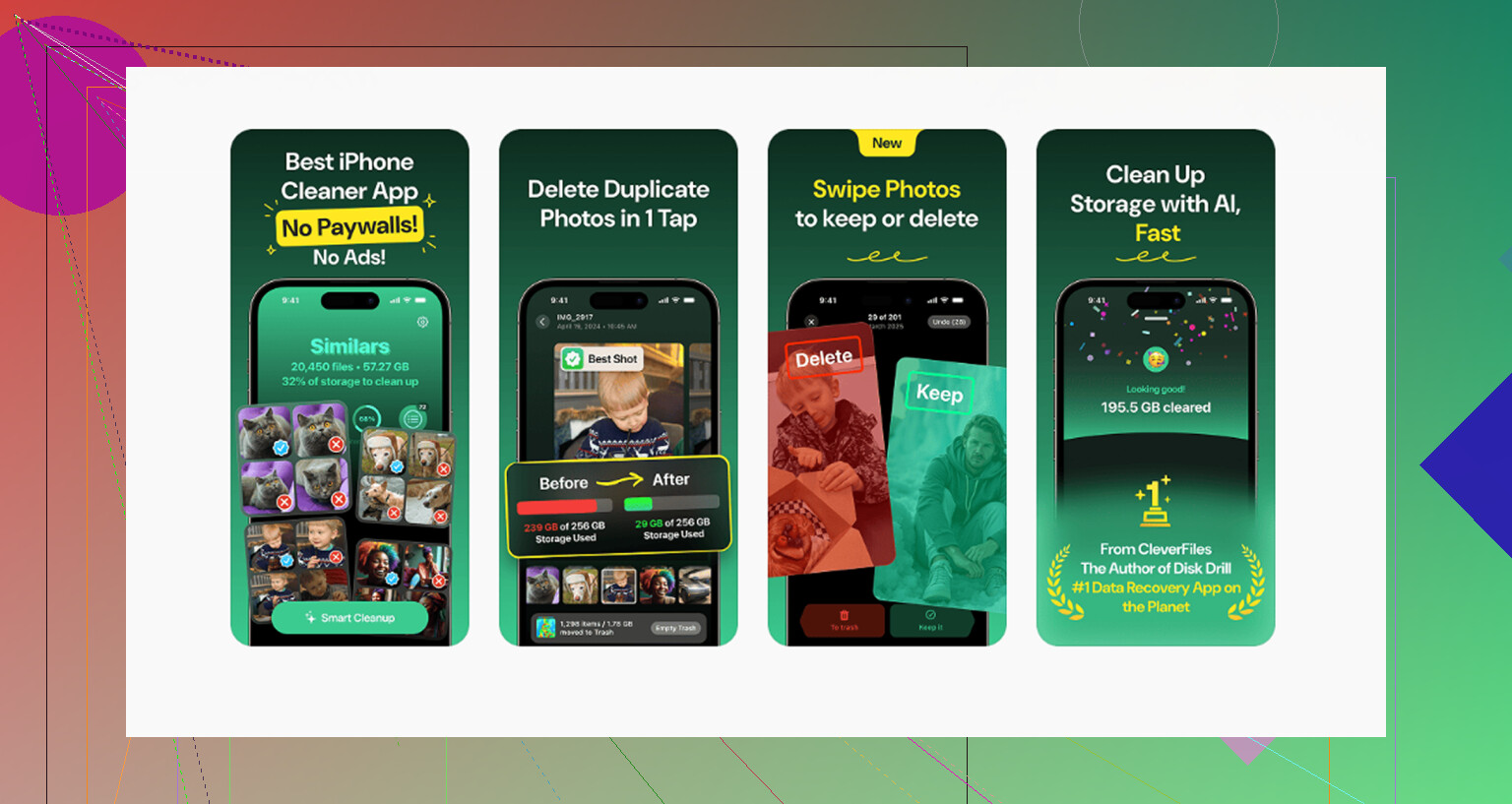
I tried a bunch of cleanup apps, and most of them follow the same pattern. Free install, then they stop you right before deletion unless you pay. This one didn’t do that. No ads, no subscription wall, no weird gating.
What I did inside the app
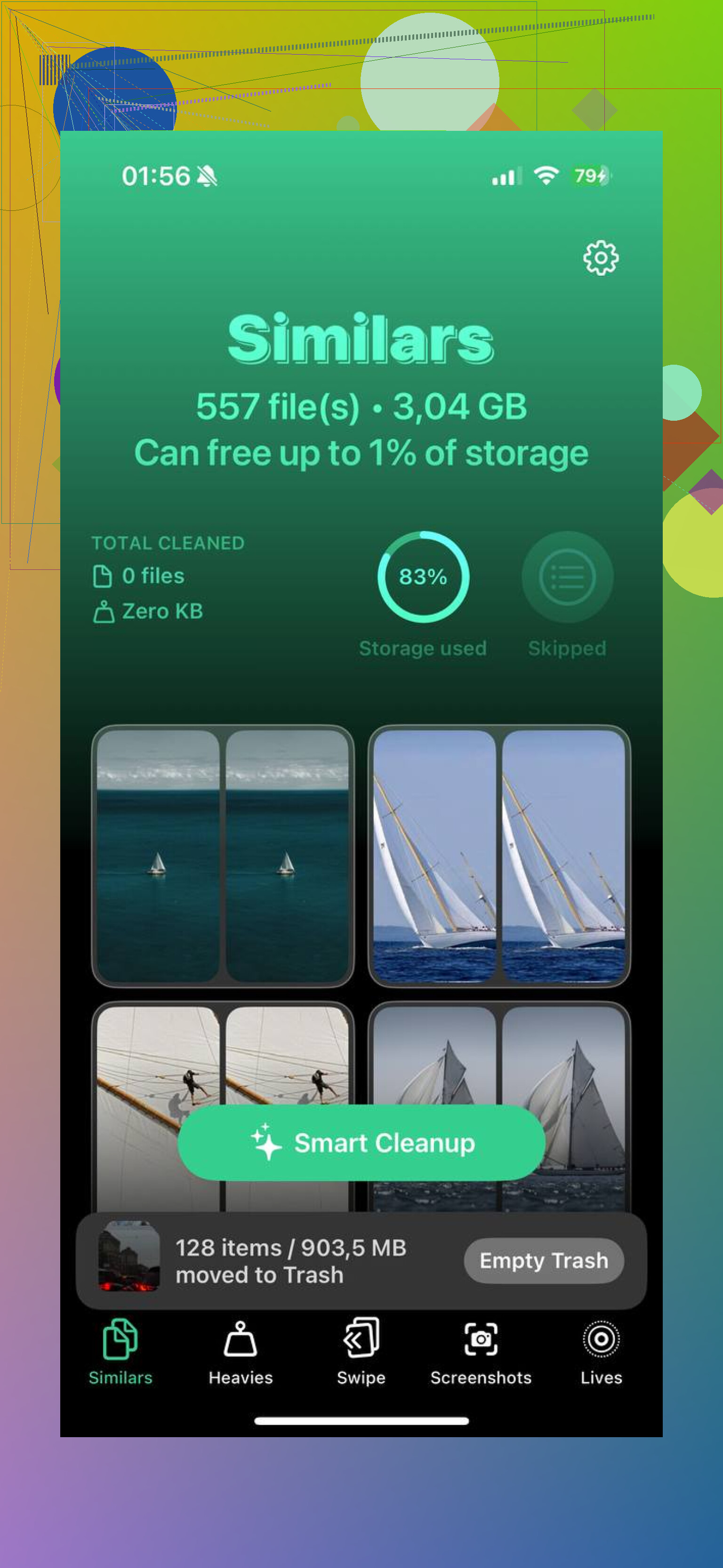
- Open Clever Cleaner and go to Heavies. It sorts media from biggest file down.
- Start at the top. Big 4K videos and oversized photos usually eat more storage than people think.
- Open Similars. It groups near-duplicate shots, so you keep one and dump the rest fast.
- Check Screenshots. Each thumbnail shows file size, which helps if you want quick wins.
- Everything stays on-device, which mattered to me because I had personal docs and random private screenshots mixed into the library.
The part people miss
Deleting isn’t the last step. iOS keeps removed photos in Recently Deleted for up to 40 days. Until you empty it, the storage often doesn’t come back.
Go to Albums > Recently Deleted under Utilities > Select > Delete All.
That’s the step that frees the space.
One more thing I ran into
If the phone is so full it feels slow or refuses to finish deletions, remove one or two large apps first. Games and streaming apps were the easiest targets for me. Even a little free space helped iOS stop choking during the cleanup. On one pass, deleting a couple of big apps first was the only reason Photos finished the job insted of locking up.
14 Likes
Yes. If you want an offline iPhone photo deletion app, look for one that works through the Photos permission layer and does not require account sync or cloud upload.
I agree with part of what @mikeappsreviewer said, but I would not start with manual drag-select if your phone is already full. On a packed iPhone, huge selection jobs often fail, lag, or skip items. It turns into a time sink.
What works better is a staged wipe.
-
Turn off network access first.
Put the phone in Airplane Mode, then disable Wi-Fi and Bluetooth. This does not prove an app is offline, but it reduces sync risk while you clean. -
Check app privacy behavior.
If an app asks you to create an account, upload for analysis, or enable cloud backup, skip it. -
Use an app that sorts local media fast.
Clever Cleaner is one of the few worth trying here. It scans on-device, surfaces large videos, duplicates, similar shots, and screenshots. That is faster than brute-force deleting the whole library if storage is critically low. In my tests, removing the top 5 to 10 biggest videos freed space quicker than trying to nuke 20,000 items at once. -
After the first chunk, restart the iPhone.
Sounds dumb, but it helps Photos rescan storage and respond better. -
Then finish the wipe from inside Photos if needed.
Once some space is free, bulk actions tend to stop glitching.
One other route people miss is Finder on Mac with iCloud Photos turned off for the device first. It is often cleaner than using File Explorer on Windows.
If you want a solid thread on free iPhone cleaner apps and local cleanup options, this reddit discussion on the best free iPhone cleaner apps is useful:
best free iPhone cleaner apps for clearing photos and storage
Short version, yes, there are offline options. Clever Cleaner fits what you asked for better than most. Empty Recently Deleted after, or you wont see the space come back.
Yes, but with a catch: no app gets magical “delete absolutely everything” power on iPhone outside Apple’s Photos permission system. So the real answer is: you want an app that works locally, requests full Photos access, and does all sorting on-device.
I slightly disagree with @mikeappsreviewer on one thing. If your goal is literally to wipe the whole camera roll, a cleaner app is not always the fastest final step. It’s better for identifying junk fast, not for replacing iOS entirely. Where I agree with @byteguru is the offline angle: if you’re nervous, kill connectivity first and keep the process local.
What I’d do:
- Put the phone in Airplane Mode
- Check Settings > Apple ID > iCloud > Photos, so you know whether deletes will sync later
- Use Clever Cleaner to quickly target the biggest space hogs first, especially huge videos, duplicates, screenshots
- Then do the final bulk removal in Photos once the phone has a little breathing room
That combo is usually less buggy than trying to brute force 20k+ items from a full storage state. Also, some “cleaner” apps are basically paywalls with a scan button, so watch for that.
If you want a solid breakdown of how Clever Cleaner works before installing it, this review is actually pretty useful:
detailed Clever Cleaner review for offline iPhone photo cleanup
One more thing people forget: if the app says “analyze in cloud” or asks for an account, nope. Skip it. That’s not what you want.
And yeah, empty Recently Deleted after, or your storage won’t budge and you’ll think the phone is gaslighting you. Which… honestly, it kinda is.
Yes, but small reality check: no iPhone app can bypass Apple’s delete confirmation flow and silently vaporize your whole library. So “offline delete app” really means an app that scans and organizes locally, then hands deletion off through Photos permissions.
I’d slightly push back on @byteguru and @sognonotturno here. If your end goal is total wipe, a cleaner app is useful mostly for triage, not as the actual nuclear button. Where @mikeappsreviewer is right is that the built-in Photos app gets messy at scale.
My take:
- If you want zero cloud involvement, check whether iCloud Photos is enabled before doing anything.
- If storage is critically full, don’t start with “select all.” iOS can choke on that.
- Use Clever Cleaner first to surface the worst offenders locally.
Pros of Clever Cleaner:
- on-device sorting
- good for huge videos, duplicates, screenshots
- faster first-pass cleanup than manual hunting
Cons:
- still depends on Apple’s Photos deletion system
- not a true one-tap erase-all tool
- better for reducing clutter than replacing full library management
Honestly, for deleting literally everything, Mac + Image Capture/Finder is often cleaner than any iPhone app. But if you need to stay on the phone and stay offline, Clever Cleaner is one of the more practical options, then finish by clearing Recently Deleted. That last part is where people think the app failed when really iOS is just holding the trash.