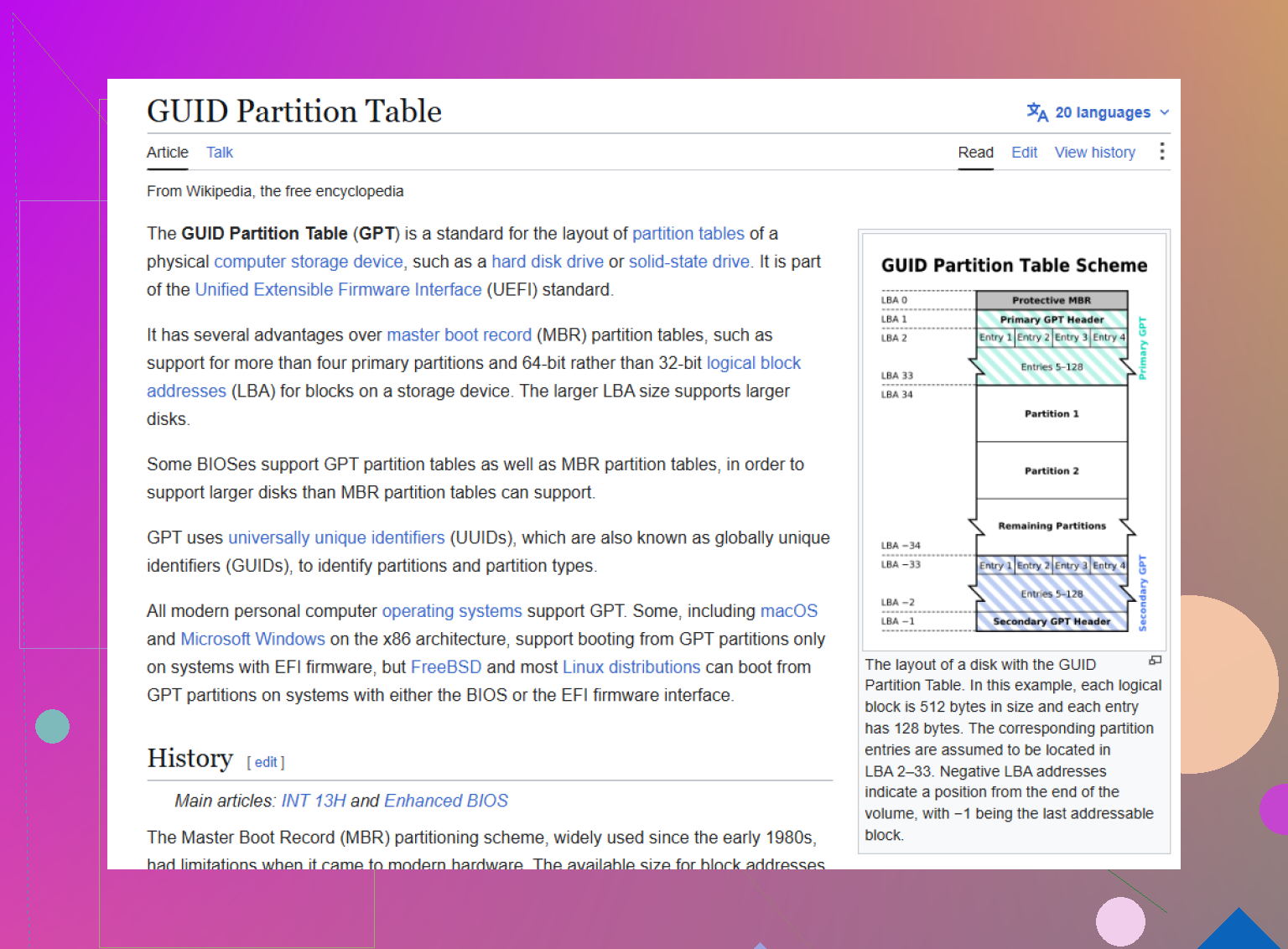
My drive’s GPT partition seems to be missing or corrupted, but the files may still be intact because the data area hasn’t been overwritten. I need help with safe GPT partition recovery options and tools to restore the partition table without losing files.
Yeah, that sinking feeling is awful. You plug in the drive and suddenly the partitions are missing, or Windows shows the disk as “Unallocated,” “RAW,” or “GPT Protective Partition.” It looks like everything is gone, but with GPT drives that often isn’t what happened. A lot of the time the files are still on the drive, and the damaged part is the partition info that tells the computer where everything is.
First thing: do not write anything else to that disk. If Windows says, “You need to format the disk in drive X: before you can use it,” cancel it. Don’t format it, don’t initialize it, don’t run random repair commands, and don’t copy anything onto it. Any write operation can overwrite the data you’re trying to recover. If this is your boot drive, shut the machine down and work from a recovery USB instead.
I’d also try to recover the files before attempting to repair the partition table. Fixing the GPT in place can work, but it’s also an easy way to make a bad situation worse. Safer approach is usually: scan the whole physical drive, copy the files to another healthy disk, then worry about repairing or reformatting the original later.
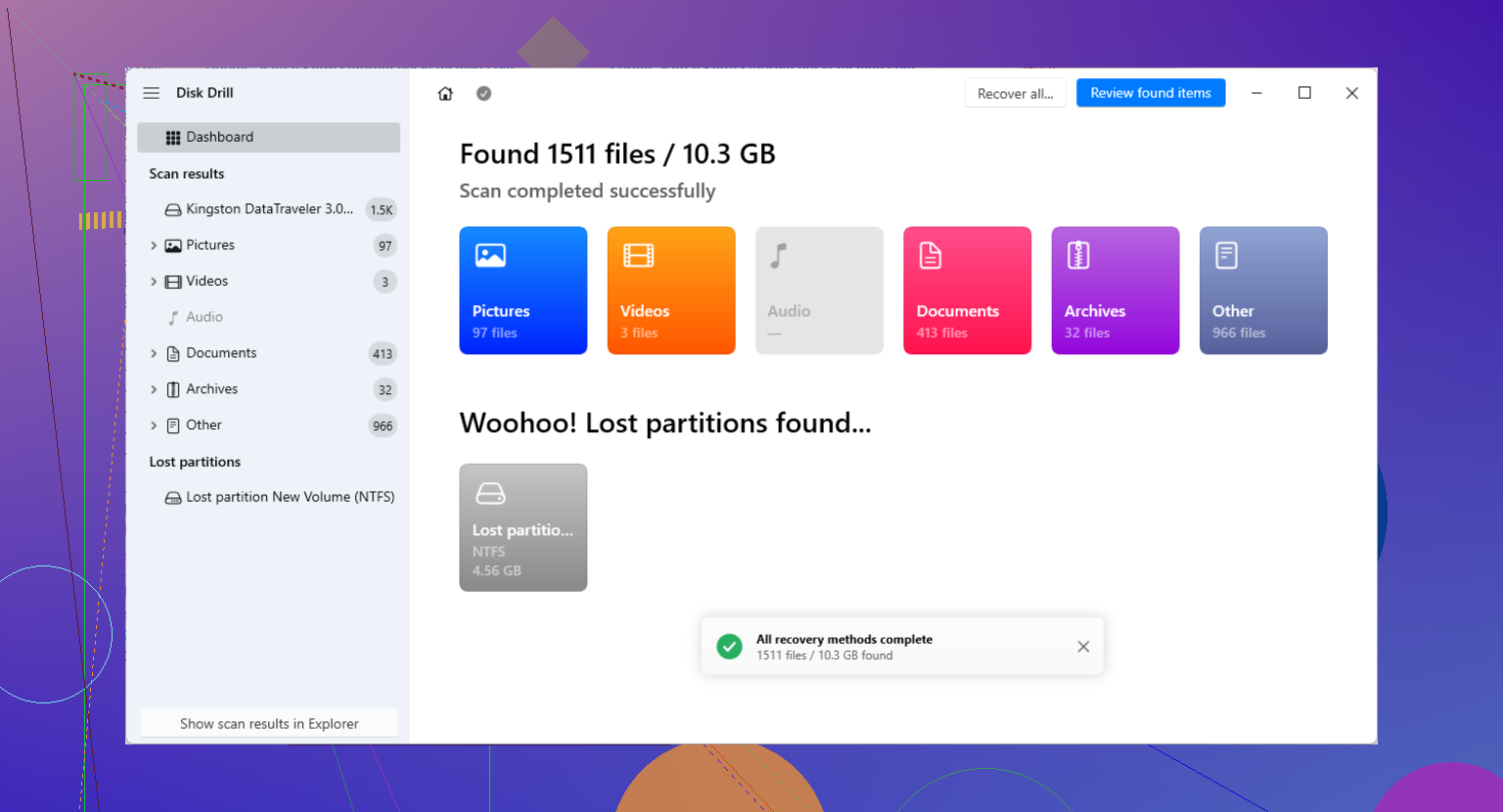
For that kind of recovery, Disk Drill is a solid option. It’s useful here because it doesn’t rely only on the existing partition table. It can scan the drive itself and look for lost partitions and file signatures.
The basic process is:
- Select the physical disk, not a missing or broken partition.
- Run a deep scan and let it search for lost or reconstructed partitions.
- Use the preview feature to check whether the files are actually readable.
- Recover anything important to a different physical drive.
If you’re comfortable with more hands-on tools, TestDisk is another route. It’s free and open-source, but it’s command-line based and not very forgiving. The reason it can help with GPT disks is that GPT keeps a main header at the start of the disk and a backup header at the end. If only the main one is damaged, TestDisk or something like gdisk may be able to rebuild the layout from the backup. Just be careful, because choosing the wrong settings or writing the wrong table can make recovery harder.
One other thing to watch for, especially with external drives, is the “GPT Protective Partition” situation. This can happen when a drive was used in a USB enclosure or dock and then moved to a direct SATA connection, or the other way around. Some docks handle sector sizes differently, like 512-byte versus 4096-byte sectors, and Windows may suddenly read the partition layout wrong.
If that sounds like your case, do not use Diskpart’s “clean” command. That removes the partition table completely. Try the drive back in the original enclosure or dock first and see if the data shows up again. If it still doesn’t, go back to file recovery software rather than trying to force Windows to “fix” it.
7 Likes
Expect the partition table repair to be the last step, not the first win. If the drive is making noises, dropping offline, or showing bad SMART data, stop scanning it directly and clone it first with something like ddrescue to another disk, then run recovery tools against the clone. A deep scan from Disk Drill, TestDisk, R-Studio, etc. can put a lot of read stress on a weak drive, and a “mostly intact” file area does not matter much if the disk dies halfway through. If the drive is healthy, file recovery first is fine. If it is unhealthy, clone first, recover second, repair never unless you already have the files copied elsewhere.
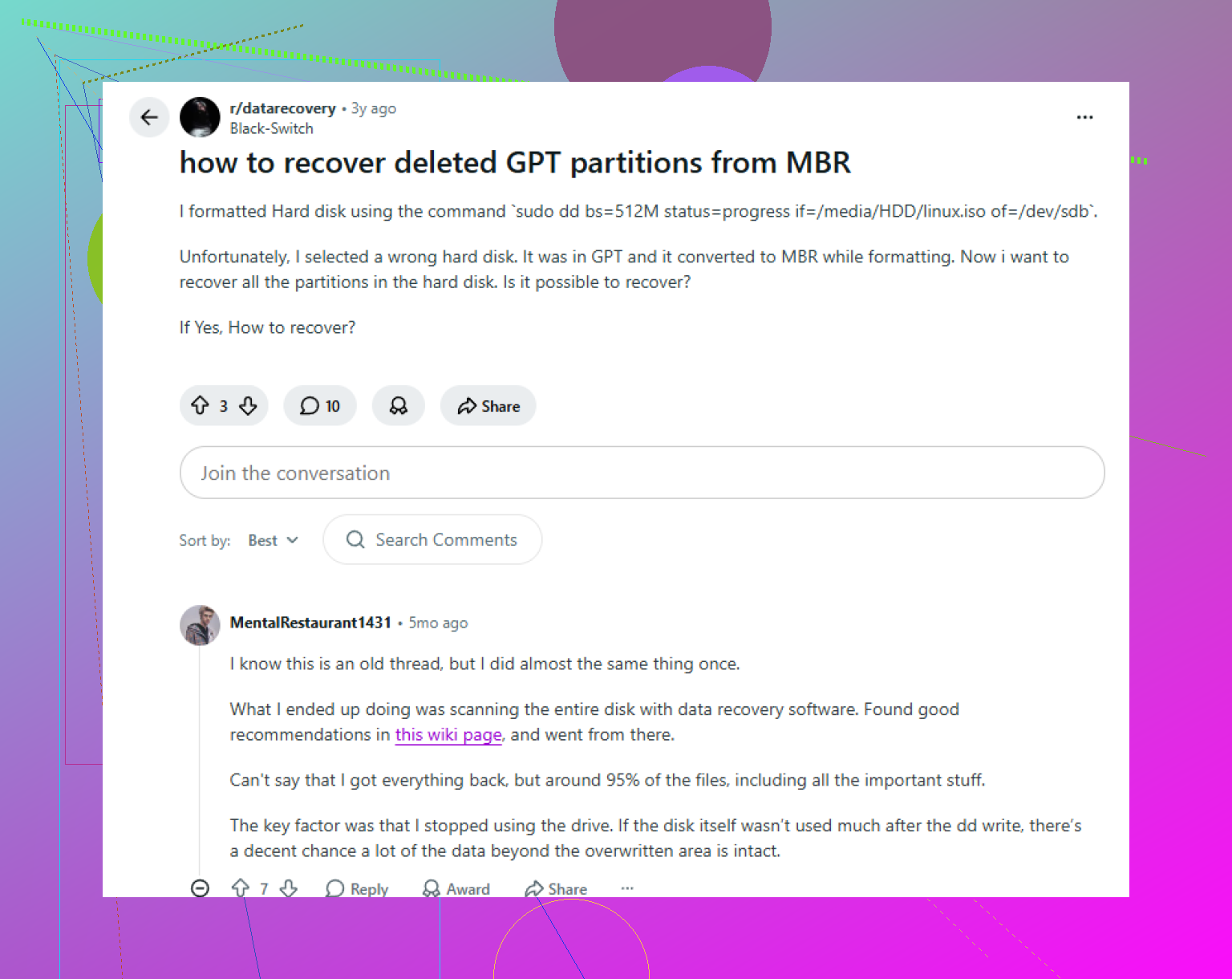
Do not run chkdsk on it yet. GPT recovery is possible if only the partition map is damaged, but chkdsk works on a mounted filesystem and can “fix” things by deleting damaged records, which is the opposite of what you want before copying files out. Treat the disk as read-only, scan the whole physical device with recovery software, and save recovered files somewhere else. After that, you can experiment with rebuilding the GPT, restoring the backup GPT header, or recreating the partition entry with the same start/end sectors. The annoying catch is that the sectors have to match exactly, especially with NTFS or encrypted volumes, so if you are guessing, recover files first and repair the table later.