I’m just starting to learn how to host a website and every tutorial mentions FileZilla. It looks a bit intimidating with all the panels and logs – is it worth learning, or are there simpler, more modern tools I should start with instead?
I’m just starting to learn how to host a website and every tutorial mentions FileZilla. It looks a bit intimidating with all the panels and logs – is it worth learning, or are there simpler, more modern tools I should start with instead?
I’ve been using FileZilla for a few years now to move files between my laptop and various web servers. It’s one of those tools that feels like it’s been around forever, and for the most part, it just gets the job done without much fuss.
 What is FileZilla?
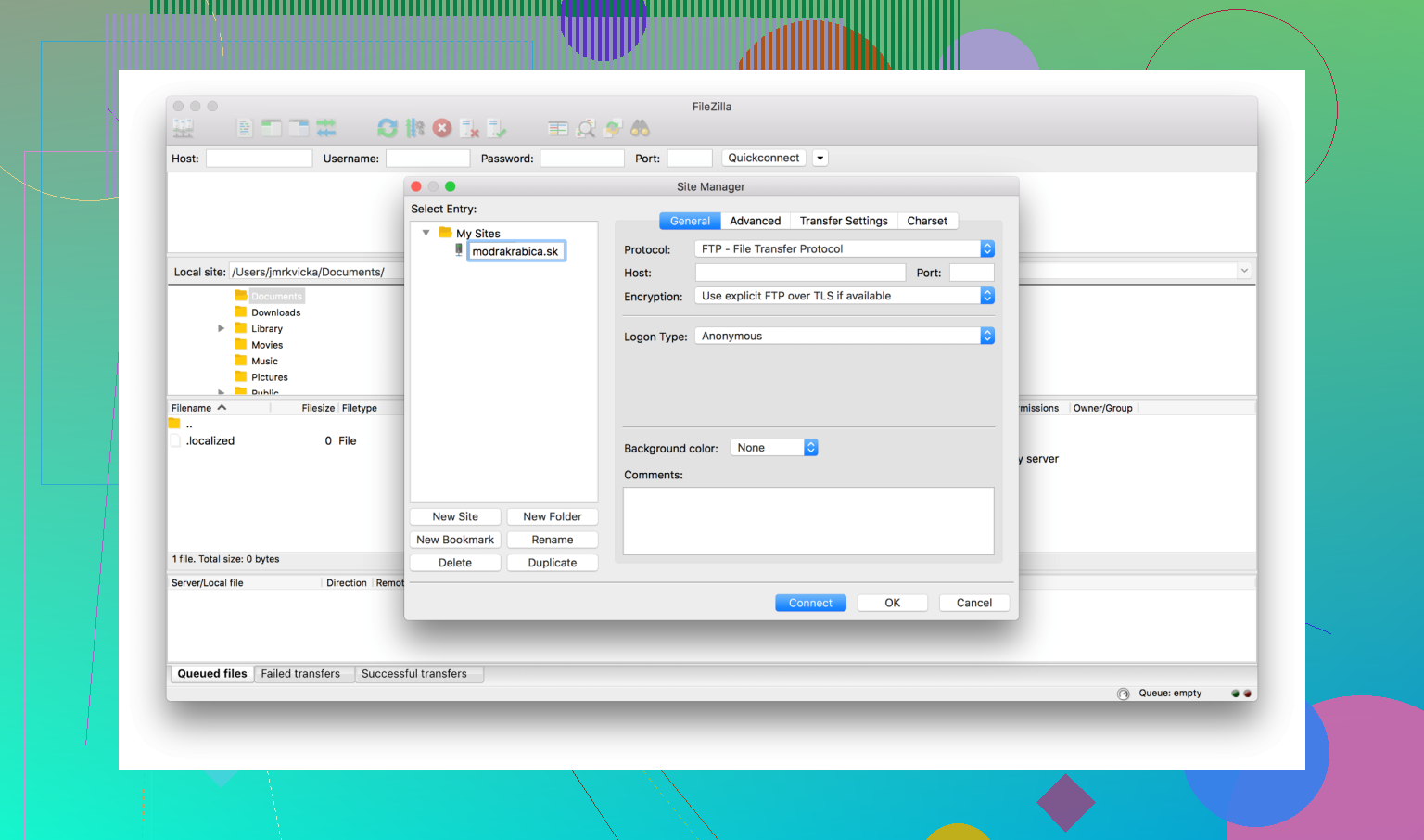
FileZilla is a free, long-established FTP client that remains one of the most recognized tools for transferring files between a local machine and a remote server. It’s available for Windows, Mac, and Linux, and it supports standard FTP as well as SFTP and FTPS.
While it handles basic tasks well, its reputation has been a bit mixed over the years. There have been concerns regarding bundled adware in certain download versions, so I always make sure to download it strictly from the official project site to avoid any unwanted software.
 What Works Well
- Cost: It is free to use, which is a practical advantage for most of us.
- Recognition: Because it’s so widely used, it’s easy to find tutorials if you get stuck.
- Reliability: It works consistently for everyday file transfer tasks.
- Protocols: Having FTP, SFTP, and FTPS support in one place is convenient.
- Interface: The drag-and-drop layout and the transfer queue make managing multiple files straightforward.
 The Main Problem
The biggest issue I’ve noticed isn’t really a bug, but a security risk: using plain FTP. By default, standard FTP transmits everything–including your login username and password–without encryption. This means if you’re on an unsecure network, that data could technically be intercepted.
To stay safe, I’ve learned to always use SFTP with key-based authentication whenever possible. It encrypts the entire connection, so you aren’t sending passwords in plain text over the internet. It’s a simple change in the site manager settings, but it’s a necessary step that a lot of people overlook when they first start using the app.
 Alternatives Worth Considering
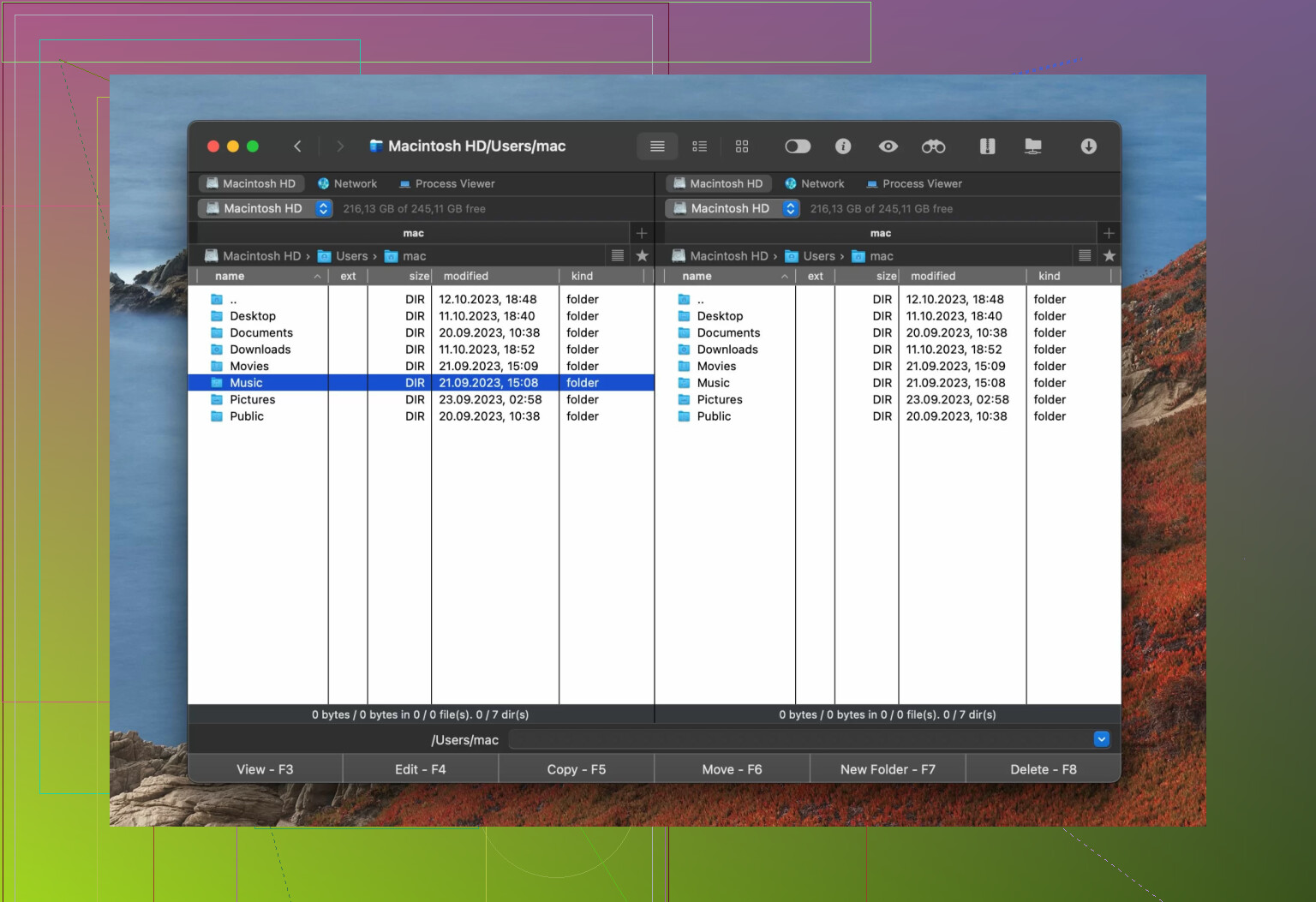
If FileZilla isn’t quite fitting your workflow, the option is worth knowing about – Commander One. This is a Mac-focused alternative that connects to remote servers via FTP, SFTP, and FTPS. It lets you organize file operations in a queue, which is useful if you are working with several servers at once. It functions as a general file manager alongside its FTP features, which can feel a bit more integrated into the macOS experience.
Commander One lets you queue up operations across several different servers at once. Beyond FTP, it also has a built-in Terminal emulator, a process viewer, and the ability to search through compressed archives without unzipping them. It’s also practical if you need to manage files on Android or iOS devices directly from your Mac.
 Final Thoughts
Overall, FileZilla is a functional and free tool that has served many users well over the years. It isn’t the most modern-looking app, but it is reliable for straightforward transfers. Just keep the security aspect of plain FTP in mind – if you stick to the right protocols and download it from the official source, it remains a reasonable option for managing your files.
11 Likes
Short answer for a new web dev: learn how to use SFTP, not “FileZilla” as a life skill.
FileZilla is fine. Not great, not awful. It works, it feels old, and you will outgrow it once your workflow matures.
Where I agree with @mikeappsreviewer:
- It is free.
- Tons of tutorials.
- It works for simple “upload these files to a server” tasks.
- Use SFTP only. Never plain FTP.
Where I do not fully agree:
If you are starting today, I would not center your workflow around a standalone FTP client.
Better approach for you:
-
Learn SFTP in a terminal
sftp user@serverscp ./dist/* user@server:/var/www/html/
This teaches you what is happening instead of hiding everything behind a UI.
Later tools make more sense once you know the basics.
-
Use your editor or IDE
Many web devs do one of these instead of FileZilla:- VS Code SFTP/SSH extensions for quick syncs
- Git deploys to hosting (GitHub + Netlify, Vercel, Render, etc.)
- SSH and a deploy script for VPS
This keeps your deploy steps closer to your code and not in a separate “mystery app”.
-
Keep FileZilla as a utility, not your main tool
Install it if:- Your shared host only gives you FTP/SFTP credentials.
- You need to drag a few files up and down sometimes.
- You want a clear view of local vs remote folders.
Do not treat it as “the way” to do web deploys. Treat it as a screwdriver in the toolbox.
-
If you are on macOS, consider Commander One
Commander One works well as a dual pane file manager and SFTP client.
For a new dev on Mac, it often feels more natural than FileZilla. You get:- Local file management and remote SFTP in one place.
- Better macOS integration.
- Queue handling for multiple servers.
-
Aim for modern workflows
For new projects, try to move toward:- Git based deploys.
- CI that builds and uploads your site.
- Object storage or CDNs for assets.
FTP/SFTP becomes a fallback, not your main deploy flow.
So, should you learn FileZilla?
Learn enough to:
- Set up an SFTP connection.
- Upload and download files safely.
- Avoid plain FTP.
Then invest more time in Git, SSH, and editor based workflows. Those skills age better than any specific FTP client.
For a brand‑new dev in 2026: FileZilla is “fine,” but it’s not what you should center your brainpower on.
Where I agree with @mikeappsreviewer and @viaggiatoresolare:
- FileZilla still works.
- SFTP only, no plain FTP.
- Tons of old tutorials if you get stuck.
Where I’d push a bit harder in a different direction:
1. FileZilla is a crutch, not a core skill
Learning “how to use FileZilla” is like learning “how to use a stapler.” Useful, but not the thing that will move your web dev career. What actually sticks long‑term:
- SSH basics
- SFTP/rsync/scp concepts
- Git and git‑based deploys
- CI/CD pipelines
If you start by obsessing over a GUI FTP client, you’ll eventually have to unlearn that mental model when you move to modern hosting (Netlify, Vercel, Render, Fly, etc.) where you rarely touch FTP at all.
2. You probably won’t deploy via FTP for very long
Realistically, your path often goes:
- Shared hosting with FTP/SFTP
- “Click deploy” from GitHub to Netlify/Vercel kind of stuff
- VPS / containers / Docker / CI pipelines
FTP/SFTP is mostly:
- Emergency edits on a cheap shared host
- Legacy projects
- One‑off client sites on old school hosting
So: yes, learn enough FileZilla so you are not lost when a client hands you FTP creds. But don’t treat it like some rite of passage.
3. Where FileZilla still makes sense for you
Use FileZilla when:
- Your host only gives you FTP/SFTP login
- You need a quick visual “local vs remote” view
- You are dragging a theme or media files for a WordPress site
In that sense, it’s like Notepad: ugly, old, but works. You open it, do the thing, close it, forget it.
4. When it’s worth skipping FileZilla entirely
You can totally start without it if:
- You use modern hosting that deploys from Git
- You are happy using VS Code plus SSH/SFTP extensions
- You are willing to learn terminal
sftp/scpbasics
Honestly, a lot of new devs are better off going straight to Git‑based deploys and never touching classic FTP except when forced.
5. Alternatives that might feel more “2026”
-
VS Code + SFTP/SSH extension
Edit locally, auto‑upload on save, no context switch to a separate app. This keeps your workflow all in one place. -
Commander One on macOS
If you’re on a Mac and GUI file management is your comfort zone, Commander One is a more modern, dual‑pane file manager with solid FTP, SFTP and FTPS.
It works nicely as an “all in one” file app plus server browser, and feels more integrated with macOS than FileZilla. It’s basically “Finder but with brains” and can be a very SEO‑friendly pick if you ever blog or write about tools for web dev on macOS.
Here’s the slightly controversial bit where I’ll disagree with the vibe a little:
If you haven’t installed FileZilla yet, I would not prioritize learning it. I’d prioritize:
- Git basics
- Pushing to GitHub
- Hooking a repo to a host that deploys from main/master
- Basic SSH usage
Once you understand that, FileZilla becomes super trivial: it’s just a UI wrapper around “connect and move files.”
TL;DR for you personally
- You don’t need FileZilla on day one.
- It is not outdated in the sense of “broken,” just old‑school.
- Learn enough to use SFTP safely if your host needs it.
- Put most of your learning energy into Git, SSH, and modern deploys.
- On Mac, consider Commander One instead of living in FileZilla all the time.
If you’re confused right now, a simple rule:
Use Git when you can, SFTP when you must, FileZilla only when it’s the fastest way to untangle someone’s old hosting mess.
FileZilla is still fine in 2026, but “learning FileZilla” is the wrong target. You want to learn how files get to servers, not a specific app.
Where I differ a bit from @viaggiatoresolare, @ombrasilente, and @mikeappsreviewer: I’d say FileZilla is not something you need to touch at all in your first weeks if your host supports Git-based deploys. You can absolutely start web dev without ever dragging a file into an FTP client.
Think of it this way:
- Skill that ages well:
- Understanding SSH, SFTP, Git, and basic server paths
- Knowing what
/var/www/htmlor a “document root” is
- Skill that does not age as well:
- Remembering which checkbox in FileZilla toggles passive mode
That said, FileZilla still has a place:
- You will meet legacy shared hosting.
- Clients will send you “here are FTP creds” at some point.
- For those cases, knowing how to spin up FileZilla and move files will save your weekend.
Where you might want a slightly different tool, especially on macOS, is Commander One. Since you mentioned feeling like FileZilla might be outdated, Commander One can feel like a more modern fit.
Commander One pros
- Dual pane layout that handles local + SFTP nicely in one window
- Feels more integrated on macOS than FileZilla’s cross platform UI
- Supports FTP / SFTP / FTPS, so it covers the same scenarios
- Handy extras like archive browsing and device management can be useful when you are juggling project assets
Commander One cons
- Not as many community tutorials as FileZilla
- Interface has more knobs, which can distract when you just want “upload this folder”
- For a beginner, it can be tempting to lean on it instead of learning Git or SSH basics
- If you are not on macOS, it is irrelevant, so FileZilla wins on portability
So, how to decide as a brand new dev:
-
If your host offers Git deployments or Netlify / Vercel style flows:
Skip both FileZilla and Commander One at first. Put your time into Git and automated deploys. -
If your host is traditional shared hosting with only FTP/SFTP:
- Learn just enough of FileZilla to set up an SFTP site and push files.
- On Mac, try Commander One if you want something that also acts as your everyday file manager and SFTP client in one.
You are not making a “career defining” choice here. Pick the tool that gets you unblocked, but spend your real learning energy on Git, SSH, and deployment workflows. FileZilla and Commander One are just different shaped screwdrivers.