I’m trying to recover or permanently delete items on my iPhone, but the Trash folder isn’t showing up where I expected it in apps like Mail or Photos. I’m not sure if it moved after an update, is hidden in settings, or depends on the app/account. How can I find the missing iPhone Trash folder?
The annoying part is that deleting stuff on an iPhone does not work like emptying one Recycle Bin on a PC or Trash on a Mac. There isn’t one place where all deleted items go. Most of the time, iOS just moves the item into that app’s own “Recently Deleted” area, so your storage won’t really change until you clear that out too.
So if you deleted a bunch of photos, videos, files, or messages and your free space barely moved, that’s probably why. The data is still on the phone, just waiting to be permanently removed. Photos and files usually sit there for about 30 days, and deleted messages can stick around longer, sometimes up to 40 days.
The main places to check are:
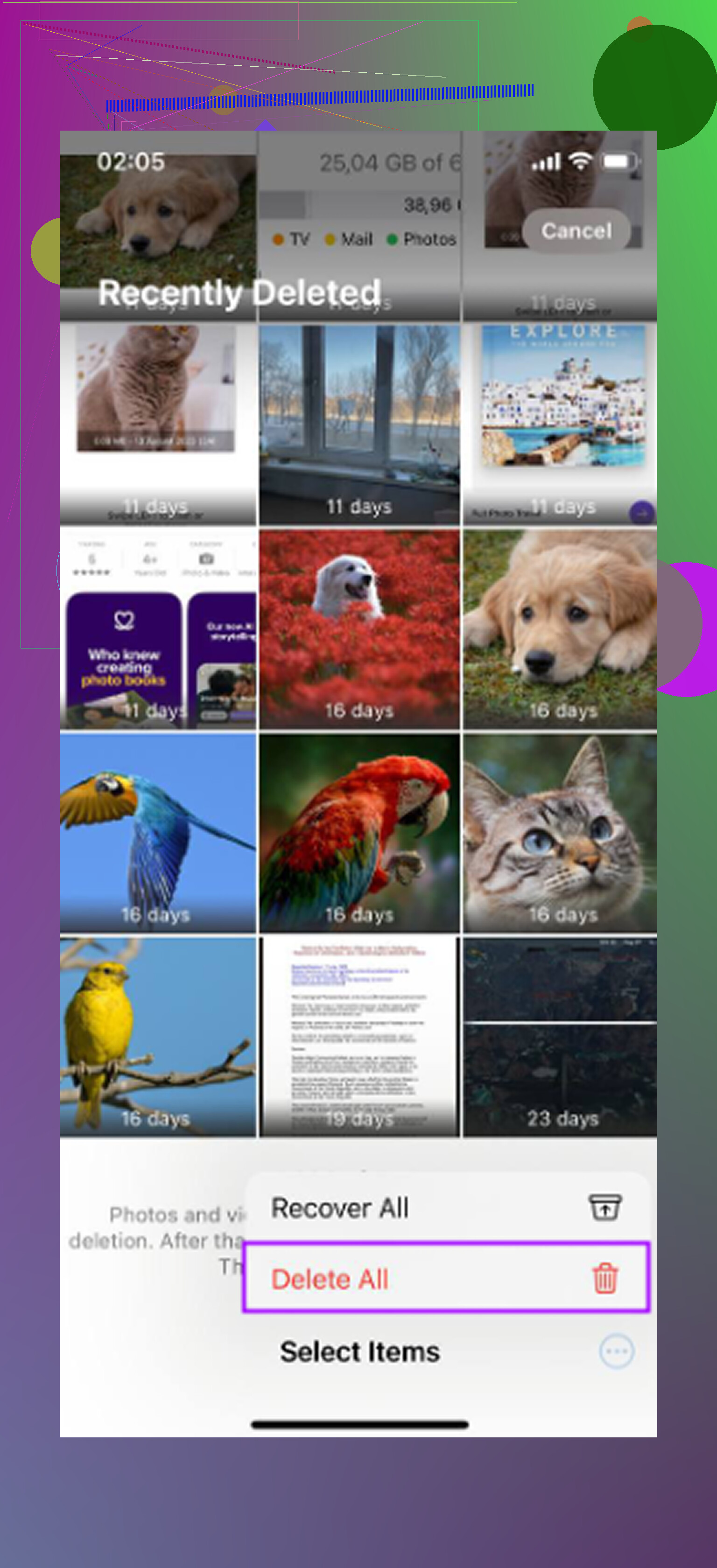
- Photos: Open Photos, go to Albums or Collections, then scroll down to Utilities. Open Recently Deleted. You may need Face ID or your passcode. Then tap Select and use Delete All if you really want the space back.
- Files: Open the Files app, tap Browse, then look under Locations for Recently Deleted. Tap the three-dot menu, choose Select, then delete everything from there.
- Notes: If your notes have photos, scans, drawings, or other attachments, they can take up more space than expected. Go back to the main Folders screen in Notes and look for Recently Deleted.
- Messages: On iOS 16 and newer, deleted conversations can also be recovered for a while. From the main Messages list, tap Edit or Filters, then choose Show Recently Deleted and remove them from there.
If you don’t see a Recently Deleted folder, it usually means one of two things: there’s nothing sitting in it, or your iOS version/app layout is different. Messages, for example, only shows that option after you’ve deleted something recently. Photos also hides it pretty far down now, so make sure you scroll all the way through the Utilities section.
I ran into this when my iPhone was basically unusable. Apps were crashing, everything was laggy, and I couldn’t even take a photo because the phone had no room left. Low storage really can make the whole system feel broken, because iOS needs some free space for caches and temporary files.
Manually clearing each app helped, but it was slow and kind of irritating. I’d empty Photos, then notice a bunch of space stuck in System Data, then find more junk somewhere else. After a while I started looking for a cleaner app that wasn’t just a subscription trap.
The one I ended up using was Clever Cleaner. I’m usually skeptical of cleaner apps because a lot of them are stuffed with ads or lock the useful parts behind a yearly plan, but this one was free, with no ads and no premium upsell.
The useful bit for me was that it showed the actual file size of screenshots and videos, so I could see what was worth deleting. The Heavies section made it easy to find giant videos and old screen recordings. The Similars section was also handy because it grouped nearly identical photos, like all the repeated shots you take trying to get one decent picture. It lets you keep the one you want and remove the rest. It also works on-device, so your photos are not being uploaded somewhere else for sorting.
After clearing the Recently Deleted folders, restart the phone too. A hard restart can sometimes shake loose some cached stuff in System Data or Other that doesn’t update right away. Between emptying the hidden trash folders and cleaning out duplicates or huge videos, you should finally see your storage number move, and the phone should feel less sluggish.
17 Likes
Don’t delete and reinstall apps trying to “bring back” the Trash folder, because that can make recovery harder or remove local data you still had. Mike’s point is right that there isn’t one iPhone-wide trash can, but Mail is a little different from Photos/Files: the trash folder belongs to each mail account. Open Mail, tap Mailboxes at the top left, then look under the specific account section, not just Favorites. It may be called Trash, Bin, Deleted Messages, or Recently Deleted depending on Gmail, iCloud, Outlook, etc. If it still isn’t there, check that account in Settings > Apps > Mail > Mail Accounts, because some accounts archive messages by default instead of sending them to Trash. In Photos, if Recently Deleted is missing, it usually just means it’s empty or buried under Utilities and locked behind Face ID.

It didn’t “go” anywhere if the account or app never made a local trash folder in the first place. For Mail especially, check the mail provider’s web version too, because Gmail/Outlook/iCloud can have different folder names and sync rules than the iPhone Mail app shows. If the message was archived, moved by a filter, or deleted from another device, you may be looking in the wrong place on the phone. Same idea with Photos: Recently Deleted only appears when there’s something in it, and shared albums or synced photos from a computer may not behave like normal Camera Roll deletions. So don’t assume a missing Trash folder means it’s hidden after an update. It may be empty, account-specific, or controlled by the service behind the app.
The exact mail account matters more than the iOS version here. A Gmail account in Apple Mail, an iCloud account, and an Outlook account can all show deleted mail differently, even though they’re sitting in the same Mail app.
For Mail, don’t only look at the short “Favorites” list at the top of Mailboxes. Tap back until you’re on the full Mailboxes screen, then scroll down to the account name itself. If you only see Inbox/Sent/Drafts, tap the account to expand it. Sometimes Trash is there but not pinned to the top list. You can also tap Edit on the Mailboxes screen and see if “All Trash” or that account’s Trash mailbox is unchecked.
The other gotcha is archive vs delete. Gmail especially loves turning a swipe into Archive, so the message never goes to Trash in the first place. In that case, look in All Mail or log into Gmail/Outlook/iCloud in a browser and search for the message there. If webmail says it is gone, the iPhone usually cannot magically show it again.
Photos is a different issue. “Recently Deleted” is not a folder you create or move around. It’s an album Apple puts under Utilities, and it may be locked behind Face ID/passcode. If the photos came from a synced computer album, shared album, or another cloud service app, deleting them may not put them in the iPhone Photos Recently Deleted area the way normal camera roll photos do.
I’d be careful with “empty everything” advice until you know which bucket you’re looking at. Recover first, then purge. Once you permanently delete from Recently Deleted or empty a mail provider’s trash on the server, it may disappear from every device tied to that account.