My iPhone storage keeps getting full even after I delete photos, apps, and old messages, and I can’t figure out what’s taking up the space. I’ve checked iPhone Storage in Settings, but the numbers don’t seem to add up, and System Data may be growing on its own. I need help finding what’s using my iPhone storage and how to free up space without losing important files.
It looks random at first, but on my iPhone it was never random. Storage kept shrinking because the phone was making and keeping new stuff in the background while I ignored it.
The biggest mess was Photos. New pics, screenshots, screen recordings, Live Photos, short videos, all of it stacks up fast. I noticed this after one weekend trip. I took a bunch of shots in burst mode and ended up with 40 versions of the same dumb sunset. They all stayed there. Same thing with family pics, pet pics, concert clips, receipt screenshots, all the junk you think you’ll sort later and don’t.
Apps were the next thing I found. Social apps, video apps, chat apps, they cache loads of files so they open faster. Fine at first. Then a 200 MB app turns into multiple GB and you barely touched it. Offline songs, saved shows, podcast downloads, random app files, they pile up without much noise.
Messages did more damage than I expected. Old threads were full of photos, memes, videos, GIFs. I forgot they even existed. A few long videos in iMessage ate several GB on mine.
Then there’s System Data, which is the annoying bucket. Logs, temp files, cache junk, update leftovers, stuff iOS keeps for itself. Some movement there is normal. Still, I’ve seen it swell way past what felt normal, and Apple doesn’t give you a clean erase button for it.
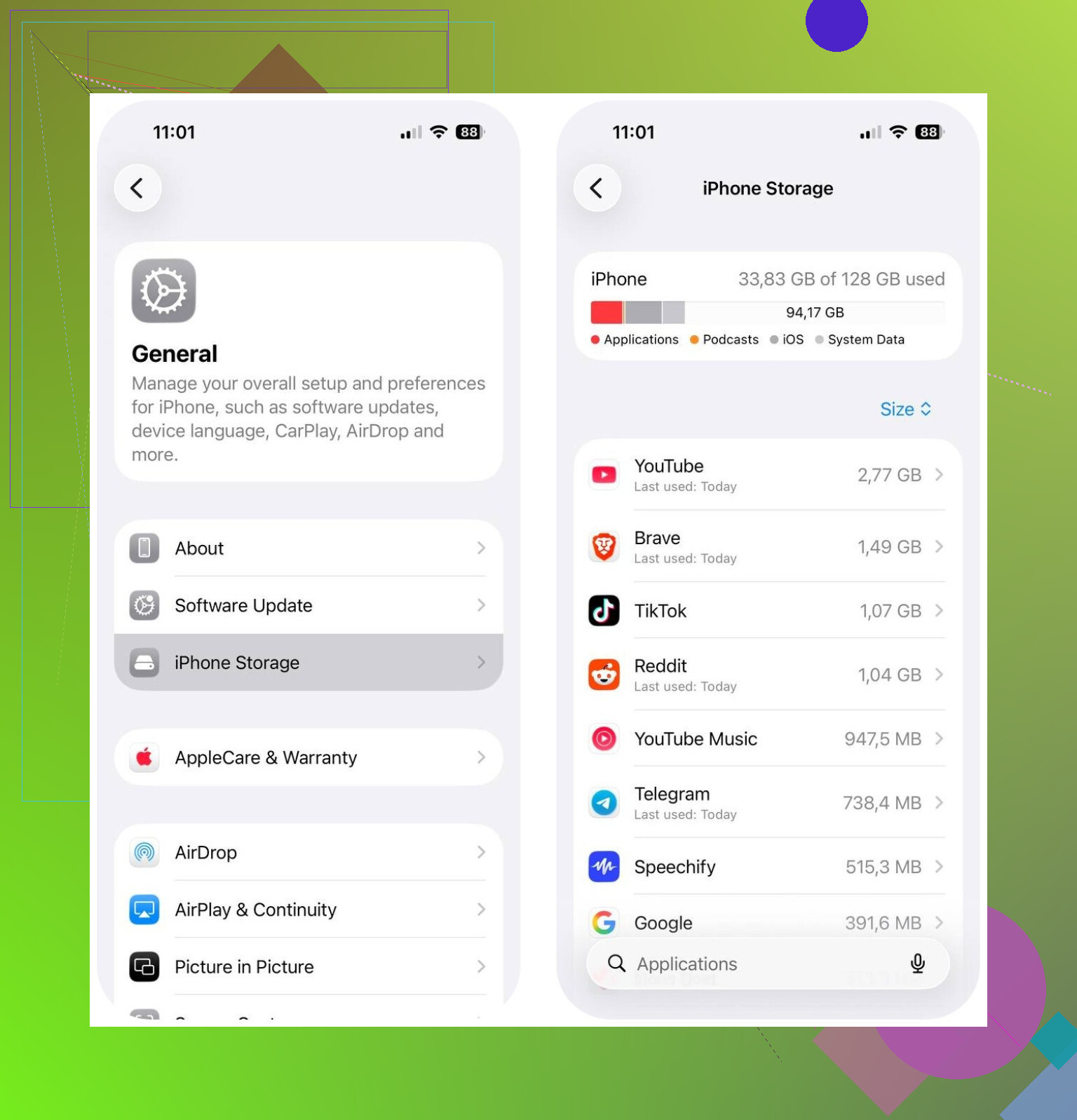
The first place I’d check is Settings > General > iPhone Storage. That screen tells you where the space went, so you stop guessing and start with the worst category first.
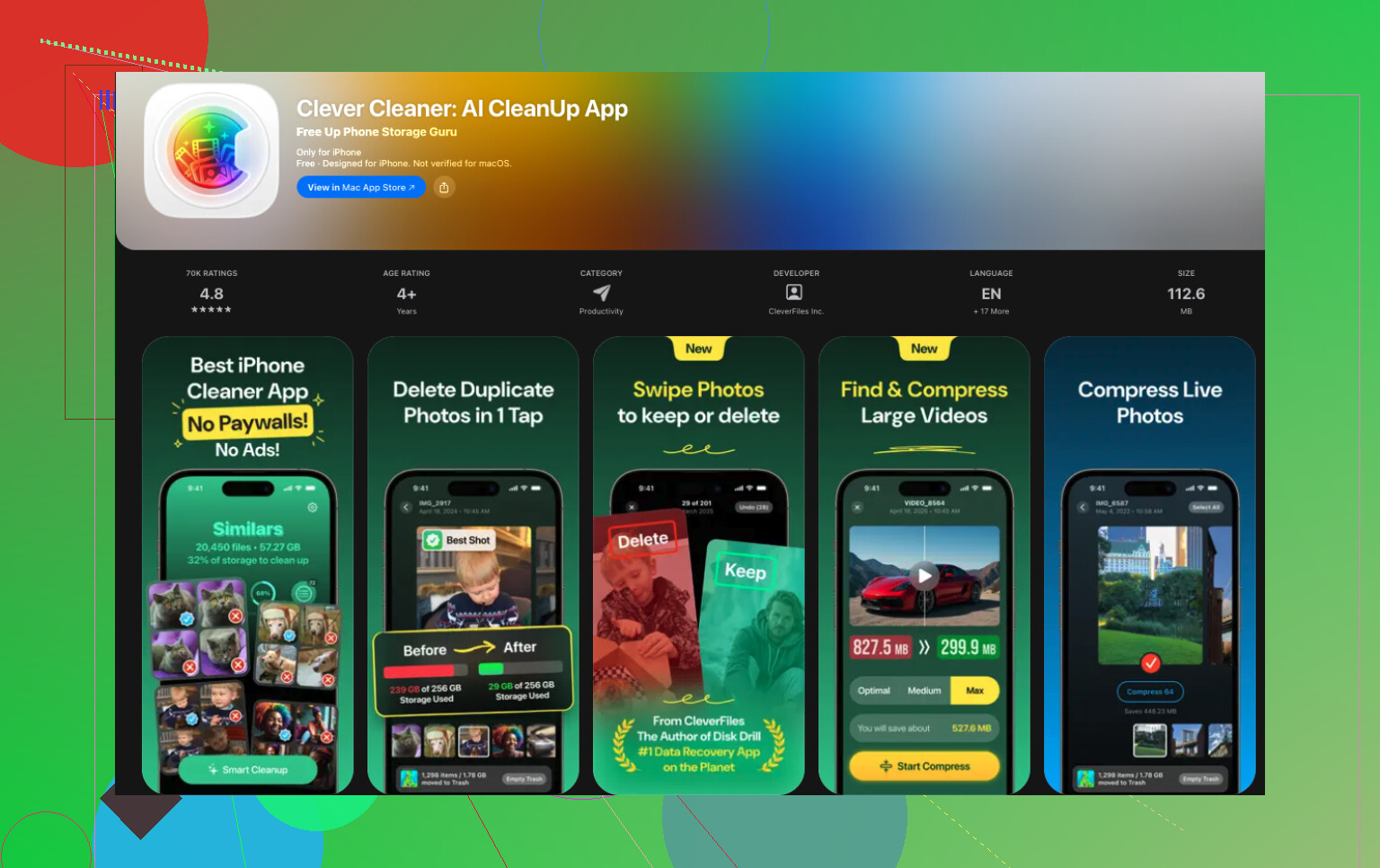
If Photos is near the top, I’d deal with that before anything else. I tried Clever Cleaner, and it helped more than the built-in Photos cleanup tools did. The main reason was simple. Apple’s Duplicates album only catches exact copies. A lot of my wasted space came from near-duplicates, stuff taken seconds apart with tiny differences.
What I liked in use:
- It grouped similar photos and picked a best shot, which saved time
- It surfaced large photos and videos fast
- It bundled screenshots together, easy delete
- It turned Live Photos into standard photos, which cut storage use a bit
I’ve seen people say they cleared 10 GB to 30 GB after cleaning similar photos, screenshots, and Live Photos. My result wasn’t identical, but it was enough to matter.
After photos, I’d go down this list:
- Big apps listed in iPhone Storage
- Downloads inside streaming apps
- Message attachments
- Downloads in the Files app
- Safari or other browser cache
From what I saw, this issue usually isn’t hardware. It’s buildup. Photos, app cache, saved media, attachments, system leftovers. It grows quietly, then one day you get the storage warning and it feels like it happened overnight. Checking iPhone Storage and cleaning the photo library first fixed most of it for me without wiping anything I cared about.
6 Likes
If the numbers in iPhone Storage don’t add up, I’d stop looking only at the category list. A lot of space hides in sync loops, failed backups, and app data iOS labels poorly.
A few things I’d check first.
- iCloud Photos status. If it says syncing, restoring, or downloading originals, storage swings fast.
- Voice Memos. Long recordings eat space and people forget them.
- GarageBand, iMovie, CapCut, TikTok drafts. These apps stash huge project files.
- Files app, On My iPhone folder. Old ZIPs, PDFs, downloads, edited videos.
- Mail app. Big attachments and offline mailboxes build up.
- Podcasts app. Played episodes often stay downloaded if settings are wrong.
I disagree a bit with @mikeappsreviewer on one point. System Data is annoying, yes, but when it jumps hard, it often points to one bad app cache or a stuck iOS process, not random junk.
Try this. Restart the phone. Then turn off and back on these one at a time, Messages in iCloud, iCloud Photos, Mail sync. Wait a few mins and recheck storage. If storage drops after offloading and reinstalling one app, you found the hog.
If Photos is still the main issue, Clever Cleaner is worth a look for similar shots and oversized media. That part is faster than doing it by hand, tbh.
For video cleanup ideas, this is decent too:
best YouTube cleaner apps and storage tips
Worst case fix, encrypted backup to a Mac or PC, erase iPhone, restore backup. Annoying, but it clears a lot of corrupted temp data when nothng else works.

What finally fixed this for me was checking the stuff iPhone barely surfaces, not the obvious categories @mikeappsreviewer and @vrijheidsvogel already covered.
Look at these:
- Settings > Siri & Search: if “Learn from this App” is on for everything, caches and suggestions can get weirdly bloated
- Downloaded voices in Accessibility and Translate
- Safari Reading List saved offline
- Books and PDFs stored locally
- Deleted photos are still stored in Recently Deleted for 30 days
- Shared Albums can still trigger local caching sometimes
Also, don’t totally trust the storage graph in real time. iOS can lag for hours after deletions, which makes it look like space “didnt” come back. Plugging into a charger and Wi-Fi overnight sometimes lets it recalculate.
One thing I kinda disagree on: people jump to full erase too fast. That’s a pain unless storage is clearly corrupted. I’d first force a rescan by updating iOS, then restarting, then checking if any app is re-downloading content in the background.
If photos are still the main culprit, Clever Cleaner is probly the fastest way to find similar shots, giant videos, and screenshot clutter without digging forever.
This guide is decent too if you want more ways to stop recurring iPhone storage full alerts:
how to stop iPhone storage full alerts for good
What @vrijheidsvogel, @cacadordeestrelas, and @mikeappsreviewer covered is solid, but I’d push on one area they only brushed past: app “Documents & Data” that survives normal deleting behavior inside the app itself.
A few sneaky offenders:
- Maps offline areas
- WhatsApp/Telegram media kept twice, in app and Photos
- Adobe/Canva/Kindle downloads
- Music creation apps with exported files hidden in their own library
- Browser download managers inside Chrome/Firefox, not just Safari
Also, I slightly disagree with the “System Data usually means one bad app” angle. Sometimes it’s just local snapshots, indexing, and failed update cleanup stacking together. Not elegant, but not always one guilty app.
My move would be:
- Check each big app and compare app size vs documents/data
- Delete and reinstall the worst offenders, not offload
- Open Files and sort by size
- Check APFS local snapshots by making sure iOS finishes backup/update tasks
- Leave the phone charging on Wi-Fi overnight after cleanup so storage recalculates
If photos are still a mess, Clever Cleaner is useful for surfacing bulky media fast.
Pros:
- finds similar photos
- easy screenshot cleanup
- quick scan
Cons:
- you still need to review before deleting
- best value is mostly for photo clutter, not every storage category
- can’t magically clear true system storage
So yeah, I’d stop staring at the graph and start hunting app data silos. That’s usually where the “missing” gigs are.