My older iPad was working fine until the latest iOS update, and now it feels really slow when I open apps, browse online, or even switch screens. I need help figuring out how to speed up an old iPad after an update, what settings to change, and whether there’s anything safe I can delete or turn off to improve performance.
Old iPad running like mud
I hit this with a 6th gen iPad too. Mine got so slow I tapped Safari, waited, then forgot why I opened it. YouTube felt worse. It wasn’t dead. It was clogged.
If your iPad started dragging right after an iPadOS update, give it a bit. I saw mine stay warm and sluggish for hours while it sorted photos, files, and other background stuff. Sometimes it took most of the day. After that, do a full reboot. Not sleep mode. Shut it down, turn it back on. Small step, but I saw random lag disappear after doing it.
Storage is usually the first thing I check
This part mattered more than I expected. When the iPad gets close to full, performance drops off. Apple says keep at least 1GB free. My own cutoff was higher. If I let storage fall under roughly 10 to 15 percent free, app launches got messy and multitasking felt delayed.
I used to delete stuff by hand. Bad plan. Took forever, missed half the junk, then screenshots piled up again two days later.
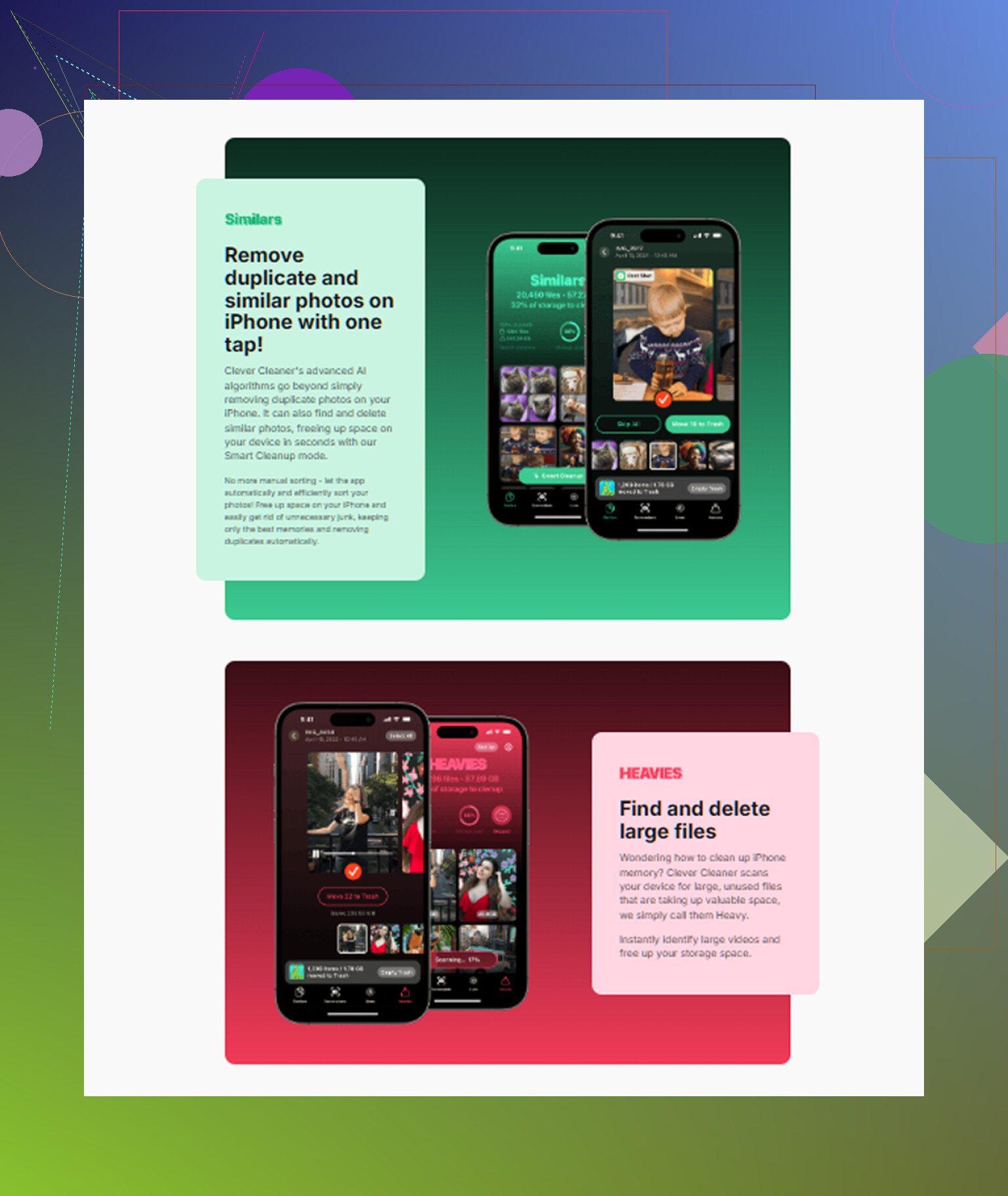
What helped me was a cleanup app. The one I stuck with was Clever Cleaner. I didn’t expect much, if I’m honest. It turned out useful.
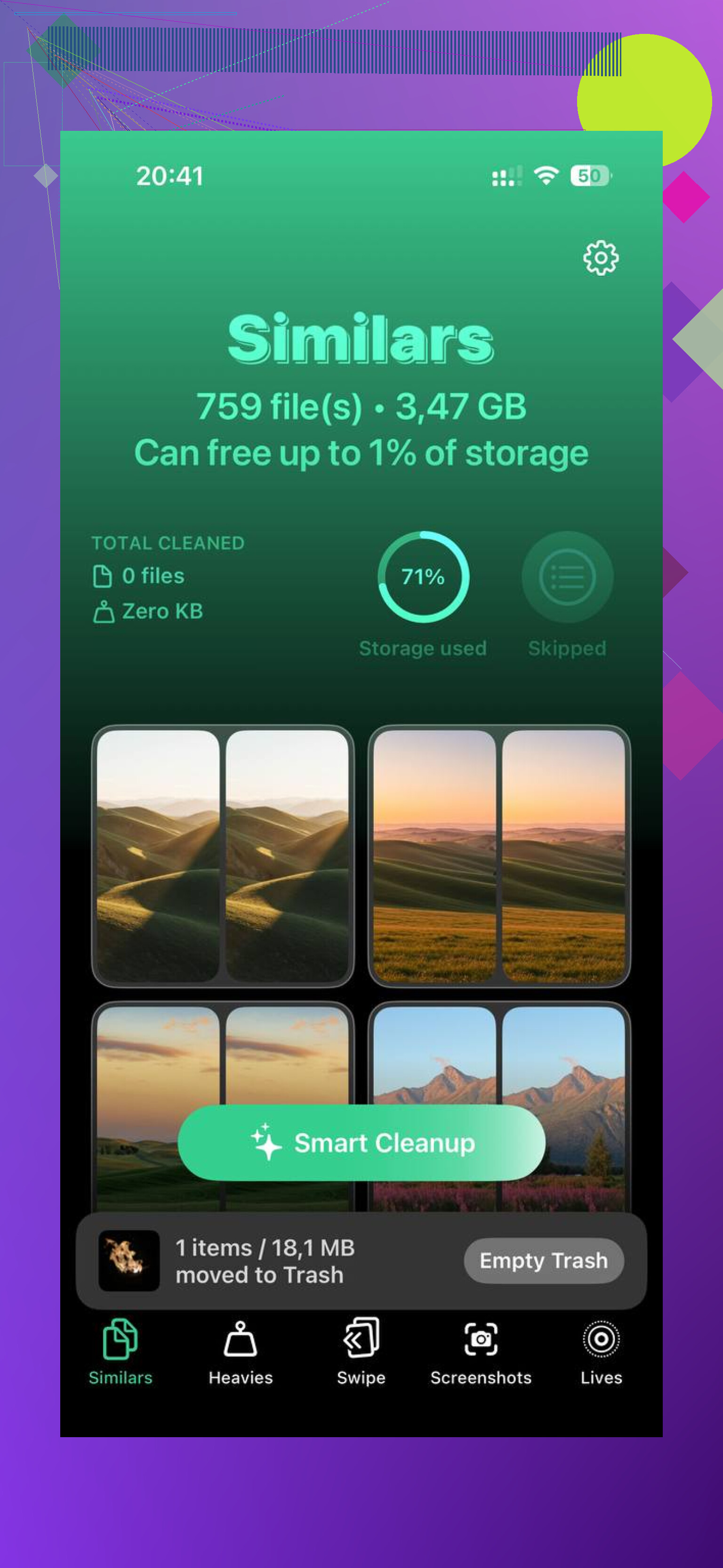
It groups big files in a ‘Heavies’ section, so you spot giant videos fast. The ‘Similars’ part was better for me. It found duplicate-looking photos, blurry shots, repeated screenshots, all the junk I kept meaning to sort later. It also shows file sizes clearly, which makes decisions faster. What I liked most, my photos stayed on the device during scanning. I cleared around 5GB and the iPad felt less stuck right after. Not magic. Still old hardware. But better, yeah.
Two settings I changed and kept changed
Go to Accessibility and turn on ‘Reduce Motion.’
This cuts down the zoom and slide animations. The processor does not become faster, but the iPad feels quicker because the UI stops making you sit through effects.
Then go to Display & Text Size and enable ‘Reduce Transparency.’
This one helped more than I thought it would. Less blur, less visual overhead, less strain on older hardware.
Turn off Background App Refresh
I shut this off fully.
Path is Settings > General > Background App Refresh.
A lot of apps keep checking for updates when you are not even using them. News apps, social apps, random junk. On an older iPad, that background activity adds up. I got better battery life and fewer weird slowdowns in the foreground app I was using.
Sometimes the iPad is fine, your Wi-Fi isn’t
I chased ‘iPad lag’ once and it turned out my network was the problem. If pages hang, videos buffer, or Safari feels broken, test your Wi-Fi before blaming the tablet.
If your router has 5GHz, use it instead of 2.4GHz when you’re close enough to the router. My browsing speed felt a lot better on 5GHz.
If Safari alone is acting weird, clear its stored data:
Settings > Safari > Clear History and Website Data
Annoying part, you’ll get signed out of sites. Still worth trying if Safari has years of cruft built up.
Replace it or keep it
My rough rule was simple. If the iPad still gets current iPadOS updates, I try fixing it first. Usually the hardware isn’t finished, it’s buried under full storage, background junk, old browser data, and visual effects meant for newer chips.
If it no longer supports current iPadOS, then yeah, I would start looking at a refurbished newer model.
Before spending money, I’d do this in order:
What I would do first
- Wait out any recent update for a few hours, or a day.
- Fully reboot the iPad.
- Free up storage, aim for 10 to 15 percent open.
- Use Clever Cleaner or clear media manually.
- Turn on Reduce Motion.
- Turn on Reduce Transparency.
- Disable Background App Refresh.
- Move to 5GHz Wi-Fi if available.
- Clear Safari history and website data if browsing is the main issue.
Mine felt usable again after doing this stuff. Not new. Not fast-fast. But usable, which was enough to keep me from buying another tablet right away.
39 Likes
I’d add one thing @mikeappsreviewer did not hit hard enough. Check battery health, if your model shows it. On older iPads, worn batteries lead to throttling under load. If the iPad gets hot fast, drops charge in chunks, or lags more below 40 percent, the battery is part of the problem.
A few other fixes helped me more than animation tweaks.
Turn off Low Power Mode if it stayed on after the update. It slows some background tasks and makes old hardware feel worse.
Update apps one by one from the App Store. Old app builds after a big iPadOS jump often run like trash until devs patch them.
Remove widgets from the Home Screen. They poll data often. Same for live weather stuff.
Disable Siri suggestions in Search and on the Home Screen. Settings, Siri & Search. Those suggestions keep indexing app usage.
Reset all settings if the slowdown started right after the update and nothing else fixed it. This does not erase your files. It wipes network, keyboard, privacy, and system settings. I’ve seen this fix weird post-update lag more than once.
If the iPad is still bad, do a backup, then a full erase and restore. Clean installs often beat years of update-over-update cruft. Bit of a pain, but it works.
I slightly disagree on waiting too long for indexing. A few hours, sure. If it still crawls after 24 to 48 hours, I’d stop waiting and start fixing stuff.
And yeah, if storage is packed, Clever Cleaner is a decent shortcut. Also, this write-up is useful if you want a quick read on what it does for iOS cleanup, see why Clever Cleaner is a solid free iPhone cleaner.
My order would be:
- Charge to 100 percent and test unplugged.
- Check battery behavior and heat.
- Update apps.
- Remove widgets.
- Turn off Siri suggestions.
- Reset all settings.
- Backup, erase, restore.
Old iPads do slow down after updates, but a clean restore fixes more cases than people want to admit. Annoying, yep. Effective too.
I’d add one angle neither @mikeappsreviewer nor @stellacadente really leaned on: app-specific bloat and web junk can make an old iPad feel like the whole OS is dying when it’s really just 2 or 3 problem apps.
What I’d check:
-
Offload and reinstall the worst offenders, usually Safari, YouTube, Facebook, Instagram, Amazon.
Settings > General > iPad Storage > tap app > Offload App
This keeps docs/data but replaces the app files. I’ve seen buggy post-update app installs get fixed this way. -
Check Mail accounts. Seriously. Old iPads choke when you have multiple mailboxes pushing constantly. Set fetch manually or hourly for accounts you don’t need in real time.
-
Limit open Safari tabs. People laugh at this, then realize they have 87 tabs open like it’s a personality trait. Old iPads hate that.
-
Turn off automatic downloads for apps and updates. One device update turns into background chaos if it keeps syncing purchases and app updates.
-
Disable location access for apps that absolutely do not need it. Constant location polling can make older hardware feel weirdly laggy.
I kinda disagree with doing a full erase too early. That’s the nuclear option. Sometimes just cleaning storage, offloading broken apps, and trimming background services gets you 80 percent of the way there without the headache.
And yeah, if storage is part of the issue, Clever Cleaner is a pretty easy way to clear duplicate photos, large videos, and other junk fast. If you want a quick demo, see how Clever Cleaner helps free up iPhone and iPad storage.
My order would be:
- Offload/reinstall laggy apps
- Reduce Mail push/fetch
- Close Safari tabs
- Turn off auto downloads
- Tighten location permissions
- Use Clever Cleaner or manual cleanup
- Only then consider reset/restore
Old iPads can still be usable, but after some updates they need a bit of pruning. Annoying, but taht’s Apple for ya.
One thing I’d do that @stellacadente, @kakeru, and @mikeappsreviewer only brushed past is checking what got enabled by the update itself.
Go to Privacy & Security and review:
- Analytics & Improvements
- App Tracking
- Location Services system services
- Motion & Fitness
Updates sometimes switch background stuff back on. On older iPads, that extra polling adds up.
I also think people over-recommend turning off every visual feature. Some of that helps, sure, but if the iPad is stuttering inside one app and not system-wide, it is usually that app, not animations.
A few extra fixes:
- Disable Spotlight results you never use in Settings > Siri & Search. Especially web, suggestions, and app content.
- Delete VPN or security apps temporarily. Old iPads can crawl if all traffic is filtered.
- Remove old profiles/device management configs if you ever used school/work setup.
- Check Accessibility > Touch > Touch Accommodations is off unless needed. Weird laggy input can feel like slowness.
- Force close only the app that is misbehaving, not every app constantly.
For storage cleanup, Clever Cleaner is fine if your issue is photo/video junk.
Pros:
- quick way to find large files
- helpful for duplicates and screenshots
- easier than manual cleanup
Cons:
- won’t fix a bad battery
- won’t solve app bugs or weak hardware
- you still need to review what it deletes
My cutoff: if it freezes in Settings, Files, and Home Screen after all this, the update probably pushed that iPad past its comfort zone. At that point, restore or retire.
Try deleting and reinstalling the single app that feels slowest. Start with YouTube, Facebook, or another heavy app. First confirm your data syncs to iCloud or your account.
Delete the app, restart your iPad, then reinstall it from the App Store. This clears damaged caches and old app files left after the update, without resetting the whole device.
Test it for 10 minutes before changing other settings. If one or two apps improve, the issue was app data, not your iPad. Its simpler than doing a full restore.
Honest expectation first: none of this makes an old iPad feel new again, it just makes it tolerable. The battery check @stellacadente mentioned is the one I’d do before anything else, since throttling from a worn cell mimics every ‘software’ slowdown people chase for hours.