My iPhone storage is almost full, and I think the Photos app is taking up most of the space. I tried looking in settings, but I’m not sure where to find the exact photo storage usage. I need help checking how much storage my iPhone photos are using so I can free up space without deleting the wrong things.
iPhone storage looks simple until you try to figure out why the numbers don’t line up. I went through this on my own phone, and the menu gives you pieces, not the whole picture. Here’s the version I wish I had first.
Where to check iPhone storage
Open Settings, then General, then iPhone Storage. This is the only screen on the phone where the storage mess starts to make sense.
At the top, iOS shows a colored bar. Each chunk stands for a category, photos, apps, system data, messages, and so on. Under it, you’ll see the total used space, something like 54 GB of 256 GB used. Keep scrolling and you get the app-by-app list with exact numbers. On most phones I’ve handled, Photos sits near the top and eats the biggest piece.
If you only want the device’s advertised storage size, skip the full dashboard and go to Settings, General, About, then Capacity. That number is the phone’s built-in storage tier.
Why the storage total keeps moving around
This part confused me at first. The number changes because iOS is always writing temp files, clearing caches, and reshuffling background data. System Data jumps the most. One hour it looks manageable, later it swells for no obvious reason.
I found the cleanest way to check was after a restart. Rebooting forces iOS to recalculate a lot of this stuff. If you check while apps are active, photos are syncing, or a video export is running, the number feels off becuse it sort of is.
Does iCloud add to your iPhone storage
No. These are separate buckets.
Your iPhone storage is the physical space inside the phone. iCloud is online storage tied to your Apple account. So if your phone has 64 GB, buying 2 TB of iCloud does not turn the phone into a 2 TB phone. It only gives you a place to move or sync things so less stays local.
To see iCloud usage, open Settings, tap your name at the top, then tap iCloud.
Why a full iPhone starts acting bad
I noticed this before I understood it. My phone felt slower, the camera hesitated, apps dumped me out to the Home Screen, and scrolling got ugly. Low free space was a big part of it.
iOS needs spare room for temp files and routine background work. When your storage gets squeezed, the phone loses breathing room. This isn’t only about not having space for new photos. It affects how the phone behaves all day.
If your phone feels weird and random, check storage before you blame battery health or iOS bugs.
What helped me free up space
The built-in recommendations inside iPhone Storage are okay, but on my phone they barely touched the real problem. Offloading apps sounds useful until you realize your giant photo library is still sitting there untouched.
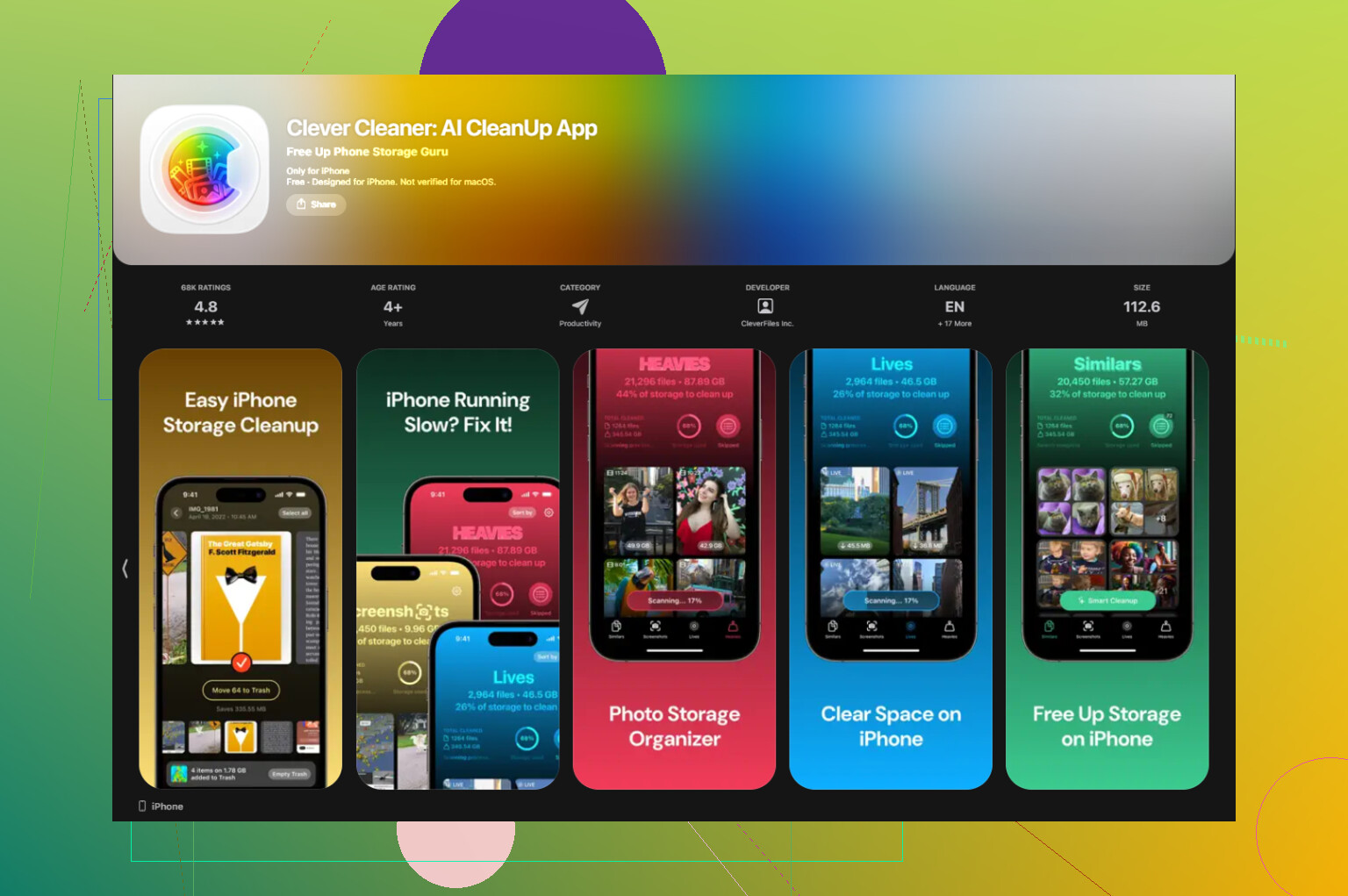
I had better luck with Clever Cleaner, mostly because it focused on the files doing the most damage.
The Screenshots section shows file sizes before deletion, which helped more than I expected. I had hundreds of old screenshots, and seeing the size beside each one made it obvious what to toss.
The Heavies section sorts your biggest files first. Mine was full of 4K clips, long screen recordings, and random video junk I forgot existed.
The Similars section groups near-duplicate photos and picks a Best Shot from the set. I used it on burst photos and it cleared a pile of clutter fast. From what I saw, processing stays on the phone.
After I cleared about 15 GB, the lag dropped off hard. The phone stopped feeling cramped, and the storage graph quit swinging around as much.
What System Data means on iPhone
System Data is the junk drawer. Apple throws a lot into this category, app caches, Siri files, Safari data, streaming leftovers, logs, temp files, and other scraps iOS creates while running.
This is also why people get annoyed with it. You usually don’t get one clean delete button for System Data in the stock settings.
A restart trims some of it. Clearing Safari data helps too. Go to Settings, Safari, then Clear History and Website Data. If social apps have ballooned over time, deleting and reinstalling them often wipes out a chunk of stored cache. I’ve seen apps like Instagram, TikTok, and Reddit hang onto way more local data than people think.
If your storage numbers look wrong, start with a reboot, then check Photos, big videos, screenshots, and cache-heavy apps. That’s where I found the real space hogs, not in the stuff Apple highlights first.
5 Likes
Open Photos, tap your profile icon, then look for sync status if you use iCloud Photos. It will tell you if originals are on the phone or if space-saving is on. That matters more than people think.
The exact number for Photos on your iPhone is still under Settings, but I kind of disagree with @mikeappsreviewer on one point. A restart is fine, but it does not always fix the weird math. The bigger issue is whether your phone stores full-res originals.
Check this:
Settings > Photos
Look at Optimize iPhone Storage or Download and Keep Originals.
If Download and Keep Originals is on, your photo library is taking more local space. If Optimize is on, the Photos total in storage is often lower than your full library size.
For a closer estimate inside your library, sort by Videos, ProRAW, Live Photos, and Screenshots. Those are the usual storage hogs. A 1 minute 4K60 video is often around 400 MB. Ten of those adds up fast.
If you want to clean it up faster, Clever Cleaner is worth a look. This guide on free iPhone cleaner app options for clearing photo clutter covers it well. It helps find duplicate shots, large videos, and old screenshots without the usual guesswork.
Also check Recently Deleted. Stuff sits there for 30 days and still uses storage, which is annoyng as hell if you forgot about it.
What helped me most was checking the size of the actual media types, not just the big Photos label in storage. @mikeappsreviewer covered the main dashboard and @cazadordeestrellas mentioned Optimize Storage, but the sneaky part is shared albums, edited videos, and Recently Deleted can make Photos feel bigger than expected.
Try this angle:
- Open Photos
- Scroll to Media Types
- Check Videos, Live Photos, RAW, Screenshots, and Screen Recordings
That won’t show one grand total, but it shows what’s eating space fastest. Usually it’s videos, not regular pics. People blame selfies, but 4K clips are the real storage assassin lol.
Also, if you use Photos in iCloud.com from a browser, compare your total library there vs what’s on device. If the phone is set to Optimize, local usage can be way lower than your full library.
One small disagreement with both replies: I would not obsess over the storage graph being perfectly accurate. iPhone storage numbers are often fuzzy for a bit. Close enough is usally enough to figure out if Photos is the culprit.
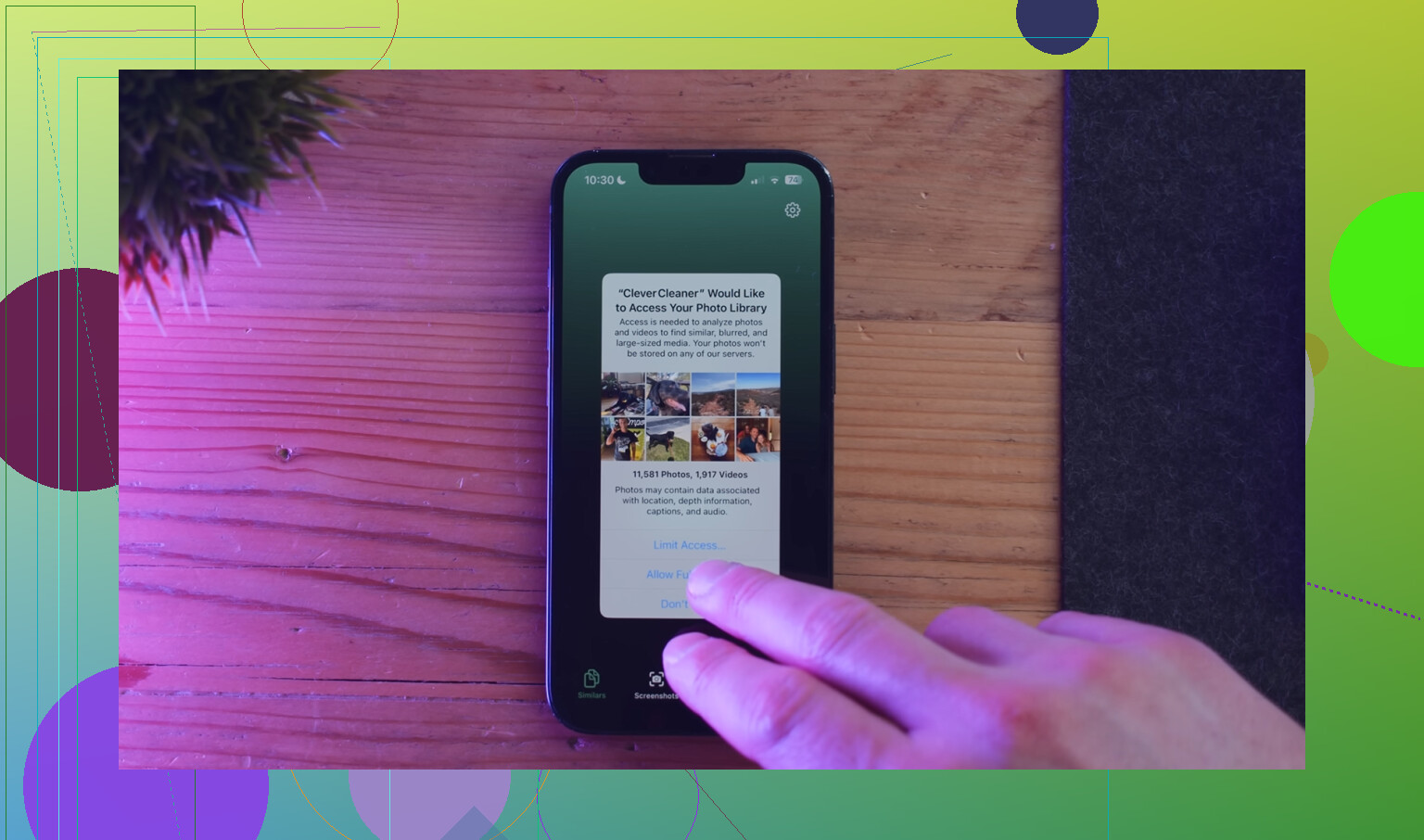
If you want cleanup without manually hunting everything down, Clever Cleaner is actually useful for duplicate shots, large videos, and screenshot clutter. This video gives a decent look at it: see Clever Cleaner find large photos and videos on iPhone.
And yeah, empty Recently Deleted. Apple loves pretending deleted means deleted. It does not, atleast not right away.
One extra place people miss is Settings > Privacy & Security > Analytics & Improvements > Analytics Data. If Photos has been crashing or reprocessing a lot, storage can look inflated until iOS finishes cleanup. So I slightly disagree with the “just trust the main graph” angle from @sterrenkijker. It’s useful, but not always the whole story.
A better cross-check:
- Settings > General > iPhone Storage
- Tap Photos
- Wait 20 to 30 seconds on that page
iOS sometimes recalculates the app size after the page fully loads. If you tap in and out too fast, the number can lag.
Also check whether edited copies are piling up. Heavy crops, cinematic edits, and duplicate exports from apps like CapCut or Instagram can live outside the obvious “Videos” bucket.
Briefly, @cazadordeestrellas is right about Optimize Storage mattering, and @mikeappsreviewer is right that the storage dashboard is the main source. I’d just add that Files app exports and Messages attachments often get blamed on Photos by mistake.
If cleanup is the goal, Clever Cleaner is decent.
Pros
- Finds duplicates and similar shots fast
- Good for large videos and screenshots
- Easier than hunting manually
Cons
- Similar-photo suggestions still need review
- Not every “duplicate” is safe to delete
- Built-in Photos search is still better for some manual filtering
So yes, check Photos in iPhone Storage, but also verify you’re not dealing with edited exports or attachments masquerading as photo bloat.