My iPhone is almost out of storage, and I don’t want to open the phone or risk damaging it. I need help finding safe ways to free up space, use iCloud, offload apps, or expand usable storage without hardware changes.
If you’re mainly trying to get more breathing room on your iPhone, I wouldn’t jump straight to replacing the phone or messing with the internal storage. For most people, the better fix is a mix of external storage, cloud storage, and cleaning out the junk that’s already sitting on the device.
External storage is usually the cleanest fix
For photos and videos, this is probably the most practical option. There are flash drives made for iPhones that plug right into the charging port, either Lightning on older iPhones or USB-C on newer ones.
They’re handy if you record a lot of video because you can move older files off the phone instead of deleting them. Some setups even let supported apps save video straight to the external drive, which keeps those massive files from touching your iPhone storage in the first place.
Just check the format before relying on one. iPhones work with file systems like exFAT and APFS, so the drive needs to be formatted in a way iOS can actually read.
Cloud storage works better if you want access everywhere
If you want your files to still feel like they’re “on” your phone, iCloud is the easiest route. It’s built into iOS, and with Optimize iPhone Storage turned on, your phone keeps smaller local versions of your photos while the full-resolution originals stay in iCloud until you open or download them.
Google Drive and Dropbox can also do the job if you don’t want to use iCloud or add another Apple subscription. They’re just a little more hands-on, since they don’t tie into the Photos app as smoothly.
Then clean up what’s already on the phone
Before deleting random stuff, go to Settings > General > iPhone Storage. That screen shows what’s actually eating the space, which is better than guessing.
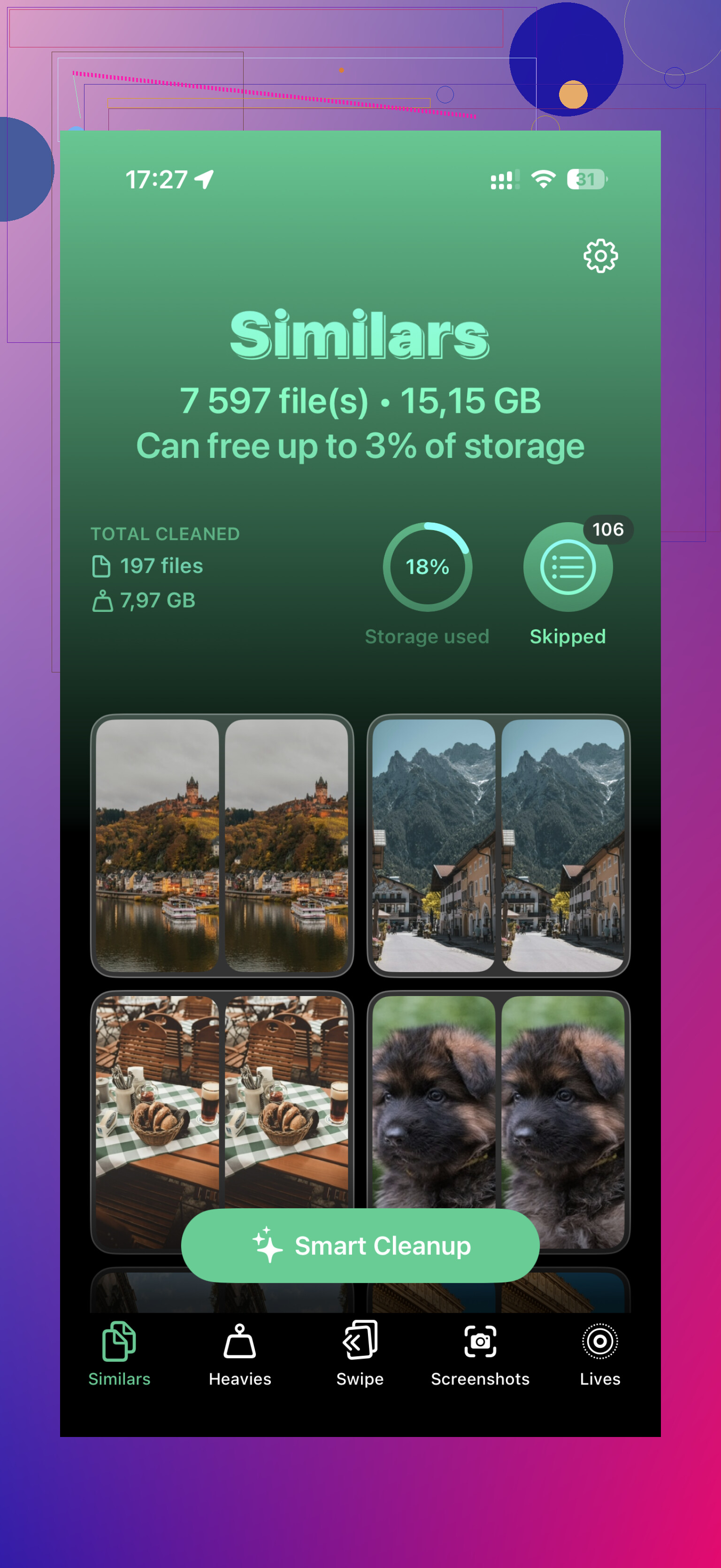
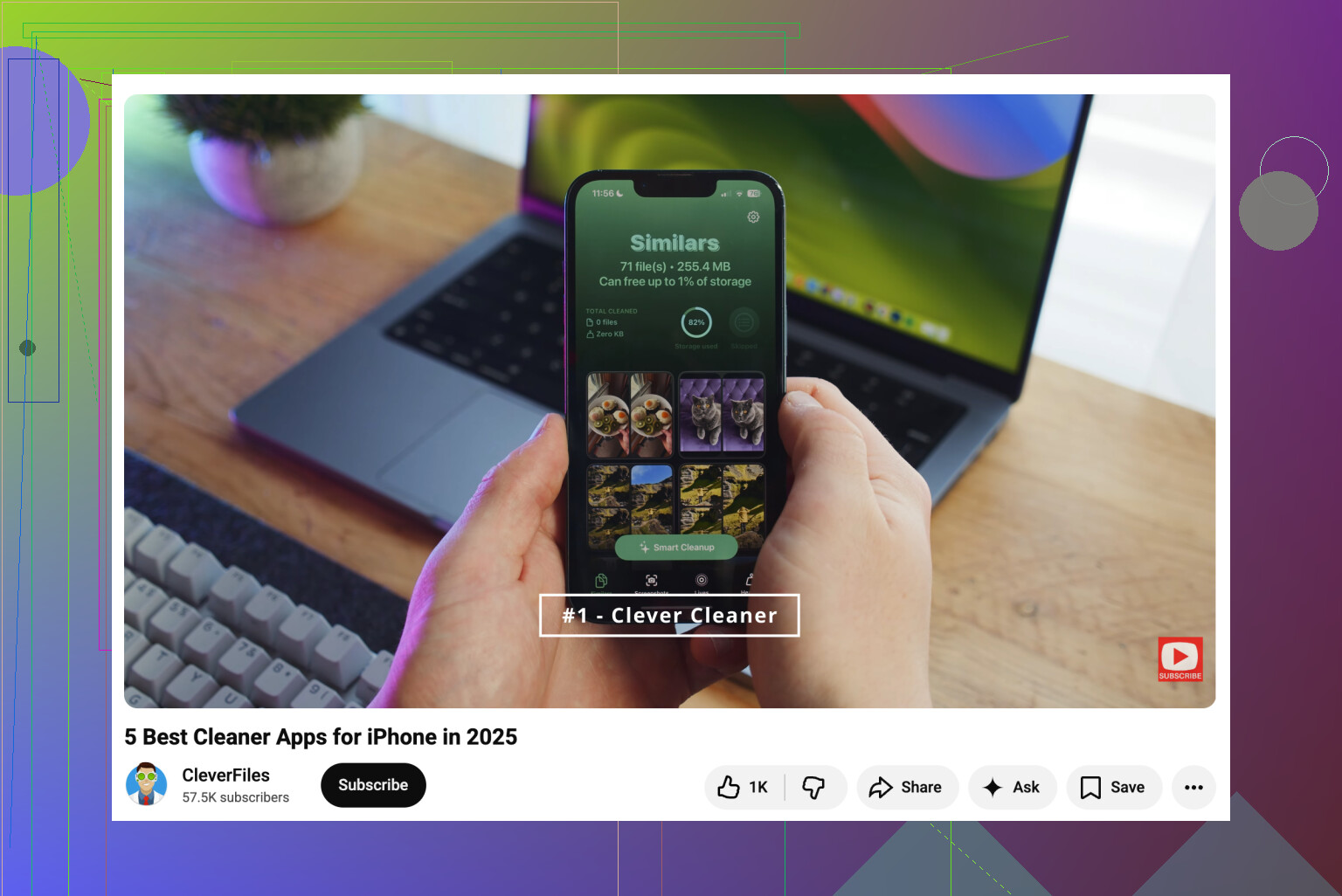
Photos are usually the worst offender. Apple’s Duplicates album is useful for exact copies, but it won’t catch everything. A lot of space gets wasted on near-identical shots, screenshots, Live Photos, and large videos. That’s where something like Clever Cleaner can help. It groups similar photos, picks out the best-looking one from a set, sorts videos by size, turns Live Photos into still images, and makes screenshot cleanup less painful. That kind of cleanup can free up a lot more than just poking around in Photos manually.
Apps are another easy place to save space. If there are apps you rarely open, use Offload Unused Apps. It removes the app itself but keeps your documents and data, so if you reinstall it later, your stuff comes back.
Also check Messages. Old conversations can quietly collect years of videos, GIFs, and photos. Setting messages to delete after a set amount of time can stop that from building up again.
About upgrading the iPhone’s internal storage
Realistically, no, that’s not a good option. You might see repair shops or YouTube videos showing storage-chip swaps, and yes, the micro-soldering can technically be done. But it’s risky, very specialized, and Apple does not support it.
If something goes wrong, the logic board can be ruined. Even if it works, you’re probably giving up any remaining warranty or future Apple service options.
I’d put that money toward a decent external SSD or iPhone-compatible flash drive instead. A safer setup is simple: keep older media on external storage, use cloud storage for the stuff you want available everywhere, and clean the local library once in a while. That gets you more usable space without gambling with the phone itself.
10 Likes
Your iPhone still needs some real local free space, even if you pay for iCloud. iCloud Photos with Optimize Storage can shrink the photo library on the phone, but it does not turn a 64 GB iPhone into a 256 GB one, and apps, Messages attachments, downloads, and system data still live locally. Before buying anything, I’d clear enough space for the phone to work normally: delete downloaded Netflix/Spotify/Podcast files, remove big Message attachments from Settings > General > iPhone Storage, and offload apps you do not use weekly. External drives are fine for archiving videos, like @mikeappsreviewer said, but they are not seamless everyday storage for apps or iOS itself. Think of them as a filing cabinet, not an upgrade.
If you’re already getting the “Storage Almost Full” warning, I’d free space in the boring order first: deleted downloads, huge videos, and message attachments before installing cleaner apps or syncing a giant iCloud library. @suenodelbosque is right that iCloud still needs local room to work, and that part trips people up. After you’ve made a little breathing space, turn on iCloud Photos with Optimize iPhone Storage, then offload apps you rarely use. I’d be careful with external drives too: useful for dumping old videos, but annoying if you expect them to behave like built-in storage. For a quick win, sort iPhone Storage by size and attack the top three items. That usually beats hunting through random menus.
Emptying space is not finished until you clear “Recently Deleted.” Photos, videos, Voice Memos, and Files can sit there still using storage, so after you delete the obvious big stuff, go into those folders and remove them for real. I agree with @suenodelbosque on iCloud too: it helps manage storage, but it is not a magic second hard drive.