My iPhone storage is almost full, and I realized hundreds of old screenshots are taking up space in Photos. I need help finding the quickest way to delete screenshots on my iPhone and free up storage right away without removing pictures I want to keep.
I ran into this with my own phone. The Screenshots album had turned into a junk drawer, QR codes from parking lots, shipping updates, random memes, payment confirmations from stuff I forgot I bought. It feels harmless until iPhone throws the “Storage Almost Full” warning and you see how much space is getting burned by nonsense.
So yes, Recently Deleted uses storage too. When you remove a screenshot from your library, iOS does not wipe it on the spot. It moves the file into Recently Deleted for 30 days. During those 30 days, the file still sits on your phone and still takes space. If you want the storage back now, you need to clear both places.
Bulk delete with the built-in Photos app
Open Photos. Go to Albums or Collections, scroll to Media Types, then open Screenshots. Tap Select at the top right, then Select All, then hit the trash button. That clears them from the main library.
Then do the step people skip. Go into Recently Deleted under Utilities. Face ID or your passcode will unlock it. Tap Select, tap the three-dot menu, then Delete All. Storage usually does not drop until this second part is done too.
A cleaner way to sort the mess
I found the stock Photos app fine for brute-force deleting, but weak for sorting. No file sizes in front of you. No quick way to spot the biggest screenshots. No easy pass for “keep this, trash this.”
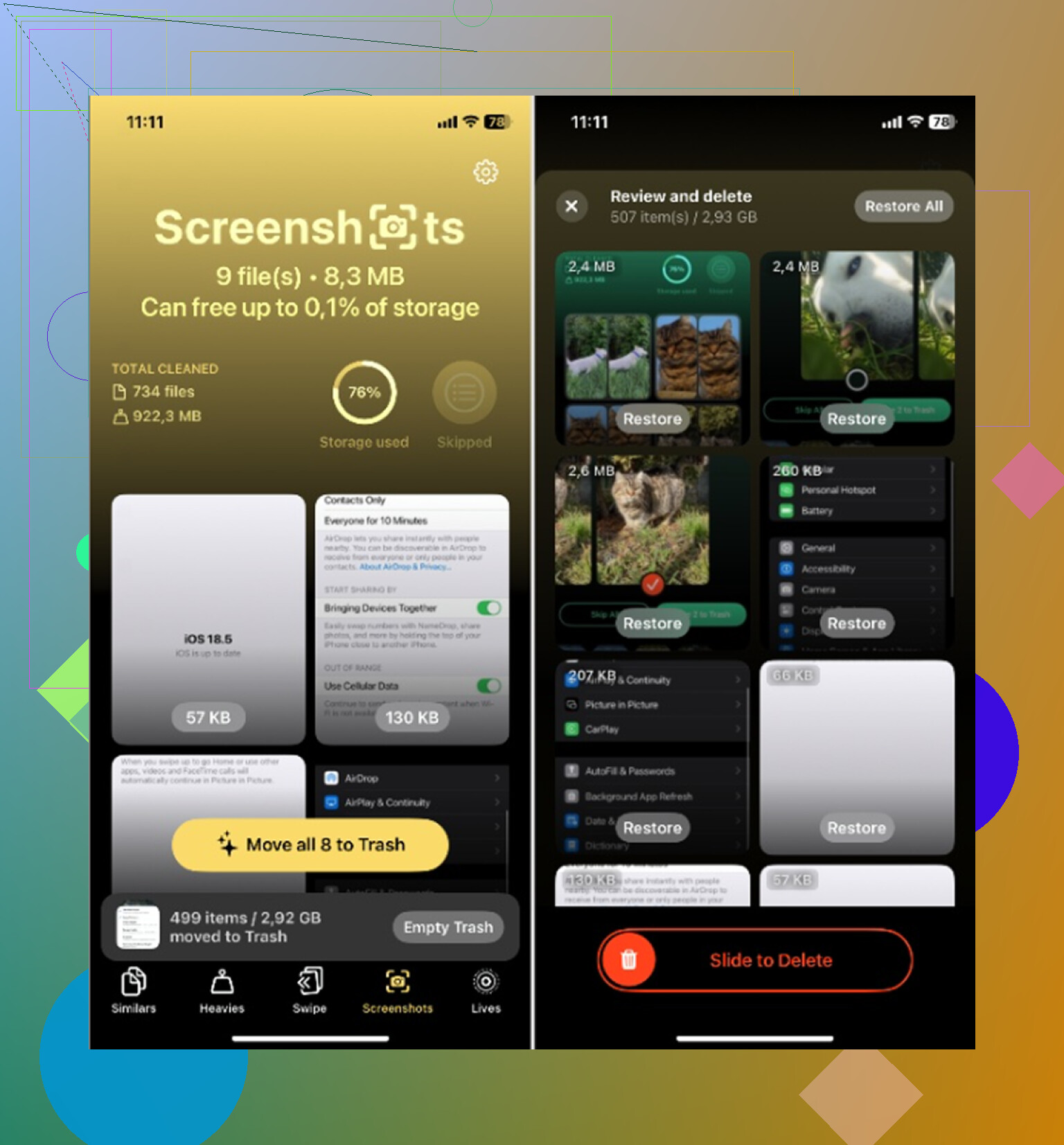
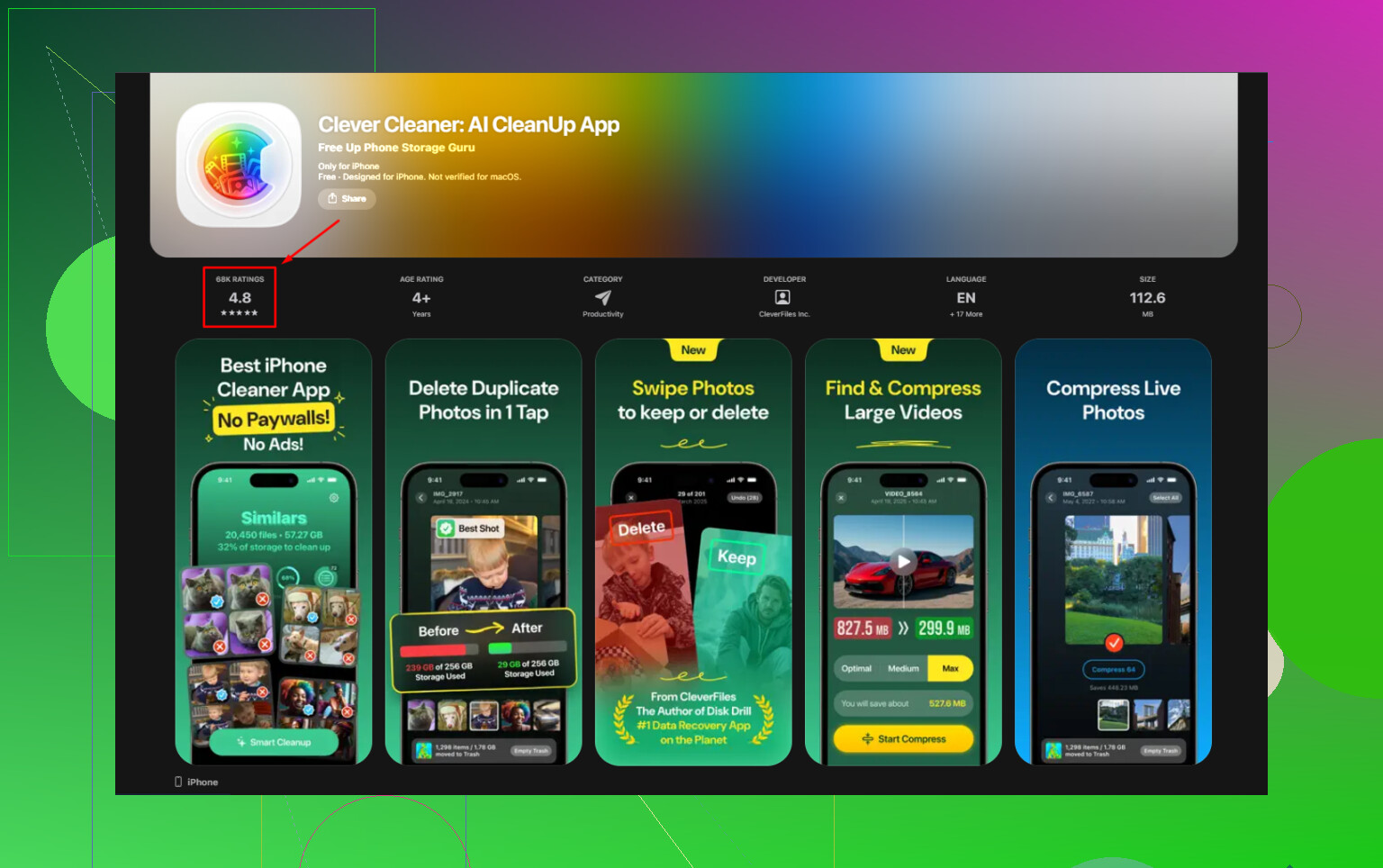
Clever Cleaner made this less annoying for me. It is free, no ads, no paywall shoved in your face. Open the Screenshots section and each image shows its size in the grid, so you know what you’re removing before you tap anything. There’s also a swipe screen where you move through screenshots one at a time, left to delete, right to keep. Sounds small. Felt faster.
It also catches other storage hogs. The Heavies section ranks media by file size, which helped me cut the biggest junk first. Similars groups near-duplicate photos, like when you take four shots of the same thing and keep one. You sort the keepers, dump the rest. From what I saw, processing stays on-device, so your library is not getting shipped off somewhere else.
If your library has been piling up for months, this thread covers it too: Clever Cleaner.
Delete screenshots right after sharing
One iPhone feature I missed for way too long was Copy and Delete. After you take a screenshot, tap the preview thumbnail in the lower left. Edit it if needed. Tap Done in the upper left. Then pick the red Copy and Delete option instead of Save to Photos. The image goes to your clipboard and gets removed from the library right away. For tracking numbers, login codes, order confirmations, stuff like that, this is the cleanest habit I’ve found.
If you want it semi-automatic, use Shortcuts. Build one with Find Photos, filter it to screenshots, then add a date rule like older than 7 days. After that, add Delete Photos. You can run it on a schedule or attach it to a trigger. iPhone still asks for confirmation before deleting, so it’s not reckless.
If screenshots refuse to disappear
I’ve seen this happen when iCloud Photos is out of sync. First, empty Recently Deleted by hand. If the files still seem stuck or reappear, check your Wi-Fi and give sync time to settle. Photos gets weird when the connection is slow or unstable.
And if you wiped something important by mistake, a ticket, a one-time code, a password screenshot, look in Recently Deleted first. If it’s gone from there too, dedicated recovery software tends to work better than waiting around and hoping iCloud saved a copy somewhere.
After I cleared mine out, the storage graph finally dropped and the phone stopped nagging me. Small fix, but yeah, felt good.
6 Likes
Skip Photos for a minute and check where the space pain is coming from.
Go to Settings, General, iPhone Storage, Photos. If screenshots are backed by a big Photos total, then clean there. If Photos is small and Messages or Files is huge, deleting screenshots won’t move the needle much. A lot of people miss this.
One thing I’d add to what @mikeappsreviewer said, turn off Screenshots in Search after cleanup if you save lots of temp grabs. Settings, Siri & Search, Photos. It cuts some clutter when you hunt for real photos later.
Also, if you use iCloud Photos with Optimize iPhone Storage on, the freed space is not always instant. iOS sometiems takes a bit to recalc. A restart helps.
If sorting fast matters more than manual review, Clever Cleaner is worth a look. It’s an iPhone storage cleaner and photo cleanup app with screenshot grouping, not some scammy junk. This thread covers it: best free iPhone cleaner app for clearing screenshots and storage.
Last tip. Check Files app, Downloads folder. People save the same screenshot there too. Annnoying, but common.
Fastest move if you want space back right away is actually not in Photos first. I kinda disagree with the “just delete screenshots” angle from @mikeappsreviewer and @jeff, because if your phone is choking, videos and screen recordings usually eat way more storage than screenshots ever do.
Do this:
- Settings > General > iPhone Storage
Wait for the bar to load. - Tap Photos
Look at the recommendation for Review Personal Videos or large attachments. - In Photos, go to Media Types > Screen Recordings too, not just Screenshots.
Those things are sneaky storage killers. - Then check Messages > Large Attachments
A lot of “screenshots” people delete from Photos are also still sitting in text threads.
If you still want a faster visual cleanup, Clever Cleaner is decent because it groups screenshot clutter better than Apple does. Not magic, just less tapping. I’d use that for triage, then go after videos manually.
Also, if your goal is keeping storage under control going forward, change the screenshot habit:
Settings > Photos, turn on Optimize iPhone Storage if it’s off.
That won’t delete stuff, but it stops your phone from hoarding full-res files locally.
And yeah, check this if you want a more organized take on screenshot cleanup and storage tools:
best way to clean up screenshots and free iPhone storage
Small thing people forget: if screenshots are inside Notes or Files, deleting them from Photos does nothing. Annoying, but true.
One angle I’d add to what @jeff, @ombrasilente, and @mikeappsreviewer already covered: check Live Photos and edited screenshots before you go on a delete spree. A plain screenshot is usually not the worst offender. But screenshots you marked up, saved multiple times, or exported into other apps can quietly multiply.
What works fastest for me is this:
- In Photos, search “screenshot”
- Tap the results, then switch to view by months first
- Nuke whole time periods you know you do not need, instead of reviewing one by one
That is usually faster than digging only through the Screenshots album, especially if your clutter came from a specific project, trip, or shopping phase.
I slightly disagree with the “delete all screenshots first” approach. If your storage is critically low, bulk deleting blindly can remove receipts, 2FA backup codes, or order confirmations you may still need. Time-based cleanup is safer.
If Apple’s Photos view feels too clumsy, Clever Cleaner is one of the few cleanup apps that is actually useful for this kind of job.
Pros of Clever Cleaner
- groups screenshots cleanly
- faster swiping and bulk review than Photos
- helpful for spotting large junk quickly
- can surface duplicates and other space hogs too
Cons
- still requires you to confirm deletions in Apple’s system
- not instant magic if iCloud Photos is still syncing
- if your real storage issue is videos or Messages, it will not fix that by itself
One more thing people miss: after deleting, open Photos and let it sit charging for a bit. iPhone sometimes frees space only after background indexing catches up.