I imported a large batch of photos from my iPhone to my computer, but they’re all still on my phone and taking up storage. I’m trying to find the fastest way to delete imported photos in bulk without selecting them one at a time. Need help with the easiest method that won’t remove anything I still need.
Yeah, I ran into this too, and it took me longer than it should have to figure out why Apple hides the obvious button.
If the 'Delete items after import' option is missing in Photos on your Mac, the usual reason is iCloud Photos. When iCloud Photos is turned on, Apple treats your phone and Mac like one synced library. So Photos stops offering post-import deletion, because deleting from the iPhone would affect the synced library too. Annoying, but tht's the logic.
What worked for me was this:
1. Open Settings on the iPhone.
2. Tap Photos.
3. Turn iCloud Photos off for the moment.
4. Reconnect the iPhone to the Mac and open Photos again.
After I did tht, the checkbox came back.
One thing I would not rush past. If you switch iCloud Photos back on later, make sure you know which library you want kept as the main one. If you get sloppy here, sync can go sideways fast.
As for deleting right after import, I never trust the first pass. I always import first, then spot-check a few files on the Mac. I open some full-res images, scroll around, make sure they are real files and not broken previews. Only after tht do I remove stuff from the phone.
If the import already finished and your iPhone still has everything on it, you do not need to tap photos one by one. On the iPhone:
1. Open Photos.
2. Go to Albums.
3. Find Imports under Utilities.
4. Tap Select.
5. Tap one photo, then drag across and upward to grab a big batch fast.
This part trips people up too. Deleting from the library does not free space right away. The files go into Recently Deleted and sit there for 30 days. If your storage is full now, open Recently Deleted and clear it fully.
I noticed the same performance hit when storage got low. My phone felt old, apps stalled, camera save times got weird. Turned out I had less than 1 GB free. Once I cleared space, the lag mostly went away. So if your iPhone feels slow, storage is one of the first things I’d check.
I also got tired of sorting junk by hand. Screenshots, burst shots, duplicate angles of the same thing, all of it. I tested a cleanup app after wasting half a day doing it manually. The one I kept was Clever Cleaner.
Why I stuck with it:
- no paywall shoved in my face
- no ad spam
- 'Heavies' view shows the biggest files first
- 'Similars' groups near-duplicate photos
- file sizes are shown clearly before deletion
- processing stays on-device
The Heavies section helped most for me, since a few large videos were eating a huge chunk of storage. Similars was decent too, esp for those rapid-fire photo sets where ten shots look almost the same.
After I cleaned out large videos and duplicate images, the phone felt snappier. So if import worked but your library is still bloated, I’d handle it in two passes. First confirm the Mac copy is safe. Then clear the iPhone, either through Photos with drag-select or with something like Clever Cleaner if you have a mess of files.
44 Likes
If you already imported them, the fastest non-tap-each-photo route is often on the computer, not the iPhone.
On Windows, use File Explorer or the Photos import tool. After import, many setups show an erase option for the device. If you missed it, import into a fresh folder first, confirm file counts, then use Windows to pull up the iPhone’s DCIM folders and delete whole batches there. It’s faster than drag-selecting on the phone. Same idea with Image Capture on Mac. I know @mikeappsreviewer pointed at the Photos app path, but I’d skip Photos for this job. It gets messy fast.
Two things matter first:
- Check your imported folder count against the iPhone count.
- Open a few Live Photos and videos, not jpgs only.
If your photos are still synced with iCloud, deleting from the phone deletes from iCloud too. Ths is where people get burned. If your goal is local backup then wipe phone, make sure the computer copy is the copy you trust.
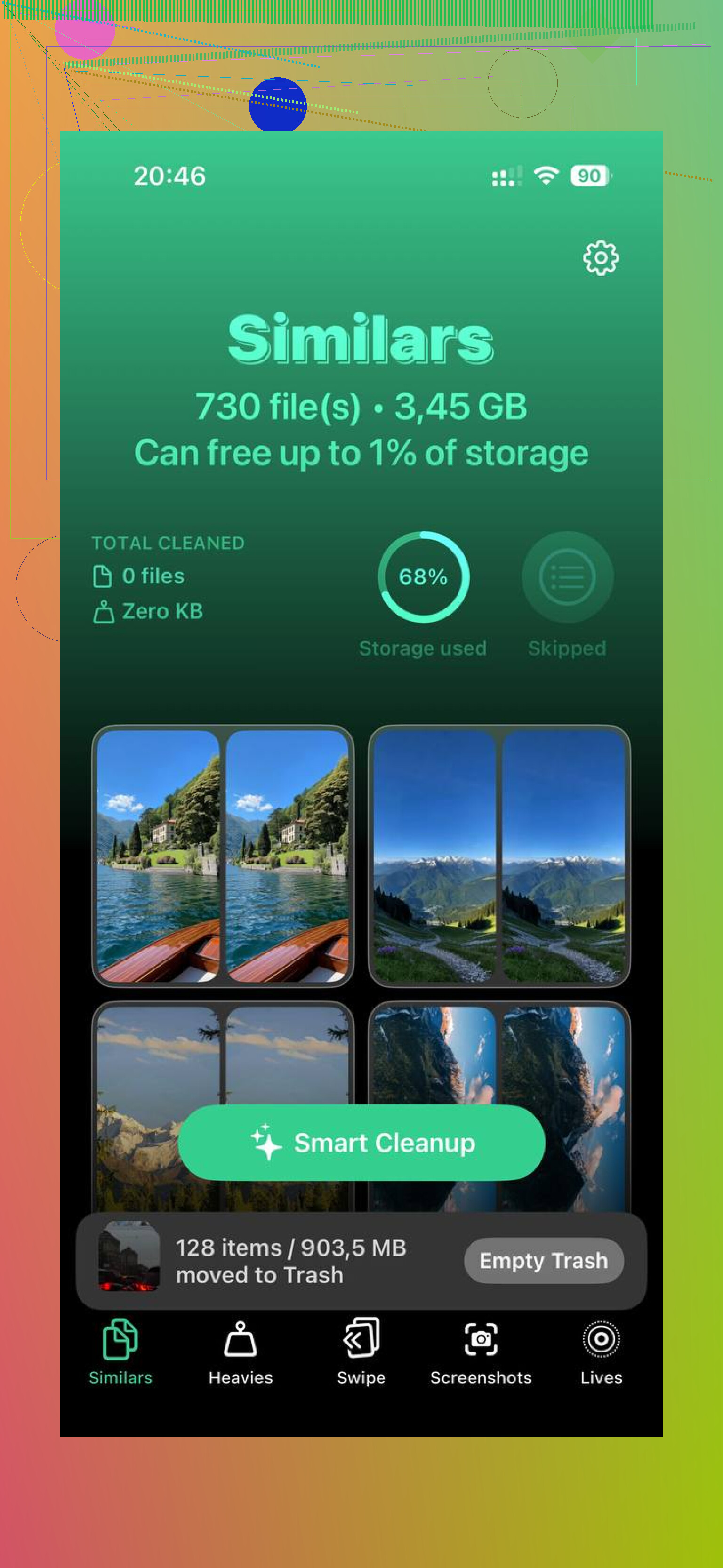
If your library is bloated after import, use Clever Cleaner to sort the leftovers faster. It’s useful for duplicate shots, large videos, and screenshots. This review covers the main cleanup tools well, see how Clever Cleaner helps free up iPhone storage fast.
Last step people forget, empty Recently Deleted, or your storage won’t come back right away.
I’d actually push back a little on @mikeappsreviewer and @jeff here. If the import is already done, I would not start deleting through DCIM on a computer unless you’re very sure what you’re removing. That route can get weird with Live Photos, hidden sidecar files, and Apple’s folder structure being… very Apple.
Fastest clean method on iPhone without tapping one by one:
- Open Photos
- Tap Library
- Switch to Months or Days view
- Tap Select
- Tap on whole date groups to grab tons at once
That’s usually way faster than hunting inside Imports. If all the imported stuff was from a recent trip or date range, you can wipe huge chunks in seconds. Then go to Recently Deleted and remove them there too or the storage won’t come back. Apple loves making simple stuff take two steps for no reason, lol.
Also check Settings > General > iPhone Storage > Photos. Sometimes the space issue is videos, bursts, or duplicates more than the regular photos you just imported.
If your library is messy, Clever Cleaner helps a lot because it acts more like a smart iPhone photo cleanup app for duplicate photos, large videos, and junk screenshots instead of just a basic one-tap iPhone cleaner. That’s more useful in real life tbh. This also shows a pretty quick visual of clearing photo clutter: watch how to free up iPhone photo storage fast.
Main thing: bulk select by date blocks, not individual pics. Way less annoying.

If iCloud Photos is enabled, use iCloud.com on your computer.
Open Photos, click the first imported photo, hold Shift, then click the last photo in the range. Delete the full batch at once. Next, open Recently Deleted and remove them again to free storage imediately.
Before deleting, confirm your imported files open correctly on the computer, including videos and Live Photos. iCloud deletion syncs to your iPhone, so the selected photos will disappear from both places. This avoids slow dragging and messy DCIM folders.
Toggling iCloud Photos off like @mikeappsreviewer suggested can bite you if the phone was set to Optimize Storage, since some full-res originals live only in the cloud and you can end up with low-res copies stuck on the device. Check that everything actually downloaded before you delete anything.