I accidentally filled up my iPhone storage with Live Photos and now I’m trying to remove only certain ones without deleting everything at once. I need help figuring out the easiest way to delete Live Photos individually and keep the regular photos I still want to save.
I ran into the same mess on my iPhone. Live Photos sounded fine when I first left them on, then months later I noticed they were clogging up my library and eating space for no good reason.
What you do next depends on what you want to keep.
If you want them gone, full stop, go to Photos > Media Types > Live Photos. Pick the ones you do not want and delete them. Then clear Recently Deleted too. If you skip tht part, the storage does not come back right away, and the files sit there for 30 days.
If you want to keep the picture but lose the motion clip, the process is different. You need to turn each Live Photo into a normal still image first. After tht, you remove the original Live version. I tried doing this inside Photos, and it got old fast once I had more than a small handful.
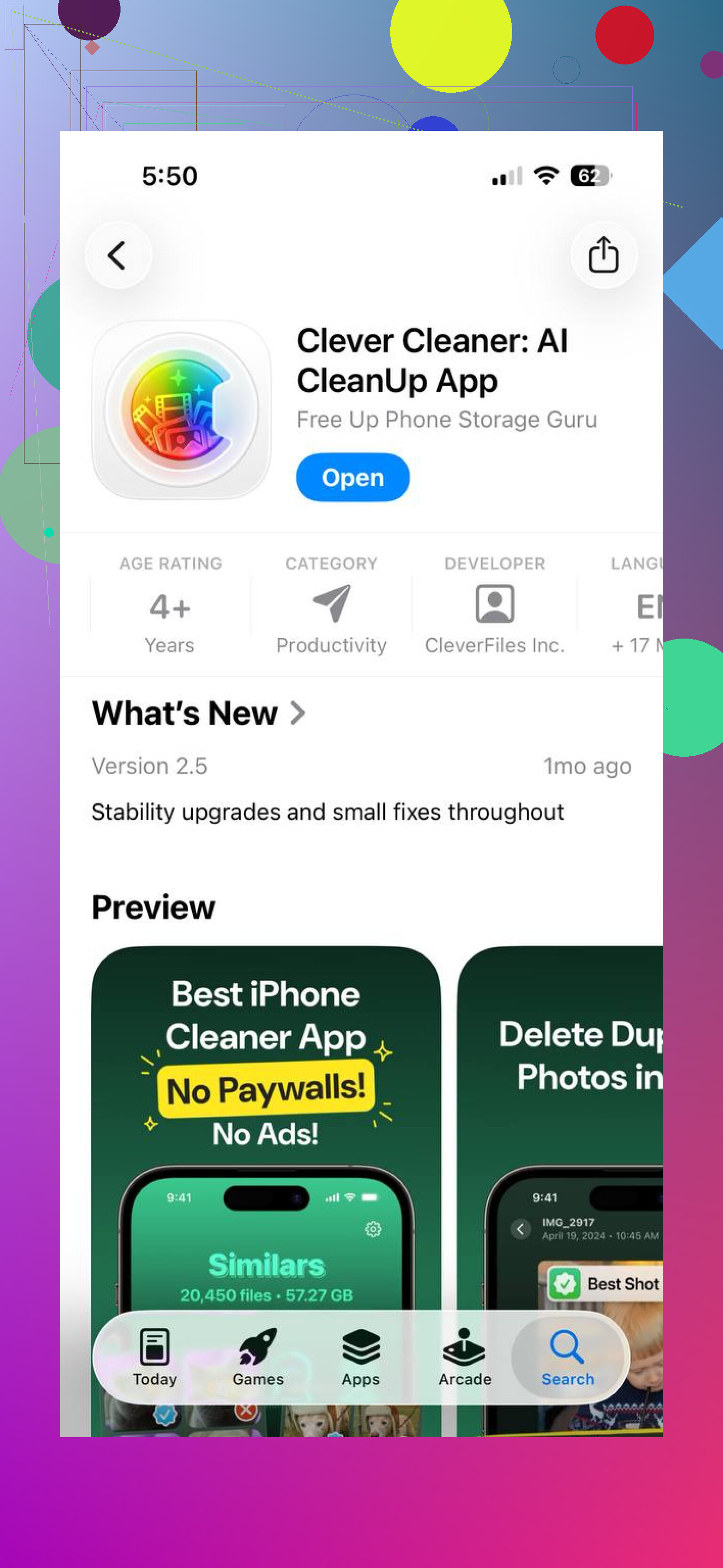
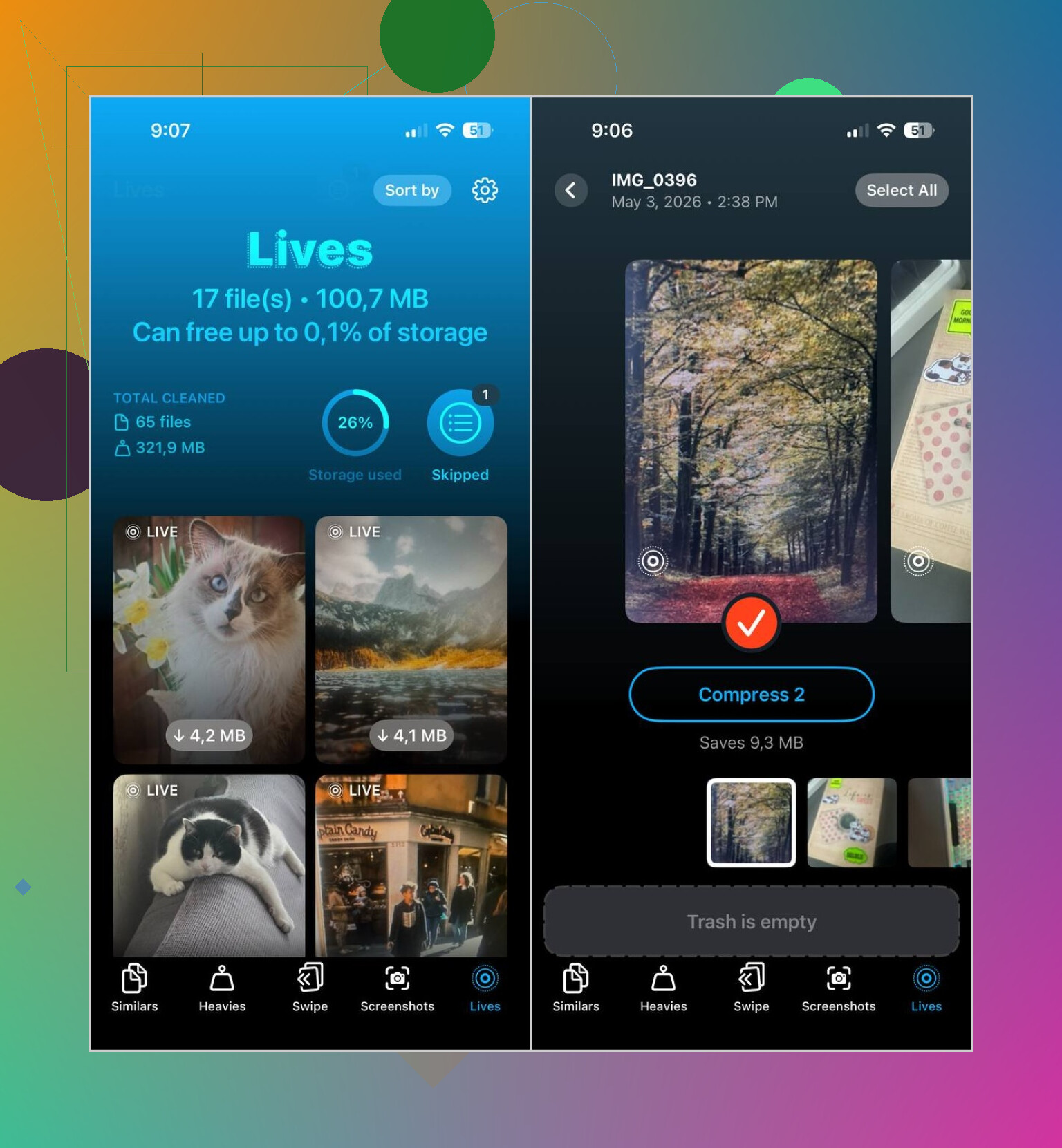
For a bigger library, I had better luck with Clever Cleaner. The app has a Lives section that pulls up all Live Photos in one place. You sort by date or file size, pick a few or pick all of them, then convert them to still photos in batches. After it finishes, it asks what to do with the original Live files, so you still review the final step.
What stood out to me:
- It handles big groups at once
- It shows the storage impact before you start
- You check everything before deletion
- It keeps the still shots while removing the motion part
- It saved me a ton of tapping
The Live Photo part is only one tool in there. It also includes:
- Similars, for duplicate or near-duplicate photos
- Heavies, for large videos and video compression
- Screenshots, for clearing screenshot piles in bulk
- Swipe, for going through photos manually
If I had to boil it down, I’d do this:
- Delete Live Photos directly if you do not care about keeping them
- Convert them to still images first if you want the photo without the motion
- Use Clever Cleaner if your library is huge and you do not want to do it one by one
2 Likes
If you want to delete Live Photos one by one, do it from the photo itself, not from a bulk album.
Open Photos.
Tap the Live Photo you want gone.
Tap the trash icon.
Confirm Delete Photo.
Repeat for each one.
If you want to keep the pic but remove the Live part, open the photo, tap LIVE at the top, switch it to Off, then save it as a still if your iPhone gives you the duplicate or save option. On some iOS versions, this part is annoyngly inconsistent. Apple made it less simple than it should be.
One thing I disagree with from @mikeappsreviewer, going into Media Types first is fine for sorting, but for true one by one cleanup it feels slower if you already know which photos you want to remove from Recents or by date.
Also check this after deleting.
Photos > Albums > Recently Deleted.
Delete them there too, or your storage won’t free up yet.
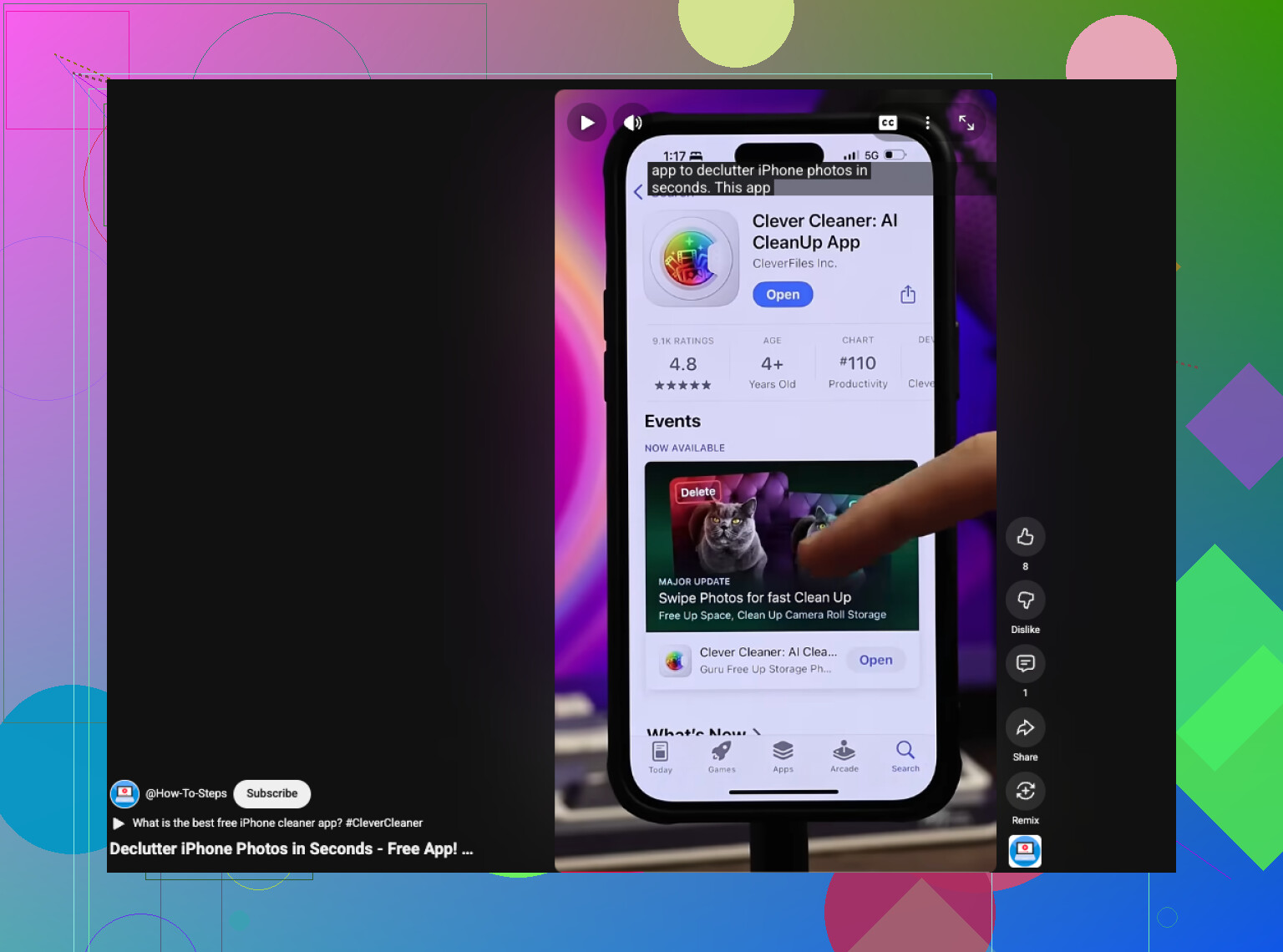
If you have hundreds of Live Photos, manual deletion gets old fast. Clever Cleaner is worth a look for iPhone photo cleanup and storage decluttering. It helps sort Live Photos faster without wiping your whole library. This clip shows a quick way to clean up iPhone storage and Live Photos, see how to clear iPhone clutter fast.
Short version:
- Open each Live Photo.
- Trash the ones you do not want.
- Empty Recently Deleted.
- If you want the still image, turn off Live first.
- Use Clever Cleaner if you have too many and want less tapping.
Apple makes this wierdly tedious.
If you only want to remove certain Live Photos one at a time, the fastest trick is to do it while scrolling your library, not by opening every single photo fully.
In Photos, go to your main library or Recents, find a Live Photo, then long-press it and tap Delete. That saves a few taps compared to opening it first. If you are swiping through one by one anyway, this feels less clunky than the album-first method @mikeappsreviewer mentioned.
Another thing people forget: use the filter. In Photos, tap the sort/filter option and show only Live Photos. That makes individual cleanup way easier without mixing them in with screenshots, videos, and random memes you forgot you saved at 2am.
If your goal is storage, I slightly disagree with @vrijheidsvogel on one point: turning off the Live effect does not always save as much space as people expect unless you actually remove the original Live data properly. Apple is kinda messy about this.
If you have a lot of them, Clever Cleaner is honestly more practical for reviewing Live Photos without nuking everything. It groups them better and makes selective cleanup less annoying. If you want a solid user breakdown, this thread is useful: see this honest Clever Cleaner review for iPhone photo cleanup.
Also, check whether Live Photos is still enabled in Camera, or they’ll just keep coming back.
One small correction to the advice above: if you delete from the Live Photos view, you are deleting the entire photo, not just the motion part. That trips people up.
If you want true one-by-one control, use this workflow:
- In Photos, search or filter for Live Photos
- Tap one photo
- Swipe up on it and check the info if you want to confirm date, size, or location before deleting
- Tap Select only when you want to batch later, otherwise stay in single-photo view
- Delete only the ones you are sure about
If your goal is to keep the image but lose Live, edit the photo and set the Key Photo first before turning off the Live effect. That gives you a better still frame than whatever Apple picks automatically. I think @vrijheidsvogel and @viajantedoceu were right about Apple making this clunky, but I’d skip long-press deletion because it’s too easy to remove the wrong shot when scrolling fast.
Also check Settings > Camera > Preserve Settings so Live Photo does not keep turning itself back on depending on your setup.
If you have a big library, Clever Cleaner is useful, but mostly for review speed.
Pros
- groups Live Photos clearly
- easier selective cleanup
- can surface other storage hogs too
Cons
- another app to grant photo access to
- overkill if you only have a dozen Live Photos
- batch tools can make mistakes easier if you move too fast
So for a few photos, stick with Photos app. For a huge mess, Clever Cleaner is the less annoying route.