My iPhone Photos app still shows a Hidden album/folder, but it says there are zero photos inside. I already checked for hidden pictures and can’t find anything to remove. I’m trying to clean up my albums and want to know if there’s a way to delete or hide the empty Hidden album on iPhone.
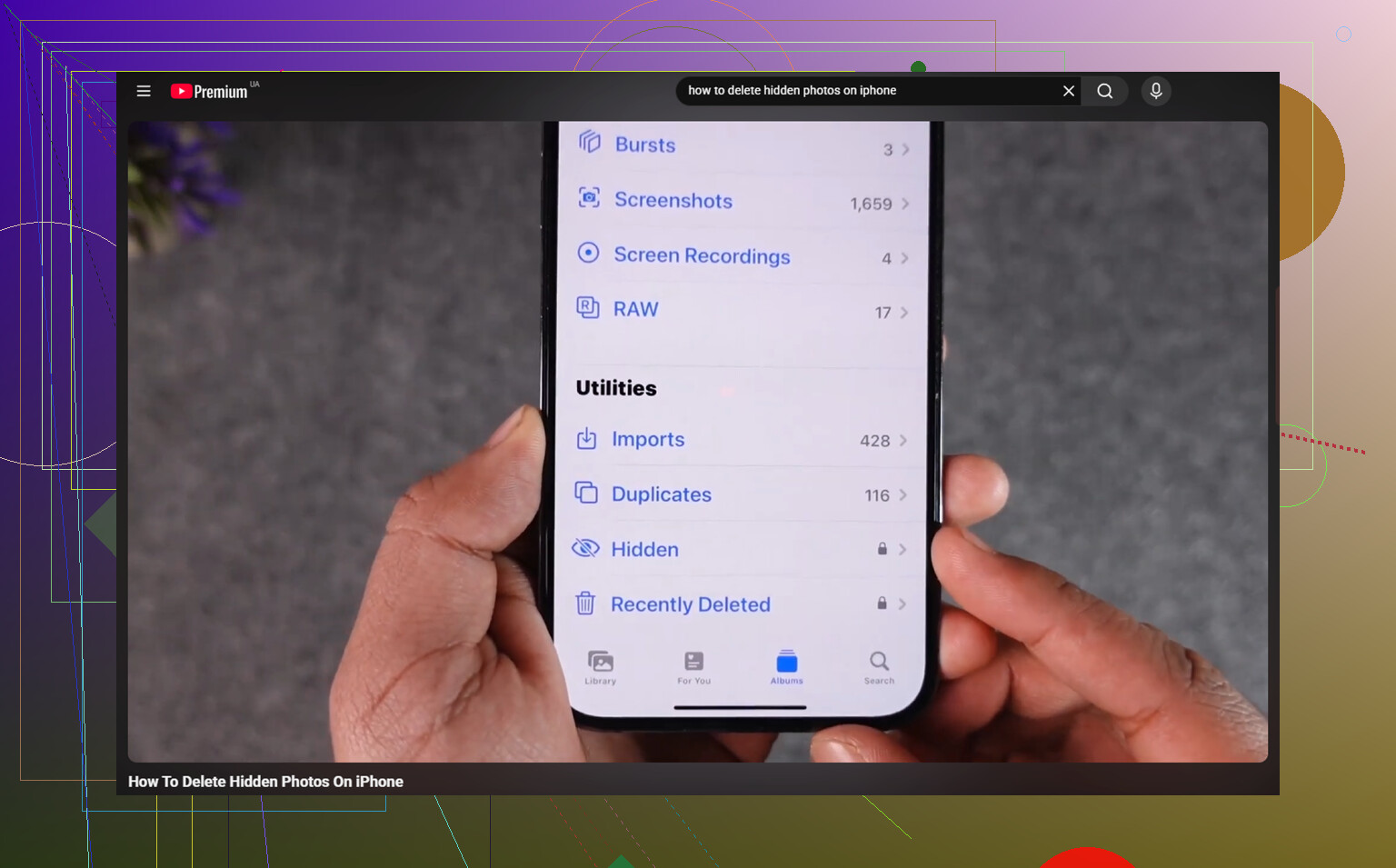
The first thing to check is whether the Hidden album is actually visible in Photos. Go to Settings - Photos and look for Show Hidden Album. If that switch is off, the album will vanish from the Photos app even though the pictures have not been removed. Turn it back on, then open Photos and check Albums. The Hidden album should show up near the bottom under Utilities.
If the Hidden album is there but says it has nothing in it, do not assume the photos are gone right away. Check Recently Deleted first. If they are sitting there, you can recover them. If Recently Deleted is empty but your iCloud storage still looks the same as before, it may just be the photo library not showing the right view. Turning iCloud Photos off and then back on in Settings can force the phone to re-index the library, which often fixes that kind of mismatch.
To delete hidden photos, open the Hidden album first. It should ask for Face ID, Touch ID, or your passcode. If that prompt does not appear or the album will not open properly, restart the iPhone and try again.
Once you are in the album:
- Tap Select in the top right.
- Use Select All, or pick the photos manually.
- Tap the trash icon.
That only moves them to Recently Deleted. They still sit there for 30 days and still take up storage during that time. If you want them gone right away, go to Recently Deleted, tap Select, then Delete All. That is the part that permanently removes them.
Also, keep in mind that Hidden is not some separate private storage area. It is just a filtered part of your normal photo library. If iCloud Photos is turned on, deleting something from the Hidden album on your iPhone also deletes it from your iPad, Mac, and any other device connected to that same iCloud Photos library.
A big Hidden album usually means the rest of the library is messy too. The same stuff that piles up there, like repeated screenshots or multiple takes of the same photo, is usually spread all over the main library as well. Hidden photos may be the obvious part, but the larger storage problem is often regular photos, large videos, screen recordings, and duplicates.
That matters because a nearly full iPhone tends to feel slower. iOS needs free space for normal background tasks, and once storage gets tight, lag and weird behavior become more common.
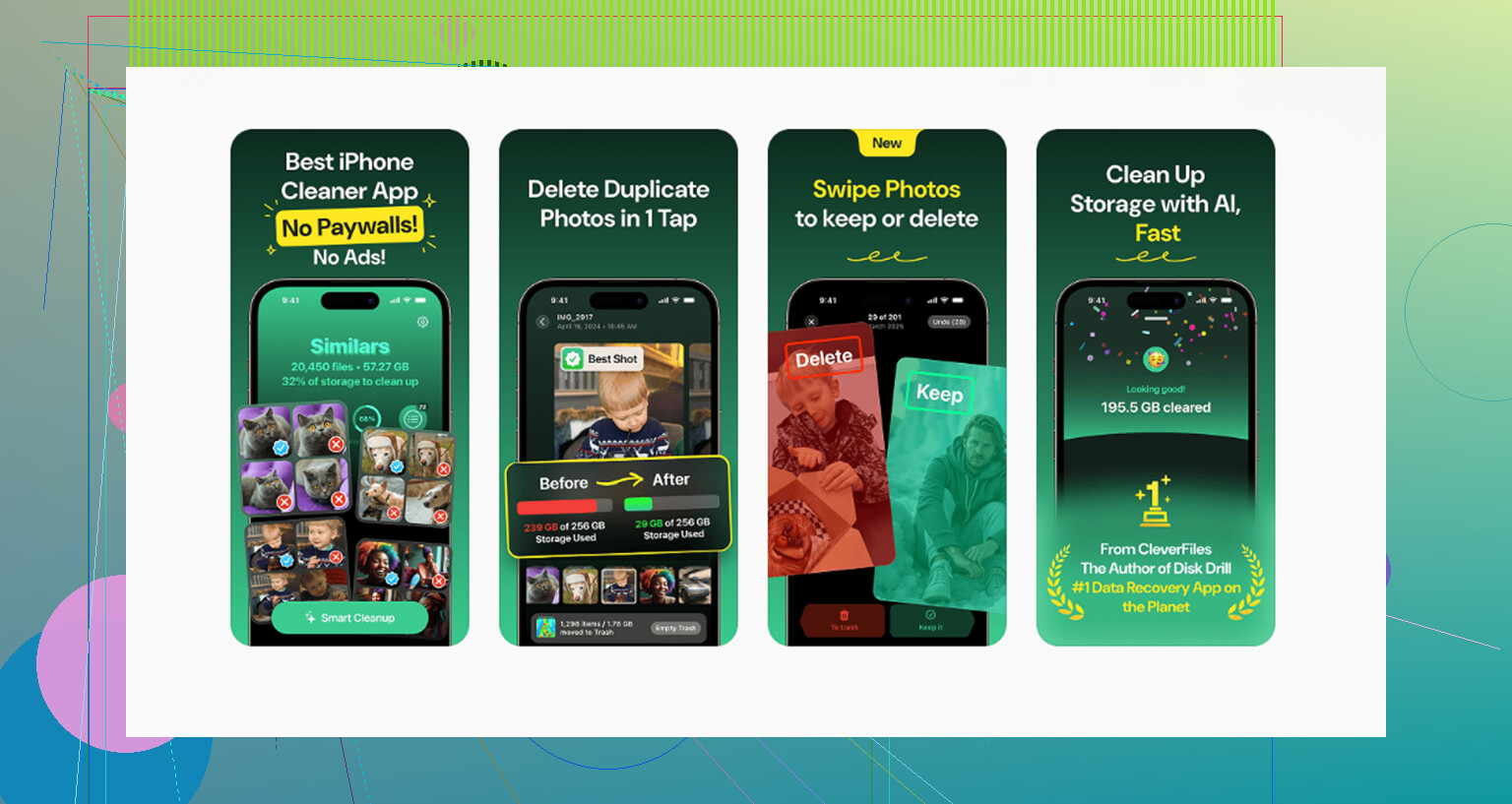
Clever Cleaner will not clean the Hidden album because Apple blocks third-party apps from accessing it. That part has to be handled manually with the steps above. For the main photo library, though, Clever Cleaner is free, with no ads and no subscription.
The Similars tab groups near-duplicate photos and chooses a Best Shot in each group, so things like burst photos, repeated vacation shots, and multiple tries at the same angle are easier to clear without checking every image one by one.
The Heavies tab is useful if storage is the main problem. It sorts files from largest to smallest and shows exact sizes, so big 4K videos and screen recordings show up right away. Screenshot sizes are shown before deletion too, which makes it easier to see what is actually worth removing.
Everything is processed on the iPhone itself, with nothing uploaded to an outside server.
Best order is: clean the Hidden album manually, use Clever Cleaner for the main library, then empty Recently Deleted. If you skip that last step, your storage numbers will not update the way you expect.
1 Like
Don’t waste time trying to delete the Hidden album itself, because iOS treats it like a built-in Photos section, not a normal album you created. If it says 0, there may be nothing left to remove. The cleanup step is really just making the album stop showing.
Go to Settings > Apps > Photos, or Settings > Photos depending on your iOS version, and turn off Show Hidden Album. After that, the Hidden album should disappear from Photos. That does not delete anything by itself, so if there actually are hidden items synced from iCloud or another device later, they would still exist, just not be shown in that section.
I’d be careful with the “turn iCloud Photos off and on” idea unless you know what it’s going to do on your phone. It can trigger a lot of syncing and “download originals / remove from iPhone” confusion if storage is tight. For a Hidden album showing zero, I’d first restart the phone, check Recently Deleted once, then hide the album in Settings. If it keeps coming back as visible after that, then it’s more likely a Photos/iCloud sync glitch than a folder you need to empty.
If your goal is to remove the album row, not recover storage, there’s nothing to delete. A zero-count Hidden album is usually just iOS showing the built-in category because “Show Hidden Album” is enabled, like @viajeroceleste said. I would not mess with iCloud Photos for that unless other photos are missing or counts are wrong elsewhere. Just turn off Show Hidden Album in Settings, then force-close Photos or restart if it still appears. It may come back after an iOS update or settings reset, but that still does not mean there are hidden photos stuck inside.
Worth saying up front: switching off Show Hidden Album doesn’t remove anything, it just hides the row, and that toggle has a habit of flipping back on after an iOS update. So if your whole goal is a permanently clean albums list, you’re going to be annoyed later when it reappears with the same zero count. That’s not a bug you can fix, it’s just how Apple built it. The Hidden category is baked into Photos the same way Recents or Screenshots is.
@viajeroceleste and @sternenwanderer are basically right that there’s nothing to delete when it reads zero. The one thing I’d flag that nobody mentioned is timing. If you have iCloud Photos on and another device recently hid or unhid something, the count on your iPhone can lag behind for a bit until it syncs. So a zero today doesn’t always mean zero forever. If you see it jump back to some number a day later, that’s the sync catching up, not photos magically returning.
On the Clever Cleaner point from the first reply, fair enough that it can’t see the Hidden album, Apple locks that off for every third party app, so no tool is getting around it. It’s fine for thinning out duplicates and big videos in the normal library, but that’s a separate job from what you asked. For the actual question, I’d just restart, glance at Recently Deleted once, toggle the album off, and accept that it may come back. Chasing it any harder than that is wasted effort.