My iPhone storage is almost full, and I’m not sure what’s safe to delete or offload. Photos, apps, and system data are taking up most of the space, and I need help finding the best way to free up iPhone storage without losing important files, messages, or backups.
You can’t add more internal storage to an iPhone the way you would swap parts in a computer. The storage chip is part of the phone’s hardware, and while some repair places may claim they can replace or upgrade it, I wouldn’t touch that route. If it goes wrong, you can end up with a dead phone, and Apple is not going to treat that like a normal repair issue.
What you can do is make the storage you already have go a lot further. On a 64GB iPhone, the biggest wins usually come from photos, videos, unused apps, old messages, and random cached data.
Start by seeing what is actually taking up space
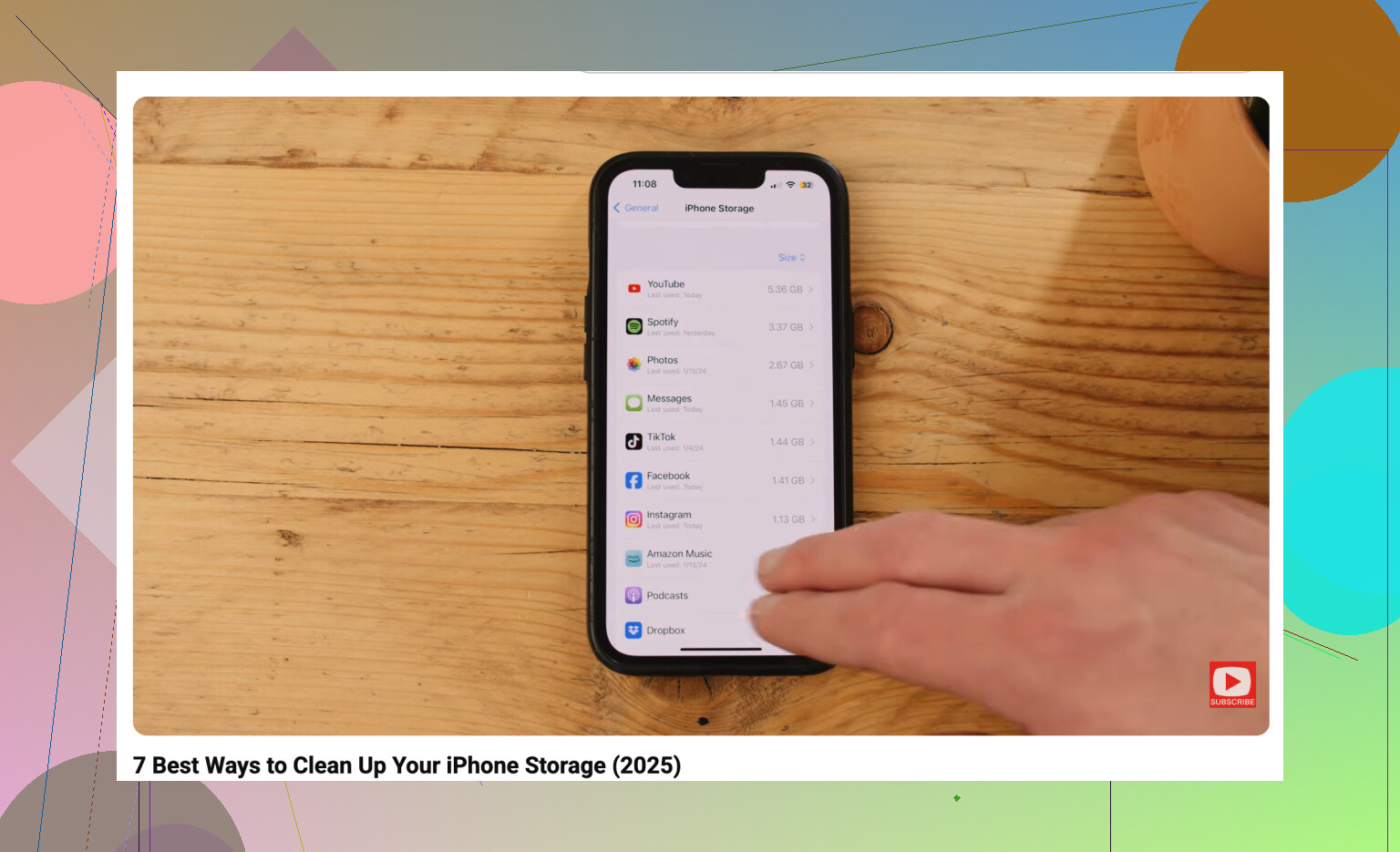
Go to Settings > General > iPhone Storage and look at the storage bar. Most of the time, Photos and System Data are the big offenders. That screen gives you a pretty good idea of where to focus instead of randomly deleting stuff.
Photos are usually the easiest place to recover space. Apple does have a Duplicates folder, but it’s limited. It’s fine for exact copies, but it won’t really help if you took ten slightly different shots of the same thing and only need one.
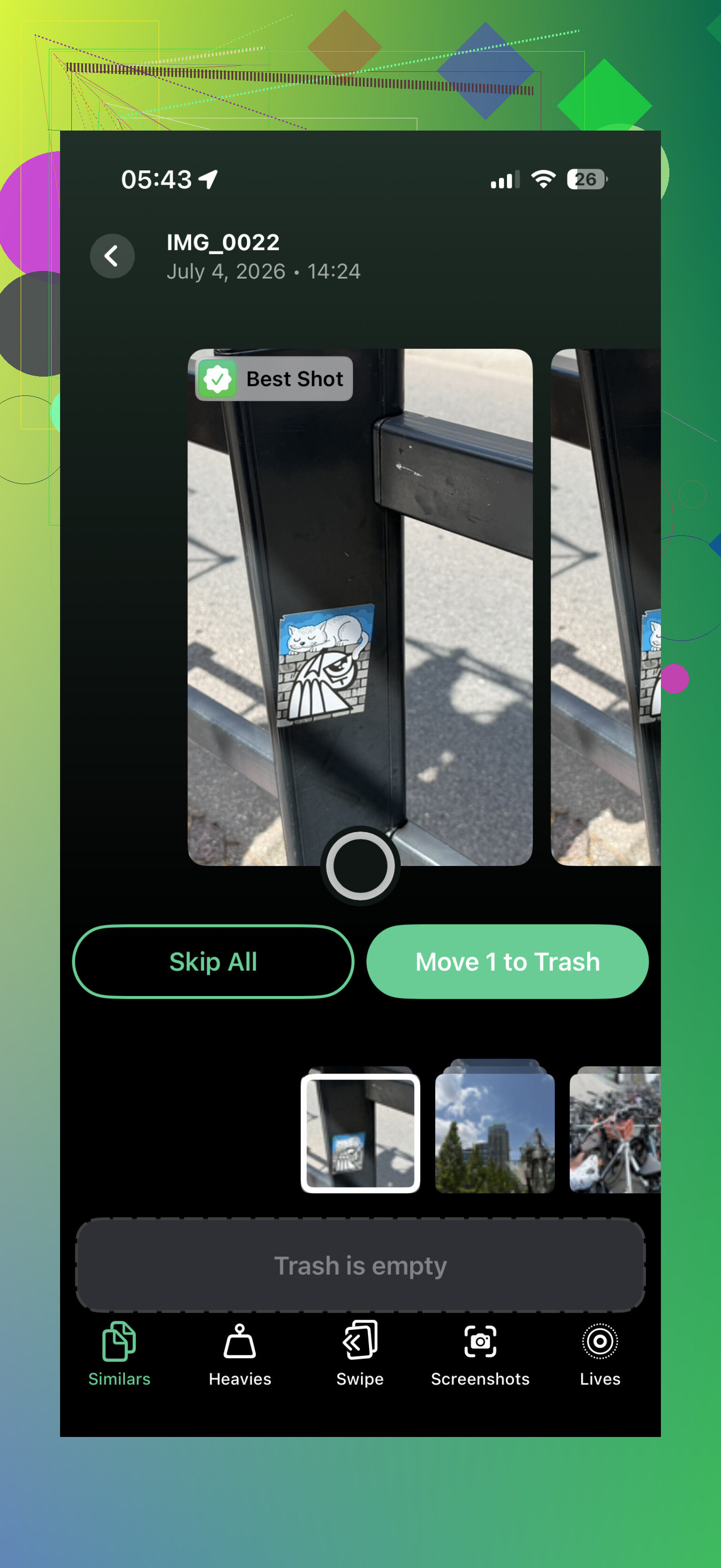
That’s where a cleaner app can actually be useful. I’ve had the best luck with Clever Cleaner. A lot of apps in this category pretend to be free, then block the actual cleanup behind a subscription. Clever Cleaner is actually free, has no ads, and the developers have been good about keeping it free for early users.
The main thing I like is the Similars section. It groups photos that are basically the same, suggests the best one, and lets you delete the extras without going through them one by one. The Heavies section is also worth checking because it sorts large videos by size. If you have a few old 4K clips sitting around, deleting a couple can free up several gigabytes fast.
Turn on Optimize iPhone Storage
If you use iCloud Photos, go to Settings > Photos and make sure Optimize iPhone Storage is enabled. Your phone keeps smaller versions locally, while the full-size originals stay in iCloud. When you open a photo, the high-res version downloads when needed.
It’s probably the closest thing to extra storage without buying a new phone, but the free iCloud plan only gives you 5GB. If you need more free cloud space, Google Drive gives you 15GB, so it can be a decent place to move older files you don’t need on your phone all the time.
Offload apps instead of deleting everything
For apps you barely use, like airline, hotel, parking, or event apps, offloading is better than deleting. Offload Unused Apps removes the app itself but keeps its documents and data. Later, you tap the icon, the app downloads again, and your stuff is still there.
It’s a simple way to get back some space without having to set everything up from scratch later.
Do not ignore Messages and Safari
Messages can quietly take up a ridiculous amount of storage. Years of videos, GIFs, screenshots, memes, and random attachments add up. If you don’t need to keep every conversation forever, set messages to delete after 30 days or 1 year.
Safari can also hold onto a bunch of cached website data. Go to Settings > Safari > Clear History and Website Data. It sounds small, but if you haven’t cleared it in a long time, it can free up more than you’d expect.
If you shoot a lot of video, use external storage
If your storage problem is mostly from filming long videos or social clips, cleanup only goes so far. Depending on your iPhone model, you can use a Lightning or USB-C flash drive. Some setups even let you record straight to the drive through supported camera apps, so the footage does not hit your internal storage first.
If you’re on 64GB and use your phone heavily, storage is always going to be a fight. Once the phone is sitting near full all the time, it can start feeling slower, apps may crash, and updates become annoying. iPhones usually need around 10-20% free space to stay comfortable with updates and background tasks.
Still, before spending $800 or more on a new phone, I’d try a serious cleanup first. Clear out similar photos and big videos with Clever Cleaner, offload apps you rarely open, turn on iCloud photo optimization, and clean up Messages. There’s a decent chance you’ll recover more space than you expected.
4 Likes
A phone full of photos is a different problem from a phone full of “System Data,” and treating them the same is how people delete the wrong stuff.
For photos, be careful with iCloud Photos. If it is turned on, deleting a photo from the iPhone usually deletes it from iCloud too, so don’t think of iCloud as a separate backup unless you have exported the files somewhere else first. Before doing any big cleanup, I’d make sure you have a real backup, either to a computer, external drive, Google Photos, Dropbox, or whatever you trust. Then delete. And remember that deleted photos still sit in Recently Deleted for about 30 days, so you may not actually get the space back until you empty that folder.
System Data is the annoying one because there usually isn’t a clean “delete this” button. Sometimes it shrinks after restarting the phone, updating iOS, clearing Safari data, deleting downloaded music/podcasts/maps, or removing and reinstalling apps with huge caches. Social apps, streaming apps, and messaging apps can hold a lot of junk that doesn’t show up clearly. Offloading helps with the app itself, but if the app’s documents/cache are the problem, deleting and reinstalling the app may free more space than offloading.
I agree with the earlier point about checking iPhone Storage first, but I’d be slower to run any cleaner or mass-delete tool until the backup situation is clear. Tools like Clever Cleaner can be useful for finding similar photos and big videos, but don’t let any app decide what matters to you. Review before deleting, especially screenshots, receipts, documents, kids’ photos, or anything you only have on the phone.
Your backup type matters before you delete anything, because an iCloud device backup and iCloud Photos are not the same thing. A lot of people see “backed up to iCloud” and assume every photo, file, app login, and message is safely stored somewhere separate. That is not always true. If iCloud Photos is syncing, it is more like a mirror than a spare copy.
I’d do the boring safety step first: make sure anything irreplaceable exists in at least one place outside the phone. That could be an encrypted backup to a Mac or PC, exported photos to an external drive, Google Photos, OneDrive, Dropbox, whatever you already trust. The important part is that you can delete from the phone without wondering if you just deleted the only copy.
After that, I’d stop treating “storage full” as one problem. There are a few different buckets:
Photos and videos: delete only after backup, then empty Recently Deleted if you actually want the space back right away. Big videos are usually the fastest win. Ten minutes of 4K video can matter more than hundreds of normal photos.
Apps: offloading is fine for boring current apps, but I wouldn’t blindly offload everything. If an app was removed from the App Store, belongs to an old work account, or stores data locally in a weird way, getting it back may be annoying or impossible. For normal stuff like shopping, airline, restaurant, or streaming apps, offload away.
Messages: this is where people forget to look. Open Settings > General > iPhone Storage > Messages and check the large attachments. You can often delete old videos and GIFs without wiping whole conversations.
Files: check the Files app, especially “On My iPhone” and Downloads. PDFs, ZIP files, video exports, GarageBand projects, offline maps, and random email attachments can sit there forever.
Music/podcasts/streaming: downloaded content is easy to forget because it feels like app data. Netflix, Spotify, YouTube, Apple Music, Podcasts, Maps, and audiobook apps can all be quietly storing offline files.
I agree with the earlier warning about cleaner apps. Something like Clever Cleaner can save time if your camera roll is a mess of near-duplicate shots, screenshots, and large clips, but I’d use it as a sorting tool, not as an authority. Let it find candidates, then you decide. The danger is not the app itself, it is deleting 600 “similar” photos while half paying attention.
For System Data, my take is more cynical: don’t spend all afternoon trying to micromanage it. Restart the phone, update iOS if you have enough room, clear Safari history if you do not mind losing site sessions, delete and reinstall apps with huge caches, then move on. System Data often grows and shrinks on its own. If it is absurdly large and nothing helps, a full encrypted backup, erase, and restore can reduce it, but that is a hassle and should not be your first move.
The other practical point is to create breathing room before doing updates or huge sync changes. If your phone has only a few hundred MB free, everything gets flaky: photo syncing pauses, apps fail to update, backups may not complete, and cleanup itself can behave strangely. I’d aim to free a few GB quickly by removing obvious large videos or offline downloads, then do the more careful cleanup after the phone is no longer gasping for space.
My order would be:
- Confirm a real backup exists outside the phone.
- Delete obvious downloaded media first.
- Review large videos and duplicate-ish photos.
- Empty Recently Deleted only after you are sure.
- Offload ordinary unused apps.
- Check Messages attachments and Files.
- Restart and recheck storage after a day.
Don’t chase a perfectly clean storage screen. The goal is not zero System Data or an empty Photos app. The goal is enough free space that the phone can update, back up, sync, and take photos without you having to delete something every time.
If you use WhatsApp, Telegram, or Discord a lot, clean inside those apps before deleting random photos. Their media caches can be huge, and iPhone Storage may just show it as app data, so offloading the app won’t always fix it. Check each app’s storage/media settings and remove old videos, forwarded clips, and downloaded files there first.