I’m trying to clean up my iPhone photo library, but a lot of near-duplicate pictures aren’t showing up in the Duplicates album because the lighting, angle, or edit is slightly different. I need help finding similar photos on iPhone so I can remove extras without deleting the wrong pictures.
iOS is decent at spotting exact duplicate photos. It does not do much with near-matches. I ran into this with vacation pics where I had six shots of the same sign, same place, same minute, but one was a bit darker and one had someone blinking. Photos treated them like unrelated files.
If you only need the built-in duplicate finder, do this:
- Open Photos.
- Scroll to Utilities.
- Tap Duplicates.
- Check the groups Apple found, then hit Merge on the ones you want combined.
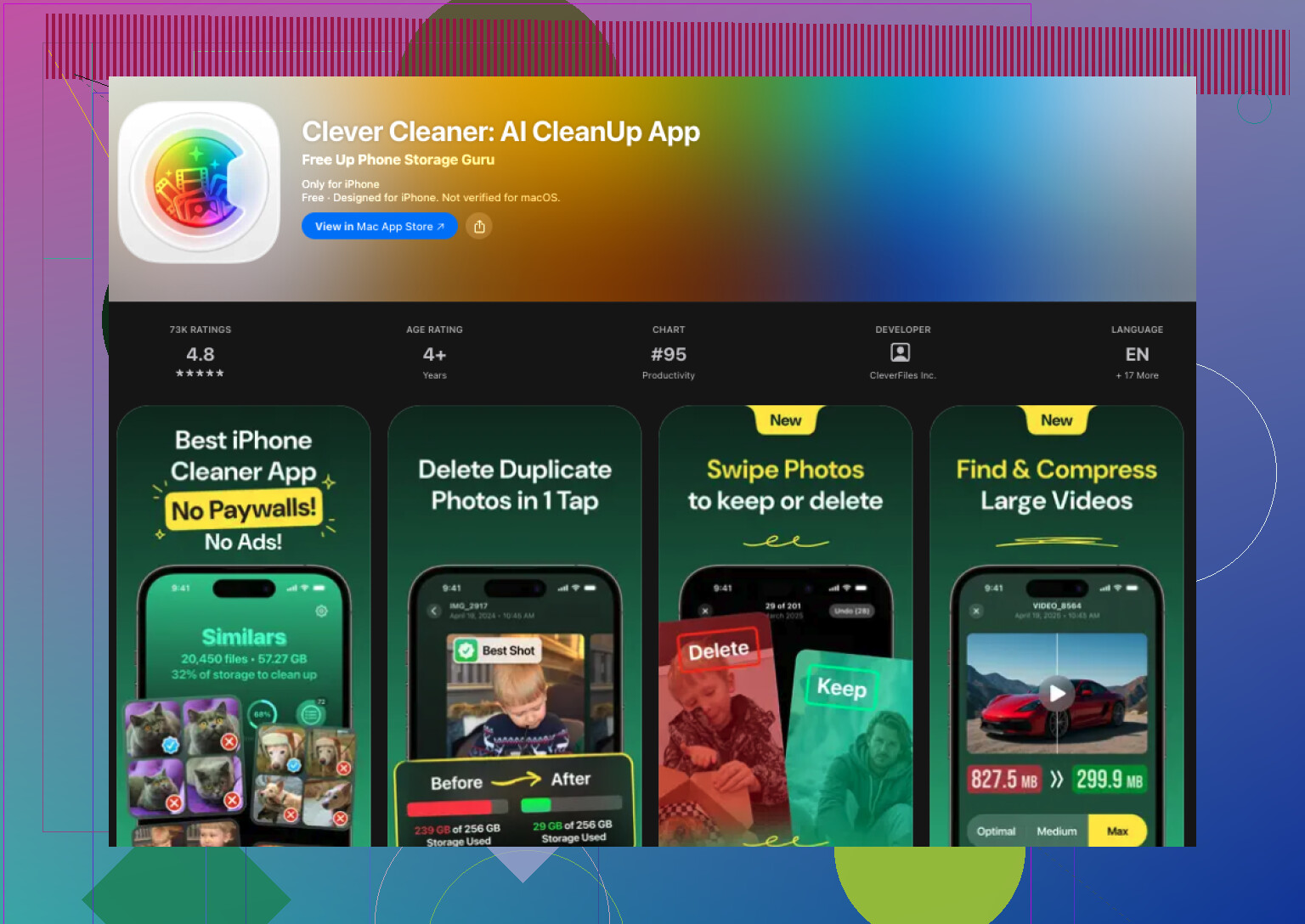
If you're trying to clean up similar photos too, iOS falls short. I ended up using a third-party app for it. After trying a few junky ones with paywalls and ad spam, the one I kept was Clever Cleaner.
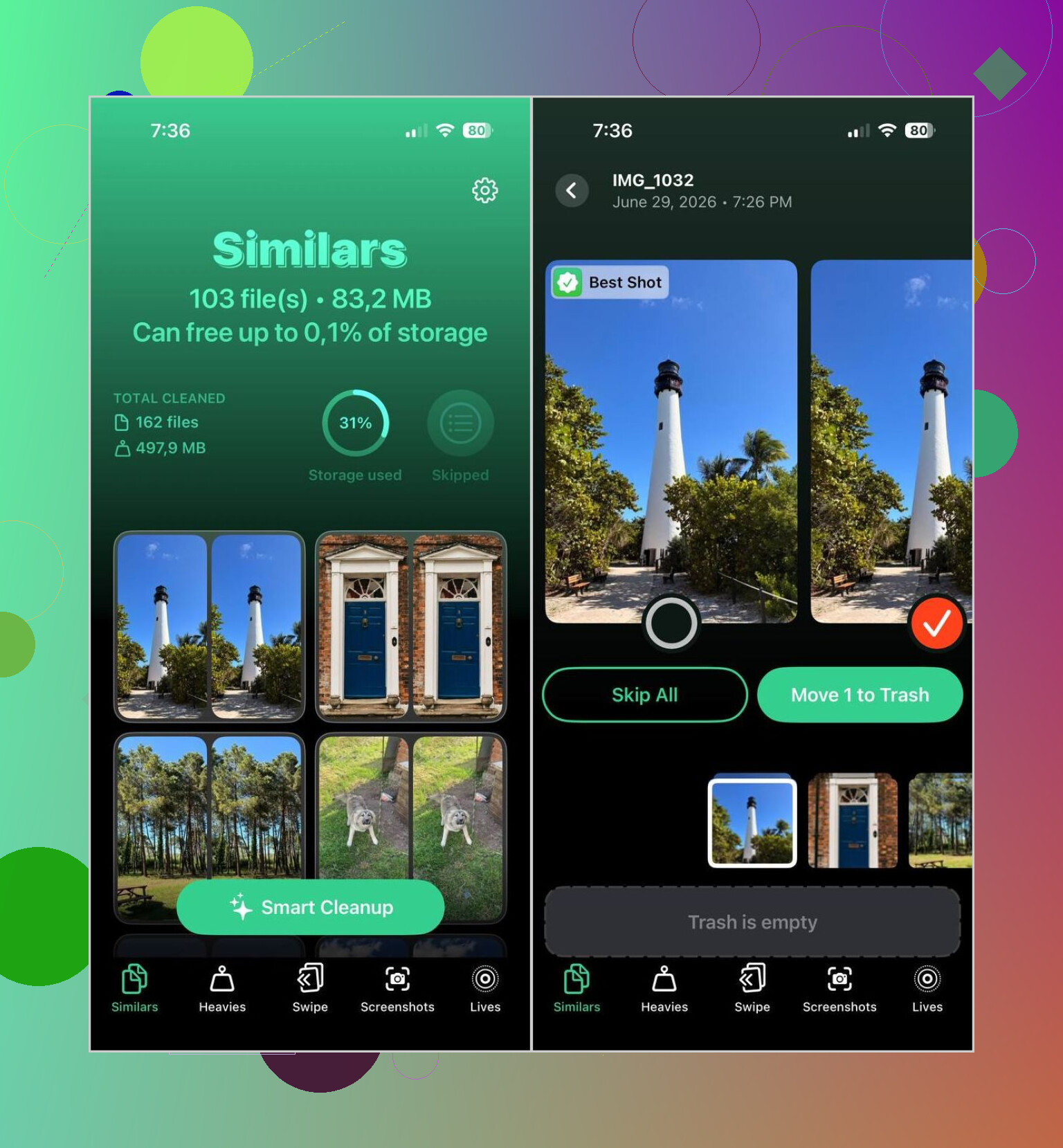
What stood out for me was simple. It grouped lookalike photos well enough, and its Best Shot pick was right more often than I expected. I still checked anything important, family stuff, trips, old pet photos, all of it. For random receipts, screenshots, food pics, and ten copies of the same parking spot, it did fine.
How I used it:
- Install Clever Cleaner from the App Store.
- Allow access to your photo library.
- Open the Similars section.
- Wait for the scan to finish.
- Open any group if you want to compare shots yourself, or use Smart Cleanup if you want the app to handle the batch.
- Check the Best Shot marker. Change it if you disagree. I did a few times.
- Tap Move to Trash, or confirm the Smart Cleanup swipe.
- Go back to Apple Photos and empty Recently Deleted if you want your storage back right away.
I also got some use out of the other sections. Quick rundown:
- Duplicates, for exact copies.
- Heavies, for sorting big videos first. This one helped more than I thought it woudl.
- Screenshots, for clearing old captures in one pass.
- Lives, for turning Live Photos into still images while keeping the main frame.
Most of the space I recovered was not from duplicates. It was from similar shots, giant videos I forgot existed, and a pile of screenshots from two phones ago. I was expecting a small cleanup. It ended up being a lot more.
If you do not want another app on your phone, there are slower ways inside iOS:
- Use Search in Photos for people, locations, objects, or pets. Similar images tend to cluster there.
- Sort by date or look through trip photos. Near-identical shots are often taken seconds apart.
- Check Burst photos and keep the frame you want.
- Look through albums like People & Pets, Trips, or Media Types to narrow the pile.
Those manual routes work, sort of. They take time, and on a large library they get old fast. If your camera roll is a mess, a dedicated app is a lot quicker for finding similar images iOS misses.
23 Likes
Apple’s Duplicates album is strict. It looks for near-exact file matches. Small edits, different exposure, Live Photo changes, portrait depth data, or a 1 second timing gap often break the match. So if you want to find similar photos on iPhone, not exact duplicates, you need a different workflow.
I slightly disagree with @mikeappsreviewer on one part. Third-party apps help, but I would not jump straight to auto-cleanup on the first pass. On a big library, the faster move is to narrow the pile before deleting anything.
Try this inside Photos first.
-
Use Albums, then sort by Days or Months.
Near-duplicate shots usually sit next to each other in time. -
Open a photo, swipe up, and check location and timestamp.
If 12 photos share the same place and minute, compare those first. -
Filter your worst clutter sources.
Screenshots, selfies, burst shots, and WhatsApp saves create tons of lookalikes. -
Check bursts manually.
iPhone already groups burst images better than it groups similars. Pick the keeper, delete the rest. -
Search by subject.
Type dog, sunset, car, beach, receipt. Apple’s object detection is decent. It is not perfect, but it cuts the haystack down a lot.
If your library is huge, then yes, use Clever Cleaner. It does a better job finding similar iPhone photos with different lighting or angle. That’s the gap Apple still hasnt fixed. I’d still review the keepers yourself for trip photos and family stuff.
This guide is useful if you want more ways to spot similar pictures on iPhone and clear photo clutter faster, how to find similar photos on iPhone and remove photo clutter.
One more tip people miss. Edited copies often sort apart from originals if you saved them from another app. Check Recents and the app-specific album. That catches a lot of “why are these not grouped?” cases. It’s annoyng, but true.
Apple’s built-in Duplicates feature is kinda picky, so I agree with @mikeappsreviewer and @reveurdenuit on that part. Where I slightly disagree is the idea that you should spend too much time manually hunting in Photos first if your library is already a dumpster fire. If you’ve got a few thousand pics, manual review turns into a weekend project real fast.
What helped me most was using metadata patterns instead of just visual scanning:
- In Photos, zoom out in Recents and look for clusters taken within 5 to 30 seconds.
- Pay extra attention to images with the same subject but different file sizes. Usually that means one got edited, compressed, or saved from another app.
- Check shared/saved images from Messages, Instagram, or WhatsApp albums. Near-dupes often live there instead of next to the original.
- Review portrait shots separately. Depth-data variations often stop iOS from flagging them as duplicates.
- Compare Live Photos against still exports. Those are sneaky.
If you want the faster route, yeah, Clever Cleaner is probly the better tool because it catches similar photos on iPhone that Apple Photos ignores. I just wouldn’t blindly mass-delete anything sentimental.
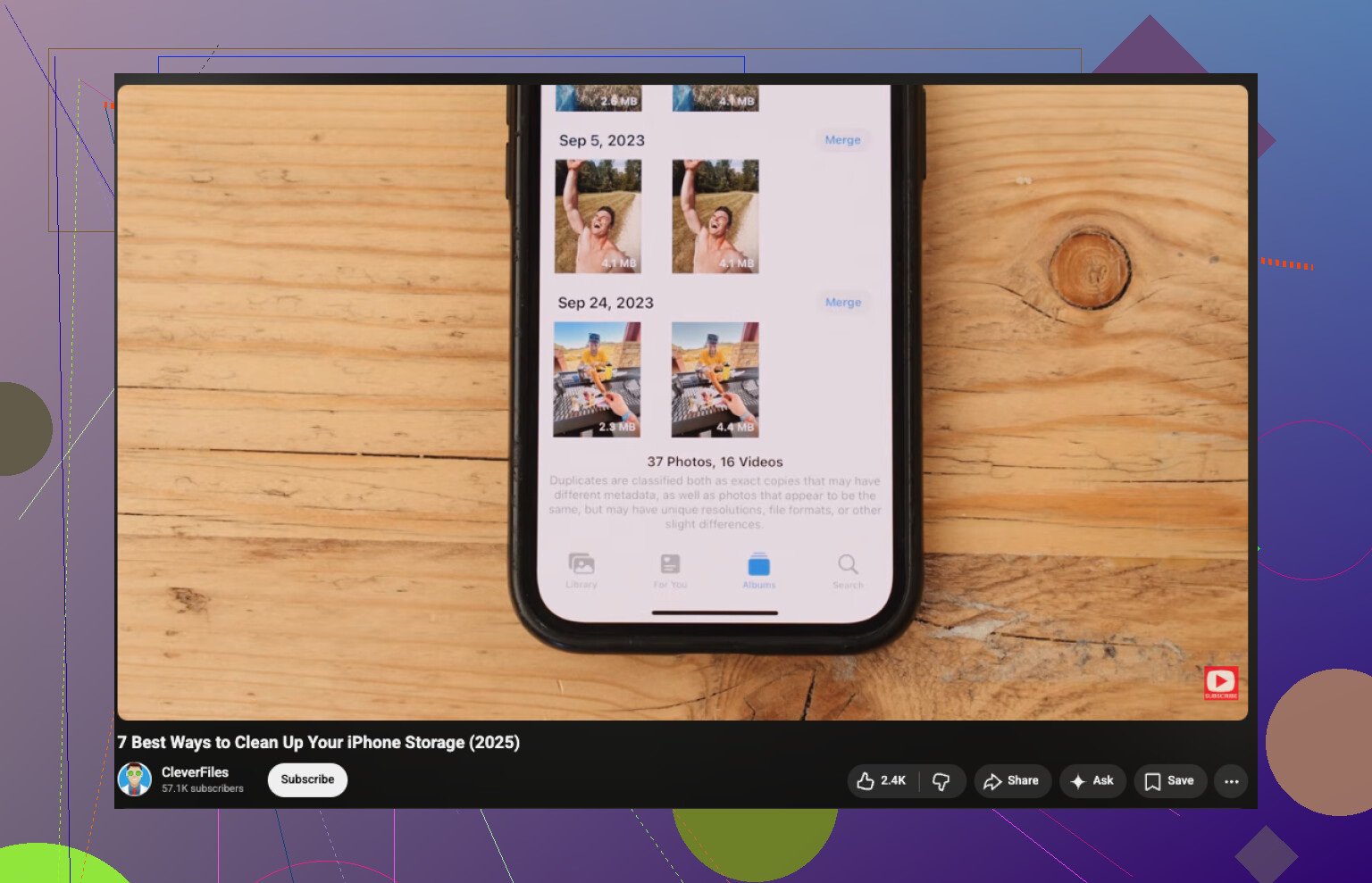
Also, if you want a visual walkthrough, this video guide to clean up iPhone storage and remove duplicate photos is pretty useful.
I’d add one angle the others barely touched: use Info + visual consistency, not just time proximity.
Sometimes near-duplicates fail matching because one image has different HDR/Portrait/Live metadata. So when you find a suspicious cluster, tap each photo and compare:
- lens used
- file type like HEIC vs JPEG
- whether one is edited
- whether one came from Messages or another app
- resolution differences
That usually explains why Apple skipped it.
I slightly disagree with spending too long in manual review if the library is massive. @reveurdenuit and @ombrasilente are right about narrowing by albums and metadata, and @mikeappsreviewer is right that Apple’s duplicate detection is limited, but after a point manual sorting becomes inefficient.
A practical middle ground is Clever Cleaner.
Pros
- finds similar shots, not just exact duplicates
- decent at catching edited/saved copies
- Best Shot is useful for bursts and rapid-fire photos
- extra cleanup categories can surface hidden junk fast
Cons
- you still need to review sentimental photos manually
- Best Shot is not always the one you’d keep
- grouping can occasionally be too aggressive with same-scene images
- another app gets library access, which some people hate
One more trick: create a temporary album called Review Later and dump all “maybe duplicate” shots there during quick scans. Decision-making is faster when you separate finding from deleting. That alone cuts cleanup fatigue a lot.