My iPhone storage is almost full, and I’m not sure what files are safe to delete. Photos, apps, and system data seem to be taking up most of the space. What’s the best way to clean up iPhone files and free up storage without losing anything important?
I wouldn’t waste time looking for some one-tap “clean junk” button on an iPhone. iOS doesn’t really build up junk files the same way a Windows PC does. When storage gets tight, it’s usually boring stuff: photos, videos, app caches, offline downloads, message attachments, and random files you forgot were there.
The first place to check is Settings > General > iPhone Storage. That screen tells you what’s actually eating the space, which is a lot better than guessing and deleting random apps.
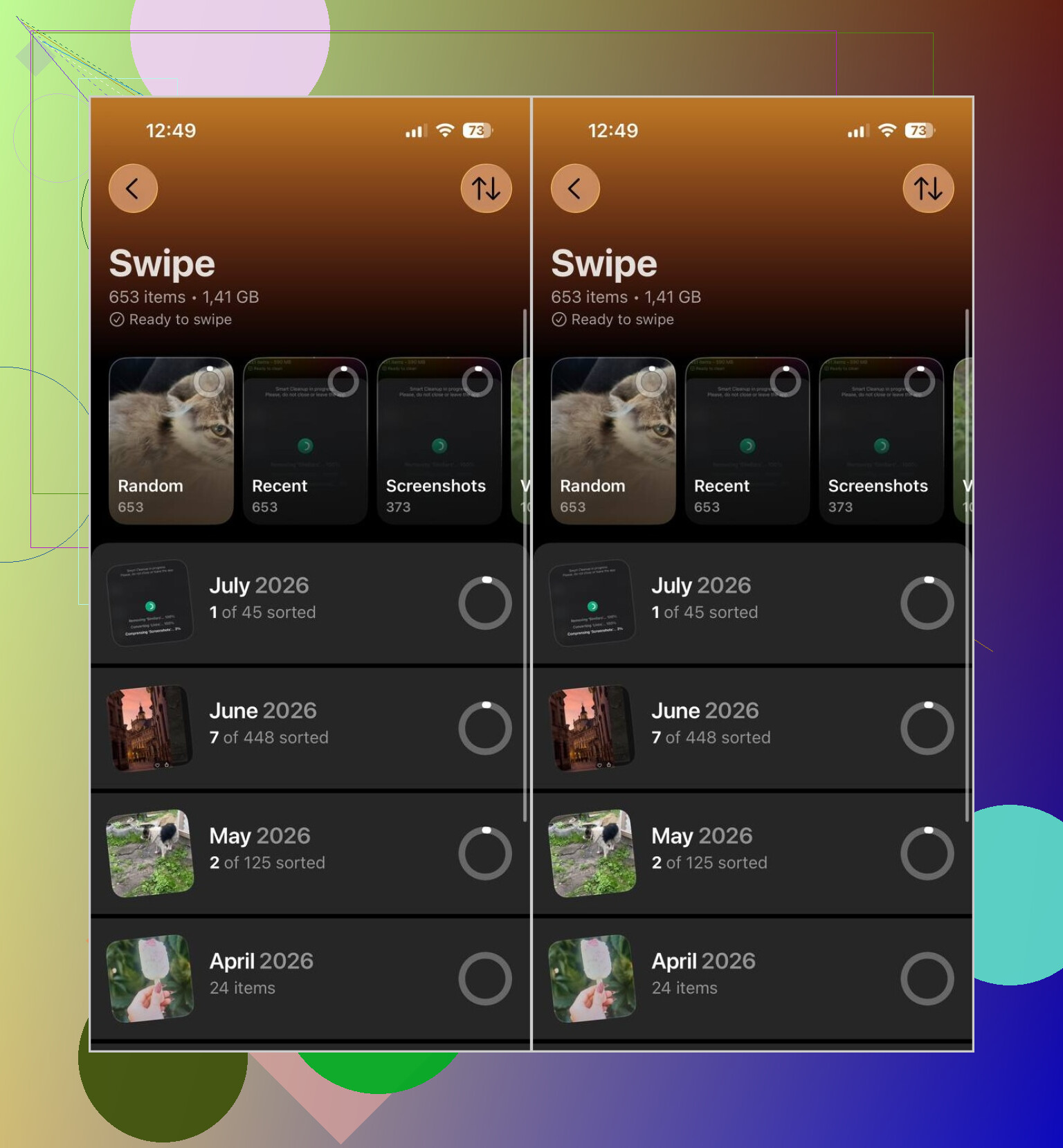
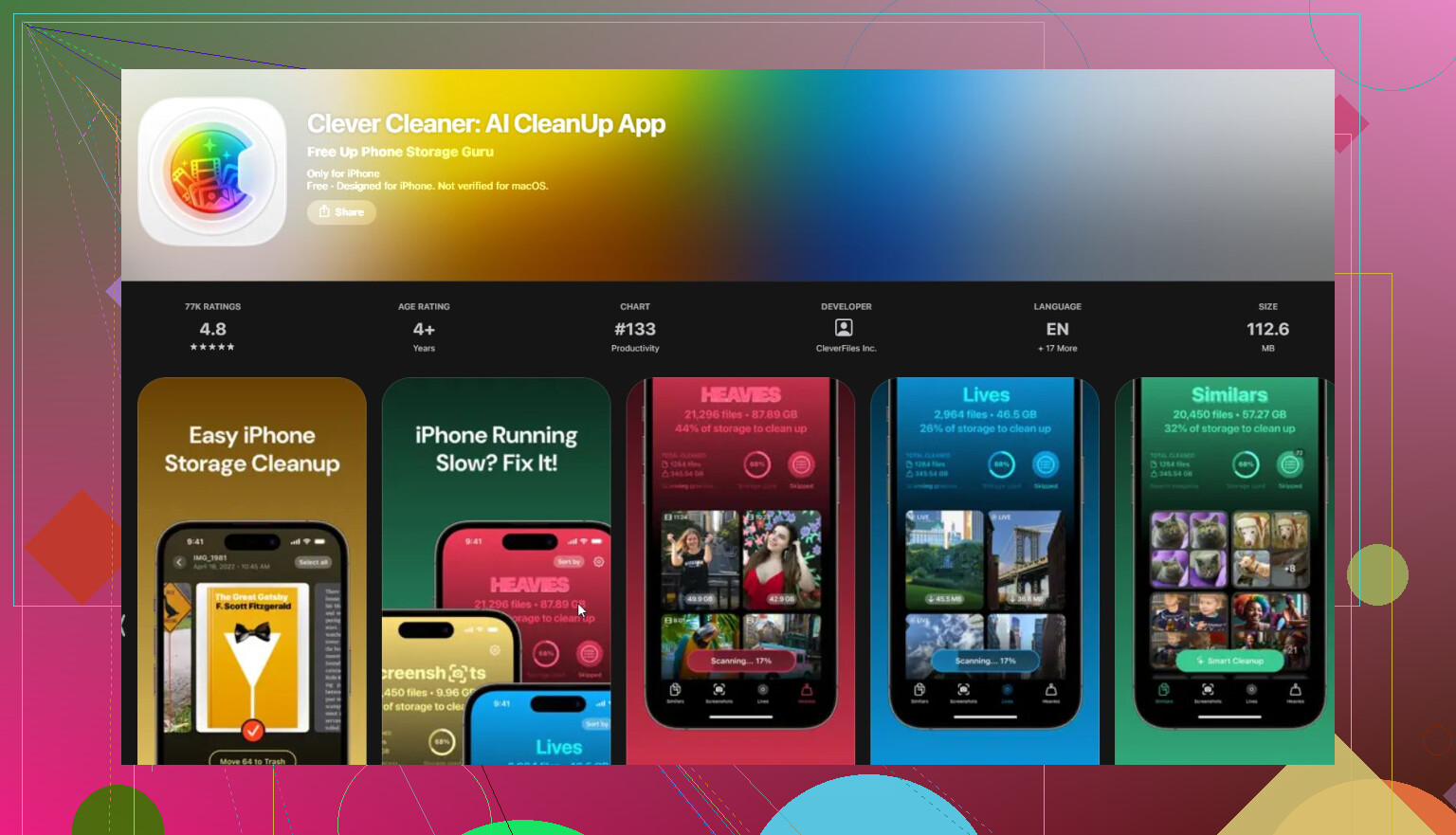
The biggest win is usually the photo library. Apple Photos can help with exact duplicates, but it won’t do much for five almost-identical shots of the same thing. I used Clever Cleaner for that because it groups similar photos, duplicate images, large videos, Live Photos, and screenshots. There’s also a Swipe mode if you’d rather review things manually one by one. It doesn’t show ads, works on-device instead of uploading your photos somewhere, and the free version is enough for normal cleanup. After deleting photos, make sure you empty Recently Deleted, otherwise that space won’t come back right away.
After that, I’d go through unused apps. Games and social apps can be huge. If you might need an app again later, use Offload App instead of deleting it outright, since that keeps the app’s documents and data.
Then check the apps that store media. Telegram, Spotify, Netflix, and similar apps can hang onto a lot of cache or offline downloads. A lot of them have their own Clear Cache option buried in settings, so it’s worth checking inside the app instead of only looking at iPhone Storage.
Also open the Files app and look at Downloads. That folder is easy to forget about. Old PDFs, ZIP files, installers, and random documents can sit there forever. Messages is another one people miss, especially if you send or receive a lot of photos and videos. Large attachments can quietly add up to several GB.
Don’t expect an App Store cleaner to wipe out System Data. Apple doesn’t let apps delete iOS system files or hidden caches from other apps. If System Data looks huge, restarting the phone may clear some temporary stuff, but iOS mostly manages that on its own.
If your phone is nearly full, don’t keep recording videos or downloading big files until you clear some space. A packed iPhone can slow down, and iOS updates may fail if there isn’t enough free storage.
For me, photos made the biggest difference. I got back over 20 GB without losing anything important, mostly from duplicates, near-duplicates, old screenshots, and videos I’d forgotten about.
9 Likes
You probably won’t get all the space back in one pass, so don’t delete blindly just because iPhone Storage looks scary. I agree with checking that screen first, but I’d be extra careful with iCloud Photos before removing anything. If “Sync this iPhone” is on, deleting a photo from the phone can delete it from iCloud too, not just local storage. For a quick safer win, turn on Optimize iPhone Storage, clear offline music/video downloads, and delete big message attachments you already know you don’t need. For apps, offload first unless you’re sure the app data is worthless. The annoying truth is that “System Data” usually isn’t something you can manually clean, and most cleaner apps won’t touch it.
You’re probably going to free space in chunks, not with one magic delete. Before touching photos or messages, make sure you have a backup you trust, either iCloud Backup or a computer backup, because the “oops, I deleted the wrong thing” part is worse than the full-storage warning. A quick thing people forget is Safari and app downloads: clear Safari website data if it’s huge, then open Files and check both Downloads and “On My iPhone,” since some apps dump copies there. I’d leave System Data alone unless it’s absurdly large after a restart. The safest order is backup, remove obvious offline downloads, clean big videos/screenshots, then offload apps you barely use.
A phone with 2 GB free and a phone with 200 MB free are two different problems. If you’re down in the few-hundred-MB range, I’d stop trying to carefully organize everything first and make breathing room fast: delete one large video, remove a downloaded movie, or offload a big game. Once the phone has a little space, the storage screen and Photos app tend to behave better.
The thing I’d be careful with is “app data.” In Settings > General > iPhone Storage, an app might show 8 GB used, but deleting the app may remove saved chats, projects, maps, drafts, or local files depending on the app. Offloading keeps documents and data, which is safer, but it usually won’t clear the bloated cache. For apps like Instagram, TikTok, YouTube, Reddit, Discord, or shopping apps, sometimes the only real cache cleanup is delete the app and reinstall it. I would only do that after checking you can log back in and that anything important is synced.
Photos are still the big target, but don’t forget the hidden “space doesn’t come back yet” problem. Deleted photos sit in Recently Deleted. Deleted files in the Files app can sit in Recently Deleted too. Some apps have their own trash folders as well. So if you delete 10 GB and the number barely changes, it may not be broken, it may just still be waiting in a trash/recovery area.
For Messages, I wouldn’t just set it to delete everything older than a year unless you don’t care about old conversations. A safer way is iPhone Storage > Messages and review large attachments. Videos sent in group chats are often the ugly surprise there. You can remove the big stuff without wiping the whole thread.
I agree with the others that “System Data” is mostly not worth chasing. Restarting can shrink it a bit, and updating iOS sometimes changes the number, but no cleaner app is going to magically reach into Apple’s protected storage and scrub it. If System Data is huge and nothing else makes sense, the more serious fix is an encrypted computer backup, erase the phone, then restore. That’s annoying, so I’d only go there after photos, downloads, messages, and app caches have been dealt with.
A phone that’s full because of one 4GB video is an easy fix, but a phone that’s full of System Data is a whole different headache. The similar-photo grouping in Clever Cleaner is genuinely handy for the first case, though honestly the thing people forget most is that Recently Deleted holds your ‘freed’ space for 30 days unless you clear it manually.