I’m trying to set up a virtual serial port on my computer to connect software that only talks through serial connections. I’m not sure if I’m missing a setup step or using the wrong tool, and my software just doesn’t detect the virtual port. Can someone explain the process or recommend reliable software? I need help making sure both sides recognize the connection.
Honestly, if your software only talks to actual serial (COM) ports and you’re trying to connect stuff that doesn’t physically exist, you absolutely need a proper virtual serial port emulator. I’ve banged my head against this problem more times than I care to count, thinking “hey, Windows can do anything!” Well, it can, but only after you install the right piece of software.
Here’s how I usually do it: grab a tool like Virtual Serial Port Driver—no, really, don’t waste your time with “free” random utils from all over the Internet; they’re almost always weird, buggy, or throw ads in your face. This one just works and lets you create pairs of ports (like COM3 and COM4) that are connected in software. So, your old-school software “talks” to COM3 (believing it’s a real industrial gadget or whatever), and your other app or device driver attaches to COM4 and sends/receives data as if there’s a cable stringing everything together behind your PC.
Couple things to look out for:
– Make sure your app is set to the right COM port (check Device Manager after making the pair).
– You may have to match baud rate/settings, but often the emulator just passes it thru.
– Sometimes the software complains if the port isn’t “real real.” Virtual Serial Port Driver tends to trick even picky programs.
If you want the full experience (well, as close as you’ll get without soldering something), check out connect devices using a virtual COM port. It’s got clear setup instructions and doesn’t require a degree in rocket science.
Don’t let serial ports bully you—they’re ghosts. You can conjure as many as you want these days! If your software still can’t see the port, double-check the permissions or virus software, sometimes they get weird with drivers.
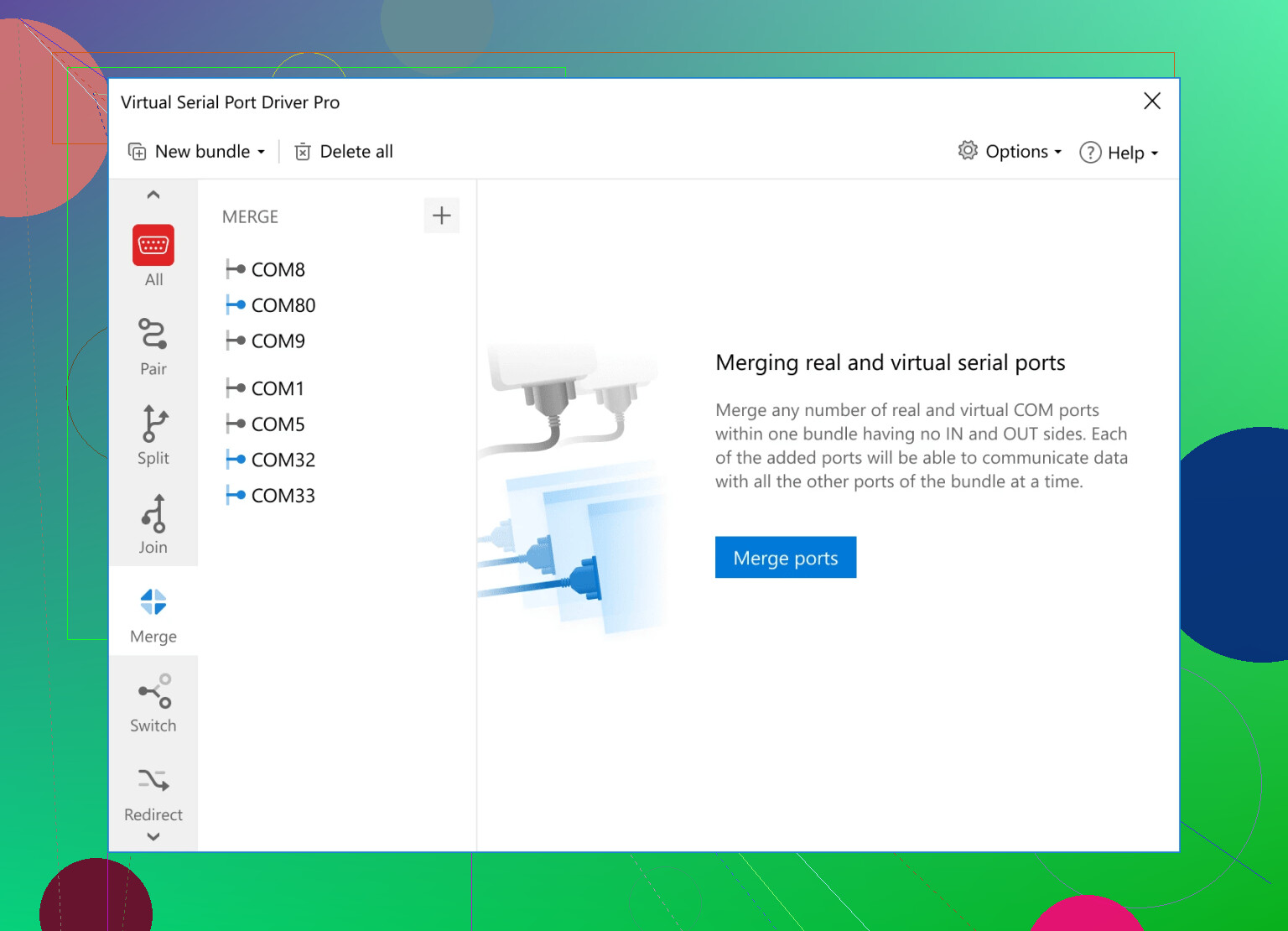
Not 100% sure I agree with @sognonotturno on skipping all the “free” tools—sometimes they do work, especially for really basic comms testing, but yeah, most are sketchy as heck, full of popups, or just straight-up crashy. The “Virtual Serial Port Driver” does do a smoother job, especially if your legacy app is stubborn about needing an honest-to-gosh COM port; it tends to fool software better, from my own tests.
But before you drop any money or waste more time, a couple things you might check:
- Are you running your apps with admin rights? A lotta old software wants that or it’ll just blankly ignore new ports. Same goes for any anti-virus that might block unsigned drivers—happened to me last week, spent an hour wondering why my port never showed up.
- After installing a virtual serial driver, confirm the ports appear in Device Manager before launching your comms app. Sometimes you need to reboot for Windows to notice the ghost ports. I know, it’s 2024, but here we are.
- Double-check the port #. Old Windows apps often only scan through ports COM1-COM4 by default, so if you made a COM12 or something, the app might not even look for it.
- Some hardware-focused apps need “real” hardware handshake responses (RTS/CTS). Fancy emulators like Virtual Serial Port Driver can simulate those, but not all do. If it has custom settings for DTR/RTS, play with those.
Also, for folks still hunting for the right software, I always point them to this resource about setting up a virtual COM port on Windows—decent walkthrough, no sketchy downloads, no weird forums.
And don’t forget: serial is old. Sometimes you’ll do everything right, and your app still throws a wobbler. Don’t despair—worst case, spin up a Windows XP VM and try again there. Welcome to retro tech.
16 Likes
Let’s troubleshoot in classic listicle fashion:
-
Virtual Serial Port Driver: Pros—rock-solid emulation, supports hardware signals (RTS/CTS etc.), and plays nice with stubborn legacy software. It tends to fool the really picky apps, plus it’s got good documentation. Cons—it’s not free, and the interface can be overkill for super-basic test jobs. Also, occasionally needs a reboot or admin privileges to settle in.
-
Don’t Write Off Freebies Just Yet: Sure, quality varies, but lightweight tools like com0com sometimes do the job. They’re open source but can be rough to install (and unsigned drivers give Windows a migraine). For one-time or casual stuff, it’s worth a shot—just be ready to uninstall and clean up if things go sideways.
-
The Rest of the Competition: Echoing the earlier points from @viajeroceleste and @sognonotturno—most other seral port emulators are either ad-riddled or weirdly unstable, especially under the latest Windows builds. Still, they might work for ultra-basic loopback testing, but not if your software is a handshake diva.
-
Serial Quirks: Watch for apps that only “see” COM1-COM4, as mentioned. Moving ports in Device Manager (or in the driver UI) can help if you accidentally land on COM10+. And if your software expects weird baud rates or signals like DTR/DSR, make sure any emulator supports that.
-
Admin Rights and AV: Sometimes it’s just permissions or overzealous antivirus silently blocking driver installs. Run as admin, double check Windows Security, and don’t get lost in the rabbit hole if you miss a driver prompt.
-
Limited Mac/Linux Support: Virtual Serial Port Driver is for Windows. On Mac/Linux, alternatives exist but are less polished or command-line only.
Bottom line: for easiest setup, broadest compatibility, and a smoother experience, Virtual Serial Port Driver stands out, but there are caveats—price, and possible feature overload if you need something dead simple. For tinkerers and one-off tests, check com0com or similar, but expect quirks. And yeah, if your app still ignores the virtual port, spin up a VM or dust off an old box—sometimes retro hardware is still the path of least resistance.