My iPhone keeps showing memory full notifications even after I deleted photos, apps, and old files. It’s getting really annoying and I’m not sure what else is taking up storage or how to stop the alerts from coming back. I need help figuring out what to clear and how to fix the iPhone storage full warning for good.
Getting an iPhone storage warning feels worse than it is. I’ve seen it pop up when the phone still had room left, and I’ve also seen it show up because I deleted the wrong stuff and none of it left the device. So before you start removing random apps, check the one screen that matters.
Start with iPhone Storage
Open Settings > General > iPhone Storage. Then wait. Don’t tap away too fast. The colored storage bar takes a bit to load, and until it finishes, you’re looking at half-baked numbers.
This screen gives you the real split. Photos, apps, messages, system data, media. You’ll know fast if your problem is a photo library bloated with old videos, an app collection you forgot about, or system junk after an update. If you skip this step, you’re guessing.
The fake alert thing people fall for
I ran into this once while browsing and it looked serious. Big warning, urgent language, countdown timer, talk about viruses and SIM issues. Total trash.
If the “storage full” message appeared inside Safari or some other browser tab, it’s not from Apple. iPhone storage notices show up as normal system prompts or inside Settings. They do not come from random web pages trying to scare you into tapping a button.
Close the tab. Ignore it. Don’t install anything from there.
Why deleting stuff sometimes changes nothing
This tripped me up the first time. You delete photos and videos, then the warning comes back, and you think iOS is broken. Sort of, but not in the way you think.
Deleted photos go into Recently Deleted for 30 days. They still use the same space until you remove them from there too.
To clear it for real:
- Open Photos
- Go to Albums
- Scroll down to Recently Deleted
- Tap Select
- Tap Delete All
Do the same check in Files. Look in Downloads, then open Recently Deleted there and empty it too. Photos and Files keep their own trash bins. Clearing one does nothing for the other.
If it started right after an iOS update
This is common. I’ve had storage warnings show up right after updating, even though I hadn’t added anything new.
During an update, iOS stores installation files and temp data. Some of it sticks around longer than it should. Restart the phone first. A plain reboot often forces the storage count to refresh and dumps leftover update files.
If the alert is still there after restart, go back to Settings > General > iPhone Storage and look at System Data. If that section jumped in size, the update likely left junk behind, plus app cache buildup from the install process.
Places storage hides without making noise
Messages is a big one. People miss this for years.
Old text threads hold videos, voice notes, GIFs, screenshots, random attachments. On some phones this adds up to multiple gigabytes. Mine was uglier than I expected.
To keep it under control:
Go to Settings > Messages > Keep Messages
Change it from Forever to 1 Year or 30 Days.
If you want faster results:
Open Settings > General > iPhone Storage > Messages
Then use Review Large Attachments and remove the biggest files first.
Safari cache is another easy cleanup:
Settings > Safari > Clear History and Website Data
Some apps hoard cache and give you no clear button. Instagram does this. TikTok too. In those cases, deleting the app and reinstalling it is usually the cleanest fix. Annoying, yeah, but it works.
When the built-in tools stop being enough
Apple shows category totals, which is fine until you need file-level detail. If you’re trying to find the giant 4K clips, duplicate shots, or years-old screenshots, iOS doesn’t help much.
What helped in my case was using Clever Cleaner after the normal cleanup steps weren’t enough. I liked it because it didn’t throw ads at me or lock basic cleanup behind a paywall.
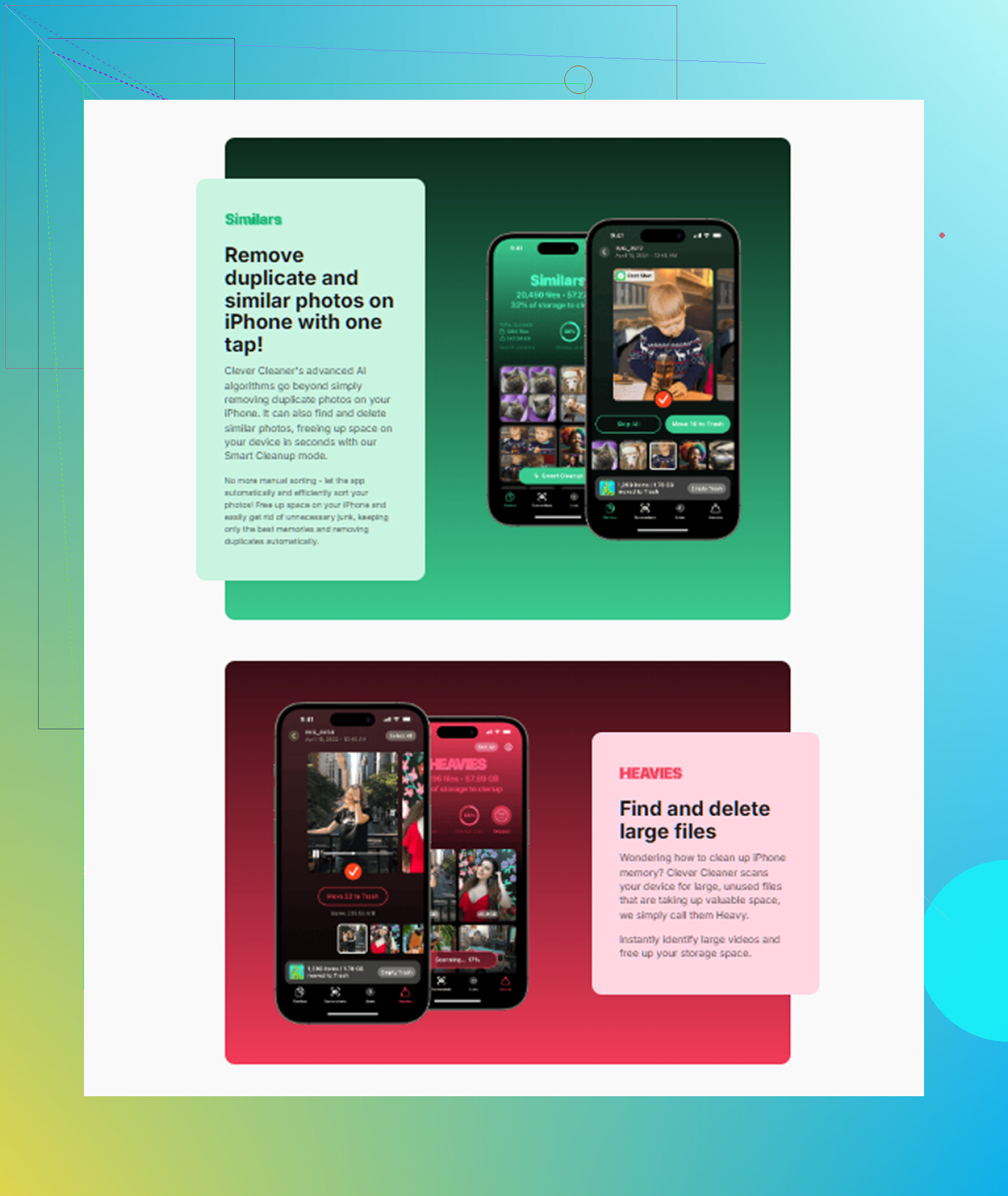
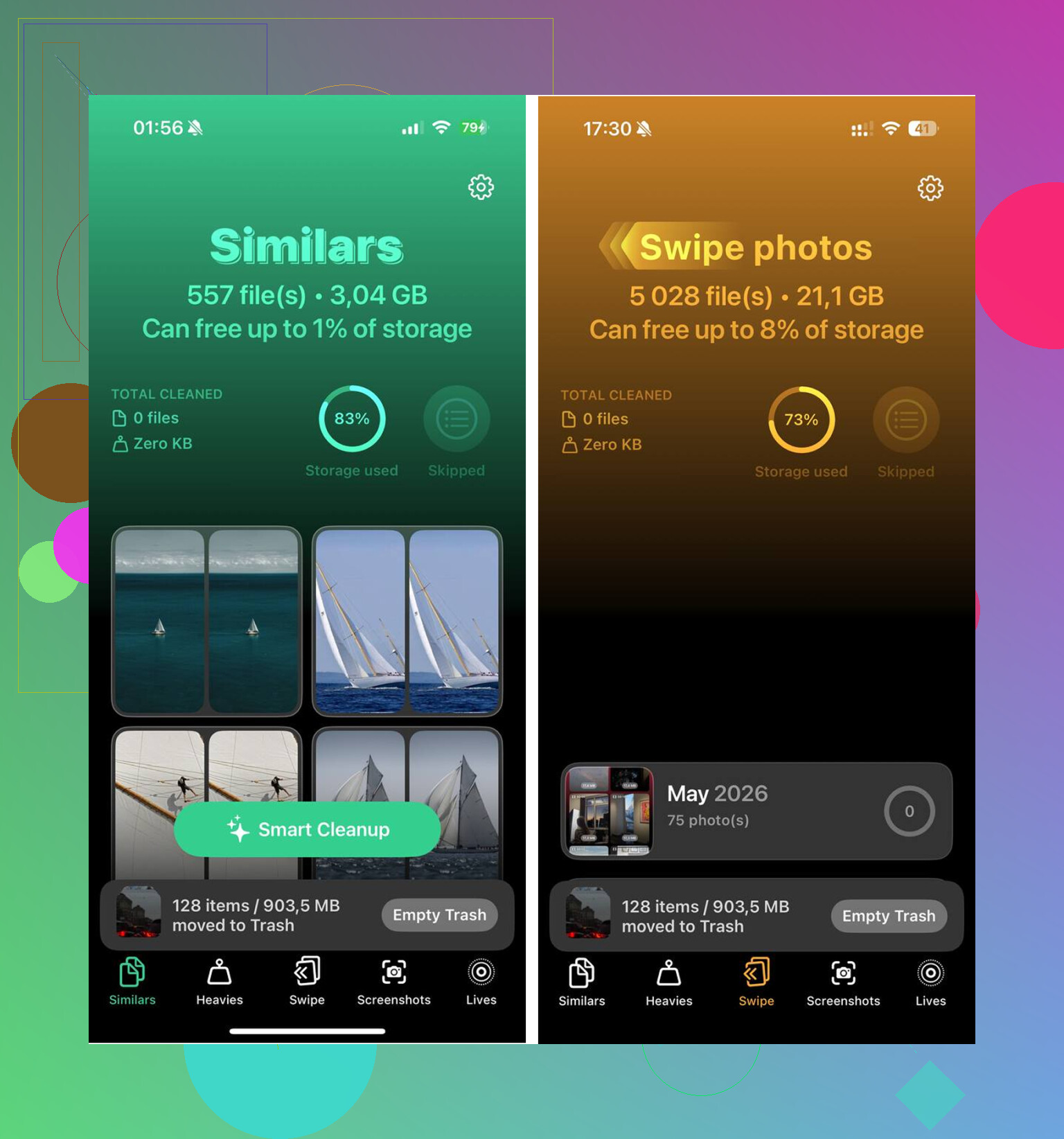
The Heavies section sorts your library by file size, biggest first. That made the obvious junk stand out fast. Old screen recordings, long videos, accidental clips, all the stuff eating space while hiding in a huge camera roll.
The Similars section groups near-duplicate photos and picks a best shot, so you’re not opening ten versions of the same blurry dog photo and trying to compare them one by one. It runs on the device, which I preferred.
I cleared about 12 GB this way, emptied Recently Deleted after, and the warning stopped showing up. The phone also felt less sluggish. Not magic. It was mostly all the junk I’d ignored.
If the warning keeps showing even when space is free
This part is weird, but I’ve seen it. Settings shows available storage, yet the warning sticks around like the phone didn’t get the memo.
First move, restart the iPhone. That forces iOS to recount storage and fixes phantom warnings more often than people expect.
If a restart doesn’t fix it, back up your data to iCloud or a computer, then do a factory reset. I wouldn’t start there, but when the system storage math is broken deep enough, manual cleanup won’t touch it. Resetting usually clears the issue for good.
Short version
Check Settings > General > iPhone Storage first.
Ignore storage pop-ups from websites.
Empty Recently Deleted in Photos and Files.
Restart after iOS updates.
Clean Messages attachments and Safari cache.
Reinstall apps with bloated cache if needed.
If the warning is fake or bugged, don’t let it send you into panic mode. The fix is often boring, not dramatic.
17 Likes
If you already deleted the obvious stuff and the alert still keeps coming back, I’d look at 3 places people miss.
First, Mail. The Mail app stores downloaded attachments and old synced mail. If you use Gmail, Outlook, or Yahoo inside Apple Mail, remove the account from Settings > Apps > Mail > Mail Accounts, restart, then add it back. I’ve seen this free up 2 to 5 GB on older iPhones.
Second, offline downloads. Spotify, Netflix, YouTube, Podcasts, Google Maps. These eat storage quietly. Open each app and check downloaded content. Deleting the app does not always fix it cleanly if data is synced back on reinstall.
Third, iCloud Photos settings. If “Download and Keep Originals” is on, your phone keeps full-size files locally. Switch to “Optimize iPhone Storage.” This matters a lot if your library is big.
I slightly disagree with @mikeappsreviewer on one point. A factory reset is not my next move unless storage math stays broken for days. Sign out of iCloud, restart, sign back in first. iOS sometimes refreshes storage after a fresh sync.
Also check Voice Memos and GarageBand. Weird one, but both hoard large files.
If you want a faster scan of photo junk, Clever Cleaner is worth a look. It helps find heavy videos, duplicate pics, and screenshots iOS hides in a mess of folders.
For a simple visual guide, watch how to clear iPhone storage for free.
If the pop-up only appears while browsing, ignore it. If it appears system-wide, it’s storage or a bug. Two diff things.
One thing I’d add to what @mikeappsreviewer and @byteguru said: check whether the alert is actually about device storage or iCloud storage. Apple’s wording is annoyingly similar, and people mix them up all the time. If it says your iCloud is full, deleting apps off the phone won’t fix squat.
Go to:
- Settings > your name > iCloud
- Then compare that with Settings > General > iPhone Storage
If iPhone storage looks fine but the nagging keeps happening, also check:
- Settings > Accessibility > Spoken Content off/on after reboot
- Settings > Siri & Search and remove old downloaded voices/languages
- Settings > General > Keyboard > delete extra dictionaries/keyboards
Those little system downloads can pile up more than ppl expect, especially on older phones.
Also, Live Photos and burst shots are sneaky space hogs. Not just “photos” in general, but those specific types. In Photos, search for Screen Recordings, Bursts, Live Photos, and Cinematics. That’s where I found a ton of hidden junk on mine.
I kinda disagree with jumping straight to sign out of iCloud unless the counts are obviously broken. That can create its own mess if sync gets stuck again. I’d try a forced restart, then plug the phone into a Mac or PC once. Weirdly, Finder/iTunes sometimes triggers a proper storage reindex.
If you want a faster way to spot what’s actually huge, Clever Cleaner is decent for finding heavy videos, duplicate pics, and leftover clutter without digging forever. If you’re checking whether it’s trustworthy, this breakdown on whether Clever Cleaner is safe and vetted by security researchers is probly the more useful read.
If the popup happens every few mins even with several GB free, that smells more like an iOS indexing bug than real storage pressure tbh.
I’d check one thing nobody’s really hammered on yet: app documents/data that survive normal deleting habits.
Go to Settings > General > iPhone Storage and tap a few of the worst apps. If the app itself is small but Documents & Data is huge, that’s your real hog. Messaging apps, editing apps, podcast apps, cloud drives, and social apps are notorious for this. Sometimes “delete app” helps, sometimes the app just re-pulls junk after reinstall, so it’s worth checking in-app storage settings first.
I also slightly disagree with jumping to a reset too early. If the phone still works, try this first:
- Turn Offload Unused Apps off if it’s on
- Check Books, TV, and Music downloads
- Look in Files > On My iPhone for local folders from old apps
- Remove old Safari Reading List offline pages
Another sneaky one: if you use WhatsApp or Telegram, their media folders can be ridiculous even when Photos looks cleaned out.
@byteguru, @sternenwanderer, and @mikeappsreviewer already covered a lot of the common traps, but I’d put hidden app data above most “delete random stuff” advice.
If you want a quicker visual sweep, Clever Cleaner is useful.
Pros:
- easy to spot big videos and duplicates
- faster than digging through Photos manually
- good for screenshot clutter
Cons:
- mostly photo-library focused
- won’t solve broken iOS storage indexing by itself
- you still need to review before deleting
If alerts keep popping up with several GB free, that’s probably a buggy storage calculation, not actual full memory. At that point, sync to a computer once before doing anything drastic.