Lately I’ve noticed tons of duplicate photos showing up in my iPhone gallery, especially after using iCloud and some editing apps. It’s making my storage fill up fast and it’s hard to sort my pictures now. What’s the best way to find and safely remove duplicates without losing the original or edited versions I actually need?
I had the same mess on my iPhone a few months ago. What helped was fixing the sources of duplicates first, then cleaning the backlog.
Here is what worked step by step:
-
Fix iCloud sync issues
• On iPhone, go to Settings → your name → iCloud → Photos.
• Turn on “Sync this iPhone” and “Optimize iPhone Storage” if they fit your use.
• If you used other cloud apps before, like Google Photos or Dropbox, make sure they are not saving extra copies to the Camera Roll. In each app, turn off “Save to device” or “Auto save” for photos. -
Stop editing apps from creating extra copies
Most editing apps save a new file instead of updating the old one.
Check the settings in apps like VSCO, Snapseed, Lightroom, etc.
Look for options like “Save edits as a copy” and switch them off if they allow overwrite.
If not possible, do the edit, export, then delete the original in Photos right after. -
Use the built in Duplicates tool
• Open Photos → Albums → scroll down to “Utilities” → “Duplicates”.
• iOS groups exact or very close duplicates.
• Use “Merge” for each group or “Select” multiple and merge in bulk.
This keeps one photo and moves the rest to Recently Deleted. -
Clean Recently Deleted
• Photos → Albums → Recently Deleted.
• Empty this folder, otherwise the storage does not free up for a month. -
Turn off “Keep Originals” with some apps and devices
If you AirDrop from another iPhone or import from a camera, duplicates appear as HEIC and JPEG versions.
When you import from a Mac with Finder or Photos, uncheck any option that exports both formats. -
Regular maintenance
Once a week, open the Duplicates album and merge.
Also sort by “All Photos” and quickly delete burst shots, screenshots, and failed edits. -
Use a cleaner app if your library is huge
For a large photo library, a smart cleaner app saves time.
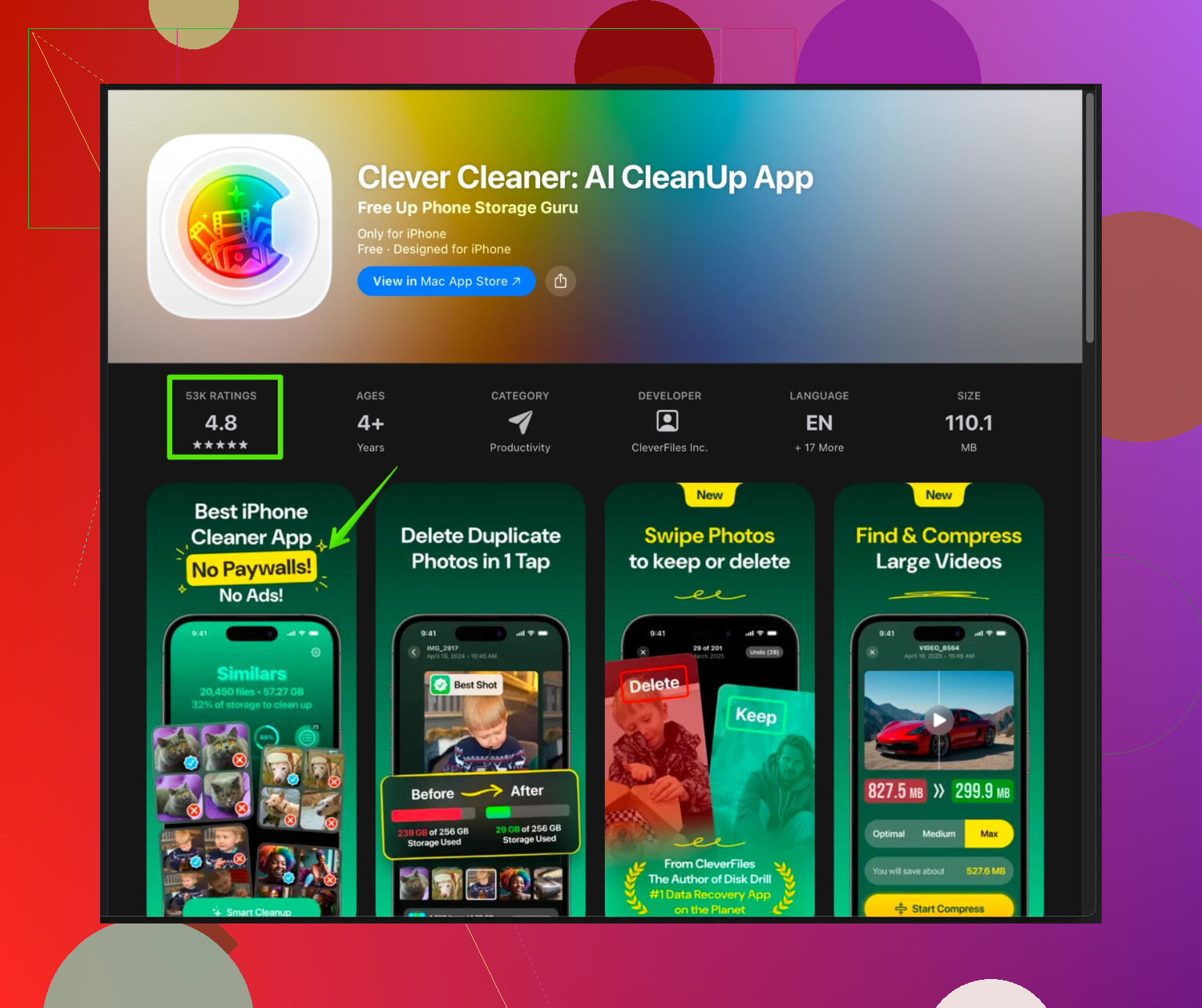
The Clever Cleaner App for iPhone uses AI to detect duplicate and similar photos, blurry shots, and screenshots.
It also helps sort large libraries by quality, so you keep the best shots and remove the rest.
If you want an automated way to clean, check this link:
smart photo cleanup tool for your iPhone
After doing all this, my Photos count dropped by about 20 percent and storage freed up fast. The biggest win was turning off “extra saving” in editing and cloud apps so new duplicates stop piling up.
24 Likes
Honestly, duplicate photos on iPhone are like digital cockroaches: you kill ten, twenty more spawn after you open some random app.
@jeff covered the obvious stuff (iCloud settings, editing apps, Duplicates album), so here are some different angles that helped me stop the madness long‑term:
1. Change how you edit photos
A sneaky problem: constant “save as copy” behavior is often your fault more than the app’s.
- Try to do light edits right inside the native Photos app first. iOS edits are non‑destructive and don’t create a second file.
- Use third‑party editors only for the pics that really need it, not every random screenshot.
- After exporting something from an app, immediately mark the original as a favorite or put it in a “TO DELETE” album so you can batch delete later. Sounds dumb, works great.
I actually disagree a bit with always turning off “save as copy” like @jeff said. For some workflows, you want a copy so you can undo later. The trick is just having a habit to clean up the unused version, not pretend you’ll “deal with it someday.” You won’t.
2. Stop hidden duplicate factories
A few non-obvious places that quietly spam your library:
-
Messages & social apps
When you save a photo from iMessage, WhatsApp, or Instagram that you already have in your Camera Roll, you often create a duplicate.- Instead of “Save Image” from Messages when you sent the pic originally, just find it again in Photos (search by “Media Types → Videos” or “Screenshots” helps).
- In WhatsApp, turn off “Save to Camera Roll” for chats where you constantly send your own pics.
-
Live Photos & Long Exposure stuff
Some apps save both Live Photo and a still. If you do not care about the “live” part, go into Photos → pick a Live Photo → tap “Live” → choose “Off.” That converts it to a still and you avoid some double saving weirdness. -
Shared Albums
If you’re constantly adding the same photo to different Shared Albums, people often download them back and re-save, creating copies on their phones (and then those get re-shared to you). Just send a link once instead of resending the actual file.
3. Tweak how you transfer photos
A big source of duplicates is how you get photos on and off your phone:
-
Mac <> iPhone transfers
- When you plug in your iPhone to a Mac, don’t use three different tools (Finder + Image Capture + Photos). Pick one consistent method.
- In Photos on Mac, avoid re-importing stuff that’s already syncing through iCloud. That’s where a lot of HEIC/JPEG twins come from.
-
AirDrop etiquette
If friends keep AirDropping you photos you also took on your phone, you’re doubling everything. Agree on a “designated photographer” for group events. One person takes the pictures, AirDrops to everyone else. Not 5 ppl all shooting the same scene and swapping later.
4. Set up a simple “photo hygiene” routine
You don’t need a massive cleanup every time, just tiny regular habits:
-
After any trip / night out:
- Open Photos → “All Photos”
- Filter mentally by:
- obvious fails
- 8 versions of the same pose
- screenshots you needed once
- Delete ruthlessly. The more you keep, the more future duplicates get confusing.
-
Once a month:
- Use the Duplicates view like @jeff said, but sort of “trust, then verify.”
If there’s a group where one has edits and another is original, look at resolution and date. Keep the higher-res or the version you actually shared.
- Use the Duplicates view like @jeff said, but sort of “trust, then verify.”
5. Use a cleaner, but don’t just blindly nuke things
For big messy libraries, a dedicated cleaner really does save sanity, but don’t let it be a firehose on your memories.
The Clever Cleaner App is actually decent for this stuff, especially if:
- You have thousands of near-identical selfies, burst shots, or slightly shifted angles.
- You want AI to surface the “best” shot and mark the rest as candidates for deletion.
If you go this route, spend a few minutes reviewing what it flags the first couple of runs. That way you get a feel for how aggressive it is on “similar vs duplicate.”
If you want to check it out, here’s a solid place to start:
smart photo cleanup and storage optimizer for iPhone
That does more than just exact duplicates and can really cut down bloat if your Photos app looks like a landfill.
6. Decide on one “truth” for your library
This is more “philosophy of photos,” but it matters:
- Pick one main source of truth:
- iCloud Photos, or
- Google Photos, or
- Something like Dropbox / NAS / local Mac
If you’re half-in iCloud and half-in Google, you’ll always be tempted to re-export, re-save, re-download. That cycle is where a ton of duplicates are born. Choose one main system and stick to it, use everything else read-only when possible.
If you do:
- one main cloud system
- fewer “save image” habits
- tighter editing workflow
- occasional AI cleanup with something like Clever Cleaner
you’ll stop the pile growing, then your one-time cleanout actually stays clean instead of turning into a recurring nightmare.
You’ve already got great advice from @viajeroceleste and @jeff on fixing iCloud, using the Duplicates album, and taming editing apps, so I’ll zoom in on some behavior and tool tweaks that actually keep things clean once you’ve done that first big purge.
1. Stop “re-import” chaos between devices
A lot of people create duplicates by constantly bouncing photos between Mac, PC, and iPhone.
What to do instead:
-
If you use iCloud Photos, treat the iPhone as the master, not a USB stick.
- Do not regularly plug it into a computer just to “import” photos if those same photos already appear there via iCloud.
- If you must plug in, check for “Import only new items” instead of dragging everything again.
-
If you use a non iCloud service (Google Photos, OneDrive, etc.) as backup, try to use it in backup-only mode: upload from iPhone, view on computer, but avoid downloading back to the phone unless absolutely needed.
This alone prevents the classic “same vacation album appears 3 times” problem.
2. Be intentional with Live Photos and bursts
I partly disagree with the idea that Live Photos are just minor clutter. If you shoot a lot with Live enabled, they can double or triple the effective storage use.
- If you rarely use the live effect, go to Camera and turn Live off by default, and only enable it when you want it.
- After a burst or a ton of near-duplicates, pick one keeper immediately and trash the rest on the spot. Two seconds now saves a giant cleanup later.
3. Create a simple “triage” album system
Instead of scrolling the whole library and feeling overwhelmed:
- Add a regular album called “To Sort”.
- When you take multiple similar shots or experiment with edits:
- Add only the ones you might keep to “To Sort.”
- Once a week:
- Open “To Sort,” compare similar shots side by side, keep the best version and delete the rest from the library.
This avoids spreading near-duplicates across your whole timeline where they are harder to spot.
4. Cleaner apps: where Clever Cleaner App actually makes sense
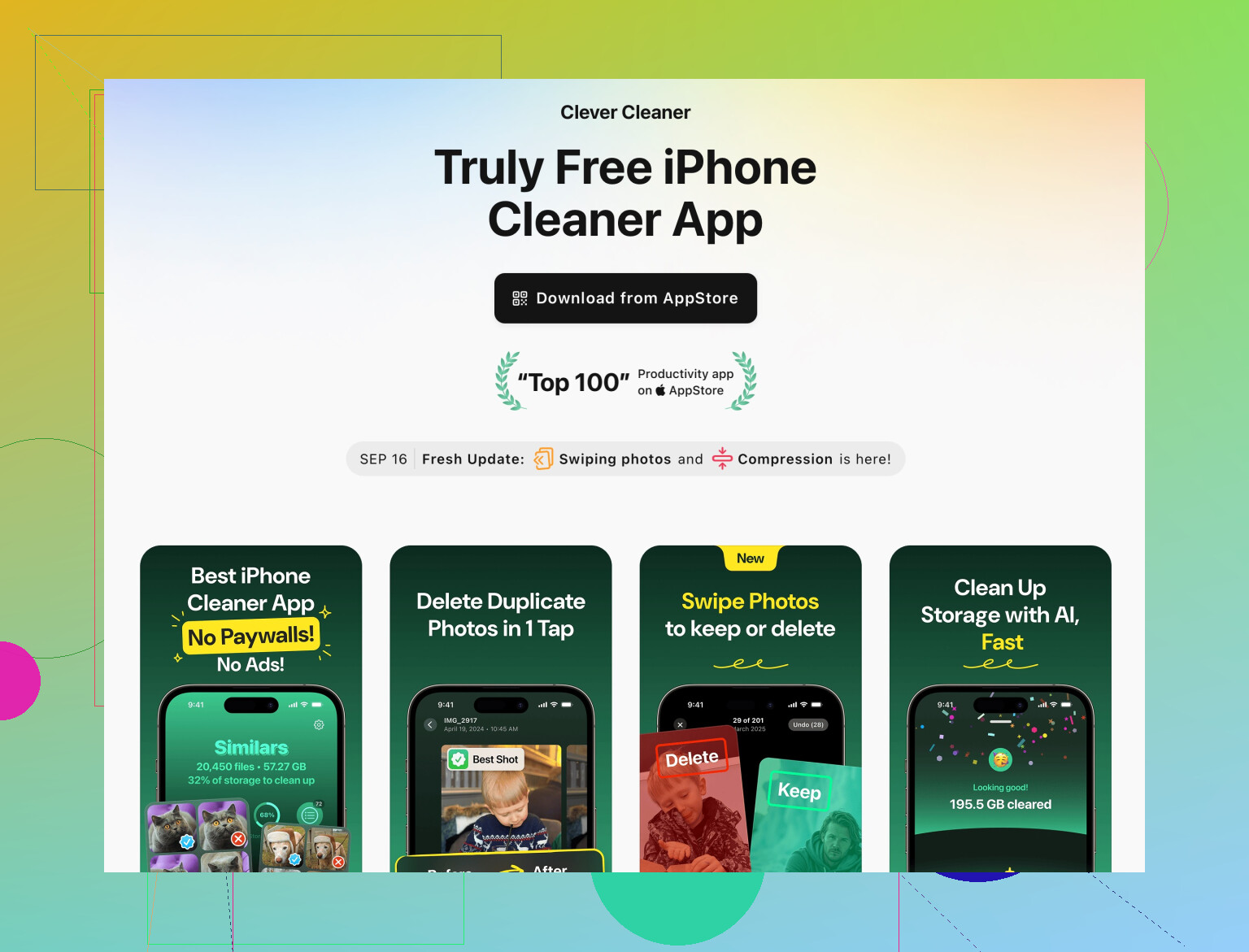
Both @viajeroceleste and @jeff mentioned cleaner tools. I agree they are useful, but not magic. The Clever Cleaner App is handy if:
Pros:
- It detects similar photos, not just exact duplicates, useful for bursts and multiple angles.
- Can surface blurry or low-quality shots so you can bulk-review and remove them.
- Nice if you have a huge library and no patience for manual comparison.
Cons:
- You still need to review suggestions; blind deletion is asking for regrets.
- Any cleaner app means giving it access to your photos. If privacy is critical, this is a tradeoff.
- Depending on your library size and phone model, heavy scanning can briefly eat battery and processing power.
I’d use Clever Cleaner App as a periodic assistant, not a daily habit:
- Do a full scan after a big trip or event.
- Confirm its suggested deletions for a few runs until you trust its judgment.
- Then use it monthly for maintenance, while relying on iOS’s own Duplicates tool for exact copies.
5. One consistent backup strategy
Another place I slightly diverge from the others: you do not have to pick exactly one cloud forever, but you should:
- Pick one primary place where originals live long term (iCloud, Google Photos, or local computer).
- Any other service should be used:
- As a read-only viewer, or
- As a secondary backup that you rarely pull photos back from.
The constant download / re-save cycle is a top cause of duplicates. Export only when you are making something specific (a print, a slideshow), not as daily routine.
If you combine:
- iCloud correctly configured
- Less re-importing between devices
- Live Photos and bursts under control
- A small triage habit
- Occasional help from a cleaner like Clever Cleaner App
you stop the duplicate “flood” instead of just mopping the floor every few months.