My iPhone has become really slow and laggy, and restarting it doesn’t seem to fix anything. Apps take longer to open, typing feels delayed, and basic tasks keep freezing. I’m looking for practical iPhone performance troubleshooting tips before I reset it or contact Apple Support.
An older iPhone feeling slow does not automatically mean the hardware is done. A lot of the time, you can get a decent amount of speed back by turning off a few heavier iOS features and freeing up storage. No upgrade needed.
The restart trick only helps for a minute. It clears some temporary junk and can stop a stuck app or process, but it does not fix the stuff that usually causes the slowdown. On older iPhones, the big problems are usually newer software features running on aging hardware, plus storage that is too full for iOS to work comfortably.
Start with the settings that actually matter
Turn off Background App Refresh unless you really need it. Go to Settings > General > Background App Refresh and either disable it completely or leave it on only for things like messaging apps. Background refresh keeps apps doing work when you are not using them, and older chips do not have much extra room for that.
Also turn on Reduce Motion and Reduce Transparency. Reduce Motion is under Settings > Accessibility > Motion. Reduce Transparency is under Display & Text Size. This makes iOS look a little plainer, but it cuts down on blur, animation, and parallax effects that can make an older phone feel sluggish.
If you care more about speed than battery life, make sure Low Power Mode is off. A lot of people leave it on all day, but it is designed to limit performance to save power. That trade-off is fine when your battery is low, but it is not great if you are trying to make the phone feel responsive.
Then check Battery Health under Settings > Battery > Battery Health. If maximum capacity is under 80 percent, performance management may be slowing the processor to avoid random shutdowns. At that point, a battery replacement can make a bigger difference than any setting change.
Do not ignore storage
This is the part a lot of people miss. iOS needs free space for temporary files, indexing, updates, and basic system tasks. Once the phone gets around 90 percent full or more, everything can start dragging. Apps open slower, the camera can hang when launching, and the phone may run warm because it is constantly fighting with limited space.
On an older iPhone, keeping 10 to 20 percent of storage free is not really optional if you want it to feel normal.
A few quick things help. Clear Safari data in Settings > Safari > Clear History and Website Data. Offload apps you never use from Settings > General > iPhone Storage. But for most people, the real storage problem is the photo library.
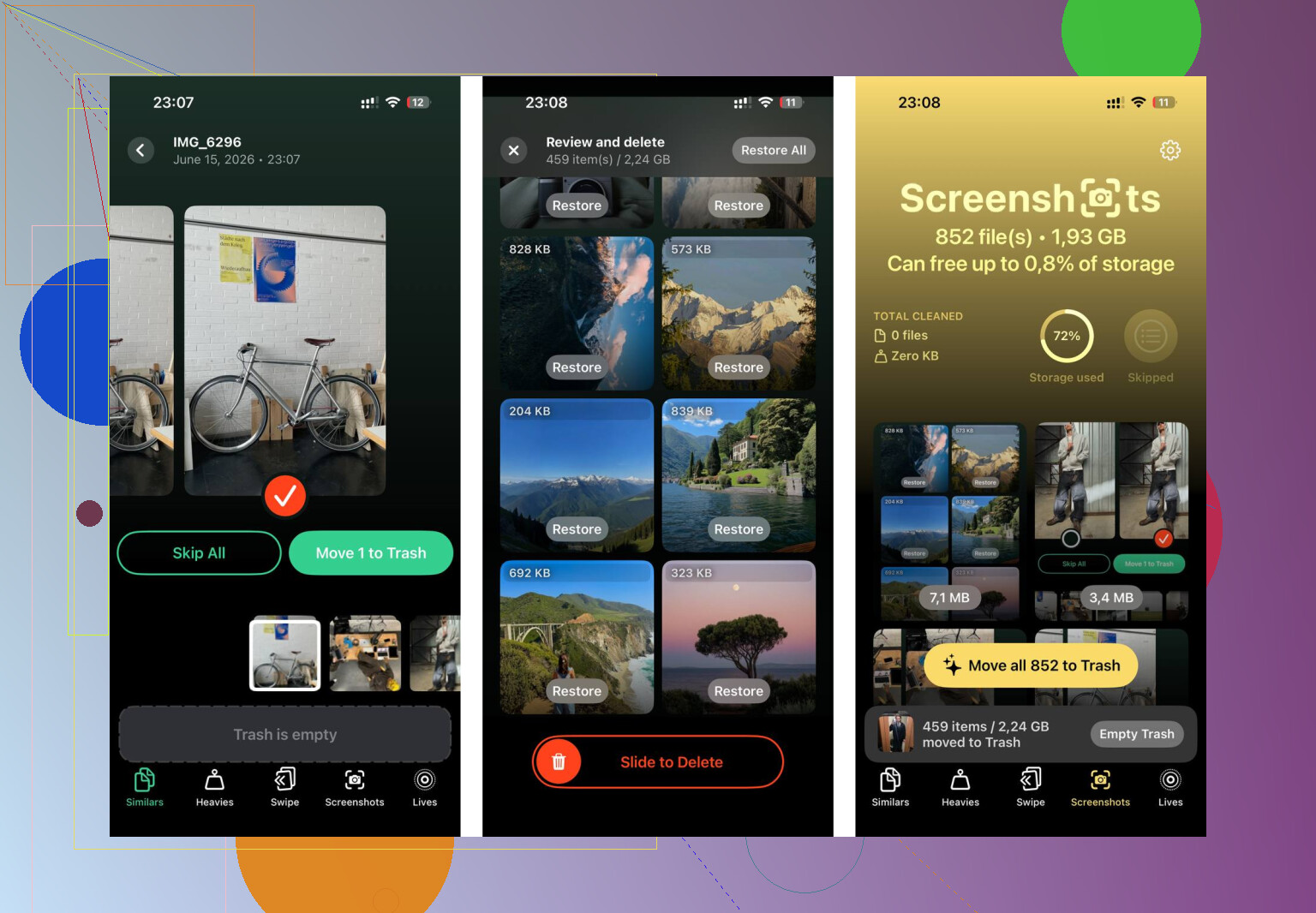
Manually sorting through thousands of photos, screenshots, screen recordings, and duplicate shots is miserable. Clever Cleaner makes that part much less painful, and it is free with no ads or subscription.
The Heavies tab is useful because it sorts files by size. Old screen recordings and 4K videos often sit right at the top and can be several gigabytes each. Deleting just a few of those can free more space than removing a pile of normal photos.
The Similars tab groups photos that are almost the same and picks the sharpest one from each set. So instead of checking ten versions of the same shot one by one, you can clean them up much faster.
It also shows file sizes on screenshots before you delete anything. That makes it easier to see when screenshots have quietly turned into several gigabytes of clutter.
The scan and cleanup happen on the device, so the photo library is not uploaded somewhere else while it works.
After clearing around 30GB this way, with the settings changes done first and storage cleanup after, the difference was obvious. Apps opened faster, the camera launched without the delay, and the phone stopped getting warm during normal use. The heat seemed to be from the system constantly working around an overfilled storage index. Once there was enough free space again, that settled down.
The settings changes help. The storage cleanup usually helps more. Together, they can bring back a lot of the speed an older iPhone loses over time.
12 Likes
A phone that is slow everywhere is a different case from a phone that only hangs in a couple of apps. If it is system-wide, check Apple’s own slow iPhone checklist, but if it is only certain apps, deleting and reinstalling those apps may do more than changing iOS settings.
The exact model, iOS version, free storage, and battery health percentage matter here, because “slow” can mean three different problems.
If this started right after an iOS update, photo restore, iCloud sync, or moving from an old phone, I would not change ten settings immediately. iPhones can feel terrible while they are reindexing photos, rebuilding search, scanning faces, syncing messages, and downloading iCloud content. That usually improves after the phone has been plugged in, on Wi-Fi, and locked for several hours. If it has been days, then yes, something else is going on.
I agree with the storage point from @mikeappsreviewer, but I would be careful about turning this into “delete random stuff until it feels faster.” Go to Settings > General > iPhone Storage first and look at the actual number. If you have 2 GB free on a 64 GB phone, that is a real problem. If you have 80 GB free on a 256 GB phone, storage cleanup probably is not the main fix.
Same with photo cleaner apps. If Photos is clearly taking up half the phone, then something like Clever Cleaner can save time finding huge videos, duplicates, and junk screenshots. That is useful. But remember that deleting photos usually moves them to Recently Deleted first, so you do not get all the space back until you empty that folder too. And if iCloud Photos is on, make sure you understand whether you are deleting from iCloud and your other devices as well. A lot of people miss that part.
The battery check is the other big one. Open Settings > Battery > Battery Health & Charging and look for two things: Maximum Capacity and any message about performance management. If the phone says the battery cannot deliver peak power, a battery replacement may help more than disabling animations. Reduce Motion can make the phone feel snappier, but it will not fix a weak battery throttling the device.
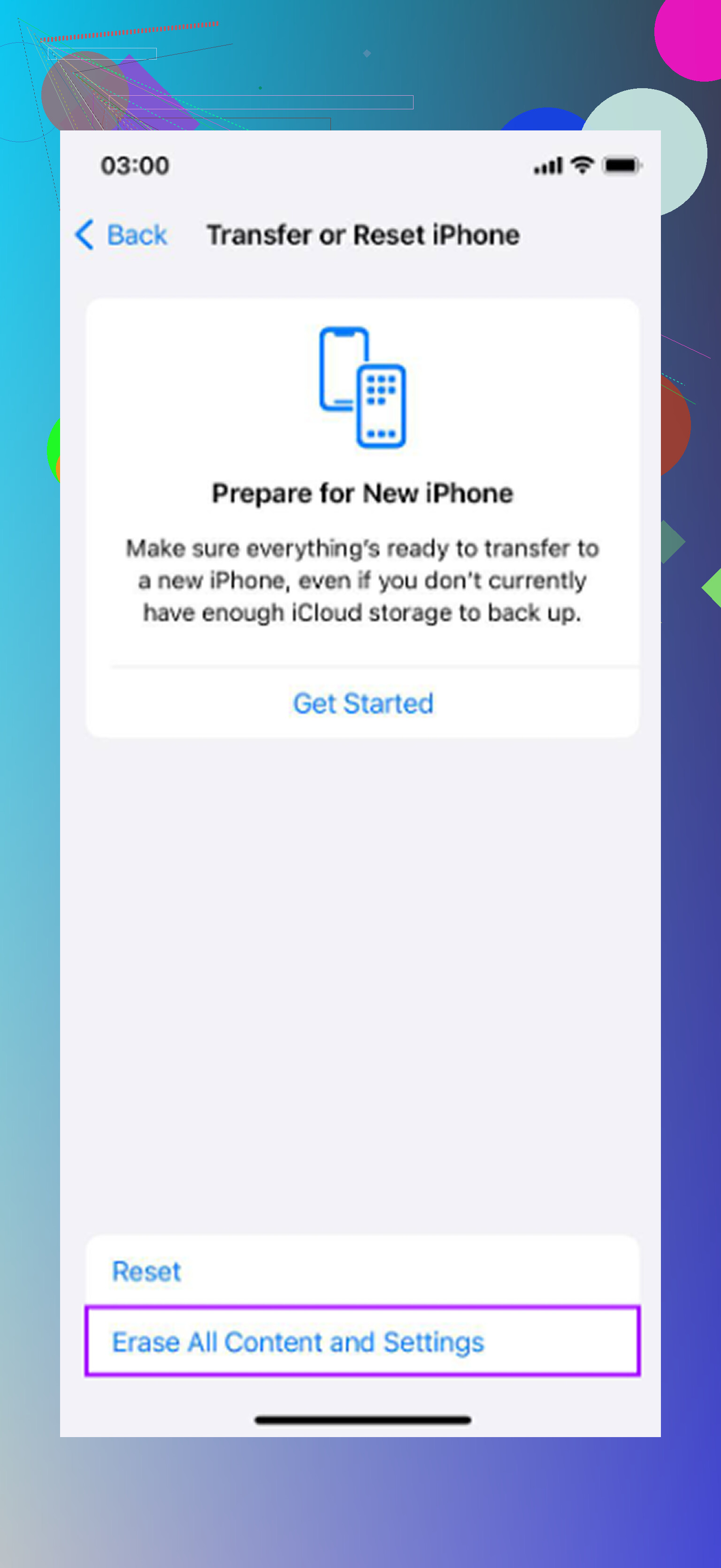
A step I rarely see mentioned is Reset All Settings. Not erase the phone. Reset All Settings. It is under Settings > General > Transfer or Reset iPhone > Reset > Reset All Settings. This keeps your apps and data, but resets things like Wi-Fi networks, privacy prompts, keyboard settings, notifications, and system preferences. It can fix weird lag caused by some bad setting or background behavior without going nuclear. Annoying, yes, but less annoying than wiping the phone.
I would do it in this order:
- Check iPhone Storage and get at least 10 percent free.
- Check Battery Health and any performance warning.
- Update iOS if you are behind, but only when you have enough free space.
- Leave it plugged in overnight on Wi-Fi if it recently updated or restored.
- Reset All Settings if the lag is still system-wide.
- If it is still bad, make an encrypted backup and test a clean restore before spending money on a replacement phone.
The clean restore test is important. If the phone feels fast after being erased and set up as new, then the hardware is probably not the whole issue. If it still lags with no extra apps installed, then you are probably looking at old hardware, weak battery, failing storage, or just an iOS version that is too heavy for that model.
I would not waste time force-closing every app, installing “RAM cleaner” tricks, or clearing Safari history ten times. Those are mostly temporary or cosmetic fixes. Find out whether the slowdown is storage pressure, battery throttling, post-update indexing, or a bad setup. Restarting only touches the surface, so if it did nothing, you need to check the cause instead of repeating the restart.
If the slowdown is worst when apps are opening feeds, loading chats, or showing web pages, I would not assume the iPhone itself is the only problem yet. A bad VPN, content blocker, DNS profile, work/school management profile, or flaky Wi-Fi can make the whole phone feel slow because almost every app is waiting on the network. Try turning off VPN, switching from Wi-Fi to cellular for a few minutes, and checking Settings > General > VPN & Device Management. If there is a profile there that you do not recognize, do not delete it blindly, but it is worth investigating.
For the typing delay specifically, check whether you are using a third-party keyboard. Those can get weird after updates. Switch back to the normal Apple keyboard for a day and see if the lag disappears. Same idea with keyboard features: Settings > General > Keyboard and temporarily turn off Predictive Text, Check Spelling, and anything extra you do not care about. That is not a magic performance fix, but if the delay is mainly while typing, it narrows the problem fast.
I agree with the storage and battery comments, but I would be careful about doing five “speed up” tweaks at once. If you change everything in one sitting, you will never know what actually helped. Pick one suspect and test it. For example: free up storage, then use the phone normally for a day. If nothing changes, check battery health. If nothing changes, test without VPN or third-party keyboards. Boring, but better than turning the phone into a mystery box.
A simple test I like is opening only built-in apps: Settings, Notes, Camera, Photos, Calculator. If those are laggy too, the issue is probably system-wide: storage pressure, battery health, iOS indexing, old hardware, or a bad setup. If Apple’s own apps feel fine but Instagram, Facebook, TikTok, banking apps, or games crawl, then reinstalling those specific apps is more useful than resetting the whole phone.
And if you do clean up photos, remember the boring final step: empty Recently Deleted after you are sure you do not need them. A cleaner app like Clever Cleaner can help find the big junk faster, but the phone will not fully recover the space until iOS actually removes the deleted items. That detail trips people up and makes it look like cleanup “did nothing.”
A phone that stutters the second you unlock it is a different animal from one that runs fine for an hour and then starts choking. The first usually points at storage pressure or a weak battery, which the thread already covers well. The second one, where it degrades over time, is often a single misbehaving app quietly burning CPU in the background, and nobody above really dug into that.
Before blanket-disabling Background App Refresh like @mikeappsreviewer suggested, look at Settings > Battery and switch the view to the last 10 days. Tap into the list and watch for an app showing heavy ‘Background Activity’ that you barely use. That tells you the actual culprit instead of you guessing. Killing background refresh for everything works, but it also breaks stuff you might want, and it hides which app was the problem in the first place. I’d rather find the one bad actor and deal with it than turn off a feature across forty apps.
On the cleanup side, I agree Clever Cleaner is fine for hunting down giant videos and duplicate screenshots, and @voyageurdubois is right that it does nothing for you until you empty Recently Deleted. But storage cleanup only matters if you were actually low. If iPhone Storage shows you sitting at 60 percent free and the thing still lags, deleting photos is just busywork. Check the number first, then decide. And one thing worth ruling out early: if you ever installed an iOS beta or a config profile, that alone can make a phone feel rough, so glance at Settings > General > VPN & Device Management before you spend an evening deleting old memes.