I’m trying to pass a physical serial (COM) port from my host machine through to a VMware virtual machine so an older hardware device can communicate directly with the guest OS. I’ve tried adding a serial port in the VM settings, but the device either isn’t detected or the connection drops randomly. What’s the correct way to configure serial port passthrough in VMware, and are there specific settings or drivers I should be using to make it stable?
Here’s the basic checklist to get a physical COM port talking to a VMware guest instead of just silently mocking you:
-
Confirm the host actually has a real COM port
- In Windows host: Device Manager → Ports (COM & LPT) → note the exact name and COM number, like
COM1orCOM3. - Make sure nothing else is hogging it (old UPS software, modem tools, Arduino IDE, etc.). Close that stuff.
- In Windows host: Device Manager → Ports (COM & LPT) → note the exact name and COM number, like
-
Shut down the VM completely
Not suspend, not save state. Fully powered off. VMware gets finicky with hardware if the VM is just paused. -
Add the serial port in VMware (Workstation / Player)
In VM settings:- Hardware tab → Add… → Serial Port
- Choose Use physical serial port on the host
- Select the correct COM (e.g.
COM1) - Check Connect at power on
After adding it, edit the port:
- Make sure it is not set to “Output to file” or “Named pipe” if you want real passthrough.
- If there’s an option for “Yield CPU on poll,” leave it enabled for old devices that constantly query the port.
-
Check host permissions
- On Windows, run VMware “as Administrator” once when testing.
- On Linux hosts, your user needs to be in the
dialoutoruucpgroup (depends on distro), and the device will look like/dev/ttyS0instead ofCOM1. You pick/dev/ttyS0in the VMware serial port settings.
-
Guest OS device check
- Windows guest: Device Manager → Ports → you should see
COM1or COM2 etc. If not, enable a legacy serial port in the VM BIOS or add it from VMware. - Old OSes sometimes only talk happily to COM1/COM2 at classic IRQ/IO addresses. In the VM settings you can usually map the physical host COM1 to guest COM1.
- Make sure the app inside the guest is pointed to the right COM and using the same baud rate, parity, stop bits as the hardware.
- Windows guest: Device Manager → Ports → you should see
-
Disable host side “helpful” tools
- Any terminal app (PuTTY, Tera Term, RealTerm) or hardware vendors’ config tools on the host should be closed. You cannot share the port between host and guest at the same time in most cases.
-
If passthrough is flaky or you’re on a laptop with no COM port
- USB to Serial adapters sometimes work through direct USB passthrough to the guest instead of serial passthrough from the host. Plug the USB adapter into host, then in VMware:
- VM → Removable Devices → your USB adapter → Connect to guest
- Install the adapter driver inside the guest and use that COM port there.
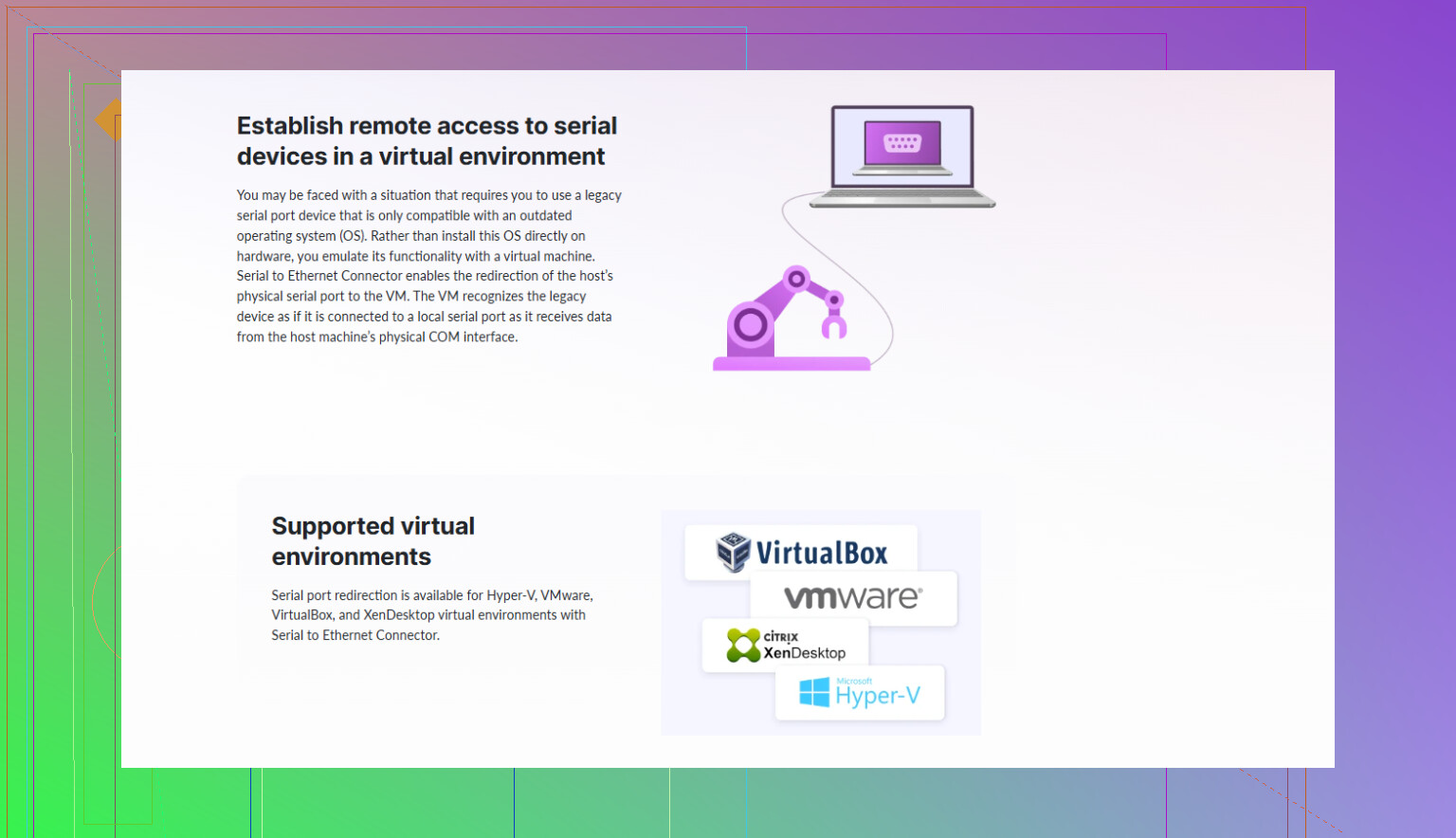
- For network based setups or multiple VMs needing the same device, something like Serial to Ethernet Connector can save a lot of pain. It will share a physical serial port over TCP/IP and create virtual COM ports in the guest. That way VMware just sees a normal COM port over the network instead of trying to grab the physical port directly.
- USB to Serial adapters sometimes work through direct USB passthrough to the guest instead of serial passthrough from the host. Plug the USB adapter into host, then in VMware:
-
Extra reading if you want the full walk through
There is a solid explainer on setting up a physical COM port with VMware in this guide:
detailed VMware serial port setup guide
It also covers using virtual serial ports alongside tools like Serial to Ethernet Connector, which can be a lot more stable when dealing with weird legacy hardware.
If it still fails: grab the exact VMware version, host OS, guest OS and what device you’re talking to, because some combos need very specific IRQ/IO tweaks inside the VM config file.
40 Likes
Couple of things to check that go beyond what @shizuka already laid out.
First, VMware’s serial passthrough is a bit… touchy… especially with older hardware that expects very specific timing and IRQs. The UI “Use physical serial port” is only half the story.
-
Look at the VMX file directly
Power off the VM, exit VMware, then open the.vmxfile in a text editor.
You’ll want something like:serial0.present = 'TRUE' serial0.fileType = 'device' serial0.fileName = 'COM1' serial0.tryNoRxLoss = 'TRUE' serial0.yieldOnMsrRead = 'TRUE' serial0.hardwareFlowControl = 'TRUE'On Linux host:
serial0.fileName = '/dev/ttyS0'Sometimes the GUI silently flips
fileTypeback tofileorpipe, which will make it look like it’s configured but nothing works. -
Stop VMware Tools from “helping”
In a few builds, VMware Tools or the guest power management can play weird with legacy COM ports. In the guest, disable power saving on the COM port in Device Manager and make sure nothing in the guest is doing “modem power management” on that port. -
Map to a low COM in the guest
Older apps often only talk to COM1/COM2, even if Windows happily lists COM5 or COM7.- In the guest, go to Device Manager → right-click your COM port → Advanced
- Manually reassign it to COM1 or COM2, even if Windows whines that it’s “in use.”
- Reboot the guest and test again.
I’ve had gear that totally ignored COM3+ no matter what.
-
Check FIFO / UART quirks
On some cranky legacy devices, disable FIFO buffers for the port in the guest:- Device Manager → Port → Advanced → uncheck “Use FIFO buffers.”
Not everyone agrees this helps, but for truly ancient industrial hardware it can fix dropped bytes.
- Device Manager → Port → Advanced → uncheck “Use FIFO buffers.”
-
If it’s a USB‑serial adapter on the host
I actually disagree a bit with just binding the host COM from the adapter into the VM. That often doubles the abstraction and causes timing issues.
Instead:- Don’t add a VMware serial port at all.
- Use VMware USB passthrough so the guest sees the USB‑serial adapter as if it’s plugged directly into it.
- Install the adapter’s driver inside the guest, then use that COM port.
This is usually more stable and behaves more like a “real” port from the guest’s point of view.
-
Test the port in the host first, then in the guest
- On the host, use a loopback plug (TX shorted to RX) and a terminal app. Make sure what you send you also receive.
- Once that’s solid, shut the terminal app and then start the VM. If the host app ever gets reopened, it’ll steal the COM port and the VM will silently fail.
-
If the device is picky or multiple VMs need it
In a lab I ended up ditching raw passthrough entirely and used a software “bridge”:- Install Serial to Ethernet Connector on the host.
- Share the real COM port as a TCP server.
- In the guest, create a virtual COM port that connects to that TCP endpoint.
This lets the VM see a normal COM port over the network while the host owns the physical one. It also lets you have more than one VM talking to the same physical port (carefully). Timing and stability were actually better than direct passthrough in some cases.
-
Quick sanity checklist for weird failures
- If VMware shows “Connected” but your app sees nothing, try changing baud rate once, then changing back. Some apps only init the port on first open.
- Try another guest OS if possible (Win7 vs Win10, or a small Linux live ISO with
minicom) just to prove if the issue is VMware vs the guest driver vs the device. - Disable VT‑d / IOMMU temporarily in BIOS on some systems; it very rarely affects COM, but I’ve seen edge cases where it messes with legacy resources in VMs.
If you get to the point where passthrough “should” work but the device is still dumb and silent, I’d actually prioritize one of these two paths:
- Direct USB passthrough of a USB‑serial dongle into the guest.
- Network-based access to the serial port with something like Serial to Ethernet Connector instead of raw COM passthrough.
Last bit: if you do go the software‑bridge route, there’s a build you can grab here for testing:
try advanced serial connectivity tools
Run it on the host, expose the COM port, then just point the VM at the virtual COM it creates. For stubborn vintage hardware, that setup tends to be way less flaky than VMware’s own serial passthrough.