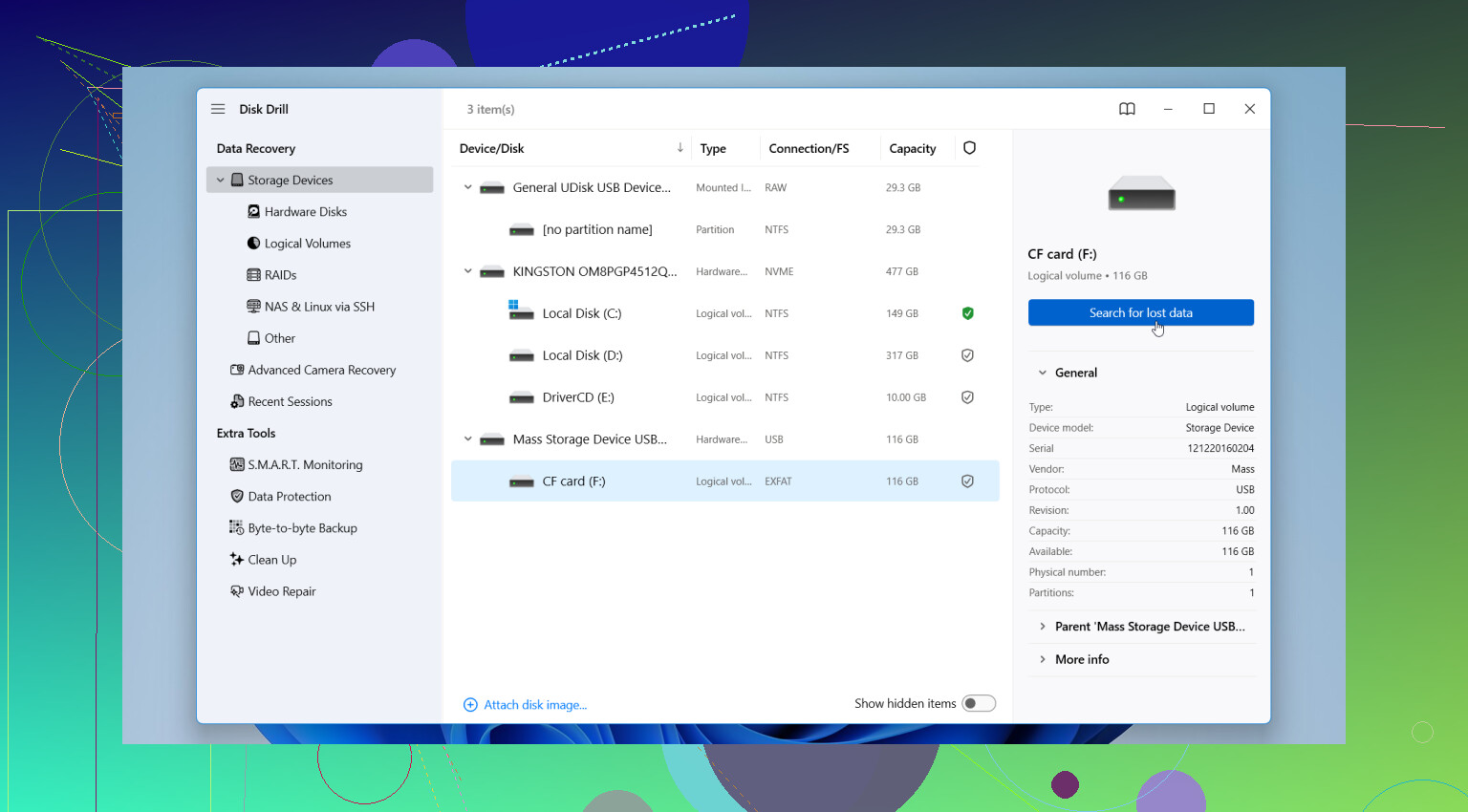
Some folders suddenly disappeared from my CompactFlash card after moving photos to my computer, and now important files are missing. The card is still detected, but I can’t see everything that was saved on it. I need help with CF card data recovery, missing folders, and the safest way to restore the files without making things worse.
I had this happen on an old CF card, and the first thing I learned was simple. Don’t keep using it.
If your computer still sees the card, your odds are often better than they look at first. Missing files on a CF card do not always mean the data is gone for good. A lot of the time, the file system lost track of the files, while the photo data is still sitting there. What ruins recovery is writing new stuff to the card after the problem shows up.
So, stop here:
Do not put the CF card back in the camera.
Do not shoot test photos.
Do not copy anything onto it.
Do not run repair tools first.
I did all this wrong once on a travel card, and it cost me a chunk of images. A few new shots were enough to wipe out older recoverable data. Small mistake, big mess.
If you have no backup, software is usually the first thing I’d try, as long as the card still mounts or at least shows up in a reader. One option I’d start with is Disk Drill. I liked it because the layout is easy to follow, it handles FAT32 and exFAT well enough, and it picks up common camera formats, including RAW files from brands like Canon and Nikon. The preview step matters too. Seeing the image before recovery saves time and tells you fast if the file is still usable.
What I would do, step by step:
Take the CF card out and leave it out.
Plug it into your computer with a decent CF reader.
Install Disk Drill on your computer, never onto the CF card.
Launch it and select the card from the device list.
Run the full scan, not a rushed one.
Let the scan finish. Don’t poke at it halfway through becuase you’re impatient.
Open the found files area and sort through the results.
Preview the photos, video clips, or docs you want back.
Select what matters.
Recover those files to your computer or a separate external drive.
Do not write the recovered files back to the same CF card.
That last part trips people up. If you restore files onto the same card, you risk overwriting other missing photos before you’ve recovered them. Once that happens, software has less left to work with.
If you want other tools, there’s a solid list here: data recovery software.
I’ve used PhotoRec before. It’s free, and it does pull files off cards, but it feels rough around the edges. You usually lose original names and folder structure, so you end up with a pile of files to sort through later. R-Studio is strong too, though I found it heavier and more technical than most people want for a straight photo recovery job. If your goal is simple, get files back, check previews, save what still opens, Disk Drill is the easier starting point.
There’s also a line where I’d stop doing DIY stuff. If the CF card is not detected at all, has bent pins, runs hot, drops connection over and over, or holds irreplaceable files, I’d skip software and go to a recovery service. Those labs cost more, yep, but damaged media is a different problem. Same with once-in-a-lifetime photos. I wouldn’t gamble there.

2 Likes
If the folders vanished right after a move, I’d check the computer first before doing recovery on the card. Sometimes the transfer app hides files, breaks the directory entry, or leaves the copy incomplete while the data still sits on the CF card.
I agree with @mikeappsreviewer on one big point. Stop using the card. I disagree a bit on jumping straight into file carving first. My first move would be to make an image of the CF card, then work from the image. That gives you one clean shot and keeps the original untouched if the card gets worse.
What I’d do:
- Use a good card reader, not the camera USB port.
- Check Disk Management or Disk Utility. See if the full card size shows up.
- Make a byte-for-byte image with something like R-Studio, DMDE, or even ddrescue if you know it.
- Scan the image, not the card.
- Look for lost partitions and deleted directories first.
- If the folders do not come back, then use signature scan for JPG, CR2, NEF, MOV, etc.
Why this matters:
- Deleted folder entries are often recoverable with names intact.
- Signature scans often dump files into generic folders with no structure.
- If the card has weak sectors, repeated scans make things worse.
Disk Drill is fine here too, esp for photo recovery on CF cards, and it’s easier for most people than DMDE. I’d still save results to another drive. Never back to the CF card, obviosuly.
Also check whether the “missing” folders landed on your computer as hidden files or in a temp import folder. I’ve seen Lightroom and old Windows import tools make a mess of this.
If the card disconnects, reads slow as dirt, or throws I/O errors, stop DIY. At that point, software won’t fix a failing card.
For more tips on choosing memory card photo recovery software, this is worth a look:
see how to pick the right memory card recovery tool

If the card is still visible and only some folders are gone, I’d spend a minute ruling out a dumb filesystem issue before doing a full recovery pass. I agree with @mikeappsreviewer and partly with @byteguru, but I would not start with repair commands like CHKDSK or First Aid. Those can “fix” the directory by removing the exact entries you still need.
A couple things to check first:
- Turn on hidden files on your computer
- Check for a weird FOUND.000 folder or temp import folder
- Try a different card reader and different OS if you can
- Look at the card’s used space vs free space. If space is still occupied, the files may just be orphaned, not gone
Also, if this happened right after a move, there’s a non-zero chance the files got copied to the computer and the folder view on the CF card is what broke. Search your computer by file type and date, not by folder name.
For recovery, I’d go for filesystem-aware scanning first so you have a shot at getting original folder structure back. Disk Drill is solid for this and easier than a bunch of more hardcore tools. If that doesn’t find the folders, then do a deeper signature scan for JPG, TIFF, CR2, NEF, MOV, etc. Save everything to another drive, obviosly.
One more thing people skip: if the card is old, replace it after recovery even if it seems “fine.” CF cards can act normal right up until they don’t. Been there, regreted that.
For more memory card recovery discussion, this post is actually relevant:
how to choose the right CF card photo recovery method