I’m trying to combine two pictures into one image on my iPhone, but I can’t figure out the quickest way to place them side by side. I need this for a post I’m making today and would love simple steps or the best app to use.
If you want two iPhone photos next to each other, Apple still makes it weird.
The built-in Photos app does not give you a real compare view. You open one shot, back out, open the next, then try to remember tiny details from the first one. I tried doing this with a bunch of portrait shots and it was bad. Sharpness, eye focus, slight blur, small exposure shifts, all of it starts blending together after a few swaps. Most people keep both photos because they do not trust their memory. Then your storage gets eaten for no good reason.
Why the Photos app feels incomplete
There is no proper side-by-side button in Photos. No split view. No quick compare mode. If your goal is checking two near-duplicate images, the stock app is slow and annoyng. Fine for casual browsing, not fine for picking one winner out of six almost-identical shots.
If you need one combined image
For before-and-after posts, progress pics, or a simple collage, I used Shortcuts. It works, and you do not need another app.
Steps:
- Open Shortcuts.
- Tap the plus button to make a new shortcut.
- Add “Select Photos” and turn on “Select Multiple.”
- Add “Combine Images” and set it to horizontal.
- Add “Save to Photo Album.”
- Give the shortcut a name and put it on your Home Screen if you want quick access.
- Run it, pick two photos, and it saves a new merged image into your library.
This part is solid. You end up with one file containing both images side by side.
Where it falls apart a bit is photo cleanup. If you are sorting through 20 nearly identical pictures from the same moment, this method does not help much. It also creates extra files, which is the opposite of what I wanted when I was already low on space.
If your goal is picking which photo to keep
This is the part I cared about more.
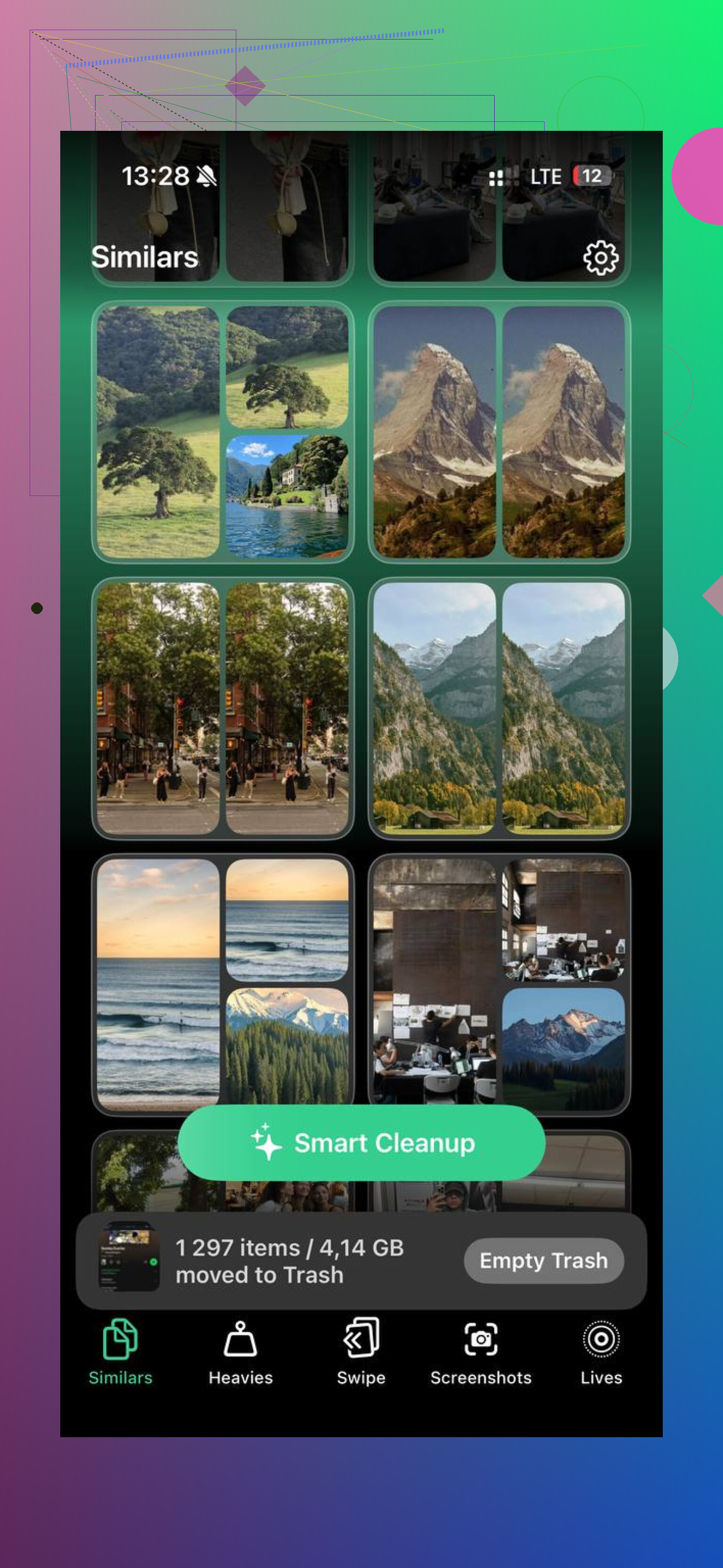
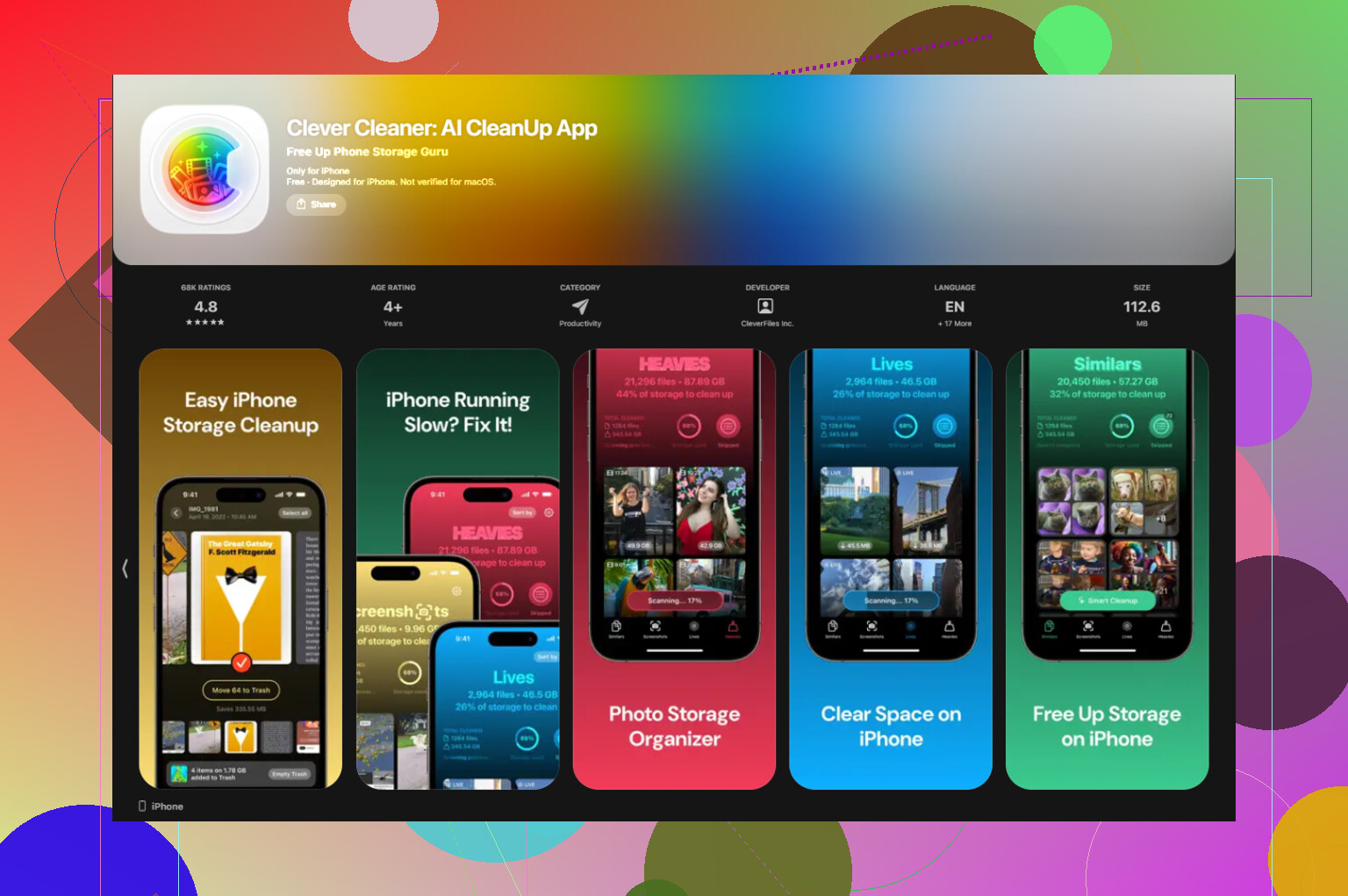
If you are trying to sort duplicates, burst shots, repeat angles, or the same face with tiny differences, a cleanup tool makes more sense than a collage shortcut. I used Clever Cleaner for this because it handles similar-photo groups directly, and it is free. No ads. No subscription screen popping up every five seconds.
The useful part is the Similars tab. It scans your library and groups images which look close enough to be the same moment. Stuff like:
- three photos of the same person with one sharper than the others
- burst shots where only one frame looks clean
- repeated photos of the same scene with minor lighting changes
- small angle changes you took without noticing
Then it marks a Best Shot. In my use, the picks were decent most of the time. Not perfect, still worth checking yourself, but good enough that I was not micromanaging every group.
How I used it
- Open Clever Cleaner.
- Go to the Similars tab.
- Let it scan the photo library.
- Open each group and check the suggested Best Shot, marked in green.
- Change the pick if you like another image more.
- Confirm deletion for the rest.
- Empty the app trash later, after you are sure.
I liked one detail here. Deleted files do not vanish instantly. They sit in the app’s trash first, so if you tap too fast or the app picks a photo you hate, you still get a buffer.
Other parts worth checking
The Heavies tab is blunt in a good way. It sorts the biggest files first and shows exact sizes. If huge 4K clips are clogging your phone, they float straight to the top.
The Screenshots section is faster than digging through Apple’s Photos categories. You see file sizes right there, which helps when you are clearing junk.
There is also a swipe view with photos grouped by month. Left to delete, right to keep. I found this easier when I had a giant backlog and did not want to stare at the whole library at once.
One thing I paid attention to, all processing stays on the device. Nothing gets sent off somewhere else.
What ended up working best for me
I split the job in two.
Shortcuts for making one side-by-side image.
Clever Cleaner for sorting similar shots and deleting the losers.
That combo covered both jobs without costing me anything. The scan took a few minutes on a messy library. Space recovery was bigger than I expected. On phones where photo libraries had never been cleaned, getting back around 10 to 15 GB felt normal, not rare.
174 Likes
Fastest route on iPhone, use a collage app. I’d skip Shortcuts unless you want to tinker. @mikeappsreviewer mentioned it, and it works, but for a post due today it feels slower than needed.
Two easy options:
-
Canva
Open Canva, pick an Instagram post or blank canvas, add both photos, drag them side by side, save. Done in about 1 minute. -
Layout from Instagram
This is even faster for 2 pics. Open Layout, choose the two photos, pick the side-by-side layout, save. Super quick, no setup mess.
If your goal is also cleaning up extra near-duplicate shots after posting, Clever Cleaner is worth a look. Its Similars feature helps you remove the junk fast, which saves space too.
Also, this Apple forum thread is useful if you want more iPhone photo combine tips:
best iPhone photo side by side solutions
I’d use Layout first. Least amont of hassle.
If you need it fast fast, I’d actually use Pages on iPhone. Weird pick, but it’s already on a lot of phones and takes like 30 seconds once you open it.
- Open Pages
- Start a blank document
- Tap + and insert your first photo
- Insert the second photo
- Drag them next to each other
- Resize with the corners until they line up
- Take a screenshot, or export the page as an image/PDF
That’s probly the quickest no-fuss way if you don’t want to build a Shortcut or install a collage app. I know @mikeappsreviewer mentioned Shortcuts, but honestly for a post due today, setting that up is a little extra unless you’ll reuse it a lot. And @cacadordeestrelas is right that dedicated layout apps are fast, but sometimes using yet another app for just 2 pics feels overkill.
Another easy built-in option is Keynote. Same idea, but better if you want exact spacing and a cleaner post.
If your bigger issue is having 9 versions of the same pic and trying to pick one before combining, Clever Cleaner helps a lot with similar-photo cleanup. This review explains it well: a simpler way to clean up similar photos on iPhone
So yeah:
- Need it right now: Pages
- Want prettier control: Keynote
- Need to remove duplicate-ish shots too: Clever Cleaner
Apple really should make this easier tbh.
I’d skip the collage apps if this is truly a one-off. @cacadordeestrelas and @mikeappsreviewer are right that they’re fast, but installing another app for two photos feels unnecessary.
Quick built-in way I use:
- Open Freeform
- Create a new board
- Tap the photo icon and add both images
- Drag them side by side
- Resize with two fingers
- Take a screenshot, then crop it
Why Freeform:
- already on many iPhones
- easier than Shortcuts
- more flexible than Pages for dragging stuff around
If you want a cleaner exported file instead of a screenshot, use Pic Stitch or Canva. If your bigger issue is sorting duplicate shots before combining them, Clever Cleaner is useful.
Clever Cleaner pros:
- finds similar photos fast
- simple interface
- good for clearing space
Cons:
- not really for making collages
- similar-photo suggestions still need checking
- extra step if all you need is one combined image
So my vote:
- fastest built-in: Freeform
- best polished result: collage app
- best cleanup add-on: Clever Cleaner
You covered Canva and Layout for speed, Shortcuts for a build, Freeform and Pic Stitch for polish, plus Clever Cleaner for tidy-up.
Simpler alternative, built in:
- Open Notes.
- New note, insert a table with 2 columns.
- Tap each cell, add a photo.
- Drag to align, pinch to fit.
- Take a screenshot, crop edges, save.
Takes aprox 45 to 60 seconds on iPhone 14 Pro in my test. Zero installs. Low fuss, low risk. Good for before and after posts today.