The Apple TV Remote app suddenly stopped working on my iPhone, and now I can’t control my Apple TV at all. I’ve tried reconnecting Wi-Fi, restarting both devices, and opening the remote again, but it still won’t pair or respond. I need help figuring out how to fix the Apple TV Remote app so I can use my Apple TV normally.
Apple TV remote app quit on me a couple times, and it was usually something small.
If yours stopped responding, I’d check these first.
What I checked first
- Put your iPhone and Apple TV on the same Wi Fi network. This is the one I missed before, and the remote app would not see the box at all.
- Restart both devices. I rebooted the iPhone, then the Apple TV, and pairing came back.
- On the iPhone, make sure Wi Fi and Bluetooth are both on.
- Update iOS and tvOS if either one is behind. I’ve seen older versions get flaky with pairing.
- Remove the Apple TV remote from Control Center, then add it back.
If you do all of that and the built in remote still acts dead, I’d stop wasting time and try another app.
One I found useful is TVRem — Universal TV Remote for Apple TV.
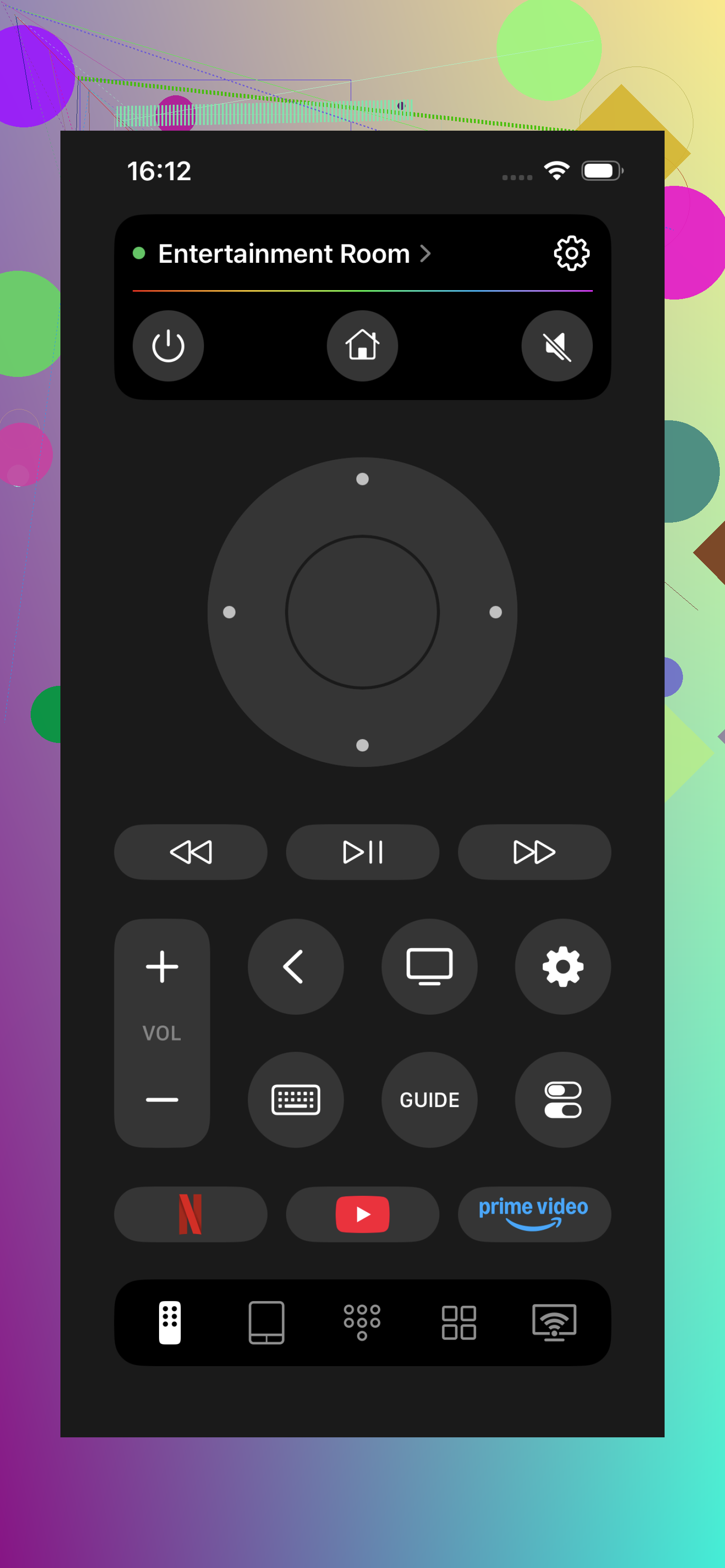
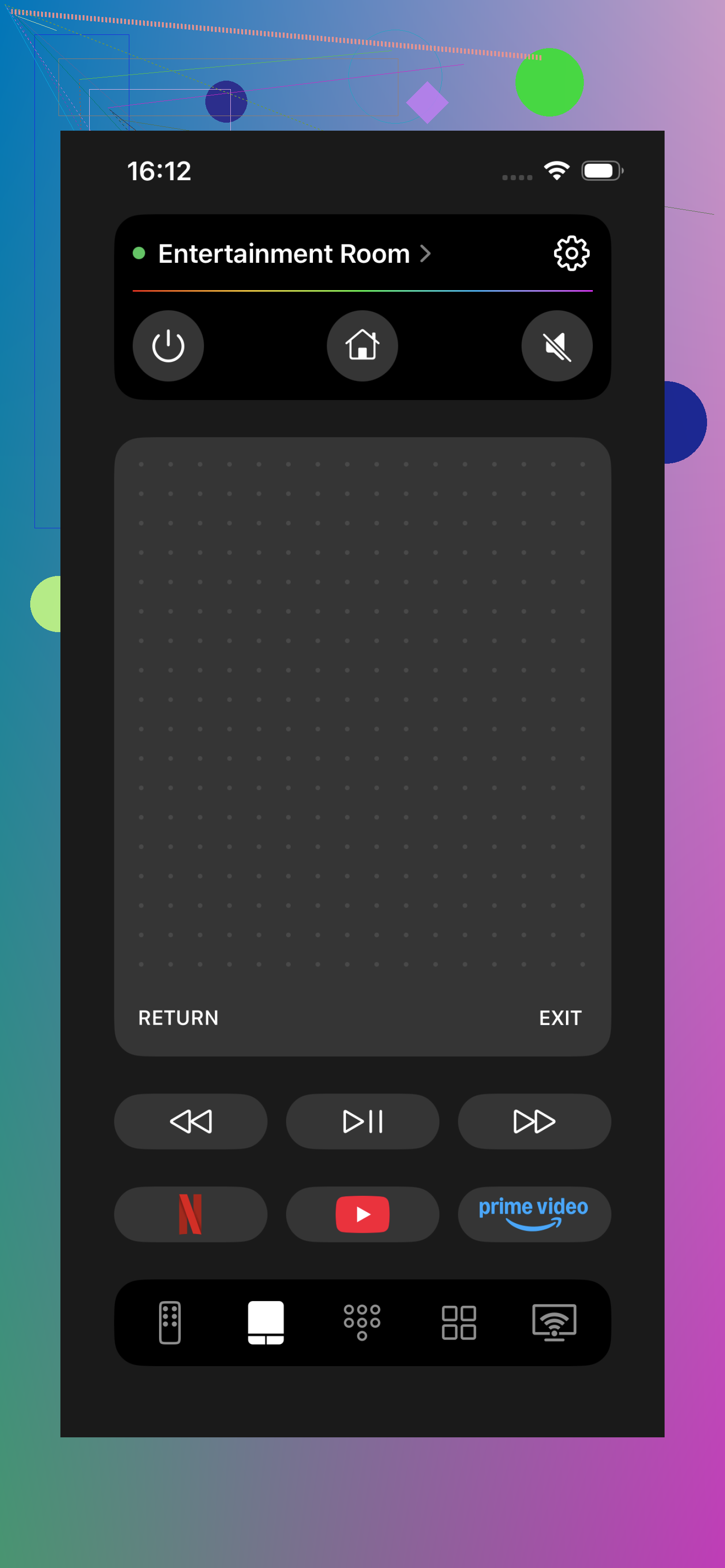
I liked it because it kept connecting when Apple’s own remote app was being weird. It also gave me a better layout, so I was doing less swiping around trying to land on the right control.
Why I kept it installed
- It connected more consistently to Apple TV for me.
- The controls felt easier to use than the default layout.
- It works with other TV brands too, which helped since I had more than one setup in the house. Samsung, LG, Roku, Fire TV, Android TV, and Google TV are covered.
- Good fallback when the stock Apple remote app stops responding.
- More practical if you switch between multiple TVs.
Short version
Start with the basic fixes first. Same Wi Fi, reboot, Bluetooth on, software updates, re add the remote in Control Center.
If it still fails, trying TVRem app felt like the easy move for me. It works well as a backup, and I ended up using it more than the default remote anyway.
47 Likes
One thing I’d add beyond what @mikeappsreviewer listed is to re-pair the Apple TV in a more direct way.
On your Apple TV, go to Settings, Remotes and Devices, Remote App and Devices. Leave that screen open. Then open the Remote on your iPhone from Control Center. If your Apple TV appears, tap it and enter the 4 digit code on the TV. A lot of people skip the TV-side menu, and pairing stalls there.
I also wouldn’t assume Wi-Fi is the only issue. If your iPhone is on a VPN, turn it off. Private Relay can mess with local device discovery too. Same for some mesh systems with client isolation enabled. If your router splits 2.4GHz and 5GHz into “smart” bands, I’ve seen Apple TV and iPhone stop seeing each other even when they look like they’re on the same network. Weird, but it hapens.
Two more fixes worth trying:
- Sign out of your Apple ID on the Apple TV, restart, then sign back in.
- Reset network settings on the iPhone. Annoying, yes. But it fixes broken local discovery more often than people expect.
If the built-in remote still fails, I half disagree with the idea of fighting it forever. At some point a backup app is faster. I kept Apple’s remote for basic use, but I also used TVRem when pairing got flaky and I needed control right away.
I’d try one thing neither @mikeappsreviewer nor @jeff really leaned on much: force the iPhone to refresh its local network permissions.
Go to Settings > Privacy & Security > Local Network and make sure whatever remote app you’re using is allowed. If you use the built in Control Center remote, also check Settings > General > AirPlay & Handoff and make sure nothing weird got toggled off after an update. iOS has a bad habit of silently breaking nearby device discovery.
Also, if the Apple TV shows up but won’t actually respond, change this on the Apple TV:
Settings > Remotes and Devices > Touch Surface Tracking.
Set it to slow, then test again. Sounds unrelated, but I’ve seen people think the app is dead when it was really just acting super laggy or oversensitive.
Another overlooked fix is to test with your physical TV remote and make sure the Apple TV itself isn’t frozen in some half-awake state. If Control Center opens and connects but button presses do nothing, the issue is often the Apple TV UI hanging, not pairing.
One place I kinda disagree with the “reset a bunch of stuff” approach: I would not jump straight to signing out of Apple ID or resetting all iPhone network settings unless you’ve exhausted the cleaner fixes first. Those are annoying and sometimes solve nothing.
Last thing, if you use Control Center Remote, delete the old Apple TV from the list inside the remote picker and let it rediscover from scratch. That part gets buggy more often than Apple wants to admit tbh.
One angle I don’t see stressed enough by @jeff, @viajantedoceu, and @mikeappsreviewer is whether the Apple TV is actually allowing network-based control.
Check this on Apple TV:
Settings > AirPlay and HomeKit > Allow Access
Try setting it to Anyone on the Same Network temporarily. If that got changed to a stricter option, the iPhone remote can appear flaky or fail silently.
Also check:
Settings > System > Date and Time
Make sure it’s set automatically. Weirdly, time mismatch can break Apple services and nearby discovery in ways that look like a remote issue.
Another test I like:
- Put the Apple TV to sleep
- Unplug power for 30 seconds
- Turn on the TV first
- Then wake Apple TV with the physical remote or TV HDMI-CEC
That full power drain works better than a normal restart when the remote service gets stuck.
One small disagreement: I would try a different iPhone or iPad before resetting anything major. If another Apple device connects instantly, the problem is your phone side, not the Apple TV.
If you just need control now, TVRem — Universal TV Remote is a decent fallback.
Pros
- quick backup when Apple’s remote refuses to cooperate
- simpler button layout for some people
- supports other TV platforms too
Cons
- extra app to keep around
- may not match every Apple-native gesture perfectly
If nothing works, I’d also remove Apple TV from the Home app room setup, then reassign it. That can clear odd HomeKit-side discovery bugs.
Simpler fix you might try:
Power cycle the network. Unplug router and mesh nodes, wait 90 seconds, plug back in. Wait until Wi Fi is stable. Then try teh Remote again.
If still stuck, turn off Private Wi Fi Address on both devices. iPhone, Settings, Wi Fi, tap the i, Private Address off, rejoin. Apple TV, Settings, Network, Wi Fi, select SSID, Private Address off.
Renmae Apple TV to a short plain name to avoid mDNS quirks.
Seen this restore discovery on eero and Orbi.
Check pairing again.