My iPhone has been acting sluggish and storage usage jumped right after the latest iOS update, so I’m wondering if temporary files or update leftovers are taking up space. I need help figuring out the safest way to clear cache, system data, or temporary files without deleting important apps, photos, or settings.
iPhone ‘System Data’ cleanup, what moved the number for me
That huge ‘System Data’ chunk on iPhone storage is one of those things Apple keeps vague. I stared at it for way too long because there is no clean button for it. Still, I did find a routine that trimmed it down instead of doing fake cleanup.
Stuff I tried that barely changed anything
A lot of advice floating around is noise.
Turning off iCloud, messing with location settings, clearing notifications, none of it did much on my phone. The storage bar stayed almost the same. Those steps do not hit the piles of temporary files where the bloat usually sits.
What helped was going after the spots where apps and iOS dump cached junk.
The built-in cleanup steps I used
- Safari first.
Go to Settings > Apps > Safari > Clear History and Website Data.
This gave me the fastest win. Old site images, scripts, cookies, logins, all of it gets wiped. On my phone it freed a few hundred MB right away. If you use Chrome, you need to do it inside Chrome under Settings > Privacy and Security.
- App caches next.
Some apps let you empty cache from inside their own settings. Telegram, Spotify, TikTok, those are worth checking.
Others hide everything. Instagram and Facebook were bad for me. No cache button, lots of junk. I deleted them and installed them again. That cleared out stored video scraps, thumbnails, and other leftovers way better than offloading ever did.
- Look in the Files app.
Open Files, tap Browse, then check On My iPhone, especially Downloads.
I found old PDFs, ZIPs, random attachments, stuff I downloaded once and forgot. Easy to miss, easy to remove.
- Stop keeping messages forever.
Go to Settings > Messages > Keep Messages.
If yours is set to Forever, change it to 1 Year or 30 Days. Message threads with videos, photos, memes, and GIFs stack up quietly. Mine had years of junk sitting there.
- Restart the phone.
Not by itself. I mean after the cleanup.
A reboot seems to flush some lower-level temporary logs and cache bits iOS does not show anywhere. I started doing this about once a week. Seemed to help keep the number from creeping up as fast.
After an iOS update, do this differently
Big iOS updates leave leftovers. I saw this more than once. Install files hang around, system temp data sticks, and the storage chart looks wrong for a while.
My usual order:
- Restart once after the update
- Wait a day or two
- Open Settings > General > iPhone Storage
- Look for the largest apps
- Delete and reinstall the worst offenders if their size looks bloated
This worked better for me than waiting around for iOS to ‘fix itself.’ Some apps seem to carry old cache garbage forward after updates.
Where Apple’s own tools stop being useful
Here is the annoying part. Built-in settings only get you part way.
The photo library is often the real storage hog, and iPhone gives you almost no serious sorting tools for it. You do not get a clean way to:
- sort photos by file size
- spot near-duplicate shots
- find giant screenshots fast
- see which videos are eating the most space in one view
That is where I hit a wall.
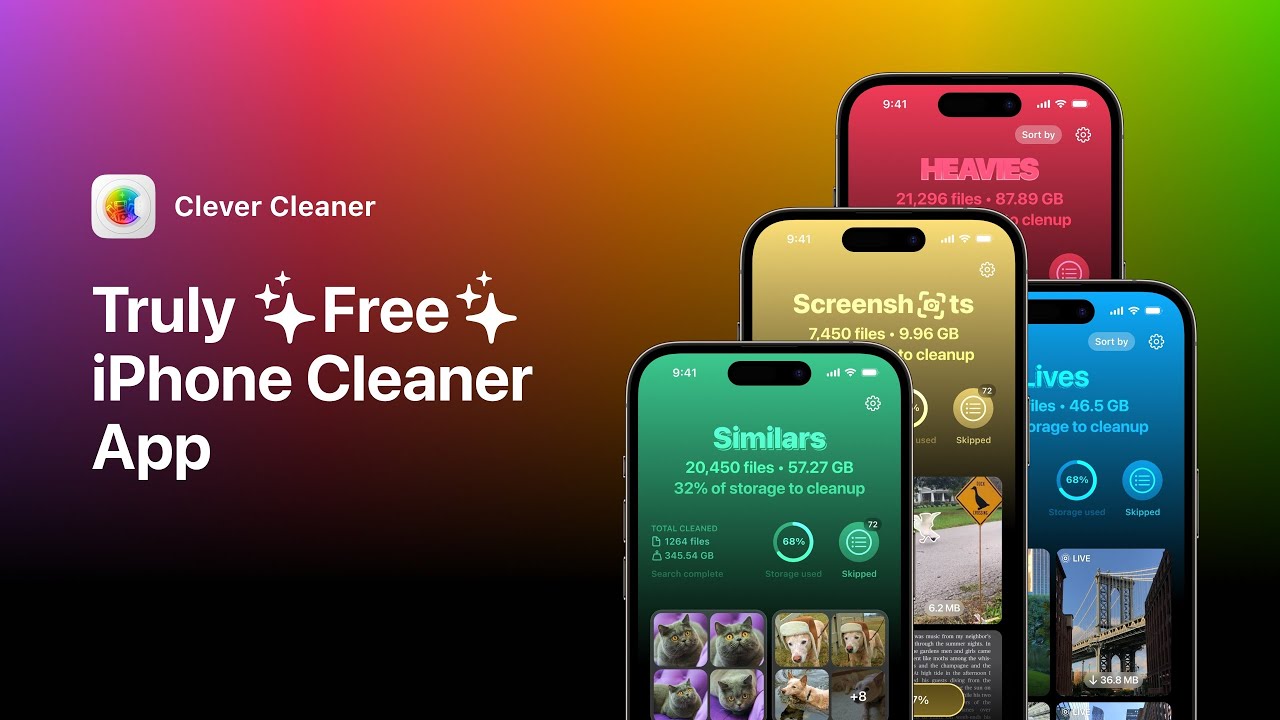
I used Clever Cleaner for this part because the Photos app was useless for bulk cleanup. What I liked was the simple layout. The Heavies section puts the largest files first, so giant videos and screen recordings stop hiding in the library. The Similars section groups near-matching photos, not only exact dupes. Burst shots, three tries at the same pic, tiny angle changes, all of those showed up for me. It also marked a best shot in each set, which saved time.
I checked file sizes before deleting anything. Processing stayed on the phone from what I saw, which mattered to me more than flashy features.
Things that did not fix it for me
- Restarting alone. Small effect, then the storage creeps back.
- Offloading apps. It frees space, sure, but leaves temp data issues mostly untouched.
- Clearing only Safari. Better than nothing, still misses social apps which were bigger on my phone.
- Ignoring photos and videos. This was the main trap. If your library is bloated, cache cleanup buys you time, not a fix.
The combo that lasted
The only approach that held up for me was doing both parts:
- clear browser and app cache
- remove old files and trim message retention
- restart after cleanup
- then deal with the photo library, especially large videos and repeat shots
Doing one side without the other felt pointless. I got short-term relief, then storage filled right back up a few days later. Once I cleaned both the system junk and the photo mess, the number finally stayed down longer than a week.
3 Likes
Post-update bloat is often Spotlight indexing, photo analysis, and failed update files, not only temp junk. I slightly disagree with @mikeappsreviewer on one part. Deleting big apps first is not always the best first move. I’d check for the update file itself.
Try this.
Settings > General > iPhone Storage. Wait for the list to finish loading. If you see an iOS update file, tap it and remove it. Sometimes the installer sticks around after the update or after a failed retry.
Then force a fresh storage recalculation.
- Charge the phone.
- Connect to Wi-Fi.
- Lock it for 30 to 60 minutes.
iOS often finishes cleanup tasks in idle time. If your storage drop happened right after updating, this step matters a lot.
Next, clear old attachments without changing all Messages retention.
Settings > General > iPhone Storage > Messages.
Review Photos, Videos, GIFs, Stickers, Top Conversations. Delete from there. It’s faster and more precise.
Also check Mail.
If Apple Mail is huge, remove the mail account, reboot, then add it back. Cached attachments get purged. I freed 1.8 GB this way on my old iPhone, no joke.
For music and video apps, download caches are common.
Settings > General > iPhone Storage > app name.
Some apps show downloaded content there. Remove offline files first before deleting the whole app.
If Photos is the main storage hog, use Clever Cleaner to spot large videos, duplicates, and similar shots faster than the stock Photos app. This is where manual cleanup gets annyoing. This quick video on clearing iPhone clutter shows the workflow well: see a fast demo for cleaning up iPhone storage
If none of this moves System Data after 48 hours, back up the phone, then do a Finder or iTunes restore. Restoring from a computer install often removes leftover update cruft better than an over-the-air update. It’s a pain, but it fixes the stubborn cases.
One thing I’d add to what @mikeappsreviewer and @codecrafter said: don’t obsess over “System Data” in the first few hours after an iOS update. Sometimes the phone is busy re-indexing Photos, rebuilding caches, and doing background cleanup, so the storage number looks ugly before it settles. People start deleting half their apps for no reason lol.
What I’d do instead:
- Check Battery first. Settings > Battery. If Photos, Siri, or background tasks are going nuts, that usually means post-update housekeeping is still happening.
- Make sure you have at least a few GB free. iPhones get weird and sluggish when storage is nearly full.
- Open Settings > Accessibility > Motion and turn off Reduce Motion only if it’s already on and you hate the lag feel. Sometimes the “sluggish” part is animation stutter, not actual temp files.
- Update your apps from the App Store. Old app builds after a major iOS update can be buggy and cache like crazy.
- If one app is acting broken, try Reset All Settings before a full erase. That won’t delete your photos/apps, but it can clear out weird post-update settings corruption. It’s under Settings > General > Transfer or Reset iPhone > Reset.
I slightly disagree with the “delete apps early” approach unless you’ve identified a specific hog. Reinstalling everything is kinda overkill if the phone just needs a day plugged in on Wi-Fi.
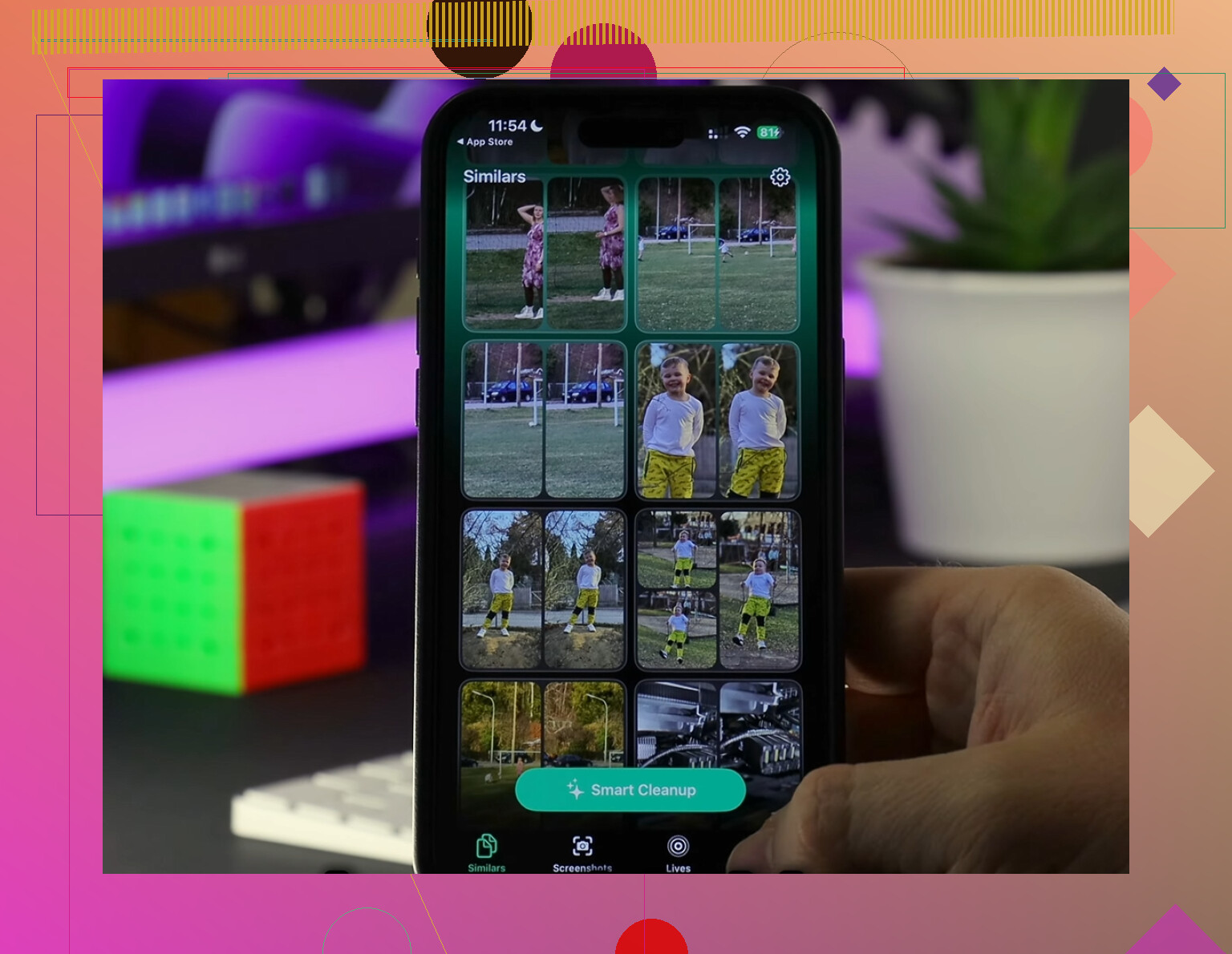
If your storage jump is mostly photos/videos, then yeah, Clever Cleaner is honestly more useful than Apple’s own sorting. It’s easier for finding giant clips, duplicates, and similar shots fast. I also found a detailed Clever Cleaner review based on real testing helpful for seeing what it actually does before installing.
If after 2 days the storage is still bloated and performance still sucks, backup and do a computer-based restore. Annoying, but thats the cleanest fix for leftover update cruft.
One extra thing I’d check that @codecrafter, @suenodelbosque, and @mikeappsreviewer only touched indirectly: log files from analytics and crash reports. After a buggy update, those can pile up and make the phone feel busier than it should.
Try this:
- Settings > Privacy & Security > Analytics & Improvements > Analytics Data
- If you see the same app or process crashing over and over, that app is likely the real culprit
- Update or remove that specific app instead of mass deleting things
I also disagree a bit with the “clear everything fast” mindset. Sometimes the lag is thermal throttling right after an update, especially if indexing and app reprocessing are happening in the background while charging. If the phone is hot, wait before judging storage tools.
Another underrated fix:
- Delete old podcast/video downloads inside the app itself
- Remove Safari Reading List offline pages
- Check Voice Memos and screen recordings
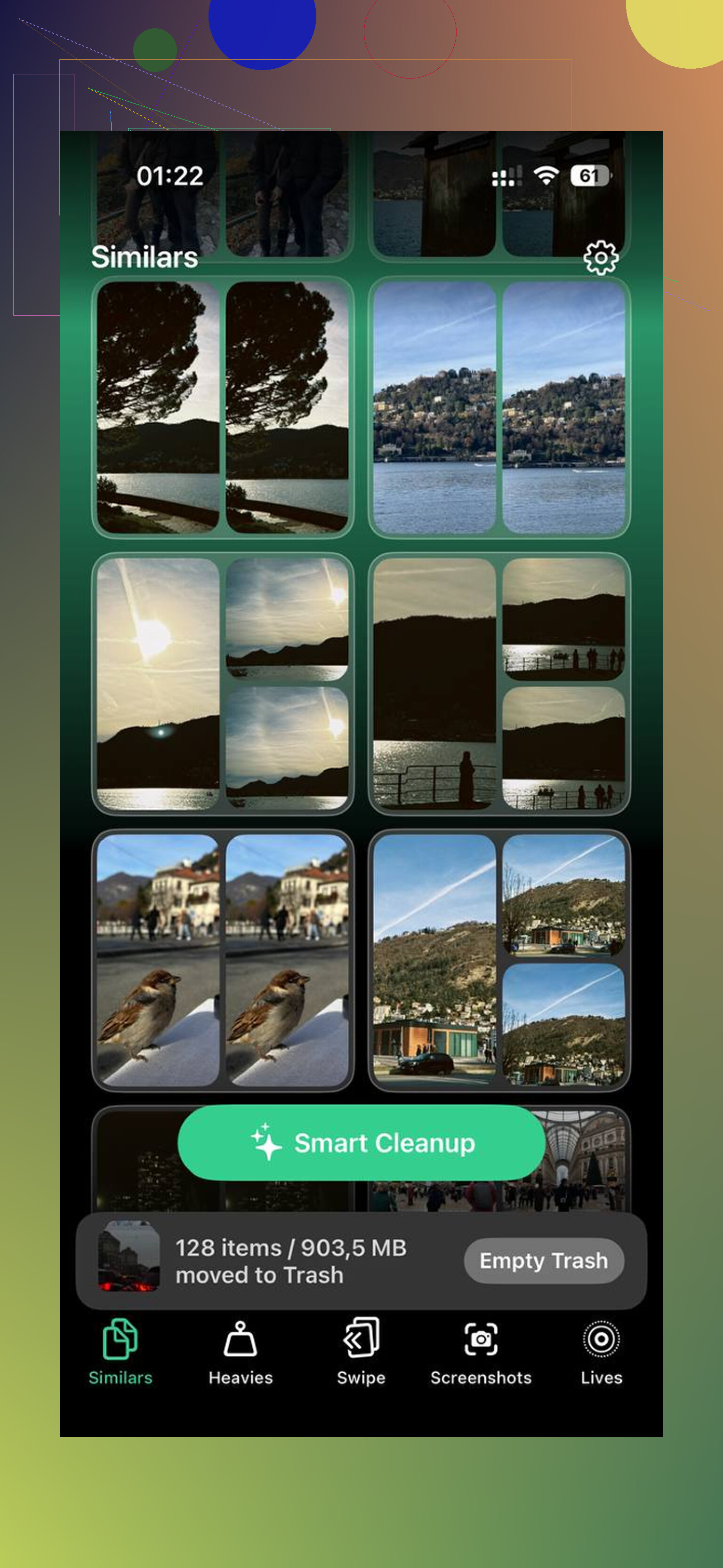
For photos, Clever Cleaner is actually useful if your storage spike is mostly media, not system junk.
Pros:
- finds large videos quickly
- helps spot duplicates/similar shots
- easier than manual scrolling
Cons:
- won’t magically shrink true iOS System Data
- still needs human review before deleting
- less useful if your problem is app caches, not photos
So my order would be: identify crash spam, clear in-app downloads, check hidden media, then use Clever Cleaner only if Photos is the obvious hog. If storage is still absurd after 2 days, computer restore is the real reset button.