I downloaded a few files in Safari on my iPhone and now they’re still showing up in my downloads/history. I want to clear them for privacy and free up clutter, but I’m not sure which steps actually remove them from Safari. Need help deleting Safari downloads and clearing download history on iPhone.
I ran into this on my own iPhone and lost way too much time on it.
There is no single wipe button for downloads on iOS. Apple scatters stuff around. Where the file ends up depends on what app saved it and what kind of file it is. Once I stopped looking for one master switch, cleanup got easier.
If files refuse to go away, start in the Files app. Safari usually saves there. Open Files, hit Browse, then check both On My iPhone and iCloud Drive. In a lot of cases you will find a Downloads folder in each spot. Open it, tap the three-dot menu, choose Select, then trash what you want gone.
The part people miss is Recently Deleted. I missed it too the first time. In Files, go to Locations and open Recently Deleted. If you leave stuff there, iOS keeps it for 30 days. So the file looks deleted, but your storage still stays clogged. On top of that, iCloud sometimes pulls the same junk back across devices if sync did not finish cleanly.
For files stuck in place, I had mixed results with normal delete, but two things helped:
- Force close Safari.
- Restart the phone.
I think partial downloads sometimes stay locked because the system still treats them like active transfers. If a file still refuses to die, go back into Files and try pressing and holding Recently Deleted from the sidebar instead of removing the item the usual way. I saw this clear out stubborn leftovers once when the standard route did nothing.
Safari’s download list adds another layer of confusion. Tapping the arrow in Safari and choosing Clear only wipes the list inside Safari. It does not remove the file from storage. For the real cleanup, you still need Files.
If you want less mess later, go to Settings > Safari > Downloads. Then change Remove Download List Items to After One Day or Upon Successful Download. This keeps Safari’s list shorter, though you still need to clean the folder itself now and then.
Also, not all downloads live in Files.
Photos and videos saved from a browser or social app often land in the Photos app. Offline content from apps like Netflix, Spotify, or Podcasts stays inside those apps. Files will not show it. For those, either clear downloads inside each app or open Settings > General > iPhone Storage. That screen is the closest thing iOS gives you to a central control panel. You get a better view of which apps are eating space, and sometimes you get direct delete options there.
I noticed my phone slowing down months ago. Not a little slow either. Apps opened late, keyboard lagged, camera took its time. Turned out I had close to 40 GB tied up in old downloads, duplicate media, and saved junk I forgot about. When storage gets tight, the phone starts feeling bad across the board.
What helped me most was splitting cleanup into two parts:
Files app for documents and Safari downloads.
Photos or app storage menus for media and offline content.
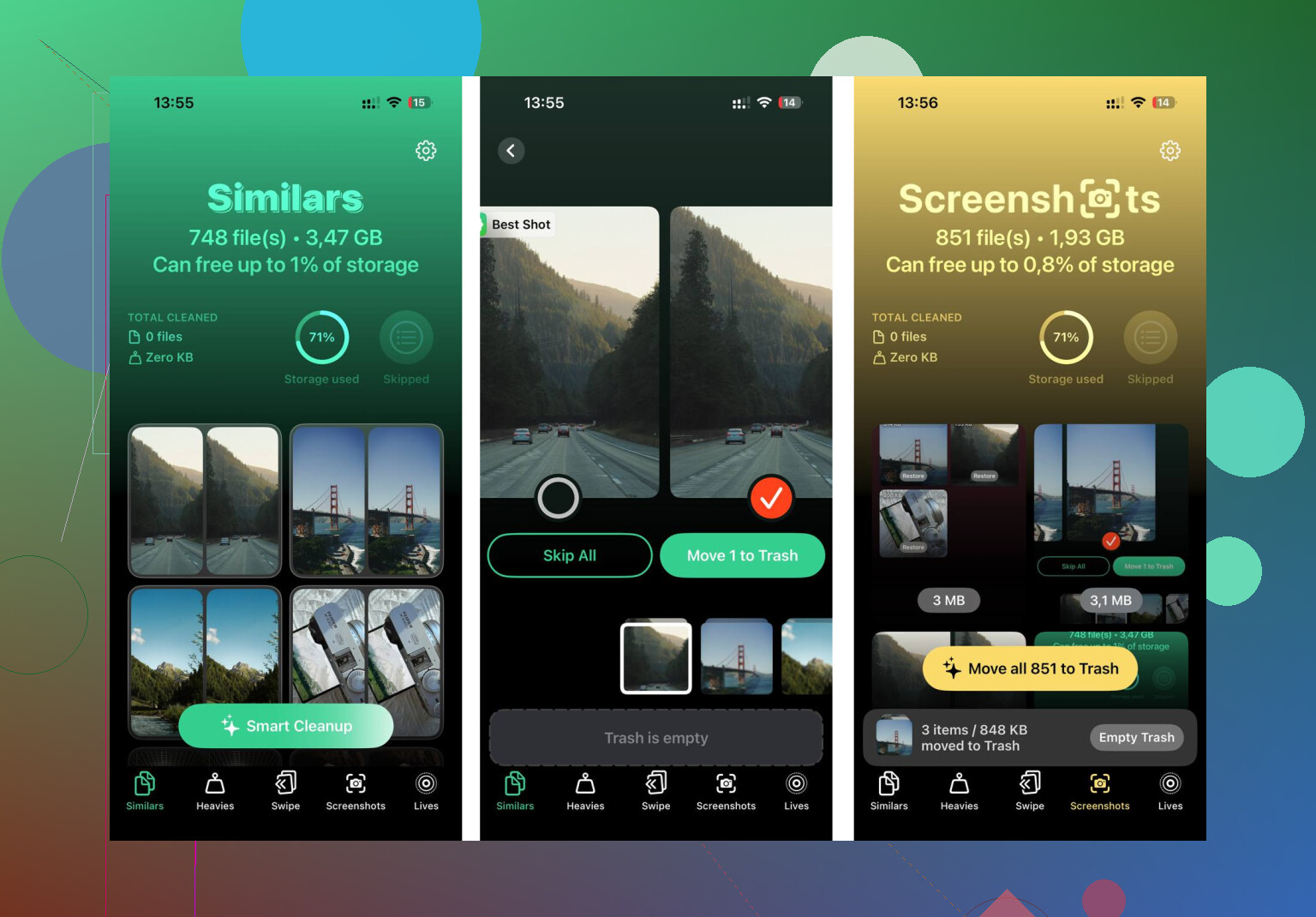
I also used a cleanup tool for the media side after doing the manual pass. This was the link I saved:
The useful bit for me was seeing large files sorted by size. That made it easy to spot old 4K videos and giant screen recordings. Similar photo detection also caught a bunch of near-duplicates iOS had left behind. I cared less about fancy features and more about seeing what was big, fast.
Main thing, delete twice if you want the space back:
Delete the file.
Then empty Recently Deleted in Files and Photos.
If you skip the second part, the storage often does not return yet. That one step is where a lot of people get tripped up.
18 Likes
Two diff things are getting mixed together here.
- Safari download history list
- The downloaded file on your iPhone
For the list in Safari, open Safari, tap the download arrow, then Clear. That hides the item from Safari’s download pop-up. It does not erase the file from storage.
For privacy, also clear Safari history if needed.
Settings > Safari > Clear History and Website Data
I disagree a bit with @mikeappsreviewer on one point. You do not always need a full phone restart first. Most of the time, the stuck part is the file location, not Safari itself.
What I’d check next is this:
Settings > Safari > Downloads
This shows where Safari saves files by default. If it says iCloud Drive, your downloads might still show on other Apple devices until deleted there too. If it says On My iPhone, they stay local.
Then remove the file from wherever it lives:
Files app > Browse > your Downloads location > delete file
If the item was an image or video and you tapped Save Image or Save Video, it likely went to Photos, not Files. Delete it there too. Then empty Recently Deleted in Photos if you want the storage back now.
If your goal is clutter cleanup, iPhone Storage gives faster proof:
Settings > General > iPhone Storage
You’ll see if the space dropped after deletion. If storage does not change, the file was not removed from the place where it was saved.
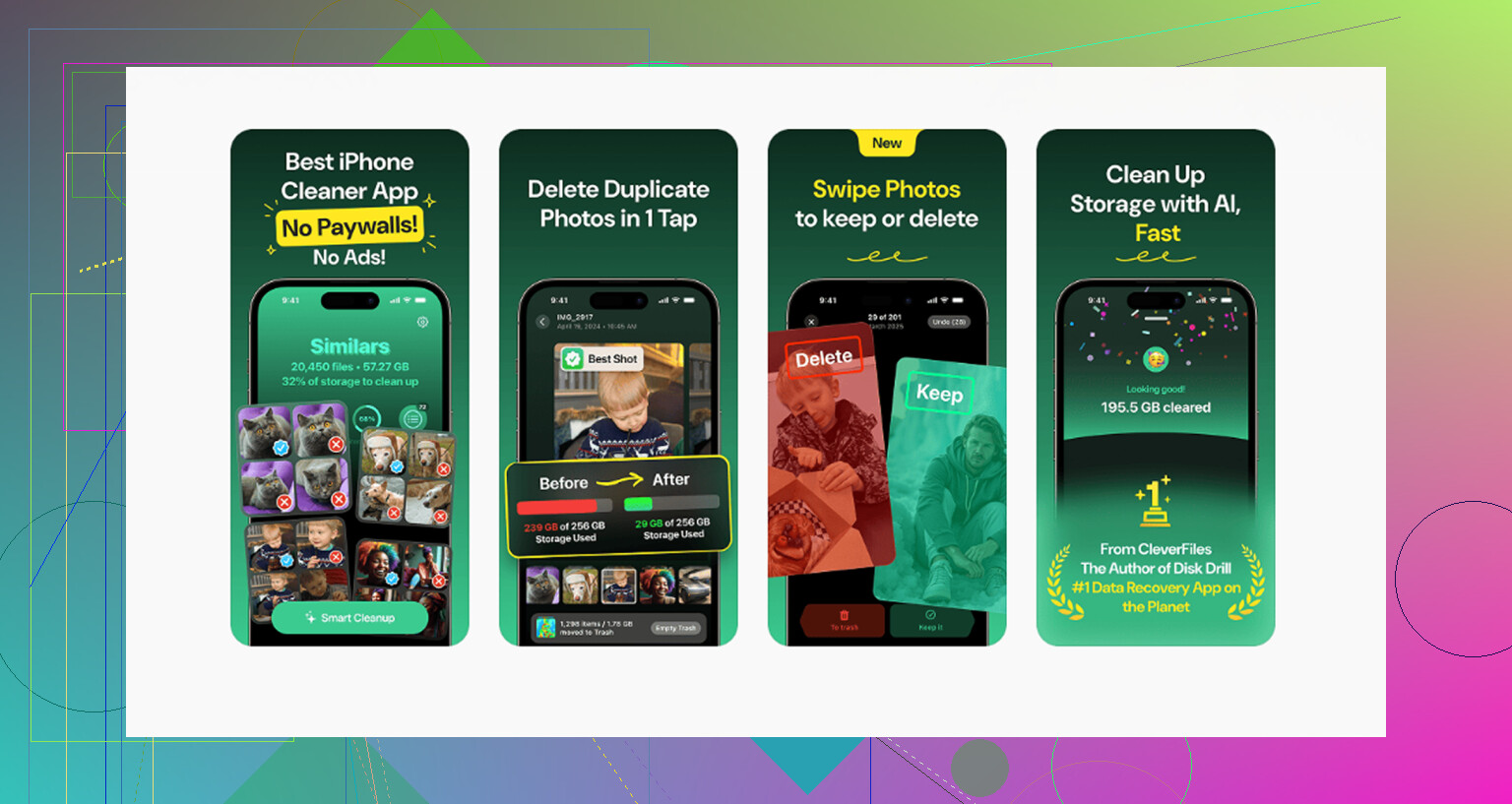
For media cleanup, Clever Cleaner is worth a look if your downloads turned into duplicate photos, videos, or screen recordings. Also, this iPhone storage cleanup walkthrough for large files and duplicate media is easier to follow than poking around menus blind.
Short version, clear Safari’s list for history, delete the file in Files or Photos for real removal. Both steps matter.
Biggest gotcha: the little download arrow in Safari is mostly a recent list, not a true “history manager.” So if your privacy concern is “I don’t want someone seeing what I grabbed,” you may need to clear more than one place.
What I’d do, without repeating all the Files-app hunting that @mikeappsreviewer and @cazadordeestrellas already covered:
-
Turn off download list persistence going forward
Settings > Safari > Downloads > Remove Download List Items
Set it to Upon Successful Download or After One Day.
This won’t delete old files, but it stops the list from hanging around forever. -
Check Screen Time restrictions or profiles if stuff keeps reappearing
Rare, but on some work/school iPhones, managed settings can make Safari behave weirdly or sync odd data back. Not super common, just worth noting. -
Clear only website traces if that’s your actual privacy goal
Settings > Safari > Advanced > Website Data
Remove individual site data if you don’t want to nuke everything. I actually prefer this over blanket clearing sometimes, since “Clear History and Website Data” is kinda overkill. -
If the file opened in another app, delete it there
PDFs often get copied into Books. ZIPs sometimes get unpacked and leave extra clutter. Audio can end up in VLC or another app if you shared it there. People forget the copy is the problem, not the original.
One place I slightly disagree with @mikeappsreviewer: a restart can help, sure, but if the item still shows in Safari after you removed the file, it’s often just the UI list being stale, not a “locked” file. Safari gets weird like that lol.
If this turned into a broader storage mess, not just a couple downloads, Clever Cleaner is actually useful for the media side of cleanup. And if you want a solid read on it, this article about free iPhone cleaner tools for clearing duplicate photos and large files is more useful than Apple’s own vague menus tbh.
Short version:
- Clear Safari’s download list
- Delete the actual file where it really lives
- Remove extra copies from Books/Photos/other apps
- Adjust Safari settings so it stops happening agian