My iPhone storage is almost full because Messages shows a lot of large attachments, but many of them were already saved to Photos. I’m not sure if deleting the attachments will remove the copies in my Photos app too. I need help figuring out the safest way to clear message attachment storage without losing pictures I want to keep.
What happens when you delete message attachments on iPhone
I ran into this same mess a while back. My iPhone got slow, apps kept dropping out, and the “Storage Almost Full” alert showed up so often I stopped reading it. I ended up digging through Apple’s storage menus more than I wanted, so here’s the plain version.
If you delete an attachment from Messages, does it remove the copy in Photos?
No, if you already saved it to Photos.
That part matters.
A photo or video sent in iMessage sits inside Messages first. If you tap it and save it to the Photos app, iPhone stores a separate copy there. So now you’ve got one copy tied to the chat, and another in your photo library.
If you later remove the file from:
Settings > General > iPhone Storage > Messages > Review Large Attachments
you are deleting the Messages copy only.
Your saved version in Photos stays there.
Same thing with stuff you sent. If you recorded a video with your camera, then sent it in a text, the original in Photos is separate from the sent attachment in Messages. Remove the message attachment, your original video stays put.
The bad part, there is no real “Select All”
I looked for it too. Apple still makes this harder than it should be.
Inside Review Large Attachments, you hit Edit, then tap each file one by one. If your phone has years of message junk, it takes forever. I sat there doing it for way too long and it felt dumb.
There is one broader option:
Settings > Messages > Keep Messages
You can switch message retention to 30 Days or 1 Year.
That clears old conversations and their attachments automatically. The catch is obvious, you lose old message history too. If you only want to remove bulky files and keep the texts, this setting is too blunt.
What iCloud changes
If you use Messages in iCloud, deleting an attachment from one synced device removes it from your message history everywhere else too. So if you delete it on your iPhone, it disappears from your iPad and Mac as well.
It does not remove the separate copy in Photos, if you saved it there first.
It also does not wipe it from iCloud Photos unless the item lives in your Photos library and you delete it from there.
Those are different storage buckets. Apple does not explain this well.
Why a full iPhone starts feeling slow
This part surprised me less after I saw it happen. When storage gets tight, iOS has less room for cache, temp files, and normal background work. My phone started lagging before it became fully unusable. Typing felt delayed. Camera load time got worse. A couple apps crashed for no clear reason.
After freeing up space, the slowdown eased off.
For me it was around 10 to 15 GB cleared before things felt normal again. Your mileage, yeah, it varies.
A faster way I used
I got tired of tapping through Apple’s menus, so I tried Clever Cleaner.
I’m usually suspicious of cleaner apps because a lot of them are ad farms or they push you into a subscription after two taps. This one felt less annoying. No ads. No paywall popped up on me.
What helped:
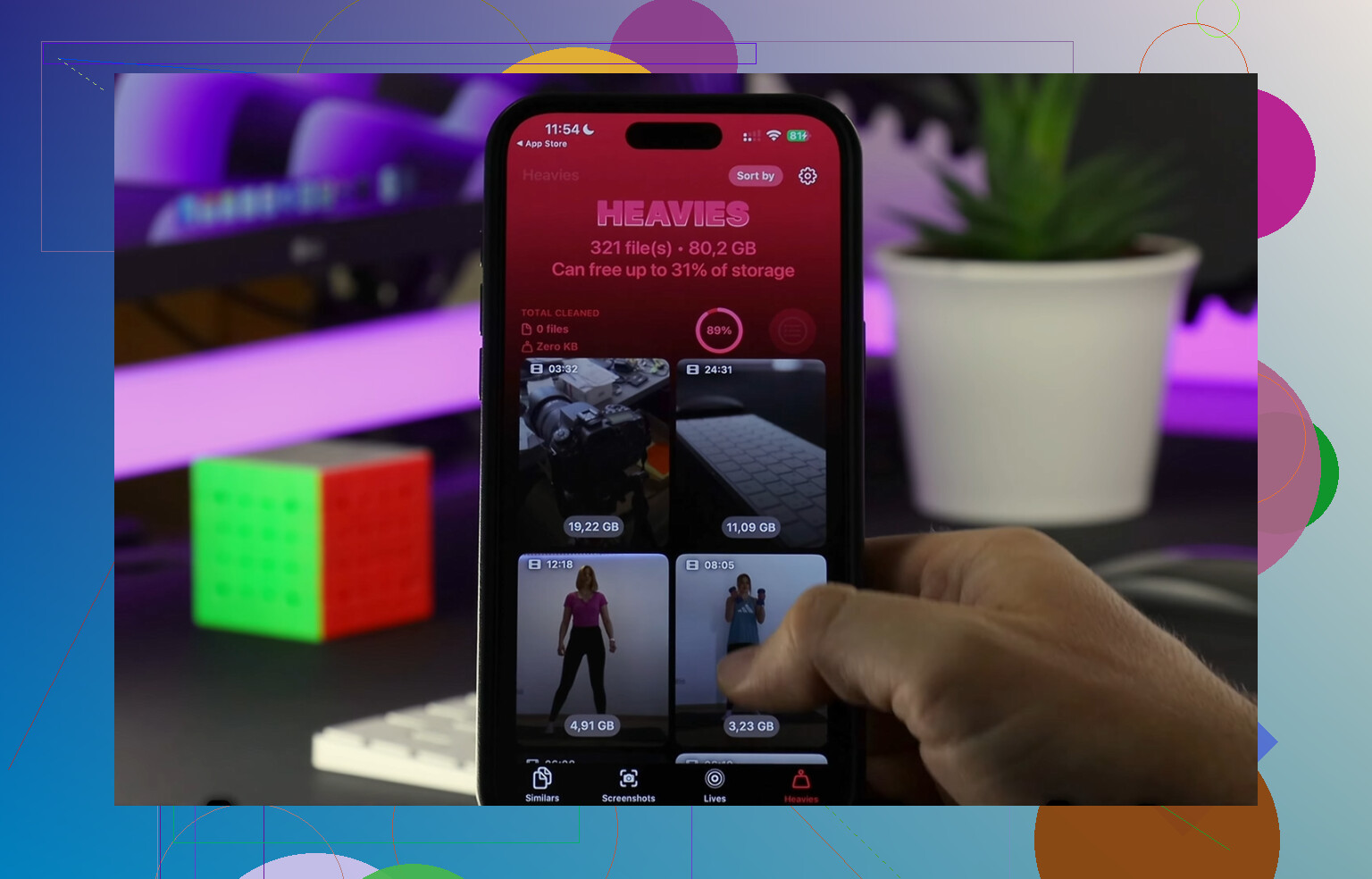
Heavies
It grouped the biggest media files by size. I could see which huge videos were eating storage without digging through old chats. That saved me a lot of time.
Similars
It flagged near-duplicate photos. If your camera roll looks like mine, ten blurry versions of the same thing and one keeper, this cuts down the pile fast.
Privacy part
From what I saw, processing happens on the device. I liked tht better than tossing personal photos onto some random cloud server.
After I cleaned out old attachments, duplicate shots, and big videos, I got back around 15 GB. My phone stopped stuttering. Felt normal again.
One thing people forget
Check Recently Deleted.
If you delete photos or videos and stop there, iPhone still keeps them for 30 days. So the storage number doesn’t drop right away unless you empty that folder manually.
Do this in:
Photos > Recently Deleted
Also check the deleted area in Messages if you removed media there too.
Until those are cleared, the space is not fully back.
Short version
- Deleting a message attachment does not erase the copy in Photos, if you saved it first
- Sent media works the same way, original in Photos stays
- There is no true Select All for large message attachments
- If Messages in iCloud is on, deleting from Messages removes it from synced devices too
- Low storage slows iPhone down, I saw it first hand
- Empty Recently Deleted or your storage won’t recover fully
If your goal is to free space without losing photos you care about, save anything important to Photos first, then remove the Messages copies after. That’s the safest way I found.
27 Likes
If the photo or video is already in Photos, deleting it from Messages does not remove the Photos copy. Those are separate items. Same for videos you shot yourself and then sent.
One thing I’d add to what @mikeappsreviewer said. I would not trust the Storage screen alone. Sometimes the Messages size number lags behind for a bit after deletion. Mine took a while to update, which was annoying as hell.
Fastest cleanup path I’ve found:
- Open Settings, General, iPhone Storage, Messages.
- Check Review Large Attachments.
- Delete the biggest stuff first.
- Then open the actual conversation for any huge threads and remove whole message chains if needed.
- Restart the phone after a big cleanup. It sounds dumb, but it helps storage recalc faster.
If your goal is speed, delete videos first. A few 4K clips often eat more space than hundreds of photos. On many phones, one 1 minute 4K60 video is around 400 MB or more. Ten of those is a few GB gone.
Also check this:
Photos app, search screen, Videos, Screen Recordings, Duplicates.
Those folders are often where the hidden junk sits.
If tapping through Apple menus is too slow, Clever Cleaner is worth a look for big files and duplicate pics. Here’s a quick look at how Clever Cleaner frees up iPhone storage fast. It’s more useful for Photos cleanup than Messages cleanup, but both problems usually show up together.
One more gotcha. If you use iCloud Photos, deleting from Photos removes it everywhere synced. Deleting from Messages removes it from synced Messages devices. Two different systems. Easy to mix up, tbh.
Yep, you can delete the attachment from Messages without deleting the copy in Photos, as long as it was actually saved to Photos first. Messages and Photos are seperate buckets on iPhone.
One thing I’d push back on a little from @mikeappsreviewer and @stellacadente: I would not rely only on the “Review Large Attachments” screen. It’s useful, but it misses the bigger picture sometimes because giant group chats can stay bloated even after you remove a few files. Sometimes deleting an entire old conversation frees more space faster than babysitting individual attachments one by one.
A couple extra gotchas:
- If the item is only in Messages and not truly saved to Photos, deleting it from Messages = gone
- If you use iCloud Photos, deleting from Photos deletes it across your synced Apple devices
- If you use Messages in iCloud, deleting the attachment from one device removes it from Messages on the others too
- Storage numbers can take a while to catch up, so don’t panic if the GB count looks wrong at first
What I’d do:
- Open Photos and make sure the important pics/videos are there
- Then delete the bulky stuff from Messages
- Then clear Recently Deleted in Photos
- Then give the phone a restart so iOS recalculates storage a bit faster
If your storage is packed from both Messages and your camera roll, Clever Cleaner is honestly more useful for the Photos side of the mess than Apple’s built-in tools. It helps find huge videos, duplicates, and similar shots way faster. Also, this sums it up pretty well: see why Clever Cleaner is one of the best truly free iPhone cleaner apps.
Short version: delete from Messages, Photos copy stays. Delete from Photos, that’s a diffrent thing.

Short answer: yes, you can delete the attachment from Messages without deleting the version in Photos, if it was actually saved there first.
One small disagreement with @stellacadente and @voyageurdubois: I would verify a couple of important items manually before bulk deleting, because “saved to Photos” is easy to assume and annoying to discover later that it was only living in the thread. Open a few of the biggest ones in Photos and confirm they’re really there.
What’s worth knowing that hasn’t been stressed enough:
- Messages attachments can remain inside old backups for a while, so space recovery is not always instant
- If you forward or re-save the same file multiple times, you may have more than one Photos copy too
- Shared with You can make media feel like it is in Photos when it is really just surfaced from Messages
That last one trips people up. Seeing something from a message inside the Photos app experience does not always mean it is fully saved into your library.
My approach would be:
- Confirm the keepers are in your actual Photos library
- Delete large attachments from Messages
- Wait a bit, then check storage again
- If Photos is also huge, clean that separately
For the Photos side, Clever Cleaner is decent.
Pros:
- good for big videos and duplicates
- faster than hunting manually
- useful when both Photos and Messages are bloated
Cons:
- it won’t really solve the Messages side by itself
- auto suggestions still need a human check
- cleaner apps in general are never something I’d trust blindly
So yeah, @mikeappsreviewer had the core answer right: Messages copy and Photos copy are separate. Just double-check before you go scorched earth.
Try the conversation’s attachment gallery instead of the Storage menu. You’ll select media without deleting the whole chat.
Open Messages, choose a conversation, and tap the contact’s name or group icon. Open Photos, tap Edit, then Select. Mark unwanted attachments, tap the trash button, and confirm. This leaves unselected texts intact.
Before deleting, double-check your keepers in your Photos library. Start with a few attachements, then check your saved photos agian before tackling the rest.
Realistic expectation: whatever you clear from Messages, the storage number probably won’t drop until you reboot and let Recently Deleted empty, so don’t judge it the same hour. People keep floating Clever Cleaner here like it’s part of the fix, but it doesn’t touch Messages attachments at all, which is the actual thing you asked about. Where it does pull its weight is sweeping the camera roll afterward, since that mess usually balloons right alongside the message junk.