My iPhone storage is almost full, and I want to delete most of my photos while keeping everything marked as Favorites. I’m worried about accidentally removing favorite photos from iCloud or other devices, so I need the safest way to bulk delete non-favorite iPhone photos.
iPhone makes this more annoying than it should be. Favorites are marked with the little heart, but they are still sitting in your main photo library. They are not kept in a separate folder you can protect while deleting everything else. So if you just select the whole library and hit delete, your favorites go with it.
The easiest built-in workaround is to temporarily get your favorites out of the way:
- Open the Favorites album.
- Tap Select, then Select All.
- Tap the three dots and choose Hide.
- Go back to your main library and delete everything that is still showing.
- Open the Hidden album, select all of your hidden favorites, and choose Unhide.
That puts the favorites back into the normal gallery after the cleanup. The only things you are deleting are the non-favorites left visible in the main library.
If you have a huge library, Shortcuts can also do it, although it can get sluggish. Make a shortcut with Find Photos, set the filter to Is Not Favorite, then send the results into a new album, maybe called Cleanup. After it runs, open that album, select everything, and delete it. If Shortcuts freezes or takes forever, add a date filter and process the library in chunks instead of trying to scan years of photos at once.
One big thing to check first: iCloud Photos. If it is turned on, deleting photos from the iPhone also deletes them from iCloud and your other synced devices, like an iPad or Mac. It is not a “remove from this phone only” cleanup. Back up anything important somewhere outside iCloud before doing a big delete.
Also, do not expect the storage number to drop right away. Deleted photos sit in Recently Deleted for 30 days and still count against storage. After deleting, go to Photos > Albums > Recently Deleted and use Delete All. Restarting the phone afterward can help iOS refresh the storage reading.
The lag you were seeing is probably from the phone being too full. iOS needs free space for temporary files and background tasks. When storage gets tight, basic stuff starts dragging, like opening the camera, scrolling the library, or deleting a large video.
The Photos app does not help much here because it does not sort by file size. That is where Clever Cleaner can be useful. It is free, has no ads or subscription, and shows large files in the Heavies tab from biggest to smallest with exact file sizes. A few old 4K videos can easily take up more space than thousands of normal photos. It also has a Similars tab for grouping near-duplicate shots and picking a Best Shot, plus a Screenshots tab that shows sizes before you delete anything. The processing stays on the device and is not sent to an external server.
So the practical combo is: use the Hidden album trick or Shortcuts to remove everything except favorites, then use Clever Cleaner to find the big leftovers and duplicate clutter that Photos does not make easy to spot.
13 Likes
Hiding favorites is not a backup, it only keeps them out of the normal library view. Before any mass delete, copy the Favorites album somewhere outside Photos first, like a Mac, PC, external drive, or cloud folder, then delete non-favorites only after you can open that copy and confirm they’re really there.

If you have a Mac signed into the same iCloud Photos library, I’d do the selection there instead of trying to tap through it on the iPhone. In Photos on Mac you can make a Smart Album for “Photo is not Favorite,” review that album, then select and delete from there. It is much easier to catch mistakes on a bigger screen, and you are not relying on the Hidden album trick to keep things separated.
The important catch is that this is still a real delete if iCloud Photos is enabled. It will remove those non-favorites from iCloud and every synced device, so export the Favorites first if they matter. I would export them to a normal folder, then open that folder and check that the photos and videos are actually there before deleting anything. Favorites is just a label in the Photos library, not a safety copy.
I’d be a little careful with disabling iCloud Photos as a “workaround,” too. People sometimes turn it off thinking they can delete locally only, then get confused by optimized storage, partial downloads, or prompts about removing originals from the phone. If the goal is simply to free space on the iPhone without deleting from iCloud, the cleaner setting is usually Settings > Photos > Optimize iPhone Storage. If the goal is to permanently shrink the whole photo library, then delete non-favorites and clear Recently Deleted after you have a separate backup.
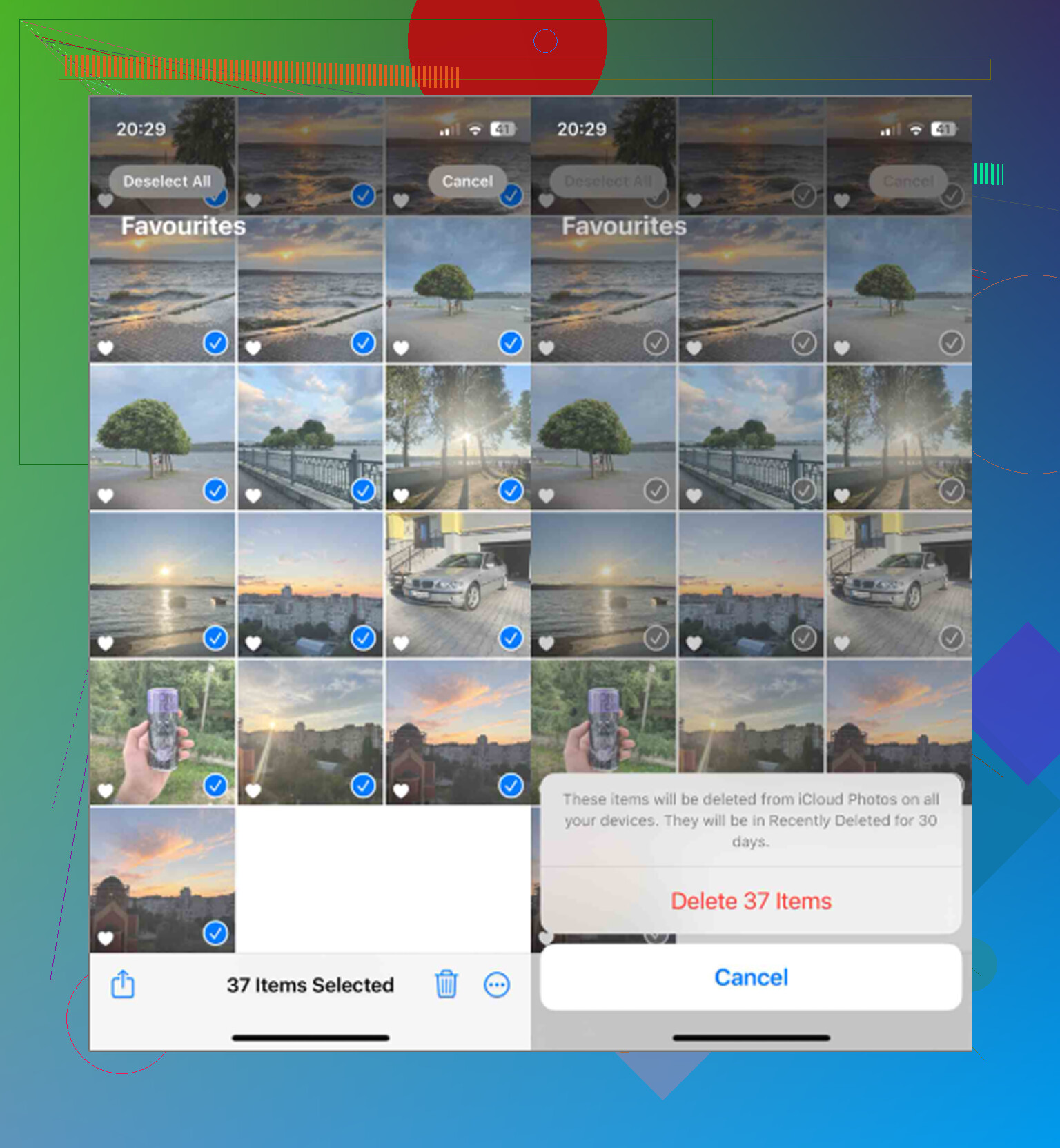
Do not empty Recently Deleted right away.
That is the safety net people burn too early. If you delete a giant batch and then immediately hit Delete All, you have removed the easiest way to recover from a bad selection. I would do the cleanup in two passes: delete the non-favorites, then go back to Favorites and spot-check that the important stuff is still there. Only clear Recently Deleted after you are sure the Favorites album looks right and any backup/export has been checked.
I agree with the Mac Smart Album method more than the hide-and-delete method if you have access to a Mac. The hiding trick can work, but it depends on you not missing a step while your phone is already low on storage and probably lagging. A smart album for “not favorite” is cleaner because you are selecting the things you actually intend to remove, instead of trying to protect the things you want to keep by temporarily moving them out of sight.
A small caveat: deleting from an album is not always the same as deleting from the library. If you make a temporary album called Cleanup, opening that album and choosing “Remove from Album” will not free storage. You need the option that deletes the items from the library. Apple’s wording can be easy to skim past, so read the confirmation prompt before tapping.
For a safer workflow, I’d do this:
- Export or copy the Favorites somewhere outside the Photos library.
- Confirm the copied files open.
- Delete only non-favorites, preferably from a Mac Smart Album or a carefully filtered Shortcut.
- Check the Favorites album again.
- Leave Recently Deleted alone for a day or two if you can spare the space.
- Clear Recently Deleted only when you are confident nothing important got caught.
If the phone is so full that you cannot wait, at least check Recently Deleted before clearing it. Scroll through the top and bottom of the batch and search for a few favorite photos you know by date or subject. It is annoying, but less annoying than finding out later that a favorite was not actually marked as Favorite, or that you accidentally selected more than intended.