I’m trying to free up storage and fix some lag in the Twitter app on my iPhone, but I can’t find a clear option in the iPhone Settings menu to delete Twitter cache or app data. Do I need to offload the app, delete it, or is there another way to clear Twitter data without losing my account?
If X is eating a ridiculous amount of space on your iPhone, the safest place to start is the built-in cache cleanup. It won’t delete your posts, bookmarks, followers, or accounts. That stuff isn’t stored in the app cache. The cache is mostly temporary junk your phone saves so images, videos, GIFs, and web pages load faster later.
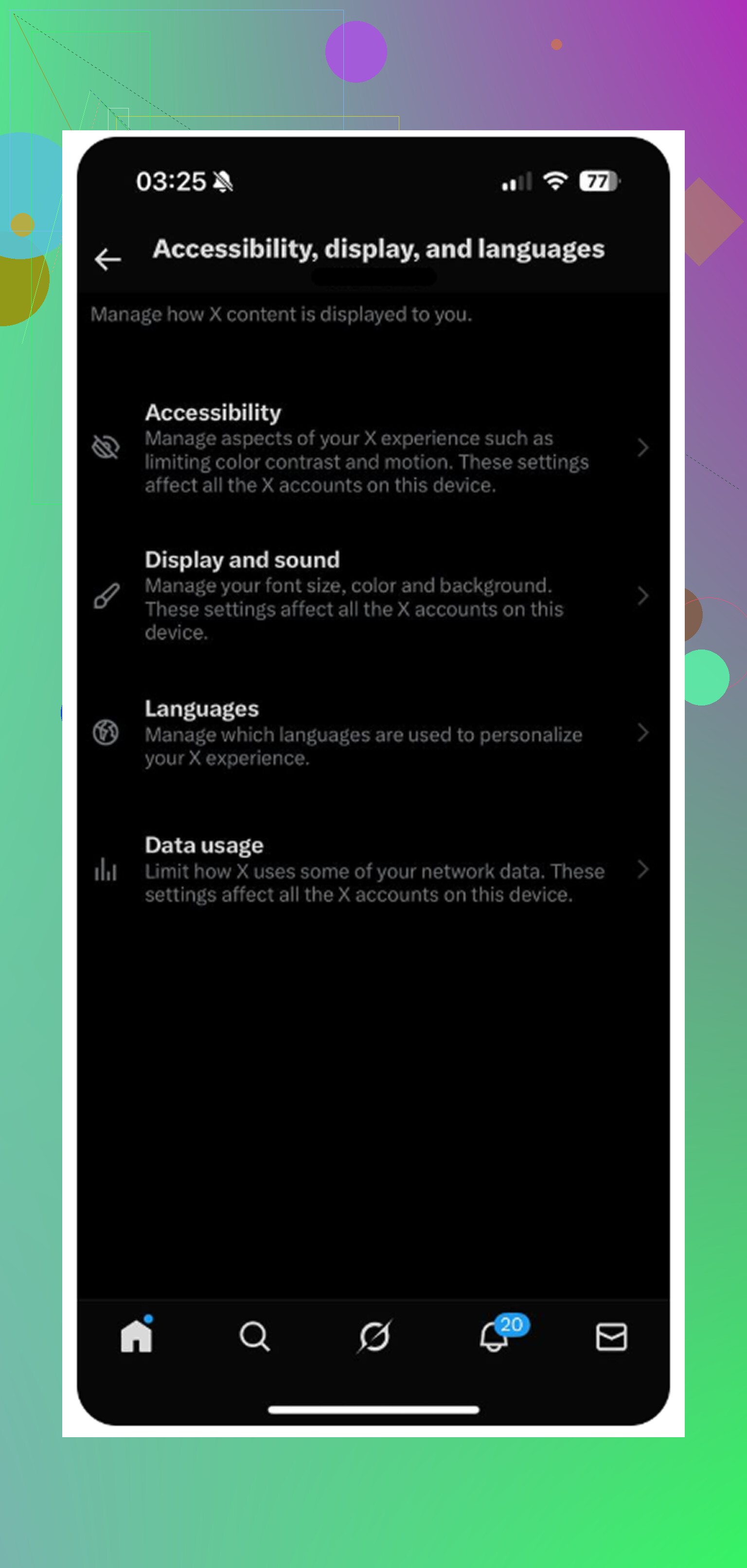
The setting is annoyingly buried. Open X, tap your profile icon in the top-left, then go to Settings and Support > Settings and privacy > Accessibility, display, and languages > Data usage.
Scroll to the bottom and look for Storage. You should see two areas there: Media storage and Web storage.
- Media storage is the safe one for most people. It clears cached images, GIFs, video previews, and other media you’ve scrolled past. Hitting Clear media storage does not log you out.
- Web storage is for stuff from links opened inside X’s built-in browser. Clear web page storage usually just removes cached site data. Clear all web storage also clears cookies, so that one can log you out of sites you opened through the app.
So if you’re worried about losing bookmarks or wiping your account data, don’t be. Clearing the cache is not the same as deleting your X account or removing your posts. It’s just removing local temporary files.
If the app is still showing some insane number like 10GB or 20GB in iPhone Storage, the in-app buttons may not be enough. In that case, try the iOS offload method instead of deleting the app outright.
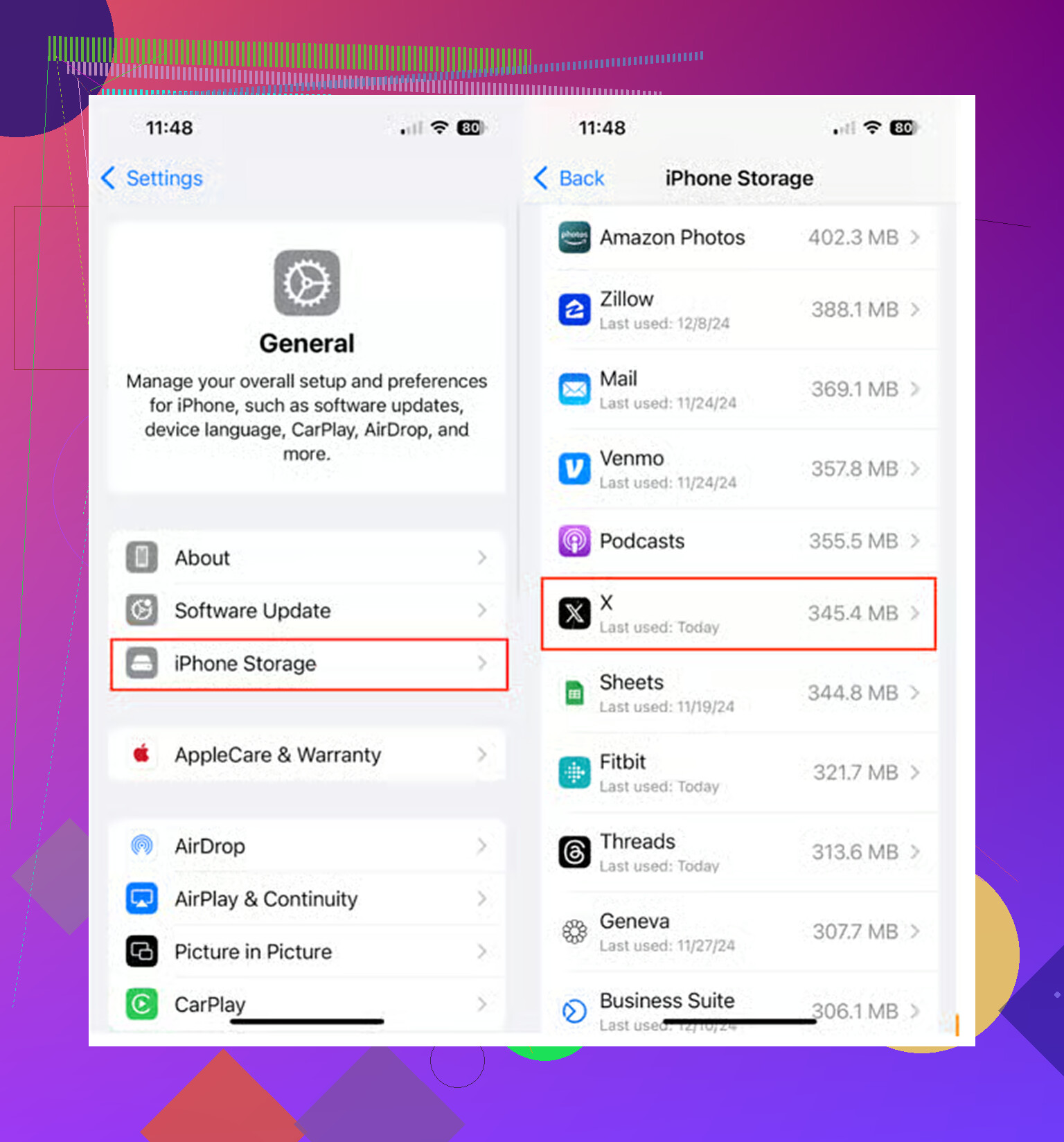
Go to iPhone Settings > General > iPhone Storage > X, then tap Offload App. After that, tap Reinstall App. Offloading removes the app itself but keeps the important app data, like login info, so you usually stay signed in. Reinstalling forces iOS to rebuild the app without dragging along a giant pile of cached media. In my experience, this works better than the cache buttons when X storage gets really bloated.
That said, clearing X cache only gets you so far. I went through this thinking Twitter was the big problem, cleared a couple gigs, and my phone still felt slow. The real storage hog turned out to be my photo library.
Screenshots, duplicate shots, slightly different versions of the same photo, random videos I forgot about. That stuff adds up way faster than an app cache. I tried a few cleanup apps too, and a lot of them are annoying. They scan your library for free, then make you pay a weekly subscription before you can actually delete anything.
The one I ended up liking was Clever Cleaner. The main reason is pretty simple: it’s actually free. No ads, no surprise paywall right when you’re about to clean things up.
The Heavies tab is useful because it sorts your photos and videos by file size, so you can immediately see what’s taking up the most space. It also shows the exact size of screenshots and other files, which makes it easier to decide what’s worth deleting.
The Similars tab is probably the best part. It groups together photos that are almost the same, then helps you pick the best one to keep. That’s way faster than manually digging through ten versions of the same shot. It also processes everything on your iPhone instead of uploading your photos somewhere else, which matters if you care about privacy.
So yes, clear the X cache if the app is laggy or taking up more space than it should. Use the offload trick if the normal cache options don’t make a dent. But if your real problem is “Storage Almost Full,” check your photos next. That’s usually where the bigger win is.
15 Likes
You can’t clear Twitter/X app data from the iPhone Settings menu the way you can on Android. Apple basically gives you two choices there: offload the app or delete the app. Offload is the lower-risk move, but don’t expect it to wipe every bit of storage because iOS may keep some documents and login-related data. If you want the cleanest reset, delete X from Settings > General > iPhone Storage > X, restart the phone, then reinstall it from the App Store. That usually clears more junk than offloading, but you should make sure you know your login info first, especially if you use two-factor authentication. The in-app media/web storage buttons are fine for a quick cleanup, like @mikeappsreviewer said, but if iPhone Storage is still showing X as huge afterward, delete and reinstall is the more reliable fix.
Deleting the app can wipe local drafts and force a login check, so don’t do it until you know your password and still have access to your 2FA method.
The confusing bit is that iPhone Settings does not have a “clear Twitter cache” button. If you go to Settings > General > iPhone Storage > X, iOS is basically only letting you remove the app in two different ways. Offload App removes the app package but keeps its documents and data. Delete App removes the app and its local data from the phone.
That means offloading is not really a cache cleaner. It can help if the app itself is corrupted or if iOS wants to reinstall a fresh copy, but if the big number is under “Documents & Data,” offloading may leave the annoying part behind. That’s why people often offload, reinstall, check storage, and then wonder why the number barely changed.
If you want the cleaner reset, do this:
Go to Settings > General > iPhone Storage > X > Delete App.
Then restart the iPhone.
Then reinstall X from the App Store and sign back in.
That is the closest thing iOS has to clearing the app’s local data from the Settings menu. It still won’t delete your X account, tweets, followers, bookmarks, or anything stored on X’s servers. It just removes what the app had stored locally on that device.
The annoying caveat: iPhone Storage numbers do not always update instantly. Sometimes you delete or reinstall an app and the storage screen still looks wrong for a few minutes. I’d close Settings, reopen it, or reboot before assuming it failed.
Another thing people mix up is X cache versus X history. Clearing app storage may remove local cached media, web data, and login state, but it is not the same as deleting search history, posts, likes, or old account activity. If your goal is privacy or cleaning up your Twitter/X history rather than freeing iPhone storage, that is a different job. A guide like this Twitter history cleanup walkthrough is closer to that topic than the iPhone Storage menu.
For lag, I’d try the in-app media/web storage cleanup first because it is low risk. If X still shows as huge under iPhone Storage, skip offload and delete/reinstall. Offload is gentler, but it is not the most reliable fix for a bloated app cache.
Nobody here asked how much free space you actually have on the phone total, and that matters more than the X number by itself. iOS gets sluggish when the whole device is near full, not because one app cache is a bit chunky. If you have 30GB free and X is laggy, clearing its cache probably won’t fix the lag at all. Worth checking that first before you go deleting anything.
On the actual question, @boswandelaar and @andarilhonoturno are right that iOS gives you no real cache button. Offload keeps documents and data, delete wipes local stuff. That part is solid. Where I’d push back a little is treating delete and reinstall as the go-to fix for lag. Lag in X these days is often the app itself, not your cache. Try turning off the in-app data saver tricks, and if you’re on any beta or have a ton of background media autoplay running, that does more to your scroll performance than a stale cache ever will.
The in-app Clear media storage is the sane first step because it’s reversible and won’t touch your login. Do that, use the app for a day, and see if it even comes back. Cache like that refills fast, so if X balloons to several GB again within a week, deleting the app once won’t save you anything long term. You’d just be doing it on repeat.
On Clever Cleaner, it makes sense in this thread only if your real complaint turns out to be the phone being full, not X specifically. Sorting photos by size or clearing near-duplicate bursts frees way more than any app cache. But if X is genuinely the laggy thing and your storage is fine, a photo cleaner does nothing for that problem. Figure out which problem you actually have first, then pick the tool. Otherwise you’ll clean 5GB of photos and still have a stuttering app.