My Facebook app is taking up a lot of storage on my iPhone and sometimes shows outdated content. I looked in the iPhone Settings menu but can’t find a clear cache option for Facebook. What’s the best way to clear the FB cache without losing my account or important app data?
Facebook taking up a huge chunk of iPhone storage is annoying, mostly because it feels like it happens out of nowhere. The good news is that clearing it won’t delete your Facebook account, your posts, your friends, your profile photos, or your saved items. That stuff is tied to your account on Facebook’s servers. What’s sitting on your phone is mostly local app data, cached media, cookies, and temporary files.
If you want the biggest storage drop from Facebook itself, deleting and reinstalling the app is usually the cleaner option.
iOS does have an Offload App option under Settings - General - iPhone Storage - Facebook. That removes the app but keeps its Documents and Data. It can help a little, and you may stay logged in after reinstalling, but it often leaves behind the exact data that made Facebook huge in the first place.
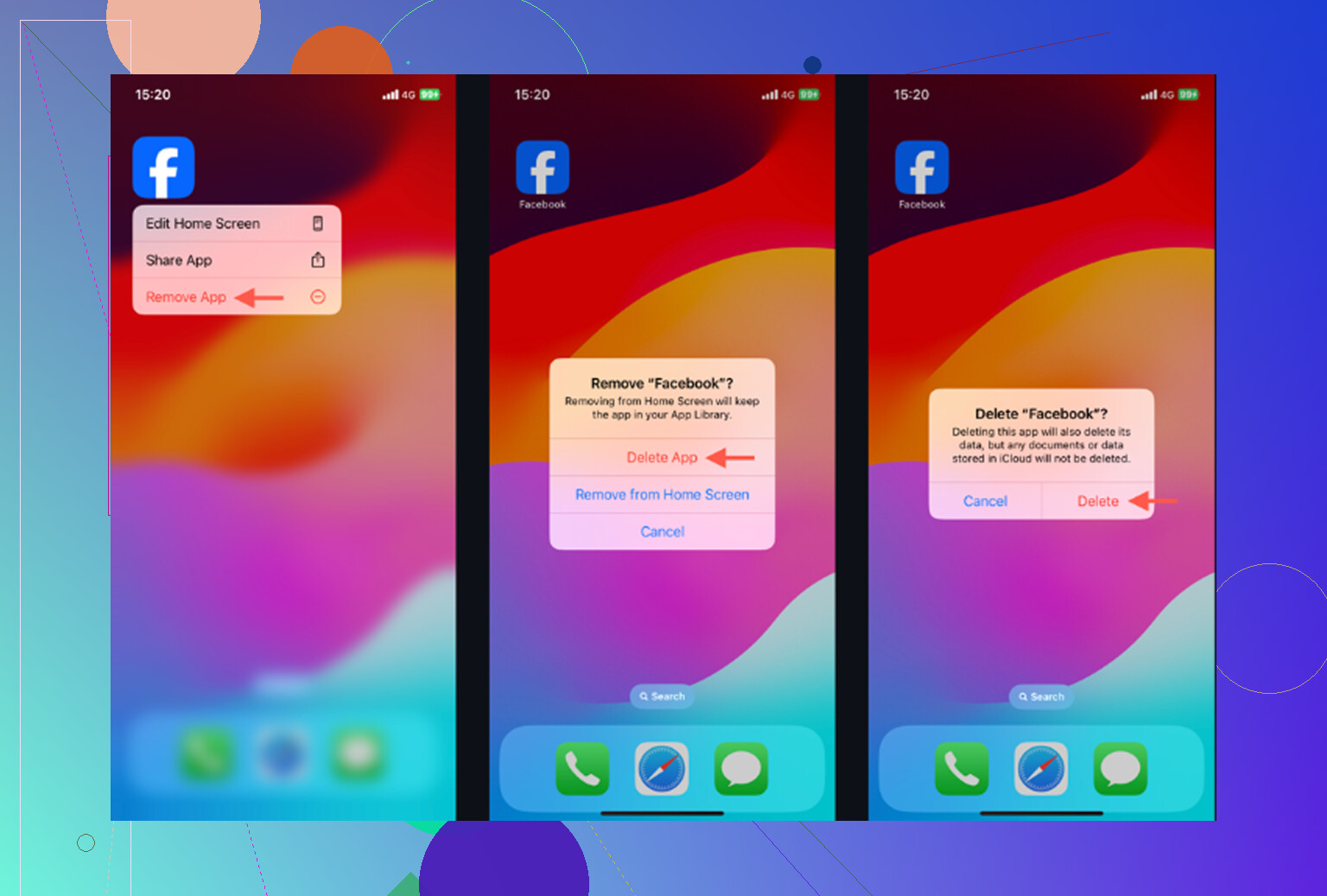
Delete App is more aggressive. You can do it from the same iPhone Storage screen, or long press the Facebook icon and choose Remove App. That clears the local cache and app data, then you reinstall and log back in. Your account content comes back because it was never stored only on the phone.
There’s also a small cleanup option inside Facebook: Menu - Settings and Privacy - Settings - Browser - Clear Browsing Data. That clears the in-app browser’s cookies and cached pages. It’s fine to do, but don’t expect it to fix a big storage problem by itself. Most of the space is usually from media cache, not browser data.
The annoying part is that Facebook will start filling storage again as soon as you use it. Reels, autoplay videos, images, and other media get cached so the app feels faster while scrolling. So if you clear it today and use Facebook normally tomorrow, the number can start climbing again pretty quickly. That’s normal app behavior, even if it’s frustrating.
One thing people miss: Facebook may look like the problem, but it’s often not the biggest one. If your iPhone is still slow after clearing Facebook, check your photo library. Old screenshots, duplicate attempts at the same picture, burst shots, and forgotten videos can take way more space than an app cache.
iOS also needs free storage to work smoothly in the background. When the phone is nearly full, everything can feel slower, no matter which app cache you just cleared.
Clever Cleaner helps with that part. It doesn’t clear Facebook cache, so you still need to handle Facebook manually. What it does is make the photo library easier to clean up.
The Heavies tab sorts files from largest to smallest and shows the exact size. Sometimes one old video is taking more space than Facebook has built up in weeks.
The Similars tab groups photos that are almost the same and marks a Best Shot, so you’re not tapping through five nearly identical versions one by one. Screenshots also show their file sizes before you delete them, which makes it easier to decide what’s worth removing.
Everything is processed on the iPhone, with nothing uploaded to an outside server.
The practical order is simple: delete and reinstall Facebook if you want to clear its cache properly, then clean up the photo library if storage is still tight. After deleting photos or videos, go to Photos - Recently Deleted - Delete All. Otherwise, the space won’t actually be freed yet.
9 Likes
Don’t delete Facebook until you know you can get back in, especially if you forgot your password or rely on two-factor codes. There isn’t a real “clear Facebook cache” button in iPhone Settings. From Settings, the closest useful path is Settings > General > iPhone Storage > Facebook > Delete App, then reinstall it from the App Store. I agree with the earlier point that Offload App is usually the weaker option because it can leave the bulky data behind. If you only have outdated content, try closing Facebook fully or logging out first, but for storage, deleting and reinstalling is the cleanest fix. Also remember Messenger is separate, so clearing Facebook won’t shrink Messenger’s storage.
The size shown under Settings > General > iPhone Storage > Facebook matters more than the app size itself, because the app may be small while “Documents & Data” is the bloated part. If that number is huge, I wouldn’t bother hunting for a hidden cache button because iOS doesn’t give Facebook one there. Use Delete App, reinstall Facebook, then sign back in. Offload App is okay if you’re just trying to save a little space without logging in again, but it often keeps the messy data you were trying to remove. For stale posts or weird old thumbnails, try switching networks or force-closing the app first, since reinstalling is a bit much if the storage number is not actually large.
There is no magic cache button in iPhone Settings.
If you are trying to do it from the Settings menu, the closest real option is still Settings > General > iPhone Storage > Facebook > Delete App. Not Offload App. Offload is useful when you want to keep app data, which is exactly why it is not great for a swollen Facebook cache. Delete App wipes the local Facebook data from the phone, then you reinstall from the App Store and sign in again.
Small warning before doing that: make sure anything unfinished inside Facebook is not sitting only in the app. Draft posts, unsent comments, Marketplace drafts, or a half-written message can disappear when you delete the app. Your actual account, photos, friends, groups, and old posts are fine, but temporary local stuff is not something I’d trust.
For outdated content, deleting the app is sometimes more than you need. Try force closing Facebook, refreshing the feed, checking for an app update, or clearing Facebook’s in-app browser data first. And after reinstalling, don’t be surprised if iPhone Storage takes a little while to show the smaller number. iOS storage reporting can lag until the phone has had a minute, or after a restart.
Before you delete anything, check how you actually get back into Facebook. If your two-factor codes come from Facebook’s own code generator inside the app, wiping the app can lock you out until you sort out a backup method. Screenshot your recovery codes or have another login method ready first. That single step trips up more people than the storage issue itself.
The reinstall advice everyone’s giving is correct, but nobody mentioned the obvious follow-up: the cache refills because Facebook is set to autoplay and preload video by default. If you don’t want to be back here in two weeks, dig into Settings and Privacy, then Media, and knock video quality and autoplay down. It won’t stop caching entirely, but it slows how fast that Documents and Data number climbs. Clearing without changing that is just mopping the floor with the tap running.
On the Clever Cleaner point from the first reply, it’s a fair shout for the photo side, since photos usually dwarf any app cache. Just don’t expect it to touch Facebook, and it won’t. Handle Facebook manually with the delete-reinstall route, then look at photos separately if the phone’s still tight. Two different problems, two different fixes.