My iPhone says there isn’t enough storage to install the latest iOS update, and I’ve already deleted photos, apps, and other files without freeing up enough space. I need help figuring out the best way to update an iPhone with full storage so I can fix bugs, stay secure, and avoid losing anything important.
I ran into this on my own iPhone more than once. You go to install an update, you expect a quick tap-and-wait job, then iOS throws up the “Insufficient Space” warning and kills the mood fast. It feels like Apple wants you to pick between keeping your photos or keeping your phone current. I didn’t wipe my stuff, and you don’t need to either.
The first thing I learned is the posted update size doesn’t tell the whole story. If iOS says an update needs 2 GB, your phone often needs closer to twice that during the install. For a big version jump, like iOS 26, I’ve seen people need somewhere around 15 GB to 30 GB free before the install stops complaining. The phone needs extra temporary room while it downloads files, unpacks them, and swaps system pieces around.
Here’s what I’d do first, in order.
Start with a cleaner app
Going through storage by hand is slow and kind of miserable. I did it once, and I would not do it again unless I had no other choice. A cleaner app saves time because it finds junk you usually miss, especially duplicate photos, giant videos, and odd leftovers buried in places you forgot existed.
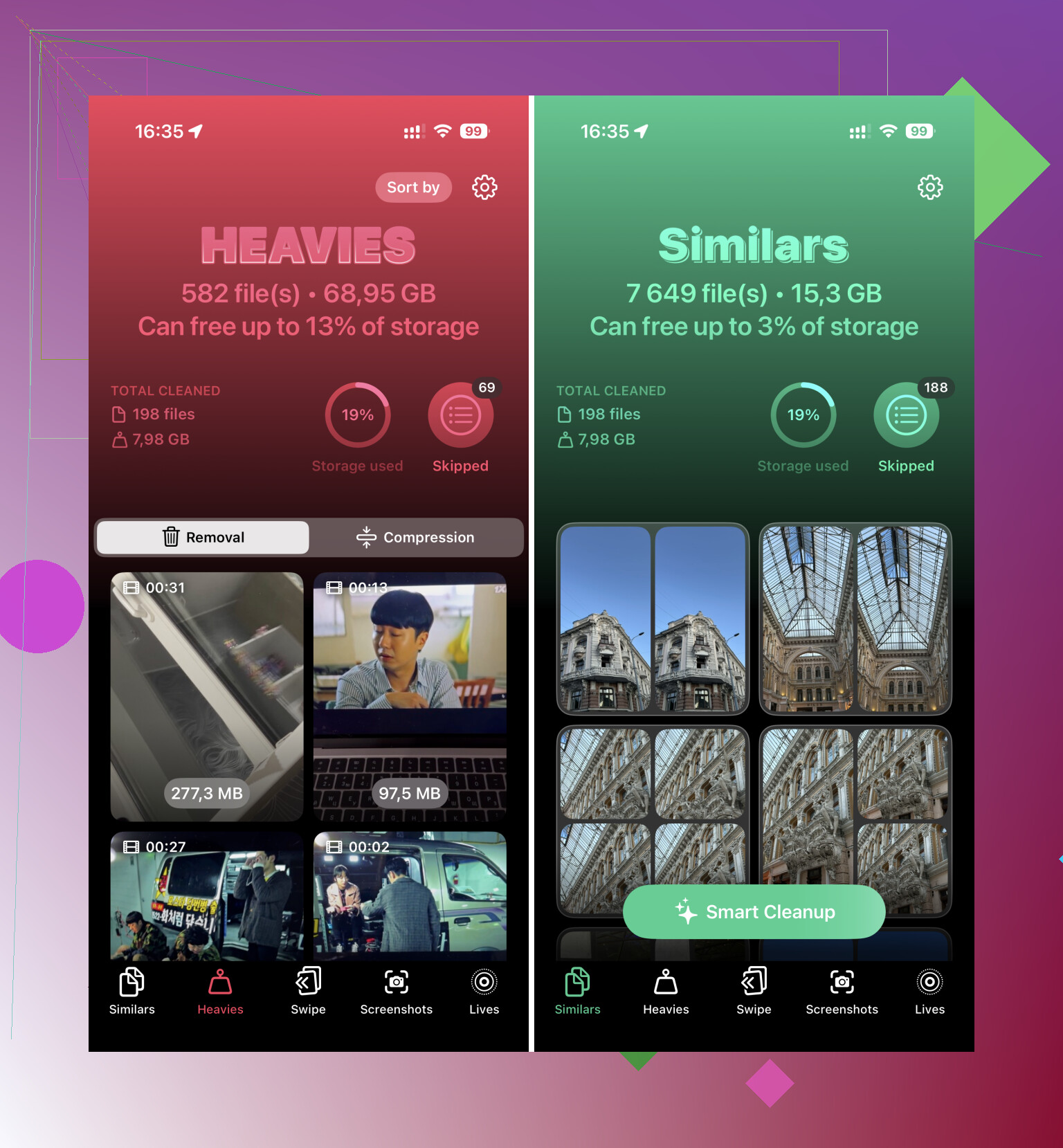
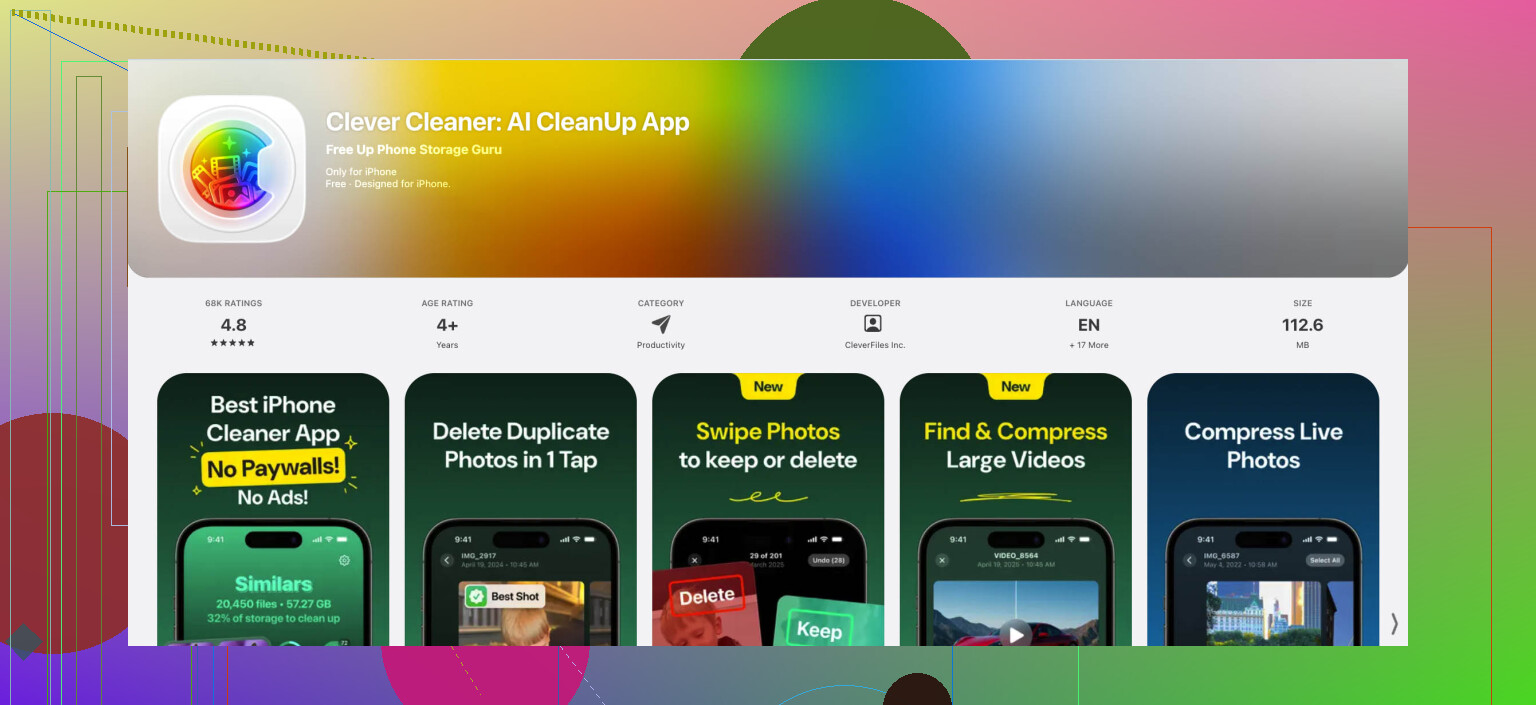
The one I’d point people to is Clever Cleaner. I liked it because it wasn’t nagging me for a subscription every 20 seconds, and it didn’t bury the useful stuff behind ads. It’s small too, around 113 MB, so installing it doesn’t make your storage problem worse.
What helped me most was the Heavies section. It lays out your biggest videos first, which makes it easy to spot dumb stuff like an old 4K screen recording eating 3 GB for no good reason. I either deleted those or compressed them when I still wanted to keep the clip. The Similars feature helped too. If you’ve got twelve nearly identical group shots because nobody blinked at the same time, it sorts through them and makes cleanup less annoying.
One thing people miss, and I missed it too the first time, is the Photos trash. After deleting anything with a cleaner app, open Photos, scroll to Recently Deleted, and remove everything there too. Until you empty that folder, iPhone often acts like the files are still hanging around.
Offload apps instead of deleting them
This one saved me a bunch of time. If you’ve got large apps or games you’re not using today, don’t remove them fully. Go to Settings > General > iPhone Storage and use Offload App.
What this does is remove the app itself while keeping your documents, saved data, and settings. So when the update is done, you tap the app icon again, it reinstalls, and your stuff is still there. No digging for passwords. No trying to remember if your progress was tied to Game Center or some random account you made three years ago.
For people with chunky games, streaming apps, editing apps, this clears space fast without turning cleanup into a full rebuild.
Check the places people forget
A lot of storage gets wasted in spots most people never look at.
First, open the Files app and check “On My iPhone.” Then look in Downloads. PDFs, ZIP files, installer junk, random attachments from Safari, they pile up quietly. I found old files sitting there from months back. Sort by size and remove the obvious junk first.
Second, check message attachments. Go to Settings > General > iPhone Storage > Messages. This screen breaks down space used by Top Conversations, Photos, Videos, GIFs, stickers, and Large Attachments. If your family group chat is full of video clips and reaction memes, this section gets ugly fast. You can delete the large attachments without wiping the whole conversation thread, which is nice.
Try clearing cached system junk
Sometimes the issue isn’t your personal files. It’s the vague “System Data” chunk in storage settings getting bloated.
I’ve used a weird trick here, and yeah, it sounds dumb, but it worked for me once. Open the Camera app and start recording a high-resolution video, like 4K. If the phone sees storage dropping too low for the recording, it sometimes kicks off its own cleanup process and clears temporary cache files. I saw the “Freeing Resources” message after doing this. Delete the test video after, or you’ve done nothing but make the problem worse.
This doesn’t fix every phone. Still worth trying if System Data looks bloated and nothing else explains the missing space.
If the phone still refuses, update with a computer
When I got stuck even after clearing stuff, this was the move. Plug the iPhone into a Mac and use Finder, or into a Windows PC and use iTunes.
Updating through a computer changes the process a bit. The computer downloads and prepares much of the update on its own drive instead of dumping the whole burden onto your phone’s storage. If your iPhone is packed to the ceiling, this route often gets around the last storage wall.
It’s the closest thing to a workaround I trust for nearly full devices.
After the update, stop this from happening again
Once I finally got the update installed, I changed one setting right away. In iCloud Photos, turn on “Optimize iPhone Storage.” Your phone keeps smaller local versions of your photos while the full-resolution copies stay in iCloud. For anyone with a huge photo library, this cuts down future storage problems a lot.
If your phone is always close to full, this one setting does more than most people think. I wish I had turned it on earlier, tbh.
33 Likes
Skip the OTA update. Use a computer.
If your iPhone is full, the cleanest path is Finder on Mac or iTunes on Windows. The update file downloads to the computer first, so your phone needs less working space during install. For a lot of people, this is the thing that finallly works.
Do this:
- Back up the iPhone first.
- Plug it into a Mac or PC.
- Open Finder or iTunes.
- Select your iPhone.
- Click Check for Update, then Update.
If Update still fails, use Recovery Mode and reinstall iOS, then restore from backup. More work, but it fixes stubborn storage and system junk issues.
One place I disagree a bit with @mikeappsreviewer, I would not mess with the 4K recording trick first. It’s hit or miss, and on a full phone it can make things messier.
Two other checks:
- Delete any old iOS update file in Settings > General > iPhone Storage.
- Restart the phone after cleanup. iOS sometimes holds temp files until reboot.
If you still want to free space on-device before using a computer, Clever Cleaner is fine for finding duplicate photos and big videos fast. Also, media coverage has highlighted Clever Cleaner as a truly free iPhone cleaner app, which gives a quick overview of what it does.
If storage is under 5 GB free, I’d stop deleting random stuff and do the computer method first. It saves time, and less stuff breaks.
One thing I’d add that @mikeappsreviewer and @cacadordeestrelas didn’t really stress enough: check whether the update was already partially downloaded and is just sitting there hogging space.
Go to Settings > General > iPhone Storage and look for an iOS update file in the list. If you see it, delete it. Then restart the phone and try again, or do the update from a computer. I’ve seen that stale update file eat a few GB by itself.
Also, if you use Apple Music, Spotify, Netflix, YouTube, Podcasts, etc., remove downloaded offline media. People forget this stuff because it’s not as obvious as photos. Same with Safari. Clear Settings > Safari > Clear History and Website Data. It’s not magic, but sometimes it frees just enough.
I actually disagree a little with the “keep deleting until it works” approach. At some point you’re just playing storage whack-a-mole. If you’re down to almost nothing free, a Mac or PC update is less annoying, full stop.
If you want faster on-phone cleanup before that, Clever Cleaner is useful for spotting duplicate pics and oversized videos without a ton of nagging. There’s also a solid Reddit review of Clever Cleaner for freeing up iPhone storage if you want to see how other people used it.
If the phone is still being stubborn, backup first, then computer update. Honestly that’s usualy the least painful fix.
I’m with @cacadordeestrelas and @cazadordeestrellas on one big thing: if the phone is truly packed, a computer update is usually the least annoying route. But I’d add one thing they barely touched: turn off Low Power Mode and keep the phone on Wi-Fi and charging for a while before trying again. iPhones sometimes postpone cleanup, indexing, and background housekeeping when they’re low on power or unstable on battery.
A couple of less-obvious space hogs to check:
- Voice Memos. People forget these can be huge.
- Books / PDFs in Apple Books
- GarageBand, iMovie, CapCut, Lightroom caches
- Downloaded Siri voices and offline dictionaries
- Mail app attachments if you have giant threads synced
Also, if your storage graph shows System Data is the real problem, I actually don’t love the “record 4K video and hope” trick from @mikeappsreviewer. Sometimes it works, sometimes it just creates one more large file. My take: if System Data is bloated, the cleaner fix is backup, then update or restore through a computer.
If you want to squeeze out space before that, Clever Cleaner is decent for fast photo cleanup.
Pros
- good at spotting duplicates and large videos
- simple, fast scan
- useful if Photos is the main storage problem
Cons
- won’t do much for System Data
- less helpful if your space is being eaten by Messages, Mail, or app caches
- still requires you to review deletions carefully
So yeah, use Clever Cleaner if your library is messy, but don’t expect it to fix every “not enough storage” update failure. In your case, I’d stop manually deleting random stuff after a point and move straight to Finder or iTunes.