I’m trying to enter passwords and search text on my smart TV, but using the remote is slow and frustrating. Is there an easy way to use my phone as a TV keyboard for typing on apps like YouTube, Netflix, or the browser?
Yeah, typing with a TV remote is awful. If your TV or streaming box is reasonably modern, your phone can usually handle the typing instead.
The easiest place to start is the official remote app for whatever device you use. Most of them include a keyboard, and when you type on your phone it sends the text right into the search box or login field on the TV.
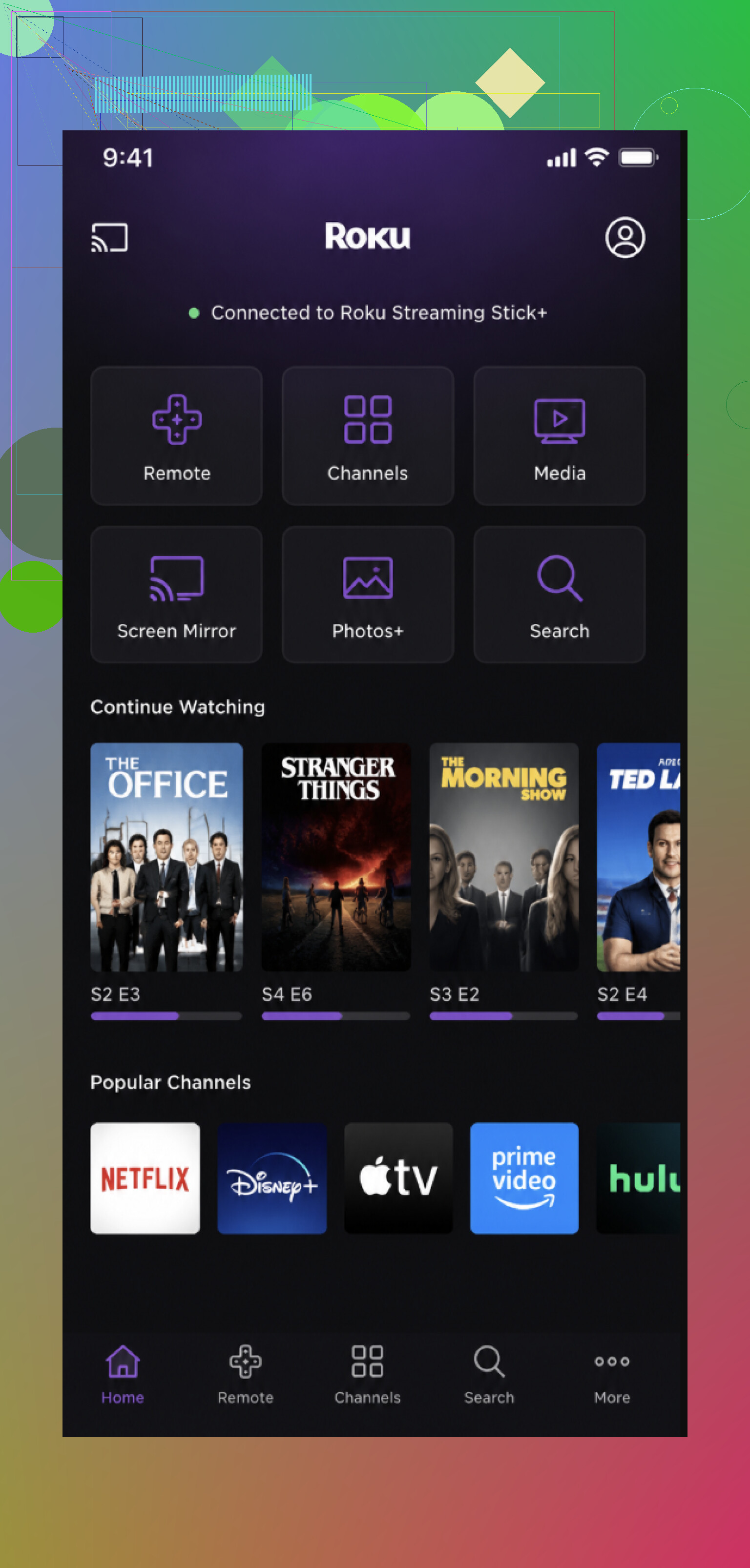
For Roku, use the Roku app and tap the keyboard icon. Fire TV has the same kind of built-in keyboard for search and sign-ins. Apple TV is a little smoother if you’re using an iPhone, since iOS will often pop up a typing notification as soon as a text field appears on the Apple TV. Samsung SmartThings and LG ThinQ also have keyboard input once the TV is paired in the app.
The catch is usually the same with all of these: your phone and the TV need to be on the same Wi-Fi network, or they probably won’t see each other.
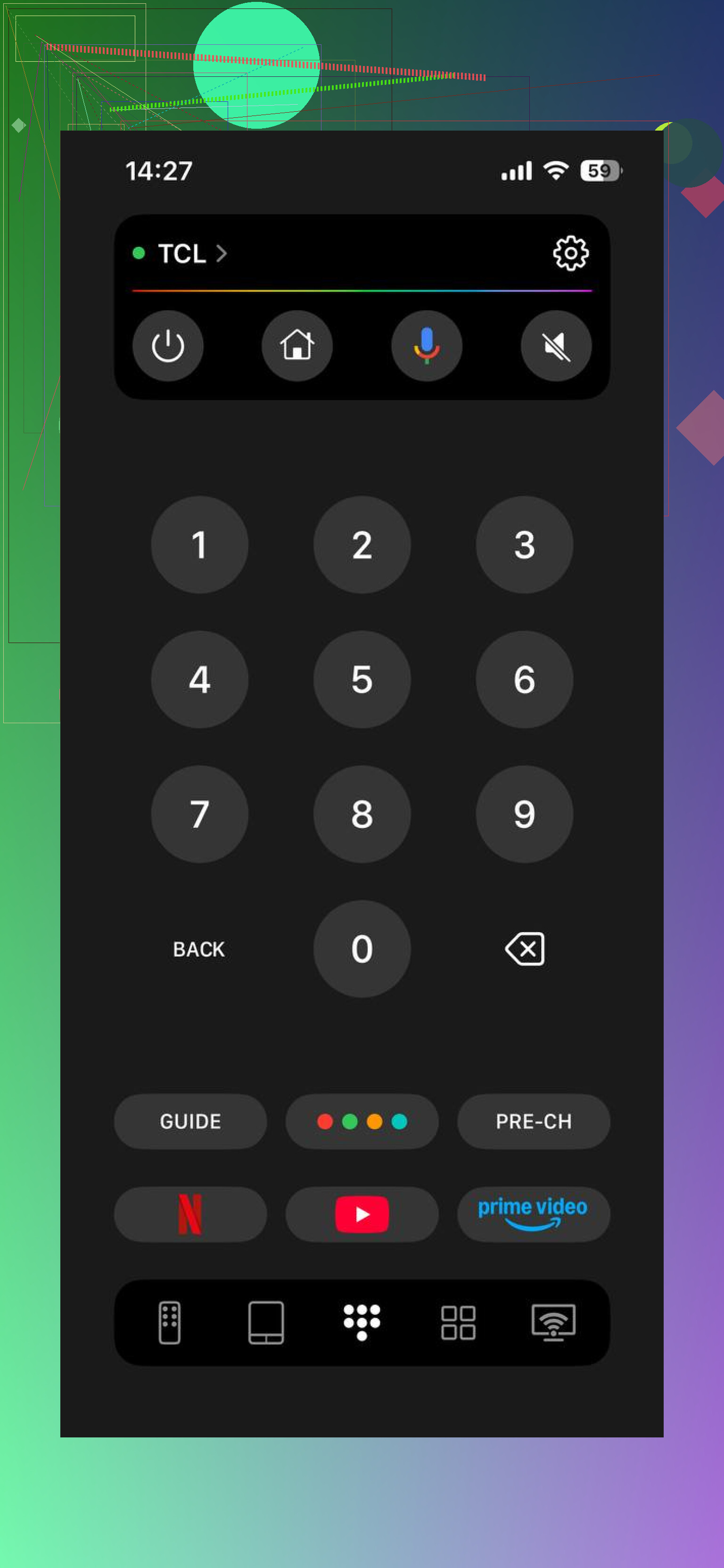
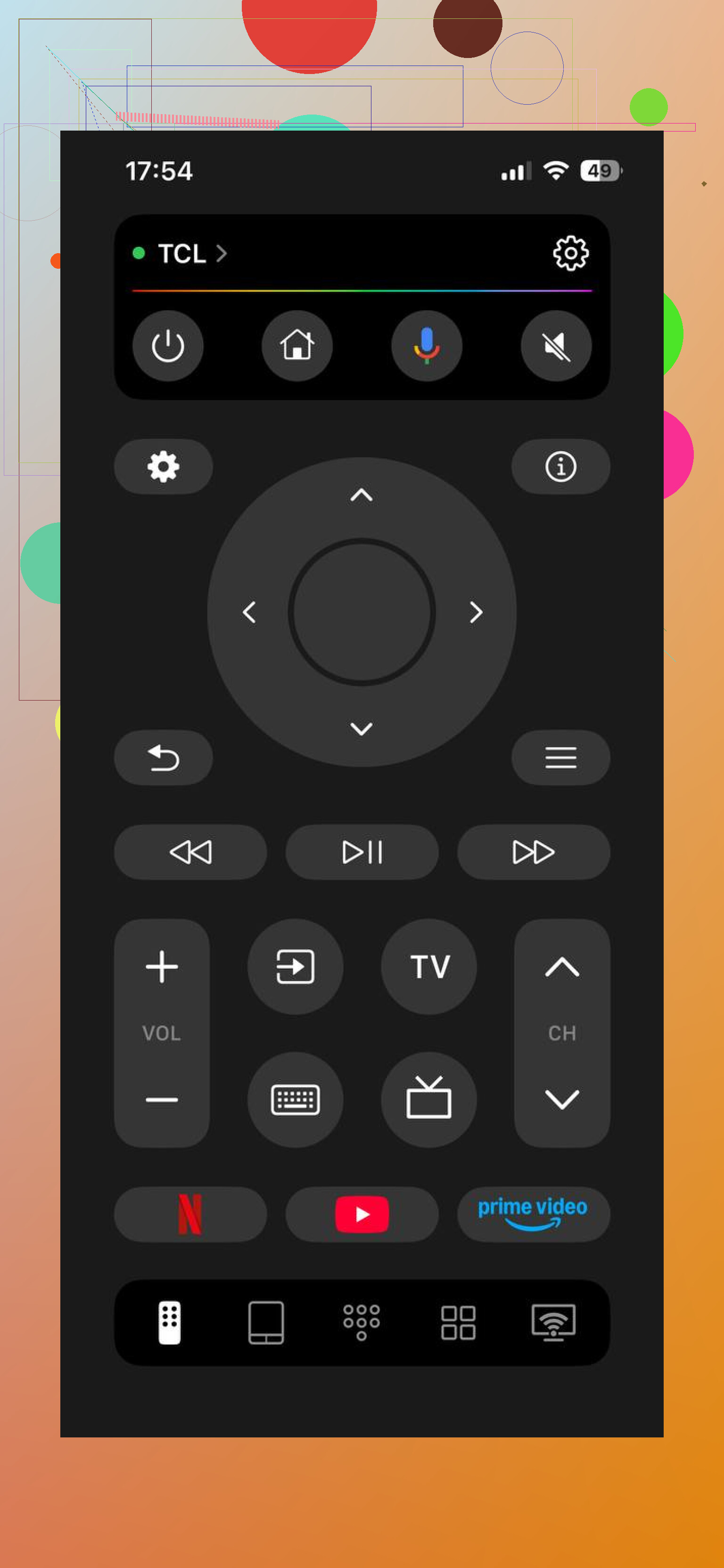
If you don’t want to juggle different apps, there’s also TVRem.
mac.eltima.com/tvrem-universal-tv-remote/
That one is more useful if you have multiple TVs or streaming platforms around the house. It supports Samsung, LG, Roku, Fire TV, Android/Google TV, and Apple TV, and lets you use your phone keyboard, plus voice search, from one app. The main reason to use it is simple: entering passwords or searching for a show on your phone is way less annoying than clicking through an on-screen alphabet. It says there’s no subscription, and it’s rated 4.8 with a few thousand reviews.
A few other workarounds are worth trying too. Voice search is often faster than typing if your remote, TV, Google Assistant, or Alexa setup has a mic. Some Google TV and Android TV devices can also pair with a Bluetooth keyboard, which is nice if you do a lot of logins or browser typing.
For app logins, check whether the app offers “sign in with a code” or a QR code on your phone. That skips most of the painful TV typing. Some people also keep TV-used passwords easier to enter, though that’s obviously a tradeoff.
One limitation: this really depends on having a smart TV or streaming device connected to Wi-Fi. If it’s an older non-smart TV, a phone keyboard usually won’t help, and you’re stuck with the regular remote unless you add a streaming stick.
If you say which TV or streaming device you’re using, it’s easier to point you to the exact keyboard option.
4 Likes
Put the cursor in the TV’s text field first, then open the remote app on your phone and look for the keyboard icon. A lot of people pair the phone correctly but nothing types because the TV is still just on the app screen, not inside the search or password box. I agree with using the official app first, but don’t expect it to work everywhere. Some apps block phone keyboard input for password fields, and a few browsers are flaky. For YouTube or Netflix, the faster workaround is often to search inside the phone app and cast/open it on the TV instead of typing on the TV at all.
Typing into a TV search box and typing into a password box are two different problems. Search usually works fine from a phone remote app. Password fields are where it gets weird, because the TV app may block pasted text, hide the keyboard handoff, or ignore input from the phone for security reasons.
For normal searching, I’d use the built-in remote app for the device first, not a random “universal remote” app as the first stop. Roku app for Roku, Google TV app for Android/Google TV, Fire TV app for Fire Stick, Apple TV controls on iPhone, SmartThings for Samsung, LG ThinQ for LG. Once paired, open the search field on the TV, then bring up the keyboard in the phone app. The order matters. If the cursor is not actually inside the text box, your phone may be paired and still do nothing.
For logins, I’d avoid typing the password on the TV at all if the app gives you another option. Look for wording like:
“Sign in on another device”
“Use a code”
“Scan QR code”
“Activate on web”
“Link with phone”
That usually sends you to a phone or computer page where you can use your password manager, copy/paste, Face ID, saved Google/Apple login, etc. It is faster and less error-prone than trying to push a 20-character password through a TV keyboard.
YouTube is especially worth handling from the phone side. If you’re signed into YouTube on your phone, casting or linking the TV app is usually easier than typing a Google password on the TV. Same general idea with Netflix, Hulu, Disney+, Max, and similar apps: the TV login screen often has a code-based option hiding under the regular email/password screen.
Small caveat on third-party remote apps: they can be useful, especially if you have several brands in the house, but I’d be picky. A remote app needs access to your local network, and some want extra permissions they do not really need. If you only need to type a Netflix password once every few months, the official app or the app’s QR/code login is probably less hassle. If you constantly switch between a Roku in one room, an LG TV in another, and a Fire TV somewhere else, then a universal app starts making more sense.
If the phone app sees the TV but typing still fails, check these boring things before assuming it’s broken:
- Phone and TV are on the same Wi-Fi network, not one on guest Wi-Fi
- VPN is turned off on the phone
- TV app is updated
- TV is awake and not sitting on a screensaver
- Cursor is inside the text field
- The app you’re typing into actually allows phone keyboard input
And if you do a lot of browser typing on the TV, skip the phone remote idea and get a cheap Bluetooth keyboard if your TV supports it. Phone keyboards are fine for short searches and one-time logins. For web forms, email addresses, long passwords, or anything with lots of backspacing, a real keyboard is still less annoying.