I accidentally took a lot of pictures with Live Photos turned on, and now they’re using more storage than I expected. I need a quick way to convert all Live Photos to still photos on my iPhone without editing them one by one. Is there an easy built-in option or app that can do this?
I ran into the same mess. My phone looked fine until storage started flashing red, then I noticed a huge chunk of space was tied up in Live Photos. Those tiny motion clips add up fast. Each one stores a normal photo plus a short video segment and audio, so the file size jumps hard. If your library has a few thousand, you’re losing gigabytes without noticing.
Yes, you can strip Live Photos down to still images after they’ve already been taken. The annoying part is how Apple set it up.
The built-in iPhone route
If you want to do it inside Photos, there’s a workaround. Open the Live Photos album, tap Select, choose the shots you want, hit the three-dot menu, then pick Duplicate, then Duplicate as Still Photo.
Here’s the catch. This does not replace the original. It makes a second file. So for a while, you use more storage, not less. Afterward, you still need to remove the original Live Photos yourself, then clear Recently Deleted too. I tried this on a big library once. It was slow, easy to mess up, and kind of irritating.
The Shortcuts route
You can also set up something in Shortcuts. The idea is simple enough, find Live Photos, export them as JPEG or PNG, save them back into your library. On paper, fine. In practice, setup gets fiddly. If you don’t already use Shortcuts, this turns into one of those half-hour tasks where you keep checking each step because one wrong toggle breaks the flow. It also doesn’t always clean out the old Live versions for you.
The quicker route with a cleanup app
If you’ve got a large batch, I wouldn’t do this by hand unless you enjoy punishment. For ten photos, sure. For hundreds, nope.
I had better luck with Clever Cleaner. It has a section for Live Photos, and it groups them so you can sort through them by size or date. You select them, hit Compress, and despite the label, what it’s doing is removing the motion part and leaving you with still images.
What I liked was the cleanup step. After processing, it gives you the option to remove the original Live versions or leave them in its trash area for a bit in case you change your mind. It also shows how much storage you’re about to recover before you start. That matters when you’re trying to clear space fast and don’t want to play detective with duplicates later.
Stop your iPhone from doing it again
This part tripped me up the first time. If you want Live Photos to stay off, go to Settings > Camera > Preserve Settings, then turn on the Live Photo setting there. Yeah, weird wording. What this does is make the Camera app remember your last choice.
Then open the Camera app, tap the Live Photos icon, the yellow circles thing, so it turns off. After that, your phone should stop switching it back on by itself.
If your goal is storage, the order I’d use is simple. Convert, delete originals, empty Recently Deleted, then lock in the camera setting so you don’t have to repeat the whole mess later.
16 Likes
If you want the fastest batch method on the iPhone itself, I would skip Apple’s duplicate trick. @mikeappsreviewer already covered why. It doubles files first, which is dumb when storage is the problem.
My take, use Clever Cleaner. It scans your Live Photos library, lets you bulk-select, and converts them into still images in one pass. Then you delete the original Live versions and empty Recently Deleted. Less tapping, less room for screwups.
If you want a no-app route, use a Mac. Import the Live Photos into Image Capture or Photos, export as JPEG, then sync them back. It’s faster for huge libraries, like 1,000+ items, and easier to verify before deleting anything. Not ideal, but cleaner than doing it all on the phone.
One more thing people miss. Check Settings, General, iPhone Storage, Photos. Wait a bit after cleanup. iOS recalculates space kinda slow somtimes.
If you want a solid outside opinion, this Reddit recommendation for iPhone photo cleanup covers Clever Cleaner in plain English.
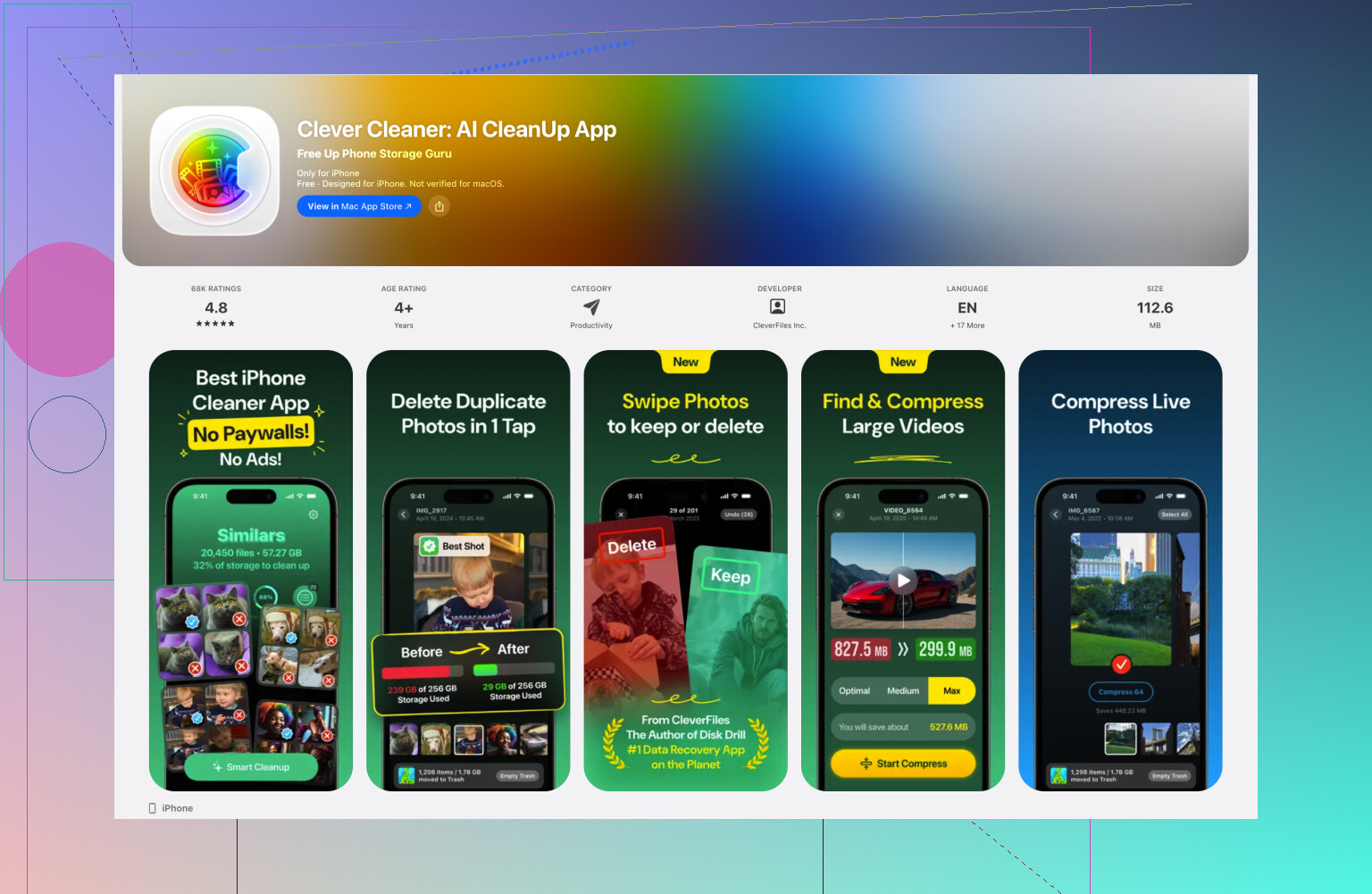
Honestly, I would not do Apple’s duplicate trick unless you’ve only got a small batch. @mikeappsreviewer and @andarilhonoturno already touched the main issue: duplicating first is backwards when storage is already tight.
What worked better for me was this:
- review your Live Photos in bulk
- convert them to stills
- then delete the Live originals
- empty Recently Deleted
- wait for iPhone storage to recalculate because iOS is kinda slow about it
If you want to stay on the iPhone, Clever Cleaner is probly the least annoying option. It’s one of the few iPhone cleanup apps that actually handles Live Photos in a useful way instead of just showing you duplicates and saying “figure it out yourself.” The Live Photo cleanup is the point here, not generic junk cleaning.
Also, tiny warning: “compress” and “convert” are not always the same thing in apps. I’d double-check a few photos first so you make sure it’s keeping the still frame you want. That’s the part people forget, then get mad later.
If you want another resource, this video explains how to convert Live Photos into still images with an iPhone cleaner that actually supports it.
And yeah, after cleanup, turn Live Photos off in Camera and enable Preserve Settings, or your iPhone will helpfully keep doing the exact thing you didn’t want. Classic Apple stuff.
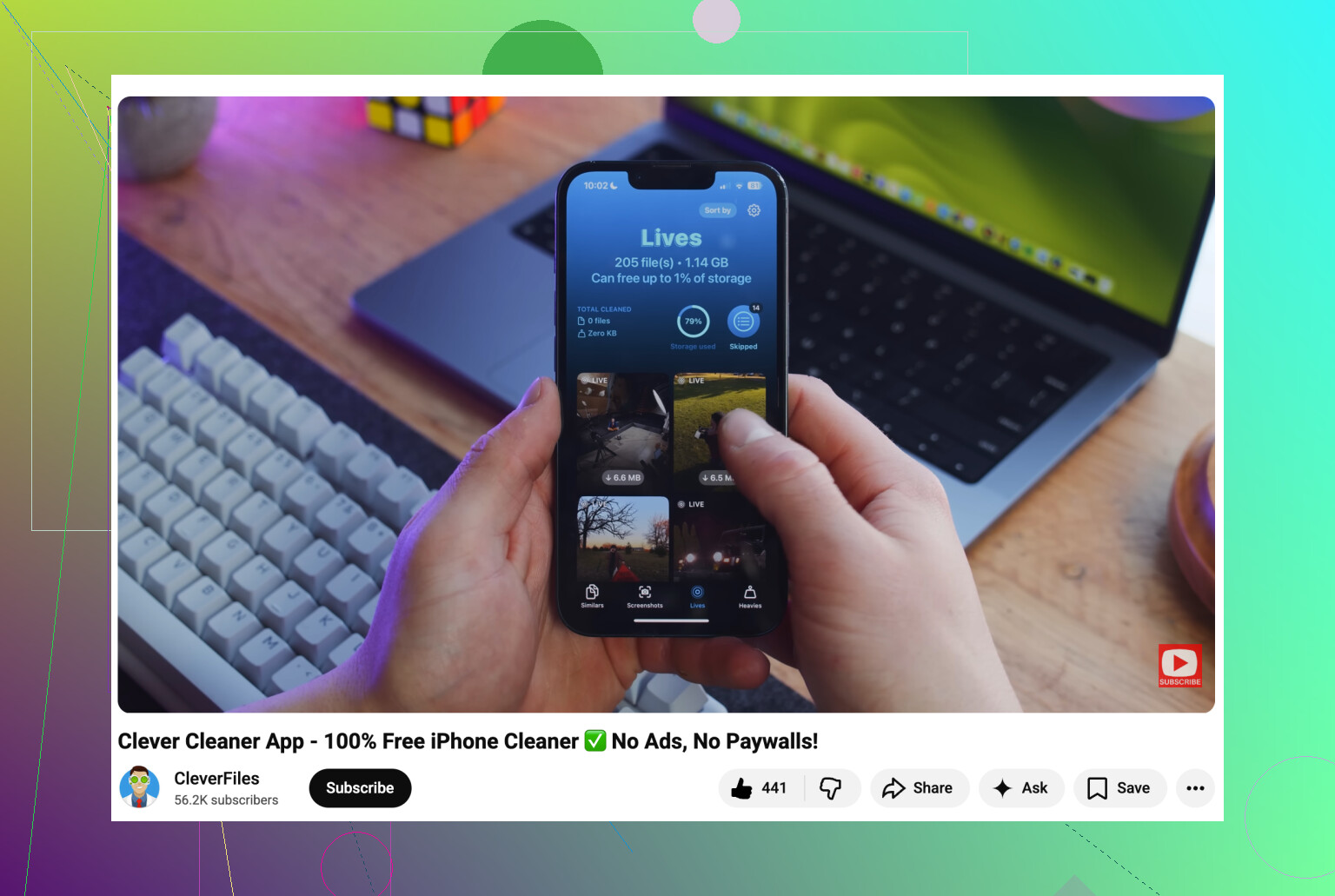
I’d avoid the duplicate-as-still trick unless you only have a tiny batch. On a nearly full iPhone, making extra copies first is the exact opposite of helpful, so I’m with @andarilhonoturno and @mikeappsreviewer on that part.
One angle nobody mentions enough: if these Live Photos are in iCloud Photos, deleting the originals after conversion affects every synced device. Good for cleanup, bad if you expected the Live version to stay on your Mac or iPad. Check a few first.
If you want the all-on-iPhone route, Clever Cleaner is probably the least annoying option.
Pros
- bulk handles Live Photos
- simpler than building a Shortcut
- shows space savings before cleanup
Cons
- still smart to test on a small batch first
- app-based cleanup means granting photo access
- frame choice may not match your favorite Live moment every time
Also, after deleting, restart Photos and give storage time to recalculate. @techchizkid is right that iOS can lag there.