I need help recovering a PST file from an external hard drive after Outlook stopped opening it and now the file seems missing or corrupted. It has important emails, contacts, and archived folders I need for work, and I’m not sure if the problem is with the drive, the PST file, or Outlook itself. Looking for the best way to recover a PST file from an external drive without losing data.
I ran into this once, and yeah, Outlook throws the dumbest message for it. “File cannot be found” usually means the PST got moved, deleted, or replaced after some cleanup session in Documents, Downloads, or an old archive folder. If this happened a minute ago, stop writing stuff to the PC.
Reason is simple. Windows often removes the entry first and leaves the data sitting there until new files take over the space. So every install, update, browser tab cache, and saved file raises the odds of stomping on the old PST.
What I’d do first
1. Check the easy spots before you do anything fancy
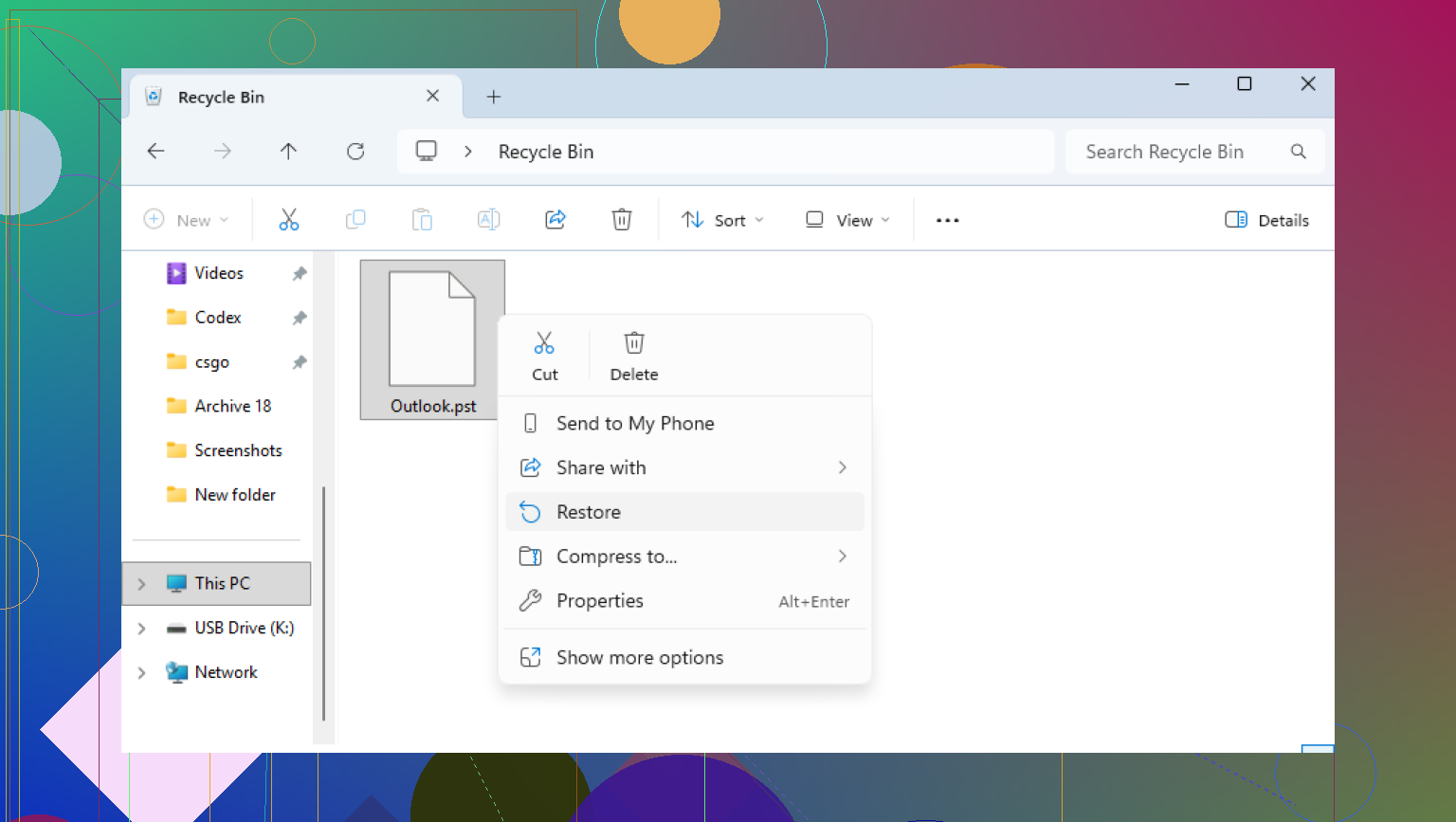
Open the Recycle Bin. If you deleted it the normal way, you might get lucky and restore it in seconds. If you used Shift+Delete, then skip this part, it never touched the bin.
Then check your cloud accounts in the browser, not only on the desktop app. OneDrive, Dropbox, Google Drive, all of them keep deleted items for a while. Look through trash, deleted files, and version history. I’ve seen files turn up there when I was sure they were gone.
2. Try Windows previous versions
Sometimes Windows kept an older copy of the folder through restore points or shadow copies. It depends on how your machine was set up.
The usual folder is:
C:\Users\YourName\Documents\Outlook Files
Right-click the folder where the PST used to live. Pick “Restore previous versions.” If you see an older snapshot from before the delete, open it and copy the PST out to somewhere safe first. Don’t restore over stuff blindly. I did once. Bad idea.
3. Recovery software is next
If the bin is empty and previous versions show nothing, then you’re in deleted-file territory. At this point, recovery software is the practical move.
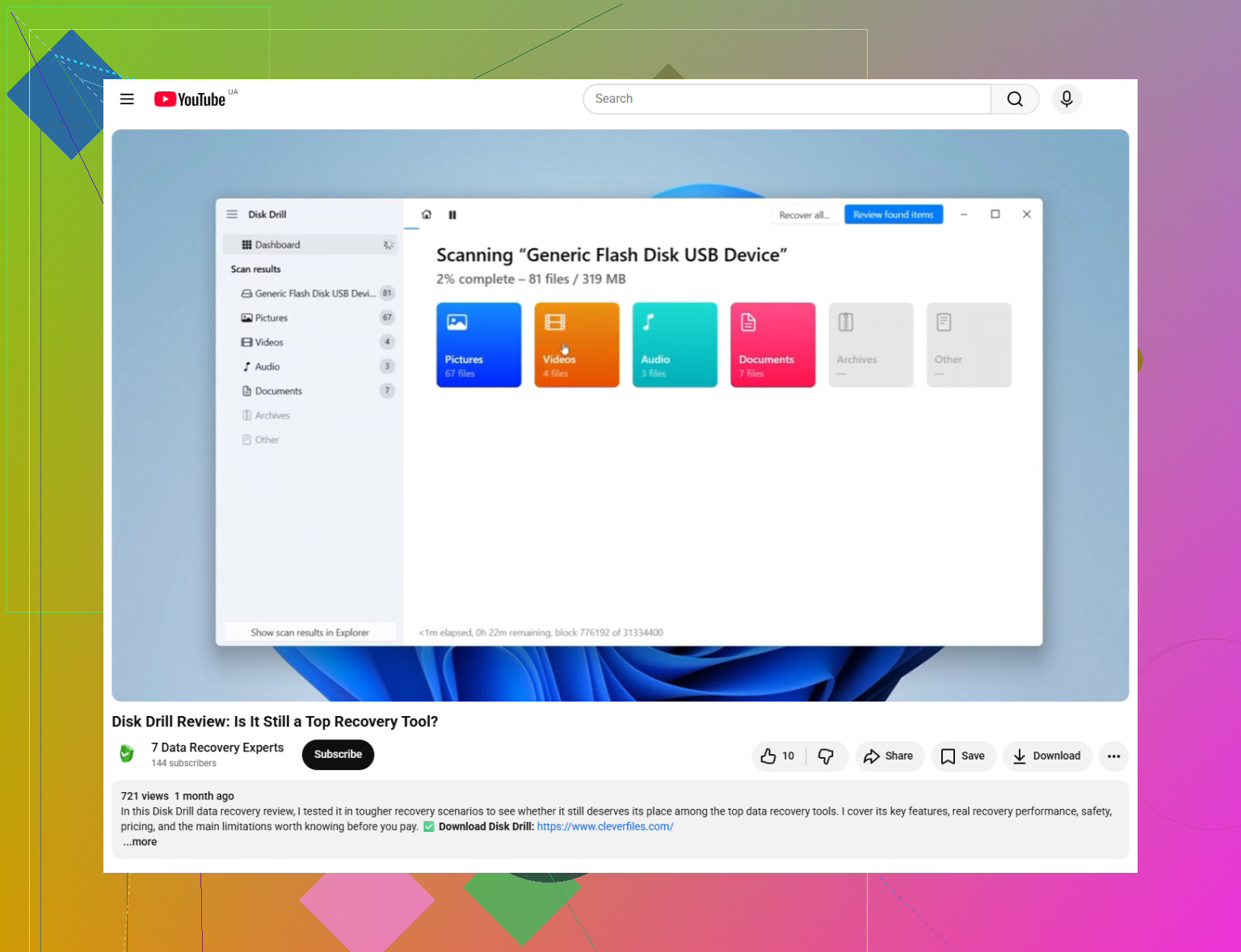
I’d use Disk Drill or something in the same lane. The point is to scan the drive directly and look for deleted entries Windows no longer lists. PST files are often easier to spot than random docs because they tend to be big.
The order matters here:
Install the recovery tool on another drive or a USB stick if you have one. Don’t dump it onto the same drive unless you have no other choice.
Scan the system drive, usually C:.
Filter for .pst files, or search by extension.
Watch the file sizes. Tiny PST files, like a few hundred KB, are often fresh empty files Outlook made after the old one vanished. The one you want is more likely hundreds of MB or a few GB.
Recover anything promising to a different location. Desktop is fine. External drive is better. Don’t put it back into the original folder yet.
4. Outlook might have made a fake replacement
This part trips people up. Outlook often creates a new empty data file after it loses the original. The name looks normal enough, something like “My Outlook Data File,” so it feels like the right one until you open it and see nothing in there. Been there.
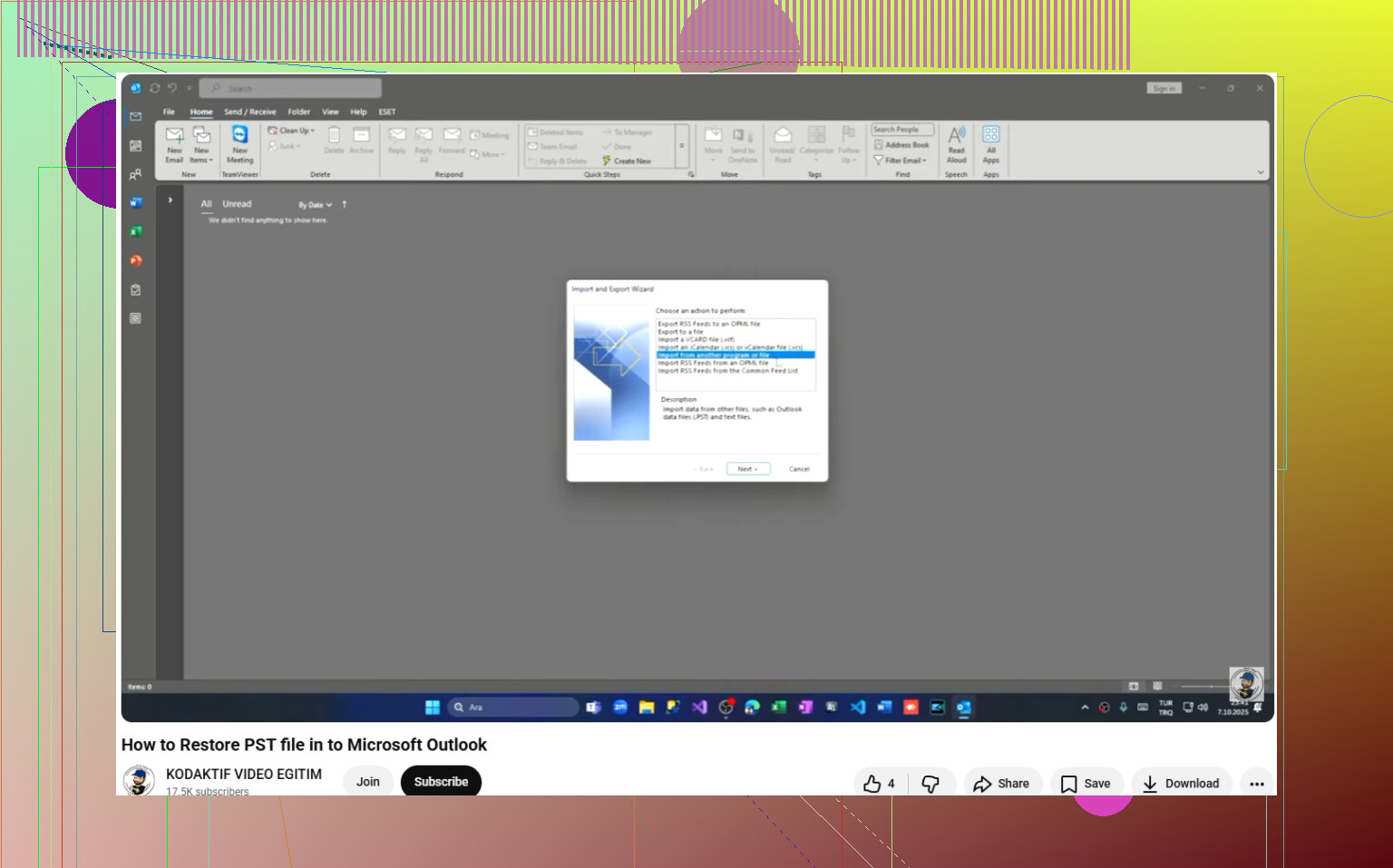
After you recover the older PST, open Outlook and use:
File > Open & Export > Open Outlook Data File
Load the recovered PST manually. If it’s the right one, your old folders should show up in the left pane. Check the contents first. After that, go into Account Settings and point Outlook back to the recovered file as the default data file.
5. If your account uses IMAP, don’t mix up server mail with local mail
If this is Gmail, Yahoo, Comcast, or another IMAP account, your inbox and server folders might still exist online. In those cases, removing and adding the account again often rebuilds a fresh OST and pulls mail back down.
What it does not always bring back is the local-only stuff. Old archives, custom folders, side folders you made for projects, and anything stored only on the computer, those often lived inside the missing PST. So if those matter, the PST recovery still matters.
After you get it back
Move the PST into a place your backup system covers, or copy it to an external drive on a schedule you’ll stick to. Outlook files get huge and people forget they hold years of mail until one goes missing. I learned this the annoying way.
If the scan finds a large PST, I’d take that as a good sign and recover it first.
9 Likes
If the PST lived on the external drive, I’d treat this as a drive health problem first, not only a deleted file problem. I slightly disagree with @mikeappsreviewer on one point. I would not start with Outlook at all. If the drive is dropping off, reconnecting it over and over is how files get worse.
What I’d do:
-
Stop using the external drive.
Copying new stuff to it lowers recovery odds. -
Check if the drive shows SMART errors.
Use CrystalDiskInfo or your drive maker’s tool. If health looks bad, clone the drive first, then work from the clone. Big deal for PST files, since they are often 2 GB to 20 GB and corruption hits hard. -
Search for renamed PSTs.
On the external drive, search for:
*.pst
*.tmp
*.bak
Sometimes Outlook leaves temp junk or a renamed archive. -
If the file exists but won’t open, run ScanPST.exe.
This is Microsoft’s Inbox Repair Tool. It repairs PST structure. It does not undelete, but it helps when the file is present and broken.
Typical path:
C:\Program Files\Microsoft Office\root\Office16\SCANPST.EXE -
If the file is missing from the external, use recovery software on that external drive, not your C: drive.
Disk Drill is a solid pick for PST recovery from external hard drives. Recover the found file to a different disk, not back to the same external. That part matters a lot, ppl skip it and regret it. -
If Disk Drill finds multiple PSTs, sort by size and modified date.
A 265 KB PST is usally junk.
A 4.8 GB PST with your old modified date is the one I’d test first. -
After recovery, open the PST in Outlook as an extra file first.
Do not set it as default right away. Check folders, contacts, and sent mail.
If you want a clean walkthrough, this step by step Disk Drill PST recovery guide is easier to follow than random forum posts.
If the PST was on the external drive, I’d actually check one boring thing before doing more recovery stuff: whether Outlook was opening a shortcut path or drive letter that changed. External drives love to come back as E: one day and F: the next, and Outlook then acts like the file vanished into the void. Open Control Panel > Mail > Data Files and see if the old path is listed there.
Also, if the file is “missing” but the used space on the external drive still looks about the same, that sometimes means the directory entry got messed up, not the whole file. In that case I’d avoid chkdsk right away. Some people run it too early and it can turn a messy file system into a neat pile of fragments. Not always, but enough that I don’t like using it first.
@hoshikuzu is right about treating this like a drive issue first, and @mikeappsreviewer is right about watching for Outlook creating a fake new empty PST. My extra step would be this:
- plug the drive into a different USB port/cable or another PC
- check Disk Management to see if the partition looks normal
- if the PST appears but errors on copy, use something like TeraCopy or Roadkil Unstoppable Copier to pull it off
- copy the whole drive contents you can still read before testing Outlook again
If the file truly isn’t there, then yeah, scan the external with Disk Drill and recover to a different disk. After that, don’t double click the PST first. Make a copy of the recovered file, keep one untouched, then test the copy with ScanPST. Saves headaches if the first repair goes sideways.
For the Outlook side after recovery, this guide is actually pretty on point: how to open a recovered PST file in Outlook and restore your mail
One more thing ppl forget: if the PST was on an external drive all the time, that setup itself is kinda risky. Outlook PSTs do not love flaky USB disconnects. That’s how they get corrupted in the first place alot of the time.
One angle I’d add that @hoshikuzu, @mike34, and @mikeappsreviewer only touched indirectly: check whether the PST was actually turned into a Lost Files / FOUND.000 situation. If the external drive had a dirty disconnect, Windows can orphan large files without fully deleting them. Use a file recovery tool that supports raw signature search for PST/OST-sized containers, not just filename-based recovery.
Also, I slightly disagree with trying too many reads from the original disk if it’s clicking, disconnecting, or hanging Explorer. In that case, even copying “what you can” can be risky unless the drive is stable enough.
For recovery software, Disk Drill is a sensible option here because it can scan external drives and often finds deleted or lost PSTs even when the original folder entry is gone.
Disk Drill pros
- easy to filter by
.pst - good for external drives and lost partitions
- preview/recovery workflow is simple
- can find files by signatures, not only filenames
Disk Drill cons
- deep scans can take a long time on big drives
- recovered filenames/folder structure may be messy
- if the drive is physically failing, software alone is not magic
One more practical tip: if the recovered PST opens but some folders are empty, try importing it into a new blank PST instead of using it directly forever. Sometimes that salvages mail Outlook won’t index properly from a damaged archive.
And after this, I would stop keeping active PSTs on USB storage at all. Archives, maybe. Live Outlook data, bad gamble.