My iPhone storage is almost full, and it keeps popping up warnings that I’m running out of space. I’ve already deleted a bunch of photos and unused apps, but it barely made a difference. I use my phone for work, photos, and videos, so I really need to clear space without losing important stuff. What are the most effective ways to free up storage on an iPhone and keep it from filling up so fast?
Happens a lot. Photos and apps are only part of the mess. iOS hides a ton of stuff in system, messages, and cached data. Here is what usually frees the most space fast.
- Check what eats space
Settings → General → iPhone Storage.
Wait a bit. Let it load.
Look at:
- System Data
- Messages
- Media apps like WhatsApp, TikTok, Instagram, Gmail, Slack, etc.
- Messages: huge space hog
Go to Settings → Messages → Keep Messages.
Set to 1 Year or 30 Days.
Then in Messages app:
- Tap each big group chat or thread
- Tap contact name → Info → scroll to Photos / Videos → See All → Select → delete big stuff
This alone frees multiple GB for many people.
-
Offload unused apps instead of deleting data
Settings → General → iPhone Storage → Enable “Offload Unused Apps”.
iOS removes the app, keeps the documents.
Icon stays with a little cloud icon.
When you tap, it reinstalls.
Good for big apps you rarely open. -
Clear heavy app data
Some apps have huge caches.
Check each big one in Settings → General → iPhone Storage → tap the app.
Options:
- If you see “Clear Cache” or similar inside the app’s own settings, use that.
- If the Documents & Data is massive and there is no cache option, delete the app, reinstall it, log in again.
Common offenders: Instagram, Facebook, TikTok, Spotify, Podcasts, Gmail, Outlook, Telegram.
- Photos clean up the smart way
You removed photos already, so check:
- Photos → Albums → Recently Deleted → delete all.
- Photos → Albums → Videos, Slo-mo, Screen Recordings, Bursts, Live Photos. These eat more space.
Turn on Optimize iPhone Storage:
Settings → Photos → iCloud Photos ON → Optimize iPhone Storage.
Full-size files move to iCloud, your phone keeps smaller versions.
- Clean WhatsApp and similar
WhatsApp → Settings → Storage and Data → Manage Storage.
Sort by largest and delete:
- Forwarded videos
- Old groups
- Duplicates
You can also turn off auto-save to Photos.
- Remove offline downloads
Check:
- Spotify / Apple Music: remove offline playlists, albums.
- Netflix / YouTube / Prime Video: remove downloaded videos.
- Google Maps: remove offline maps you do not use.
These downloads often eat 5 to 20 GB.
- Email and files
Mail:
- In Mail settings, reduce “Mail Days to Sync” if you use Exchange / work mail.
Files: - Open Files app → On My iPhone → delete old PDFs, zips, exports.
- Empty Recently Deleted in Files too.
- System Data bloat
You cannot control it fully, but you can shrink it:
- Restart the phone.
- Update to the latest iOS.
- If it is insanely high and nothing helps, backup to iCloud or computer, then reset and restore. This is more work but often frees several GB.
- Use a cleaner app when you do not want to hunt manually
For quick cleanup of duplicate photos, similar shots, burst spam, and screenshots, an app helps a lot.
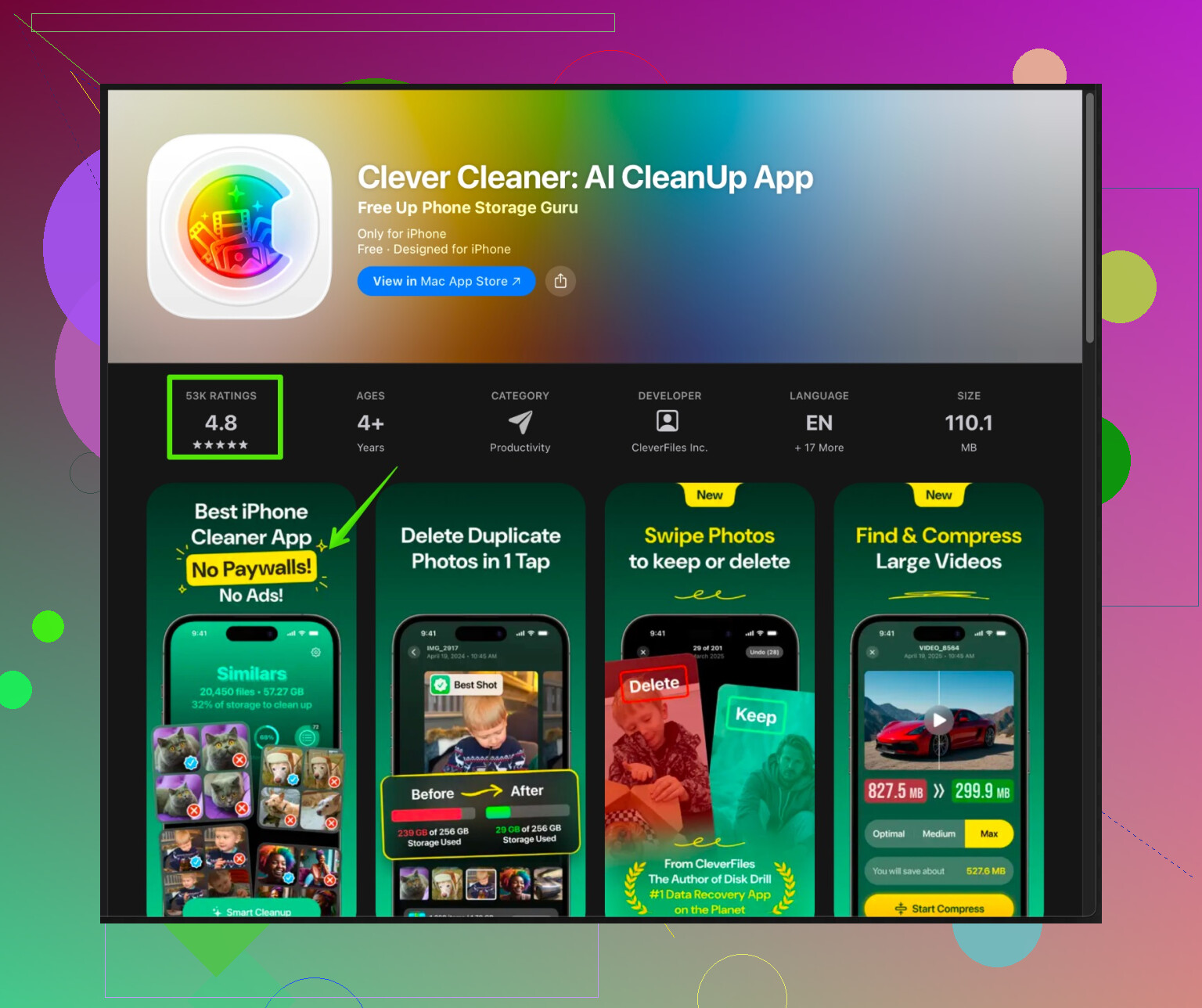
The Clever Cleaner App for iPhone focuses on:
- Finding duplicate and similar photos
- Grouping screenshots and screen recordings
- Highlighting big videos and clutter
- Cleaning contact duplicates
Try something like
Clever Cleaner App with smart iPhone storage cleanup
It automates a lot of the boring parts and helps get back a few extra GB if your gallery is huge.
Order of attack I suggest:
- Messages and WhatsApp media
- Video downloads and music downloads
- Photo optimization and dupes via an app like Clever Cleaner
- Heavy app caches via delete and reinstall
Do the first two and you usually see real space freed, not a tiny change.
You’re on the right track already. Deleting random photos and a couple apps usually barely scratches the surface because iOS hoards stuff in less obvious places. @boswandelaar covered a ton of the “usual suspects,” so I’ll try not to repeat all that and focus on other levers you can pull.
Some things I’d do differently and a few extra angles:
- Tame work apps first, not photos
Since you use the phone for work, check your “document” type apps:
- Teams / Slack / Zoom / Drive / OneDrive / Dropbox / Notion / Docs
Open each app’s settings and look for:- “Offline files”
- “Cache” or “Clear temporary data”
- “Keep recent files only”
Turn off auto offline sync on big shared folders. Those alone can sit on 5–10 GB if your org loves giant PDFs and PowerPoints.
- Podcasts and voice notes are sneaky monsters
People clear Spotify/Netflix and forget:
- Apple Podcasts or Spotify podcasts
In the Podcasts app:- Settings → limit episodes per show
- Turn off “Download Episodes” for shows you just stream
- Delete played downloads
- Voice Memos
Long meetings, interviews, lectures… they’re huge.- Open Voice Memos, sort by “Longest” and nuke what you don’t need.
- For work memos you must keep, export them to cloud storage and remove the local copy.
- Don’t go too crazy with Messages auto delete
Tiny disagreement with @boswandelaar here: setting Messages to “30 Days” is great for space, but it can be a nightmare if you ever need to pull an old work convo, code, or client detail.
Compromise:
- Keep it at 1 Year, not 30 Days, if your work depends on text history.
- Just mass delete huge threads that you know are trash:
- Family meme groups
- Big group chats full of videos
- Safari and browser bloat
Not as huge as videos, but sometimes worth a quick cleanup:
- Safari
Settings → Safari → Clear History and Website Data. - Chrome / Firefox / Edge
Inside the app: Settings → Privacy → Clear cached images and files.
This can also make the phone feel a bit snappier.
- File exporters and “one‑off” apps
If you use:
- Scanner apps
- Photo editing apps
- PDF editors / signers
They often keep every export and every version. - Open the app, look for an “All Documents” or “Projects” list.
- Sort by size if possible, delete old scans, edits, drafts.
Some scanner apps are sitting on hundreds of hi‑res PDFs and people have no idea.
- iCloud Drive & “On My iPhone” confusion
Even with iCloud, stuff still sits locally:
- Open Files app
- Tap “On My iPhone” and check all folders
- Many apps stash logs, exports, and backups there
- Delete anything obviously old like “export_final_v3_really_final.pdf”
- Then check iCloud Drive folders that are marked to “Keep Offline” in certain apps and turn that off when not needed.
- For photographers: shoot lighter
If you’re into photos:
- Turn off ProRAW and 4K60 unless you’re really using them. Those files are huge.
- For casual stuff, 1080p video is usually enough. Switch on the fly in Camera settings.
- System Data: don’t immediately nuke your phone
People see “System Data” at 20+ GB and panic. Before you go full factory reset:
- Try:
- Hard restart
- Update iOS
- Leave the phone plugged in on Wi‑Fi overnight so iOS can clean itself up
The total reset + restore route does work sometimes, but it’s a pain and overkill if you just need a few extra GB.
- Automate the tedious photo cleanup
You said you already deleted a bunch of photos, but usually the real garbage is:
- Duplicate shots
- Ten slightly different selfies
- Screenshots of random stuff you don’t remember taking
- Massive videos from events or work demos
Doing that manually is awful. This is where a dedicated cleanup app actually earns its keep.
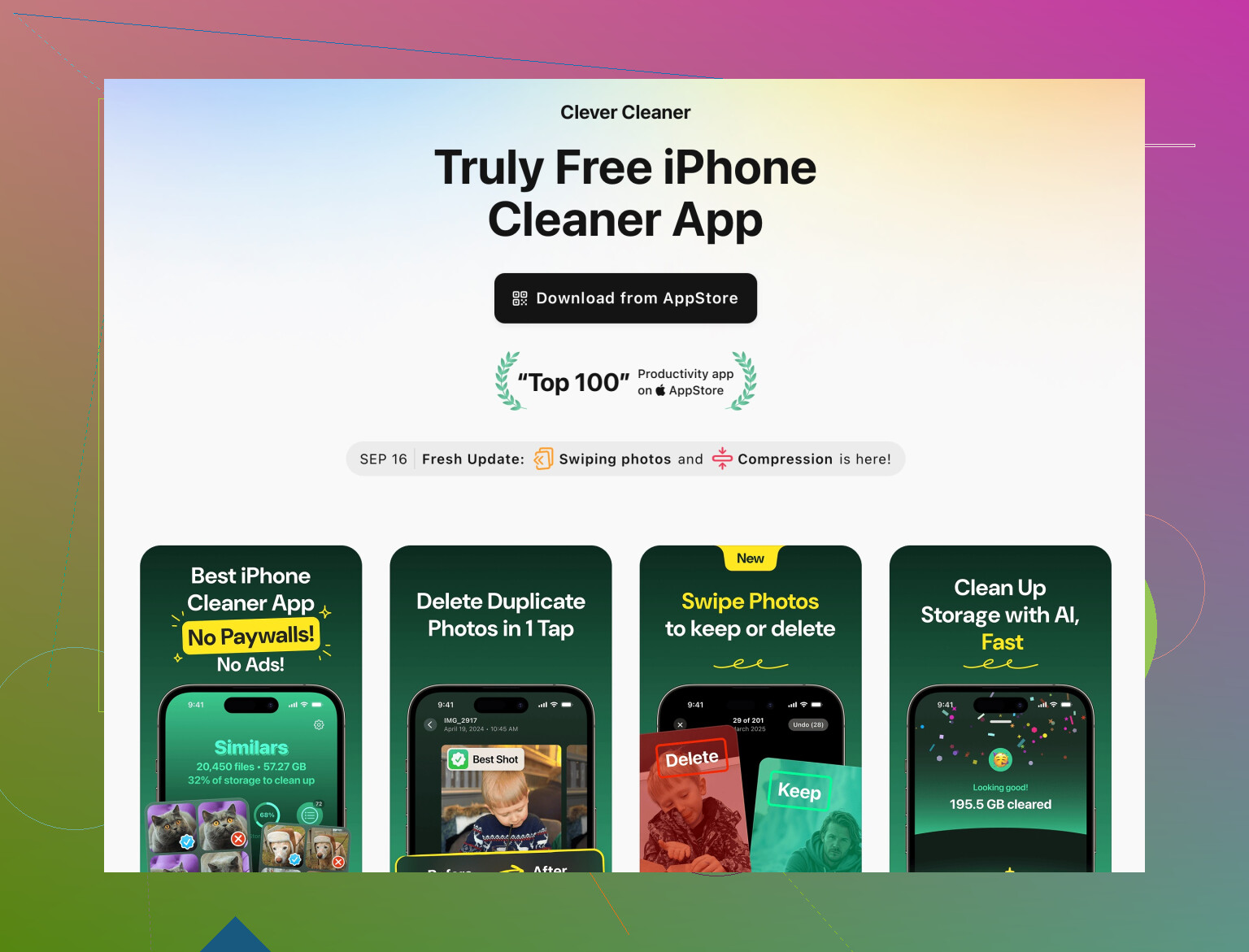
A solid option is the Clever Cleaner App for deep iPhone storage cleanup.
Highlights:
- Finds duplicate and similar photos in batches
- Groups screenshots, screen recordings, and short junk clips
- Surfaces the biggest videos so you can kill the worst offenders first
- Cleans up old/duplicate contacts so your address book isn’t a circus
I’d honestly run something like that once, then maintain with:
- Occasional manual Messages / WhatsApp cleanups
- Watching podcast / download sizes
- Limiting offline stuff in work and media apps
If you hit it in this order:
- Work apps & files
- Podcasts, Voice Memos, and other media downloads
- Files app cruft
- Automated photo cleanup with Clever Cleaner
you should see actual GBs free up instead of that annoying 0.3 GB change after deleting 200 photos.
24 Likes